> ## Documentation Index
> Fetch the complete documentation index at: https://docs.tryprofound.com/llms.txt
> Use this file to discover all available pages before exploring further.
# Akamai Datastream2 Integration
> This documentation explains how to set up Akamai Datastream2 to forward your CDN logs to the Profound Agent Analytics platform.
## Overview
The integration uses Akamai Datastream2 to forward your CDN logs to our Agent Analytics API. Akamai Datastream2 is a service that enables reliable delivery of streaming data to various destinations including HTTP endpoints. For more information about Akamai Datastream2, [visit the Akamai documentation](https://techdocs.akamai.com/datastream2/docs/welcome-datastream2).
## Prerequisites
* An Akamai account with Datastream2 add-on
* Access to your Akamai Datastream2 configuration
* A Profound Log Ingestion Token for Agent Analytics
## Configuration
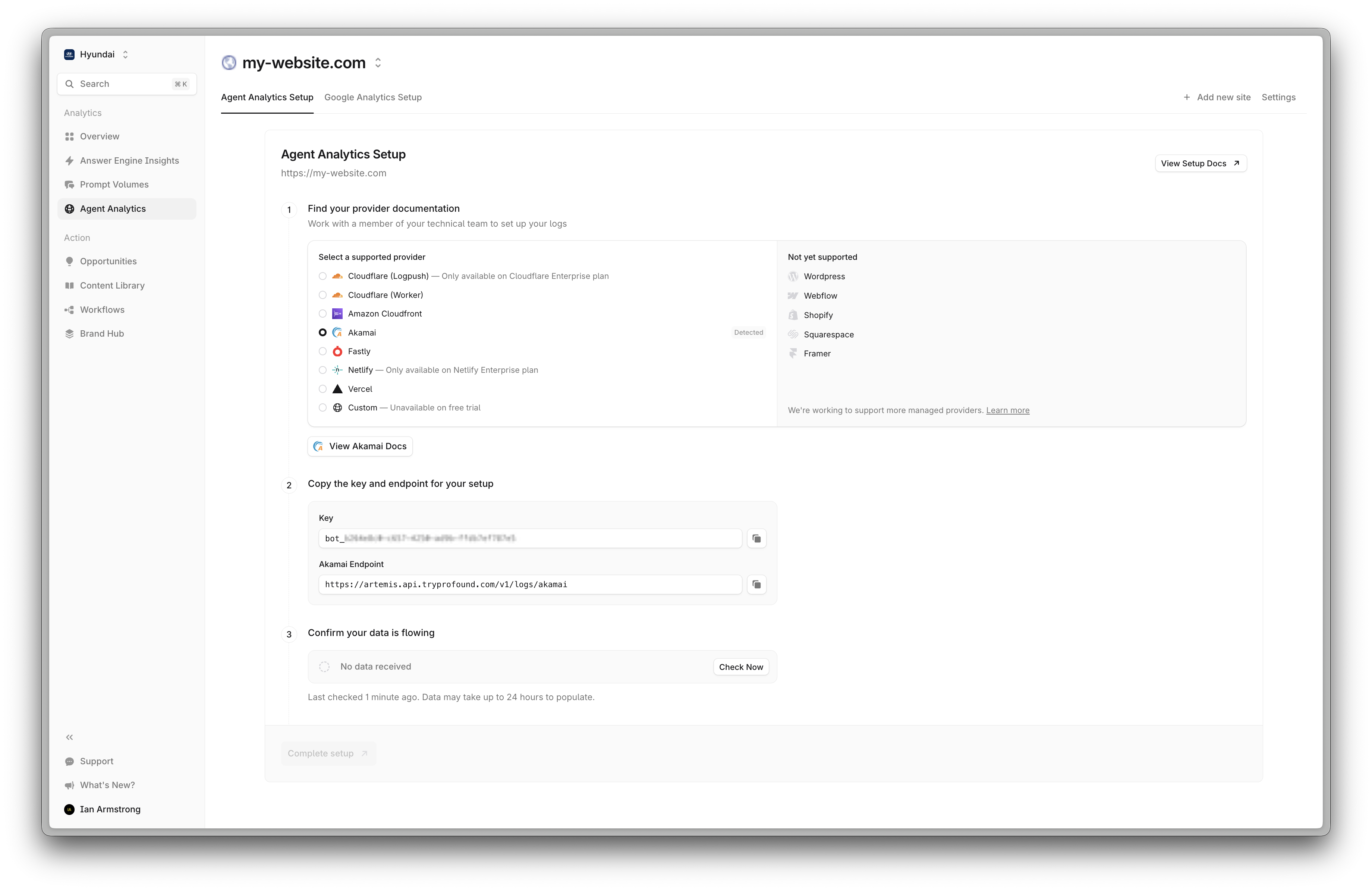 Sign in to Akamai Control Center and navigate to [DataStream](https://control.akamai.com/apps/data-stream-ui/#/streams/group/all) in the left sidebar. Click `Create a stream`
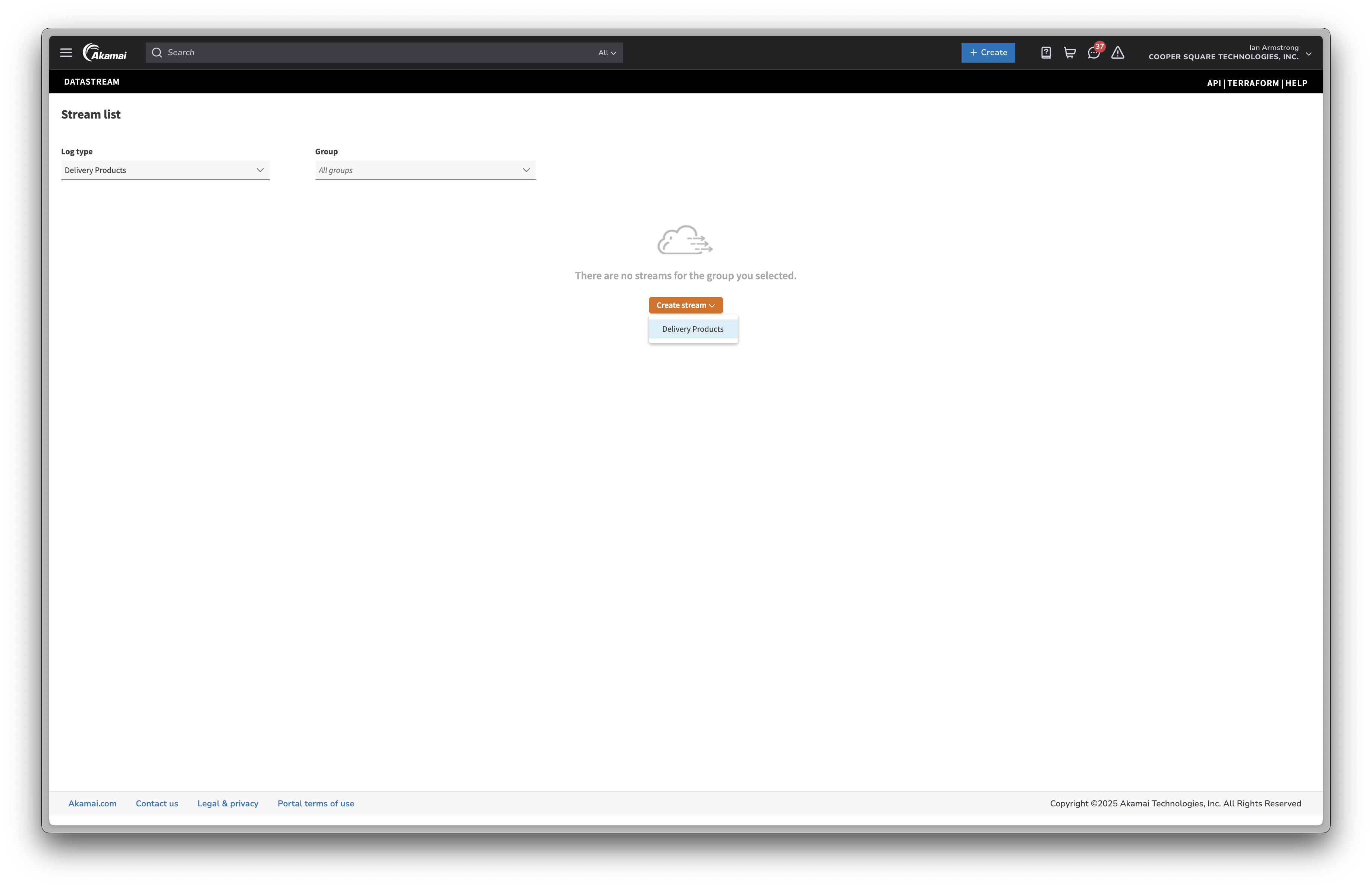 Select your property and click `Next`
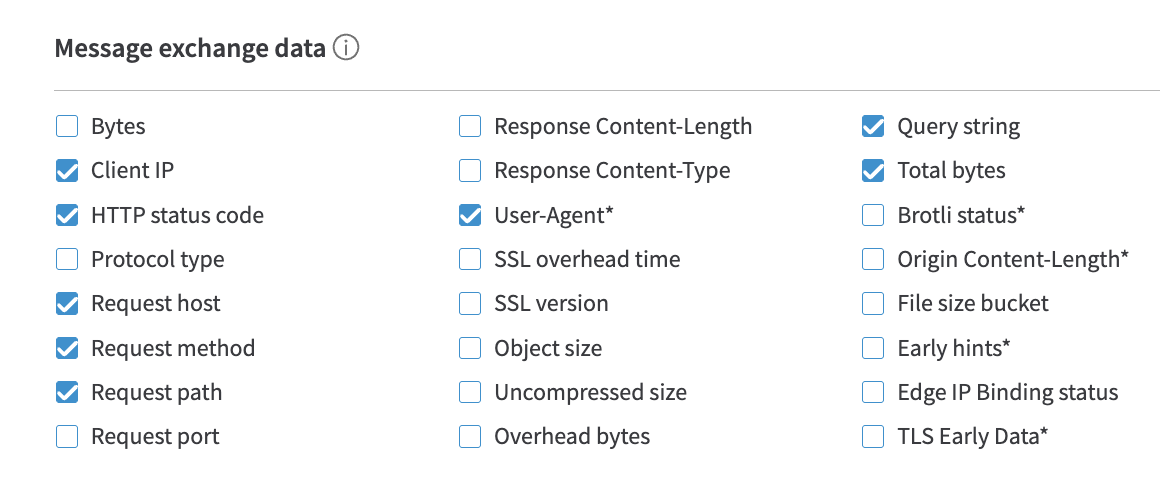
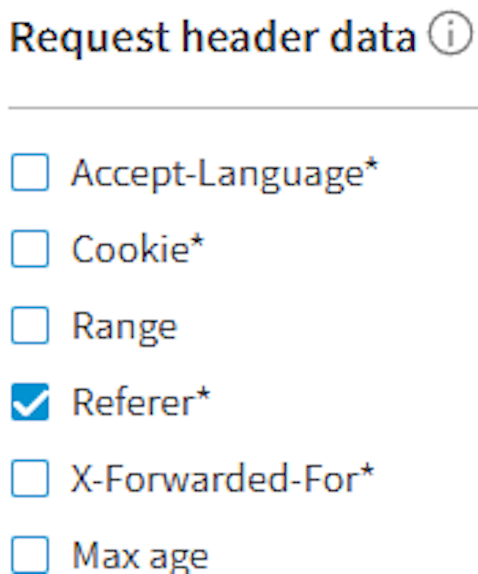
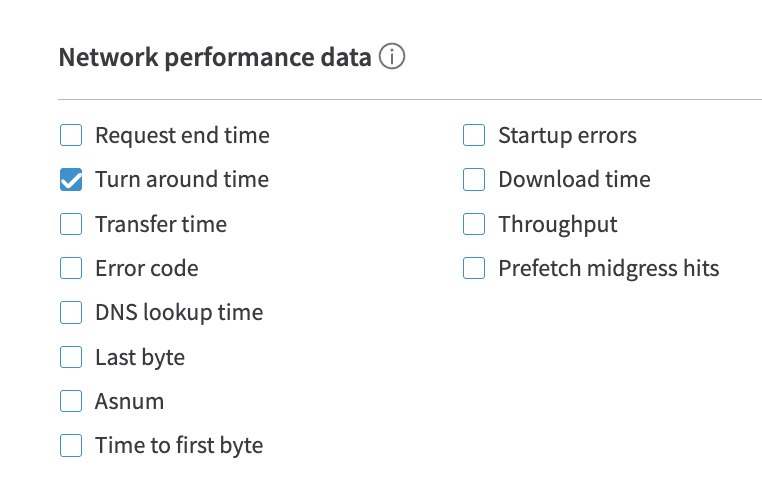
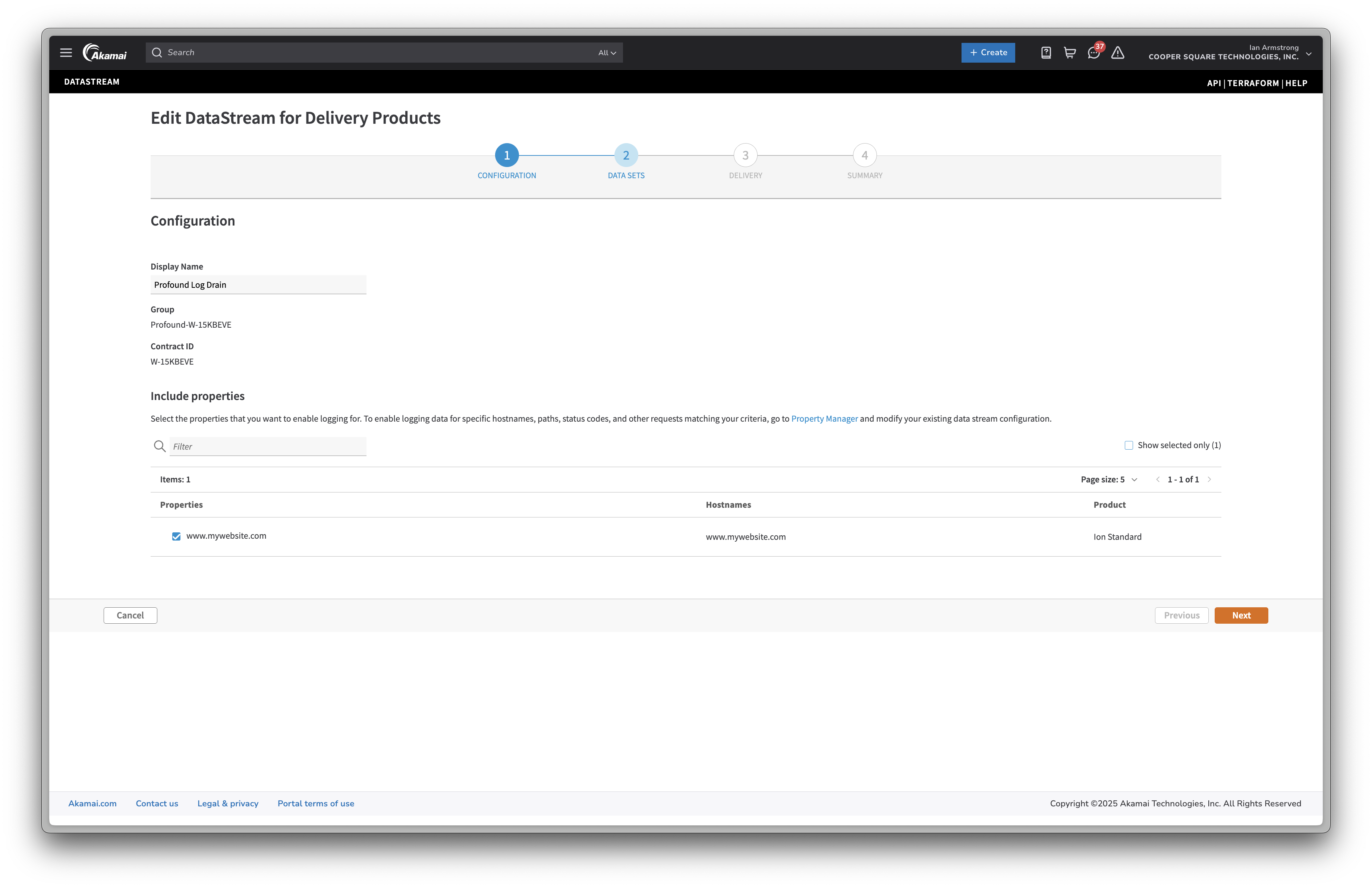 Select the following options in each section:
**Log Information**
Select the following options in each section:
**Log Information**
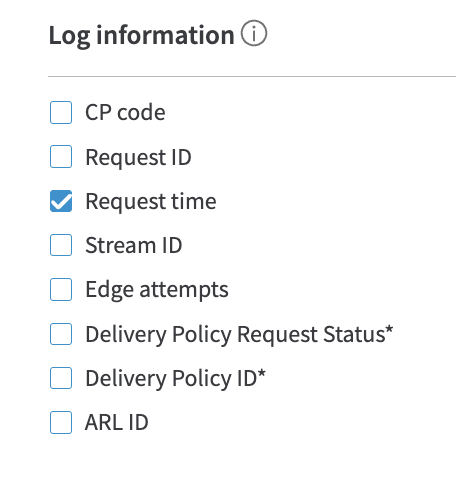 **Message Exchange Data**
 **Request Header Data**
 **Network Data**
 **Log Format**
 Read more about these fields in the [Akamai documentation](https://techdocs.akamai.com/datastream2/docs/data-set-parameters)
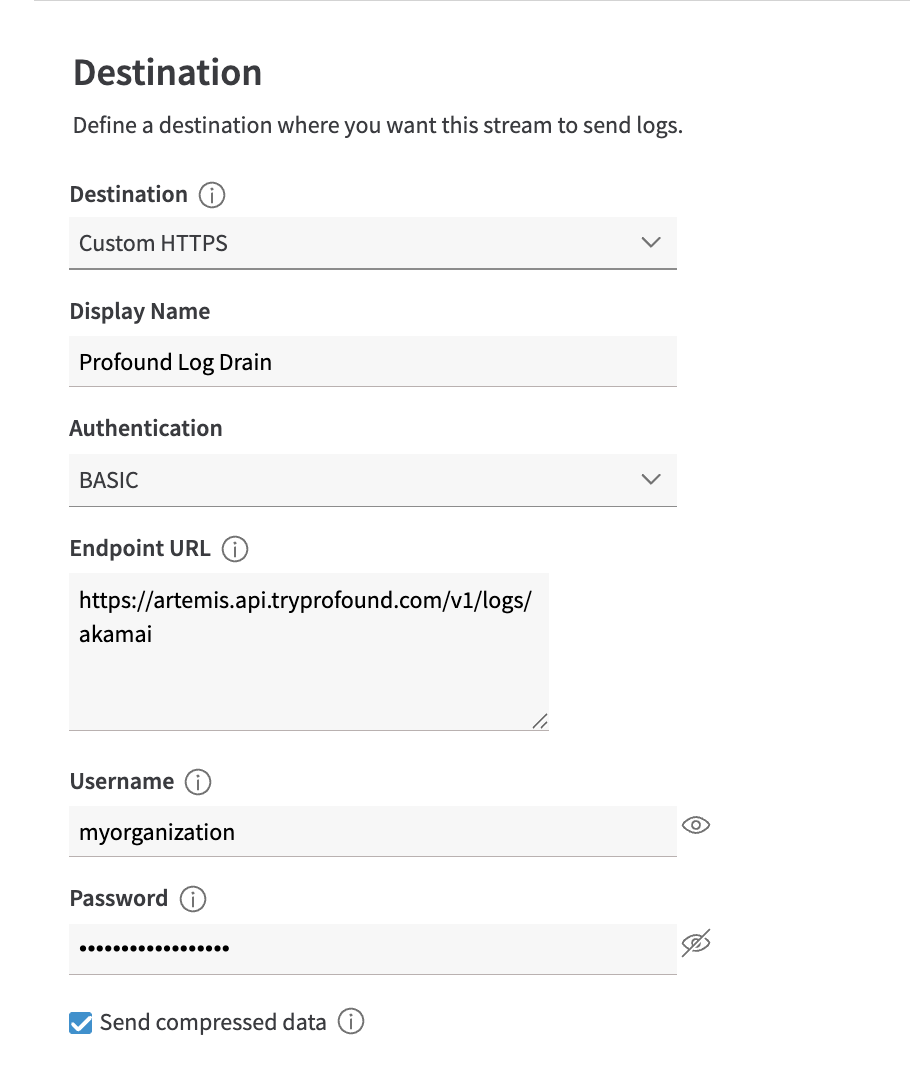
Add authentication information:
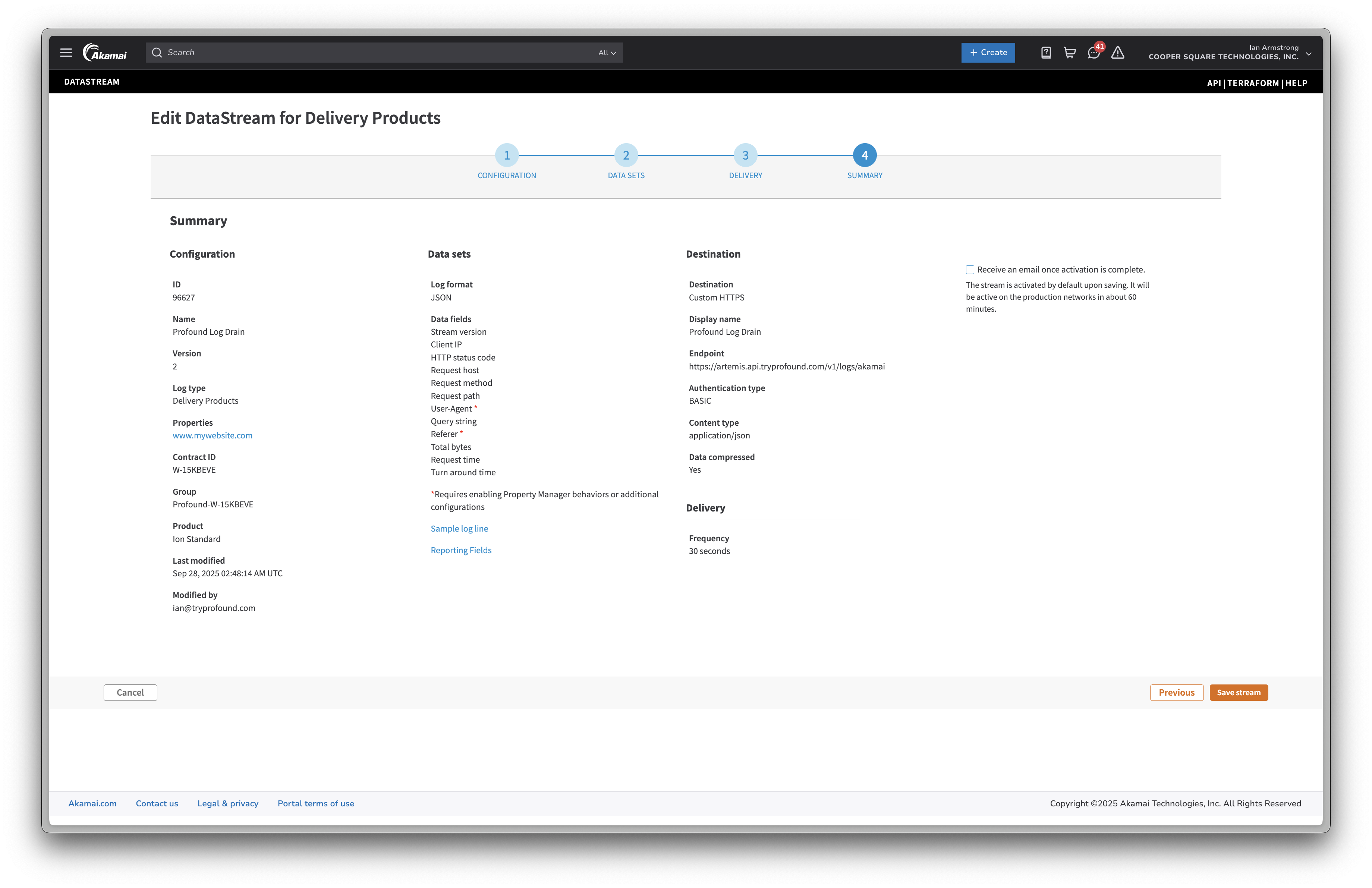
* From the **Destination** dropdown, select **Custom HTTPS**.
* Select **BASIC** as the **Authentication** type.
* Enter `https://artemis.api.tryprofound.com/v1/logs/akamai` as the **URL**.
* Enter your organization name in the **Username** field.
* Enter your Log Ingestion Token in the **Password** field.
* Check **Send compressed data**.
Read more about these fields in the [Akamai documentation](https://techdocs.akamai.com/datastream2/docs/data-set-parameters)
Add authentication information:
* From the **Destination** dropdown, select **Custom HTTPS**.
* Select **BASIC** as the **Authentication** type.
* Enter `https://artemis.api.tryprofound.com/v1/logs/akamai` as the **URL**.
* Enter your organization name in the **Username** field.
* Enter your Log Ingestion Token in the **Password** field.
* Check **Send compressed data**.
 Select **JSON** as the **Log format**.
Choose **30** seconds as the push frequency.
Select **JSON** as the **Log format**.
Choose **30** seconds as the push frequency.
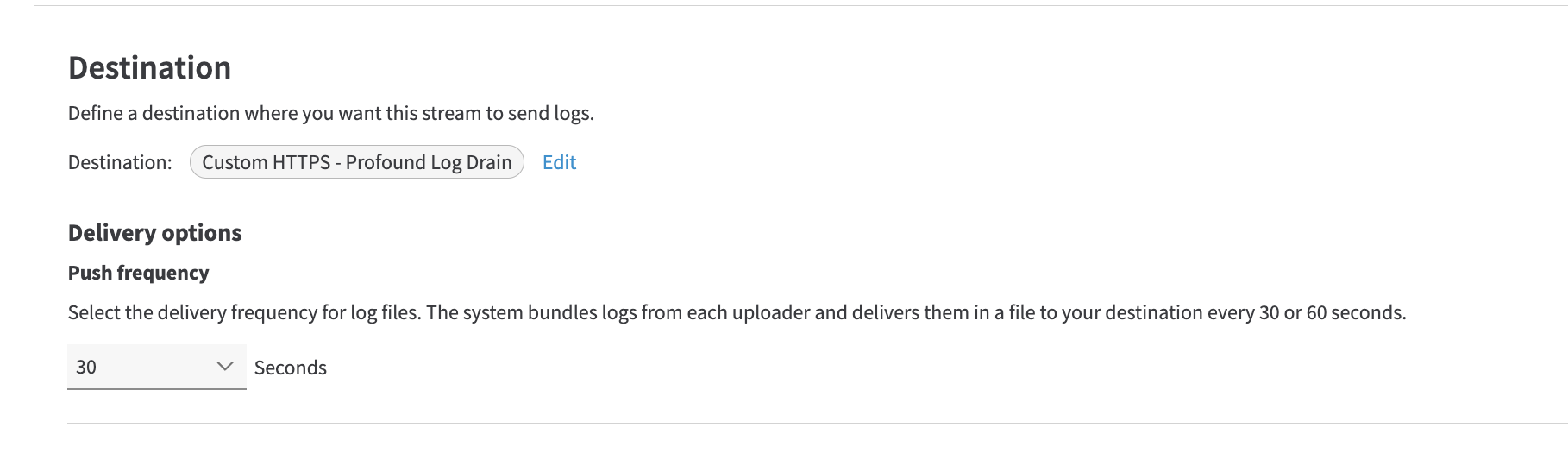 Review the configuration. It should look like the following:
 When ready, click `Save stream`.
DataStream2 takes approximately **60 minutes** to start sending logs.
Please wait for **60 minutes** before checking for logs.
After creating the stream, you will now be instructed to activate the stream.
When ready, click `Save stream`.
DataStream2 takes approximately **60 minutes** to start sending logs.
Please wait for **60 minutes** before checking for logs.
After creating the stream, you will now be instructed to activate the stream.
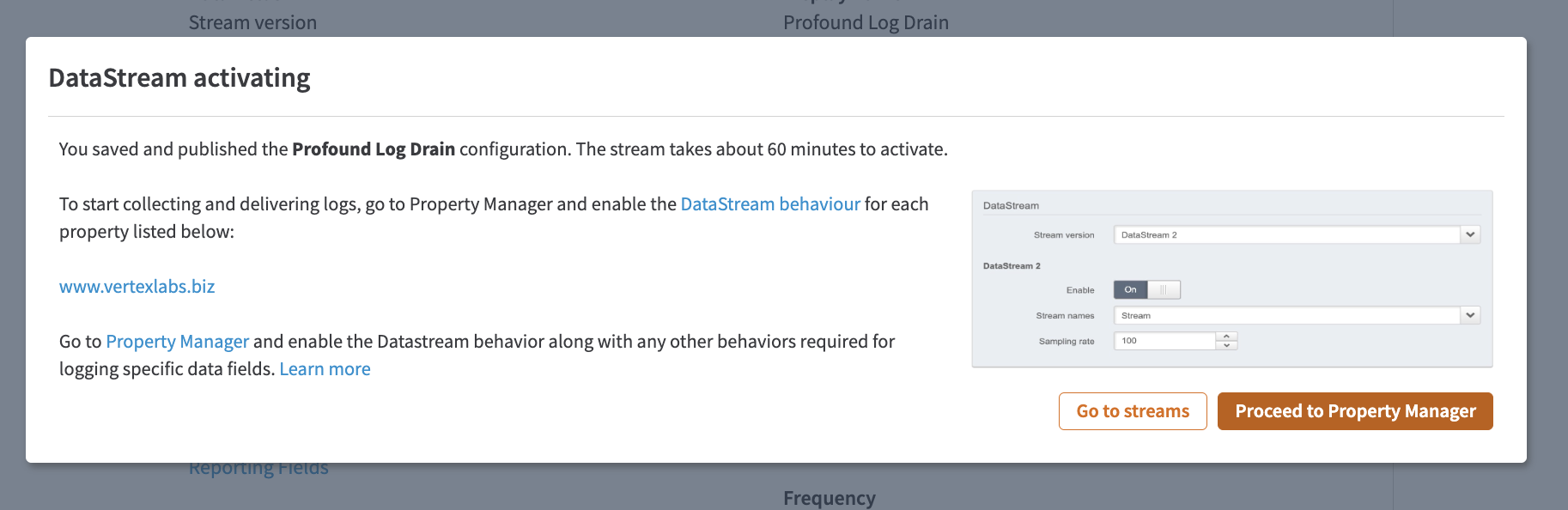 Click `Proceed to Property Manager` and select the property you created the stream for.
Click **Edit a new version** to add the stream to the property.
Navigate to the **Property Configuration Settings**. Select **Standard property behavior** from the `+ Behavior` dropdown.
Click `Proceed to Property Manager` and select the property you created the stream for.
Click **Edit a new version** to add the stream to the property.
Navigate to the **Property Configuration Settings**. Select **Standard property behavior** from the `+ Behavior` dropdown.
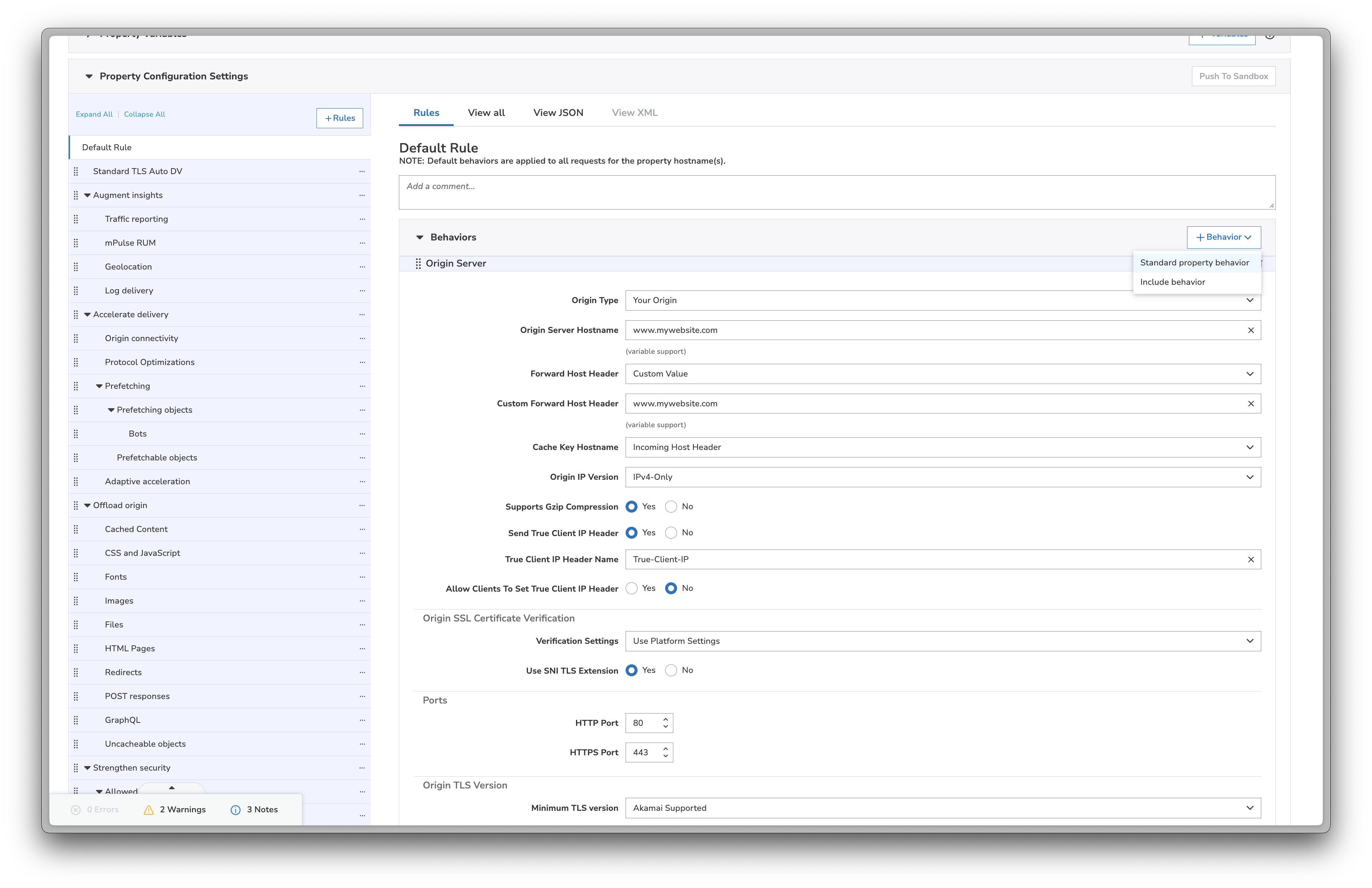 Search for **DataStream** and click `Insert Behavior`
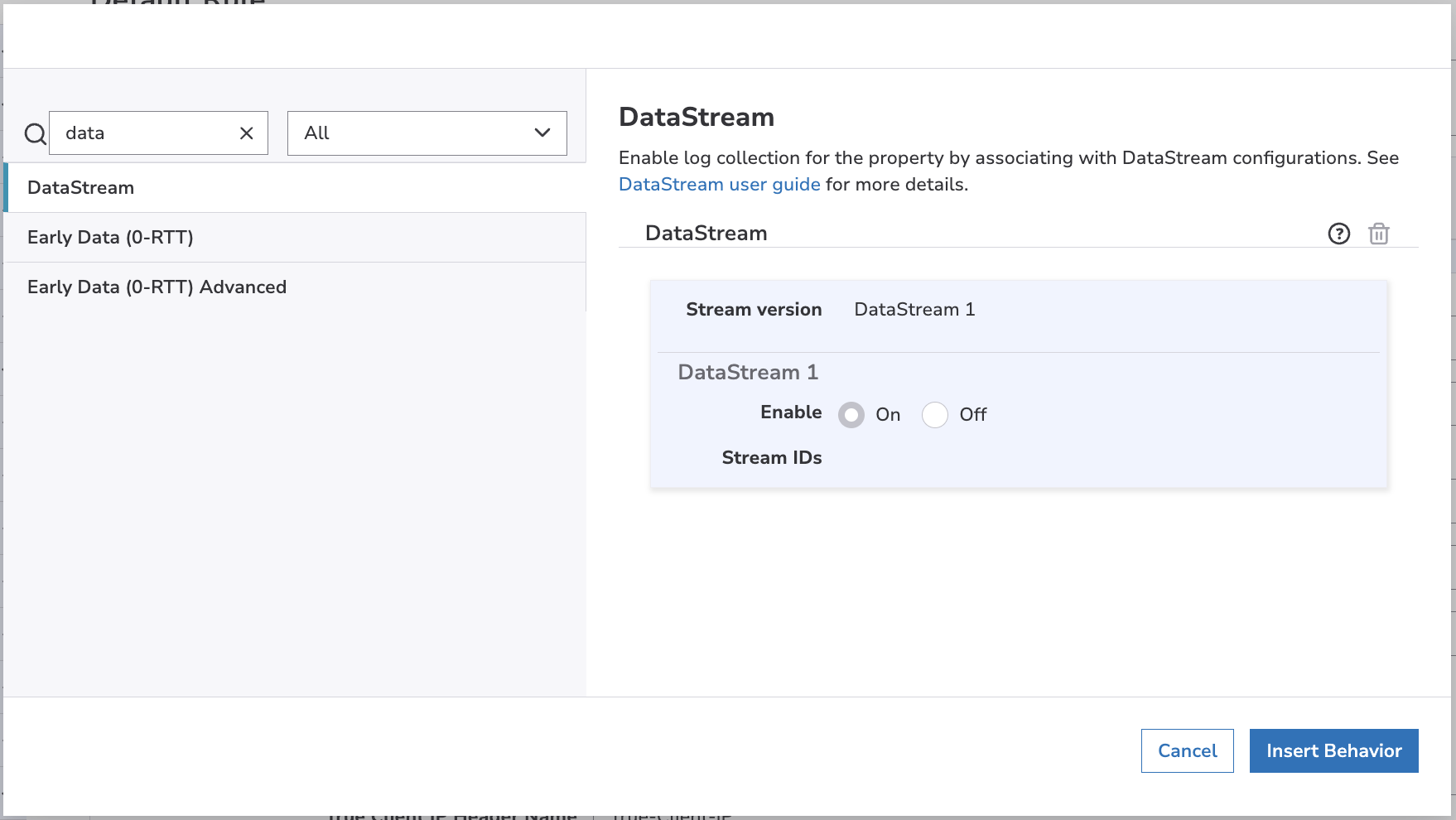 The behavior will show **DataStream 1**. Ignore this as you will select version 2 later.
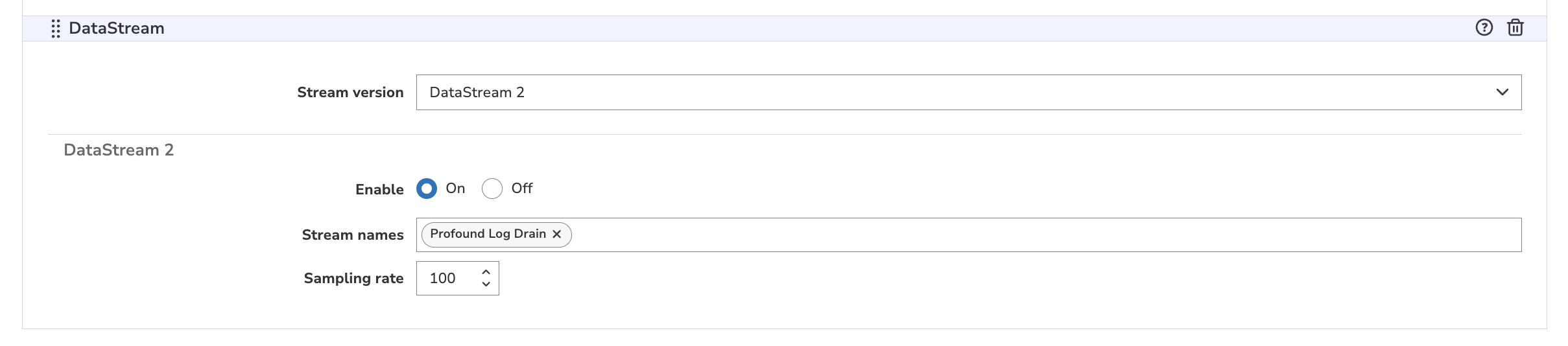
Scroll down to the **DataStream** section and select:
* **DataStream2** from the **Stream Version** dropdown.
* Toggle **Enable** to **On**.
* Select the stream you created in the **Stream Name**.
* Select a sample rate. **100%** is recommended.
The behavior will show **DataStream 1**. Ignore this as you will select version 2 later.
Scroll down to the **DataStream** section and select:
* **DataStream2** from the **Stream Version** dropdown.
* Toggle **Enable** to **On**.
* Select the stream you created in the **Stream Name**.
* Select a sample rate. **100%** is recommended.
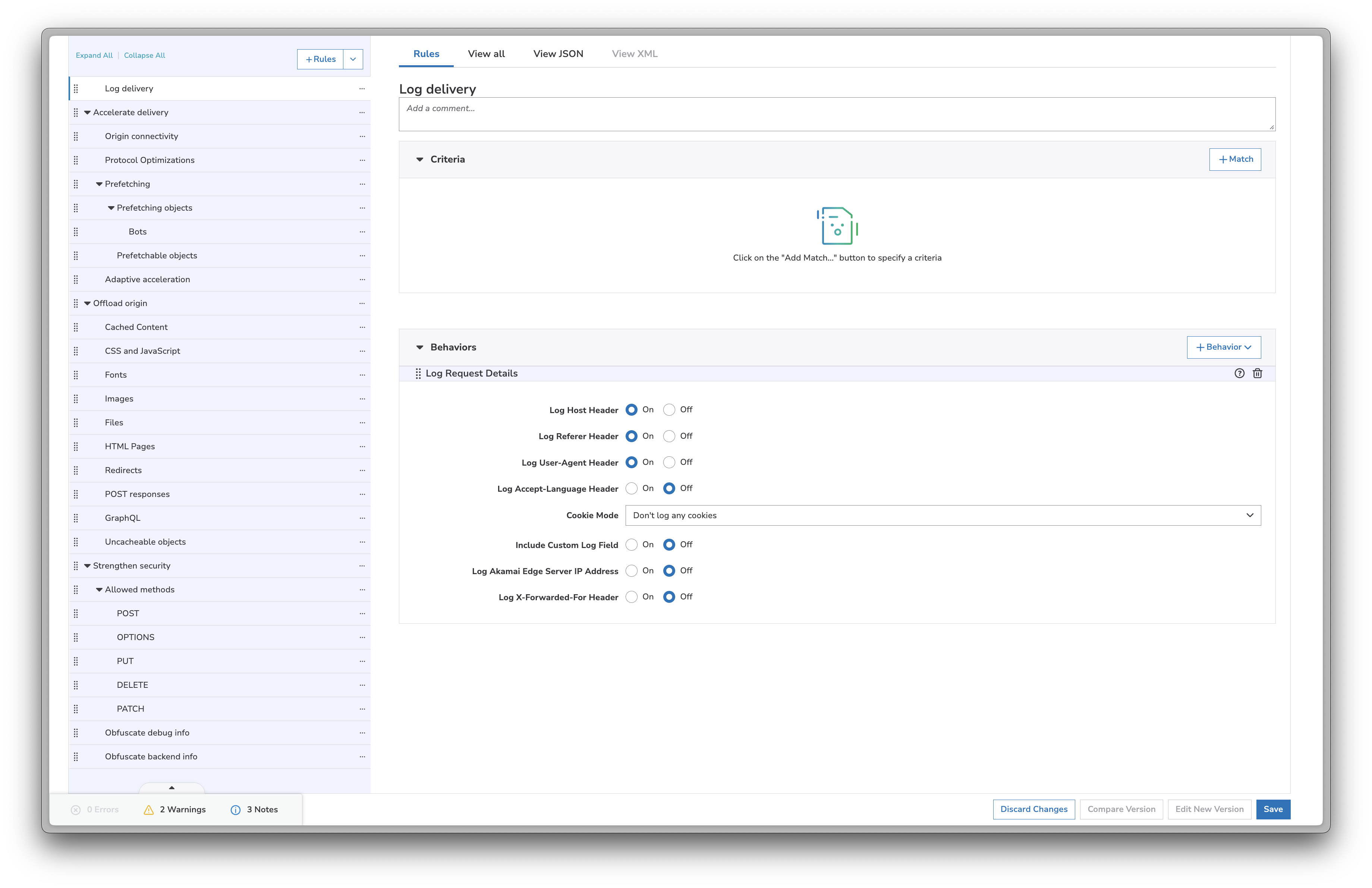
 Select **Log Delivery** from the left sidebar.
Enable:
* **Log Host Header**
* **Log Referer Header**
* **Log User-Agent Header**
Leave the other settings as their default values.
Select **Log Delivery** from the left sidebar.
Enable:
* **Log Host Header**
* **Log Referer Header**
* **Log User-Agent Header**
Leave the other settings as their default values.
 Save the configuration and activate the new version.
That's it! Akamai will now send real-time logs to Profound. Data should begin appearing in your dashboard within **60 minutes** of activating the stream.
## Troubleshooting
* Ensure your stream is activated, connected to the property, and that the property has been updated
* Ensure your Log Ingestion Token is correct
## Additional Resources
* [Akamai Datastream2 Documentation](https://techdocs.akamai.com/datastream2/docs/welcome-datastream2)
* [Creating a Stream Documentation](https://techdocs.akamai.com/datastream2/docs/create-stream)
* [Data Set Parameters Documentation](https://techdocs.akamai.com/datastream2/docs/data-set-parameters)
* Contact [support@tryprofound.com](mailto:support@tryprofound.com) for API-related questions
## Security Considerations
* Regularly rotate your Log Ingestion Token
* Monitor your log drain usage for unusual patterns or unexpected traffic spikes
Save the configuration and activate the new version.
That's it! Akamai will now send real-time logs to Profound. Data should begin appearing in your dashboard within **60 minutes** of activating the stream.
## Troubleshooting
* Ensure your stream is activated, connected to the property, and that the property has been updated
* Ensure your Log Ingestion Token is correct
## Additional Resources
* [Akamai Datastream2 Documentation](https://techdocs.akamai.com/datastream2/docs/welcome-datastream2)
* [Creating a Stream Documentation](https://techdocs.akamai.com/datastream2/docs/create-stream)
* [Data Set Parameters Documentation](https://techdocs.akamai.com/datastream2/docs/data-set-parameters)
* Contact [support@tryprofound.com](mailto:support@tryprofound.com) for API-related questions
## Security Considerations
* Regularly rotate your Log Ingestion Token
* Monitor your log drain usage for unusual patterns or unexpected traffic spikes