> ## Documentation Index
> Fetch the complete documentation index at: https://docs.tryprofound.com/llms.txt
> Use this file to discover all available pages before exploring further.
# Amazon CloudFront Integration (Data Firehose)
> This documentation explains how to set up Amazon CloudFront real-time logs delivery to Profound Agent Analytics platform using Amazon Data Firehose.
## Overview
The integration uses Amazon Data Firehose to forward CloudFront real-time logs to our Agent Analytics API. Amazon Data Firehose is an AWS service that enables reliable delivery of streaming data to various destinations including HTTP endpoints. For more information about CloudFront real-time logs, [visit the AWS documentation](https://docs.aws.amazon.com/AmazonCloudFront/latest/DeveloperGuide/real-time-logs.html).
## Prerequisites
* An AWS Account with CloudFront and Amazon Data Firehose permissions
* Access to your CloudFront distribution configuration
* A Profound Log Ingestion Token for Agent Analytics
## Configuration
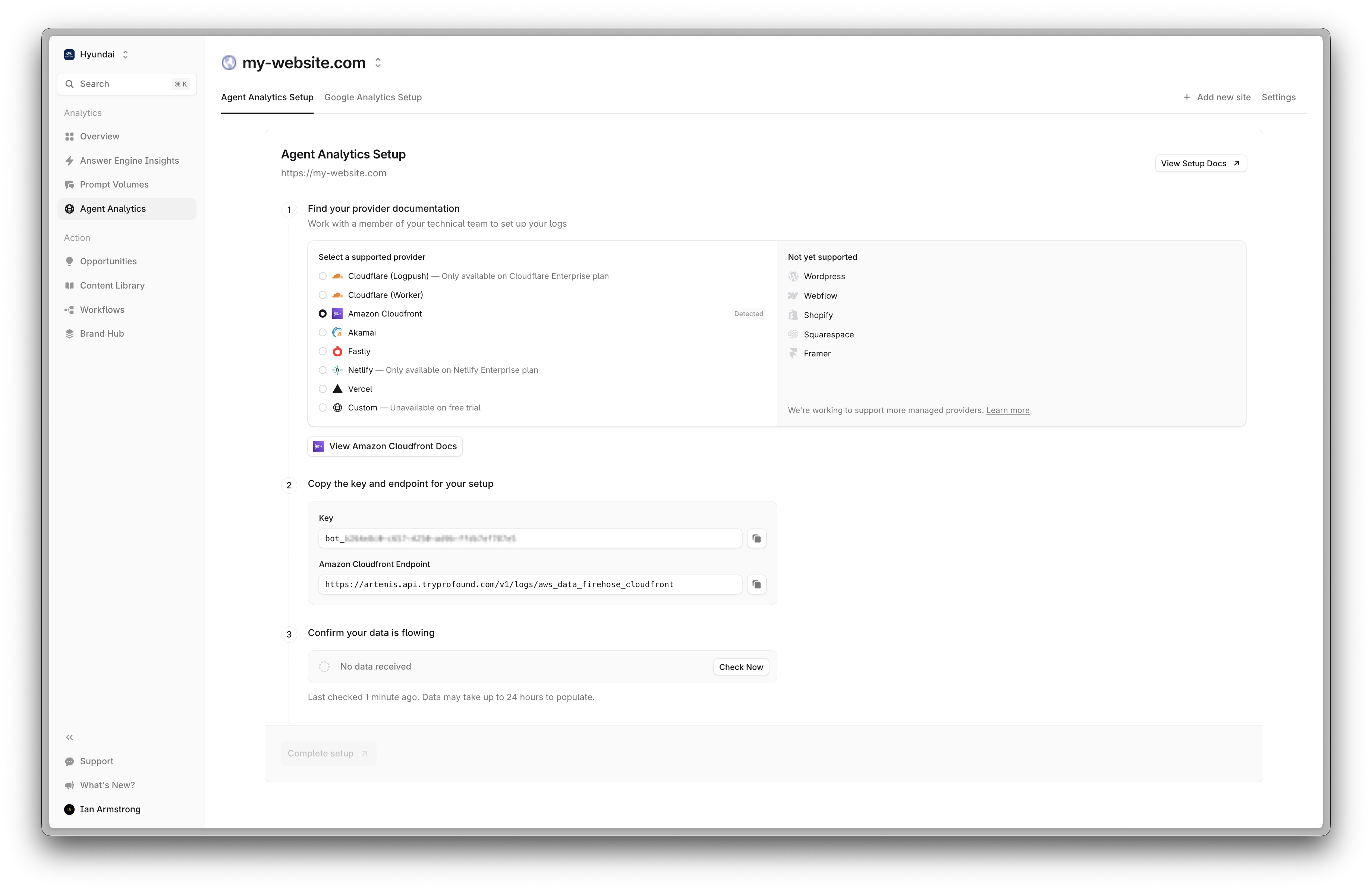 Sign in to the AWS Console and navigate to the Amazon Data Firehose console
 Create a new delivery stream, select "Direct PUT" as source and "HTTP Endpoint" as destination
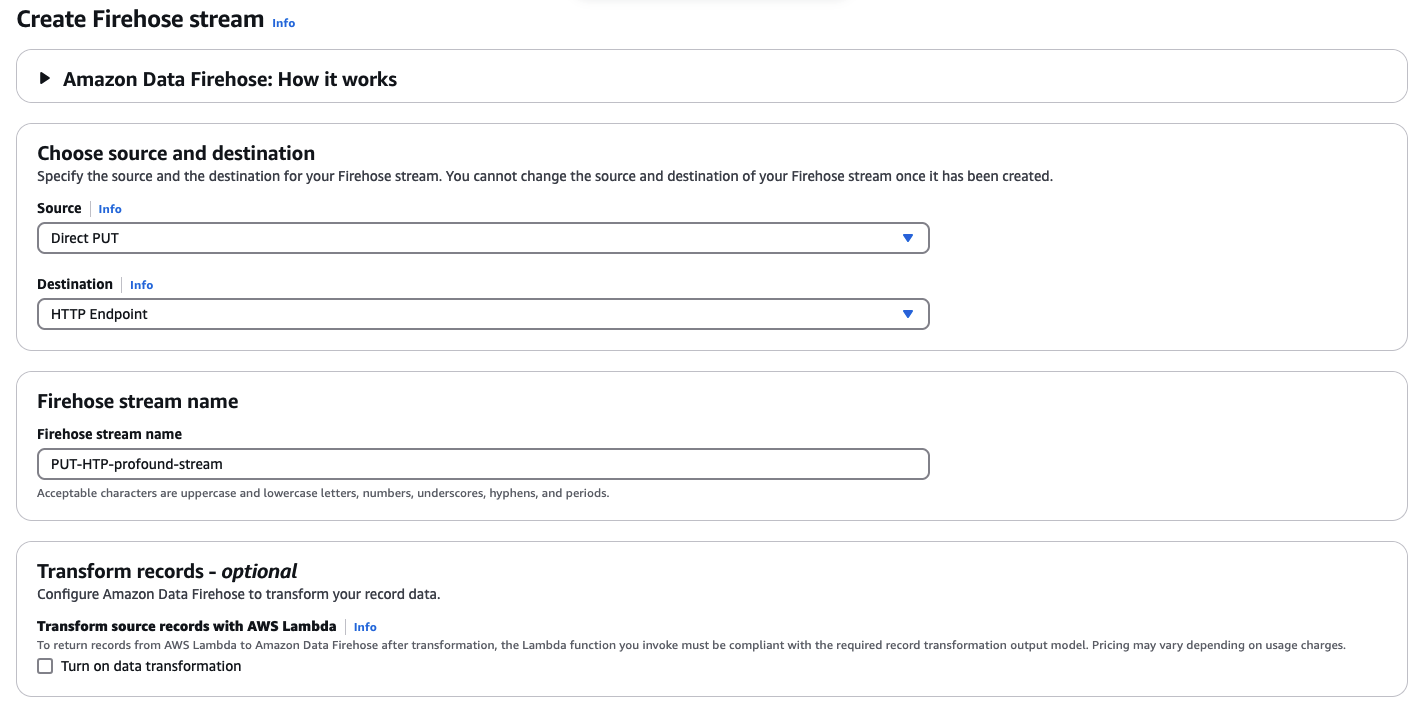 1. Configure the HTTP endpoint with the following URL format:
```http theme={null}
https://artemis.api.tryprofound.com/v1/logs/aws_data_firehose_cloudfront
```
2. For authentication, provide your Profound Log Ingestion Token as the access key (we recommend using AWS Secrets Manager for secure token storage).
If you are using the [AWS Secrets Manager](https://docs.aws.amazon.com/secretsmanager/latest/userguide/intro.html), please use the following [JSON format](https://docs.aws.amazon.com/firehose/latest/dev/secrets-manager-whats-secret.html) when creating the secret:
```json theme={null}
{
"api_key": "bot_PROFOUND_LOG_INGESTION_TOKEN"
}
```
3. Enable GZIP content encoding.
1. Configure the HTTP endpoint with the following URL format:
```http theme={null}
https://artemis.api.tryprofound.com/v1/logs/aws_data_firehose_cloudfront
```
2. For authentication, provide your Profound Log Ingestion Token as the access key (we recommend using AWS Secrets Manager for secure token storage).
If you are using the [AWS Secrets Manager](https://docs.aws.amazon.com/secretsmanager/latest/userguide/intro.html), please use the following [JSON format](https://docs.aws.amazon.com/firehose/latest/dev/secrets-manager-whats-secret.html) when creating the secret:
```json theme={null}
{
"api_key": "bot_PROFOUND_LOG_INGESTION_TOKEN"
}
```
3. Enable GZIP content encoding.
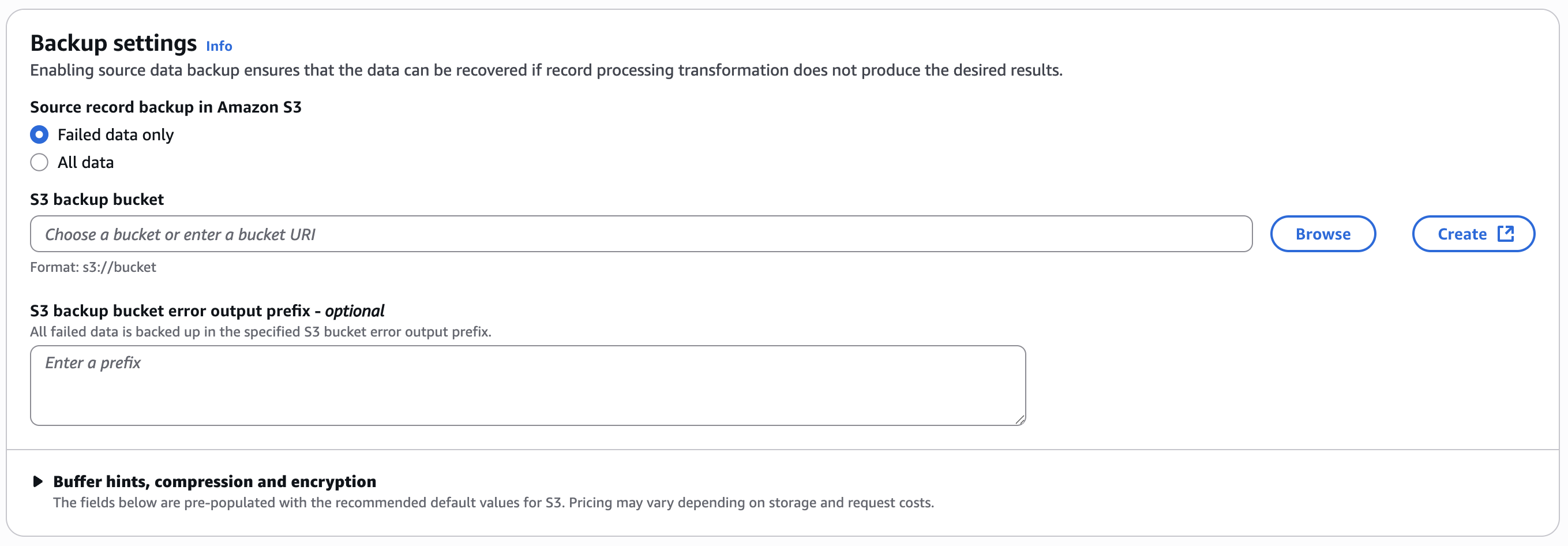
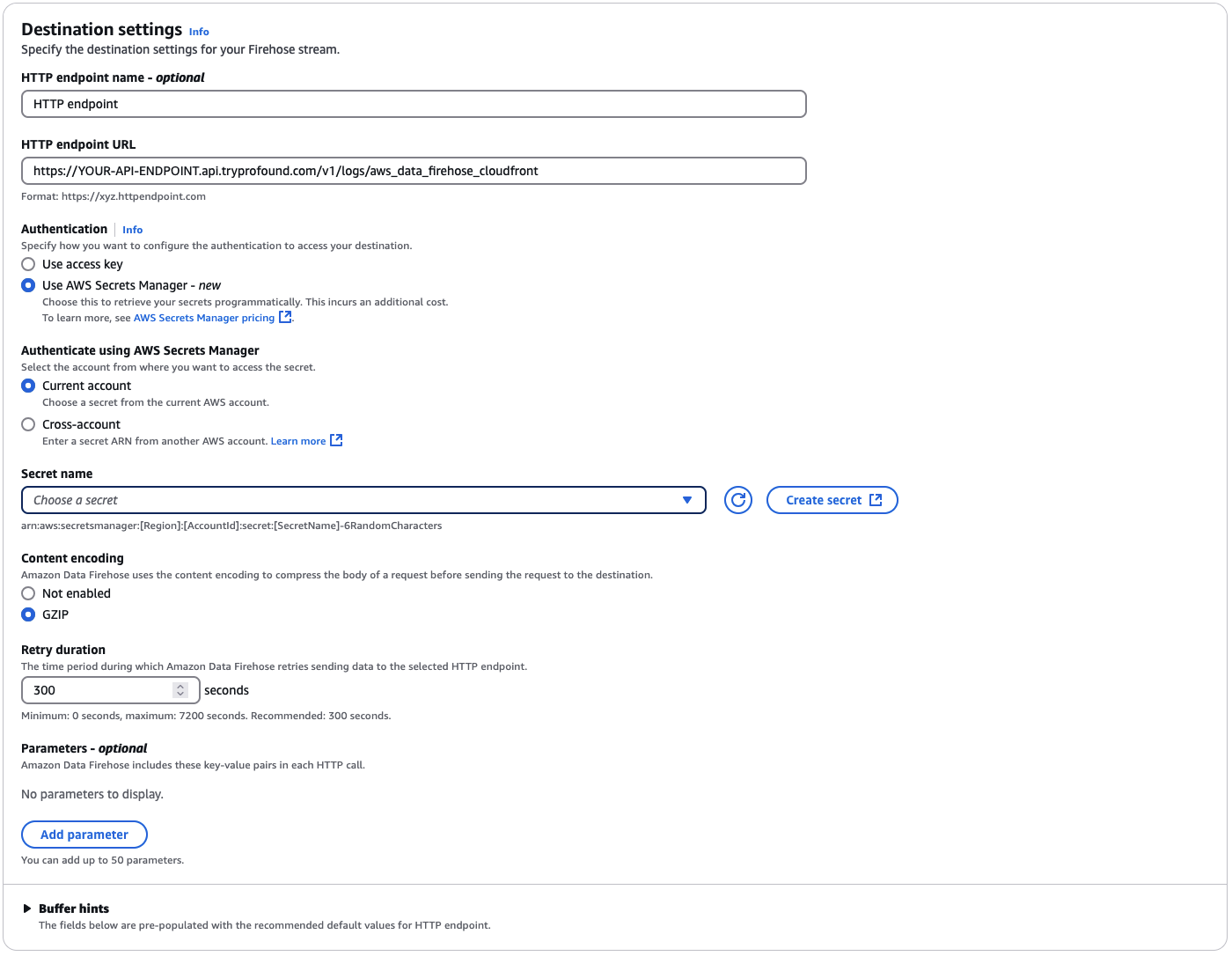 4. Create a new S3 bucket to store failed delivery logs (required by AWS)
 Go to your CloudFront distribution and navigate to the "Logging" tab.
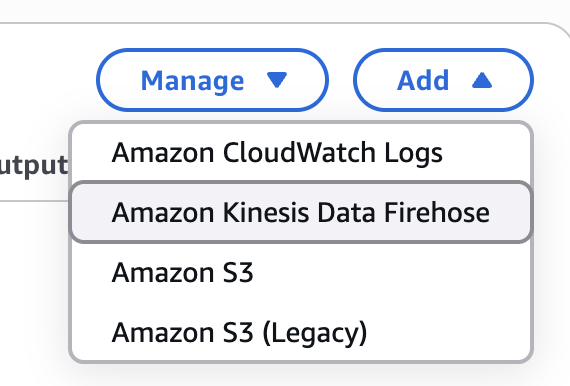
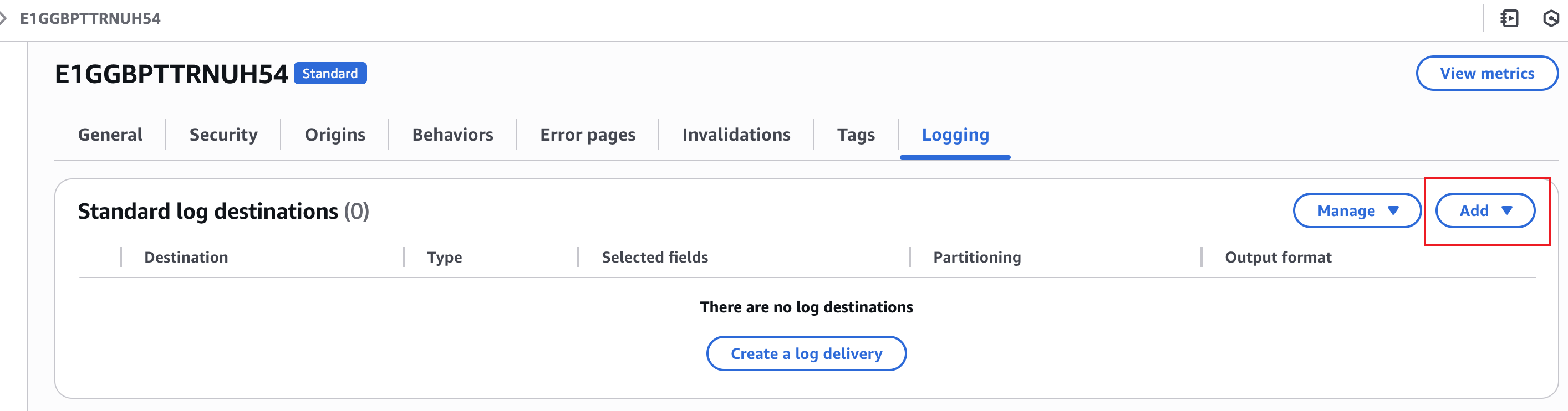 Click the "Add" button and select "Kinesis Data Firehose" as the destination. (Kinesis Data Firehose is the legacy name for Amazon Data Firehose)
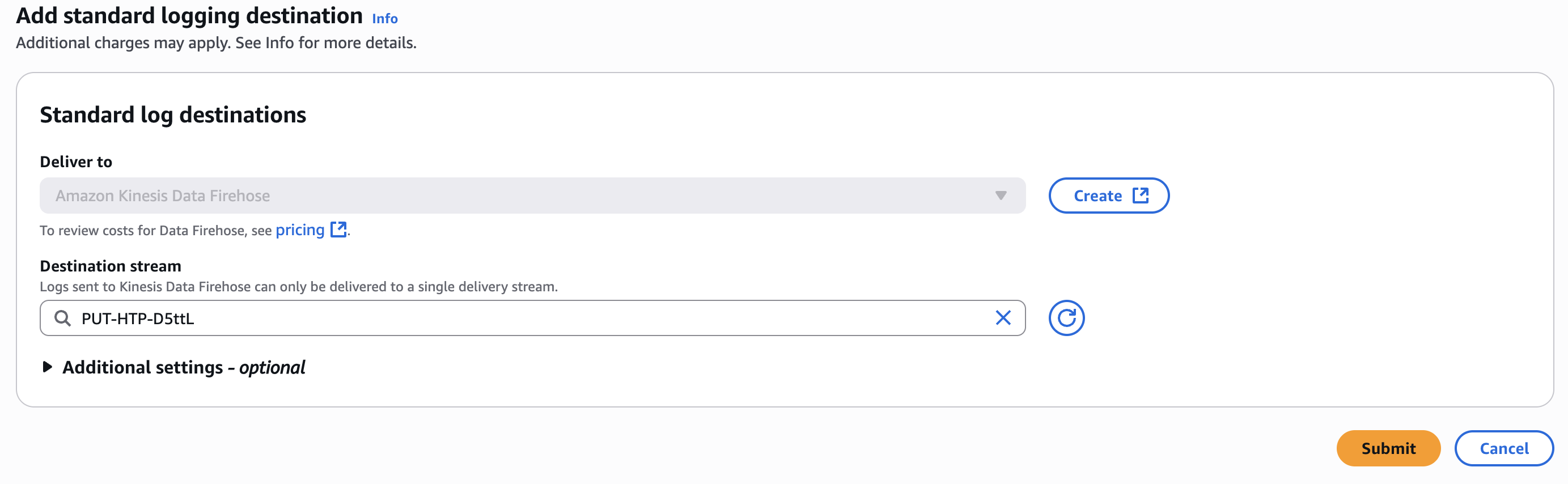
 Now you should be in the "Add standard logging destination" screen. Select the delivery stream you created in Step 3.
 Under "Additional settings - optional", select the following fields:
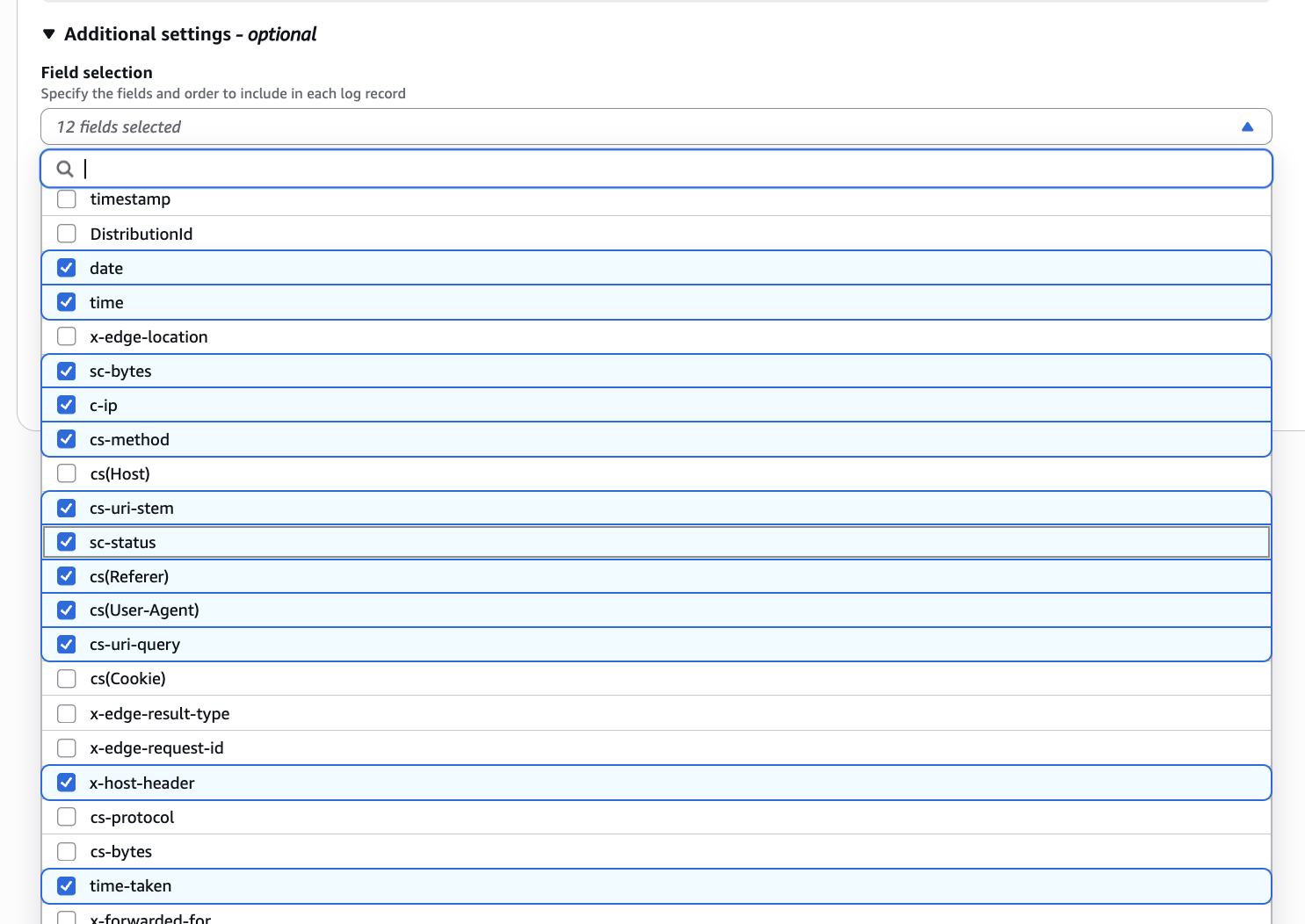 * Time and IP
* `date` - Date when the request was completed
* `time` - Time when the request was completed
* `c-ip` - Client IP address
* Request Details
* `cs-method` - HTTP request method
* `x-host-header` - Host header value of the request
* `cs-uri-stem` - Request URI path
* `cs-uri-query` - Request query string
* `cs(User-Agent)` - Client user agent
* `cs(Referer)` - Request referrer
* Response Details
* `sc-status` - HTTP response status
* `sc-bytes` - Response size in bytes
* `time-taken` - Request processing time
Select `JSON` as the **Output format**.
* Time and IP
* `date` - Date when the request was completed
* `time` - Time when the request was completed
* `c-ip` - Client IP address
* Request Details
* `cs-method` - HTTP request method
* `x-host-header` - Host header value of the request
* `cs-uri-stem` - Request URI path
* `cs-uri-query` - Request query string
* `cs(User-Agent)` - Client user agent
* `cs(Referer)` - Request referrer
* Response Details
* `sc-status` - HTTP response status
* `sc-bytes` - Response size in bytes
* `time-taken` - Request processing time
Select `JSON` as the **Output format**.
 Click **Submit** to save the configuration.
That's it! CloudFront will now send real-time logs to Data Firehose, which forwards them to Profound. Data should begin appearing in your dashboard within a few minutes.
## Troubleshooting
* If logs aren't appearing, verify your Firehose delivery stream status in CloudWatch
* Check Data Firehose monitoring for delivery errors
* Ensure your Log Ingestion Token is correct
* Verify CloudFront real-time logging is enabled for your distribution
* Check IAM roles have proper permissions for both CloudFront and Firehose
## Additional Resources
* [Amazon CloudFront Real-time Logs Documentation](https://docs.aws.amazon.com/AmazonCloudFront/latest/DeveloperGuide/real-time-logs.html)
* [Amazon Kinesis Data Firehose Documentation](https://docs.aws.amazon.com/firehose/latest/dev/what-is-this-service.html)
* Contact [support@tryprofound.com](mailto:support@tryprofound.com) for API-related questions
## Security Considerations
* Store Log Ingestion Tokens in AWS Secrets Manager
* Regularly rotate your Log Ingestion Token
* Monitor CloudWatch logs for unusual patterns
* Enable CloudTrail for API activity monitoring
* Use IAM roles with least privilege access
Click **Submit** to save the configuration.
That's it! CloudFront will now send real-time logs to Data Firehose, which forwards them to Profound. Data should begin appearing in your dashboard within a few minutes.
## Troubleshooting
* If logs aren't appearing, verify your Firehose delivery stream status in CloudWatch
* Check Data Firehose monitoring for delivery errors
* Ensure your Log Ingestion Token is correct
* Verify CloudFront real-time logging is enabled for your distribution
* Check IAM roles have proper permissions for both CloudFront and Firehose
## Additional Resources
* [Amazon CloudFront Real-time Logs Documentation](https://docs.aws.amazon.com/AmazonCloudFront/latest/DeveloperGuide/real-time-logs.html)
* [Amazon Kinesis Data Firehose Documentation](https://docs.aws.amazon.com/firehose/latest/dev/what-is-this-service.html)
* Contact [support@tryprofound.com](mailto:support@tryprofound.com) for API-related questions
## Security Considerations
* Store Log Ingestion Tokens in AWS Secrets Manager
* Regularly rotate your Log Ingestion Token
* Monitor CloudWatch logs for unusual patterns
* Enable CloudTrail for API activity monitoring
* Use IAM roles with least privilege access