> ## Documentation Index
> Fetch the complete documentation index at: https://docs.tryprofound.com/llms.txt
> Use this file to discover all available pages before exploring further.
# Cloudflare
> Deliver Cloudflare HTTP request logs to Profound through Amazon S3.
## Overview
Send Cloudflare Logpush logs to your assigned Profound S3 destination to see agent traffic in Agent Analytics. This guide covers Cloudflare HTTP request logs and uses SSE-S3 encryption.
Contact [Profound support](mailto:support@tryprofound.com) to receive your S3 bucket name and destination prefix. The destination region is `us-west-2` (US West, Oregon). When Cloudflare asks you to verify ownership, contact support for your ownership token.
For delivery over HTTP, use the [Cloudflare Logpush streaming integration](/agent-analytics/cloudflare_logpush).
## Prerequisites
* Access to Cloudflare HTTP request Logpush.
* Permission to create and manage Logpush jobs for your domain.
## Encryption
Use **SSE-S3 (AES256)** for this Cloudflare integration. Amazon S3 encrypts your stored logs. You do not need to configure a KMS key.
## Configuration
Contact [Profound support](mailto:support@tryprofound.com) with your domain and Cloudflare zone details to receive your S3 bucket name and destination prefix. The destination region is `us-west-2` (US West, Oregon). Use these values exactly as supplied.
Profound configures the source, destination bucket, and write permissions for your organization.
| Setting | Value |
| ---------- | ----------------------------- |
| Bucket | Your assigned Profound bucket |
| Path | Your complete assigned prefix |
| Region | `us-west-2` (US West, Oregon) |
| Encryption | SSE-S3 (AES256) |
Your S3 destination uses this format:
```text theme={null}
s3:////
```
Use the prefix exactly as provided by Profound.
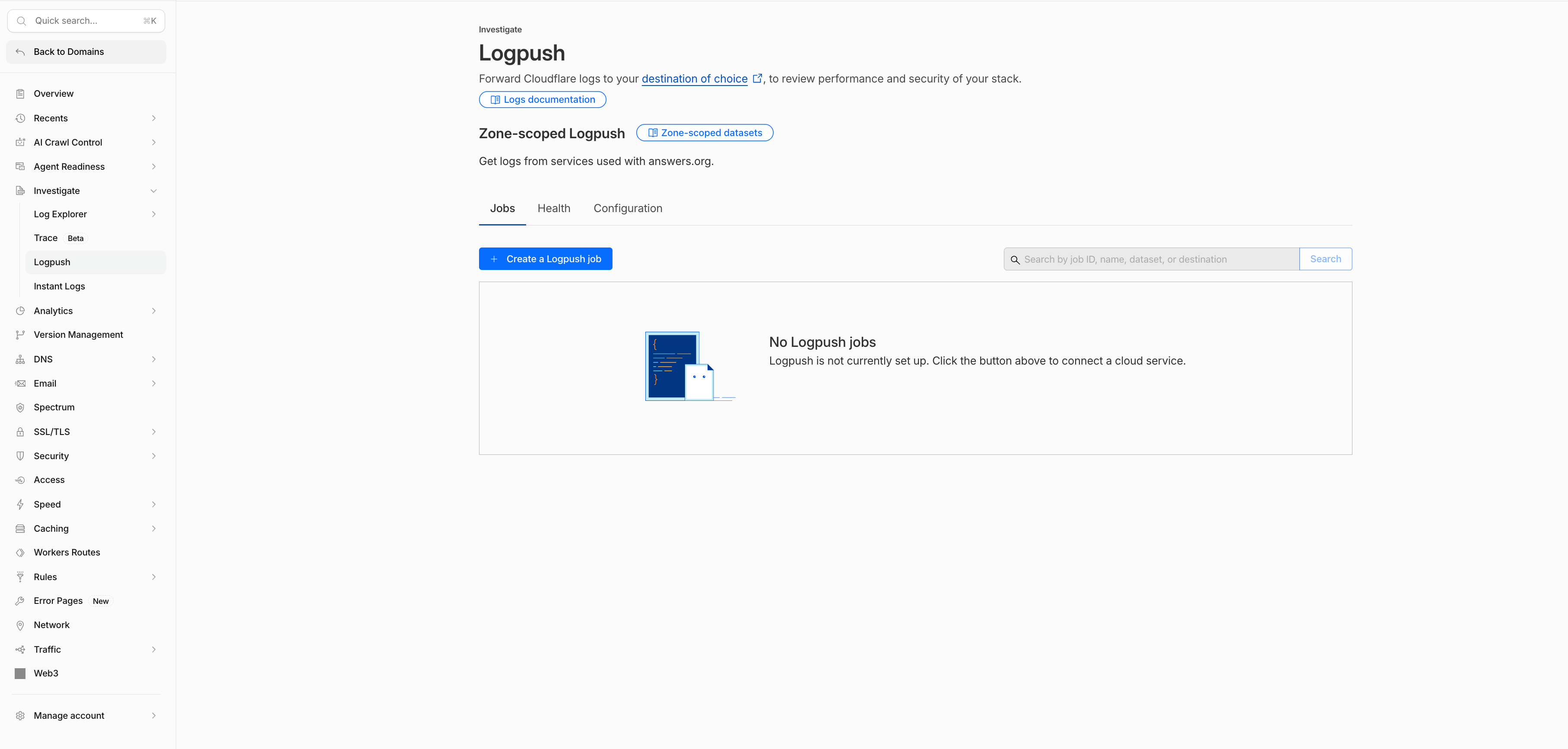
Sign in to the Cloudflare dashboard, select your domain, and open **Investigate → Logpush**. Select **Create a Logpush job**.
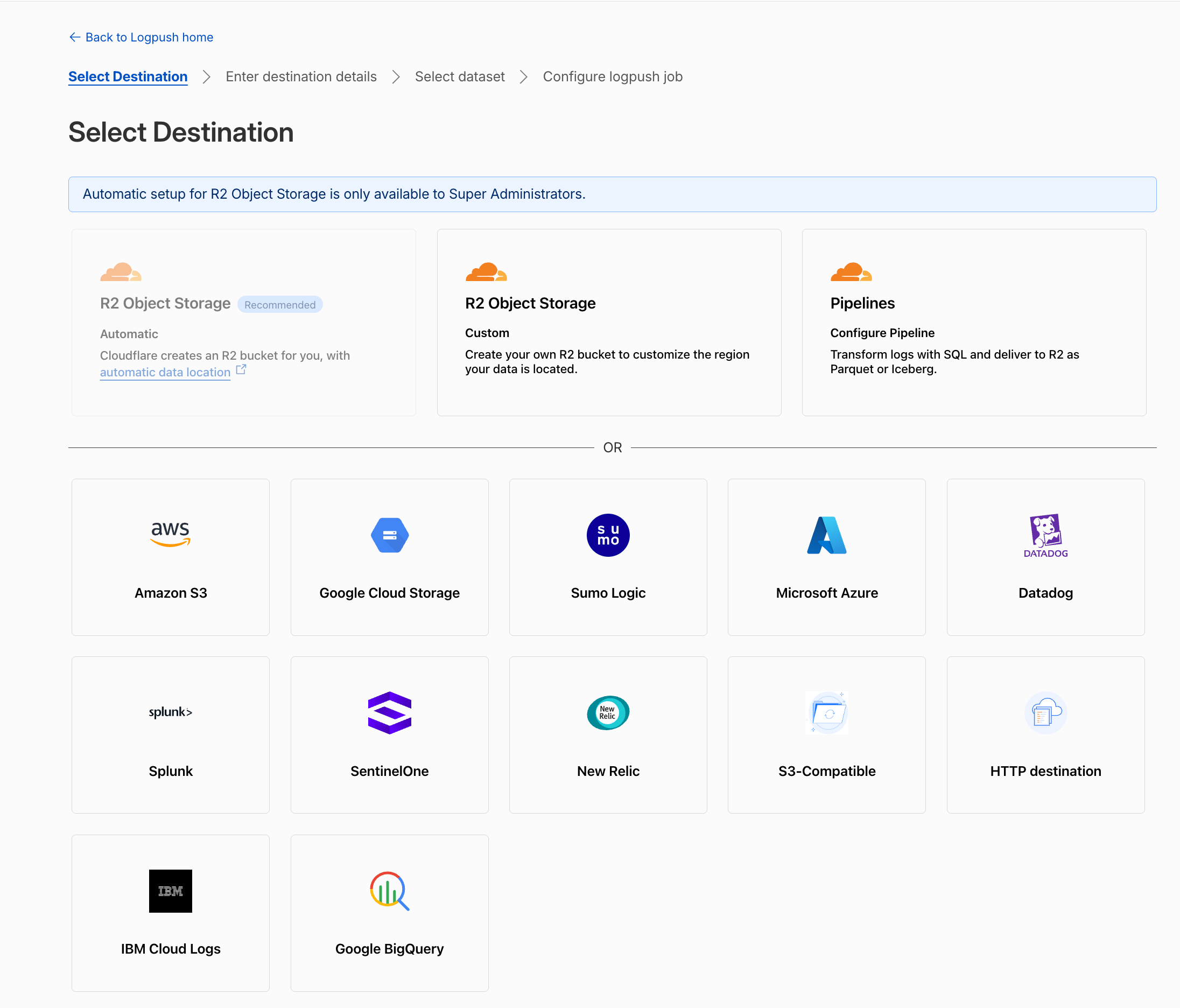
 Choose **Amazon S3** as the destination.
 1. Enter the bucket name and destination path supplied by Profound.
2. Set **Bucket region** to **US West (Oregon) — `us-west-2`**.
3. Select **My policy requires AWS SSE-S3 AES256 Server Side Encryption**.
4. Select **Continue** to start ownership verification.
1. Enter the bucket name and destination path supplied by Profound.
2. Set **Bucket region** to **US West (Oregon) — `us-west-2`**.
3. Select **My policy requires AWS SSE-S3 AES256 Server Side Encryption**.
4. Select **Continue** to start ownership verification.
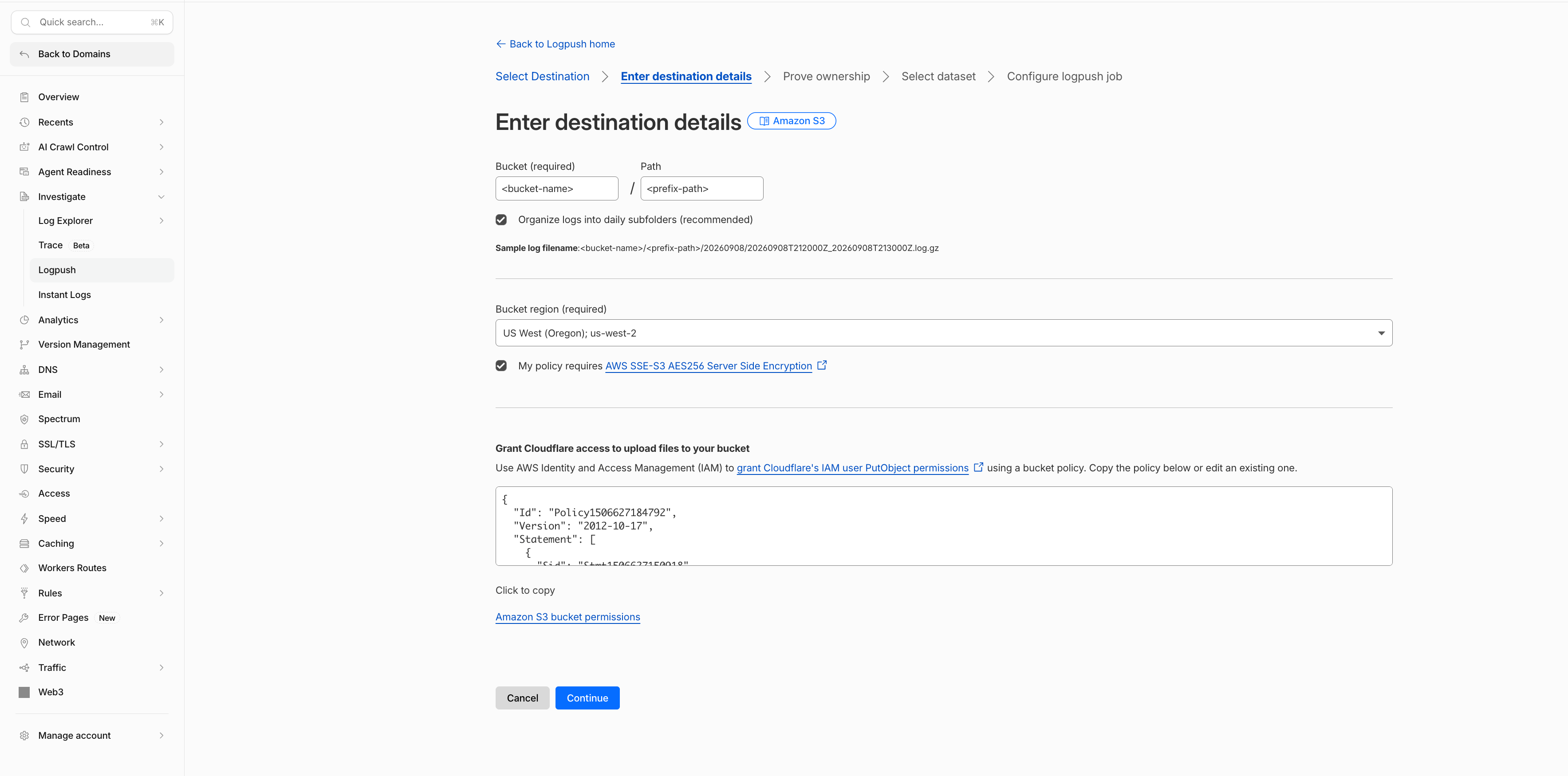 The screenshot uses placeholder bucket and path values. Replace them with the values supplied by Profound.
Profound handles the bucket policy. If Cloudflare reports an access error, contact support with the source details.
Cloudflare writes a challenge file to the destination. Ask Profound support for the token associated with your source, then enter it in Cloudflare to verify the destination.
The screenshot uses placeholder bucket and path values. Replace them with the values supplied by Profound.
Profound handles the bucket policy. If Cloudflare reports an access error, contact support with the source details.
Cloudflare writes a challenge file to the destination. Ask Profound support for the token associated with your source, then enter it in Cloudflare to verify the destination.
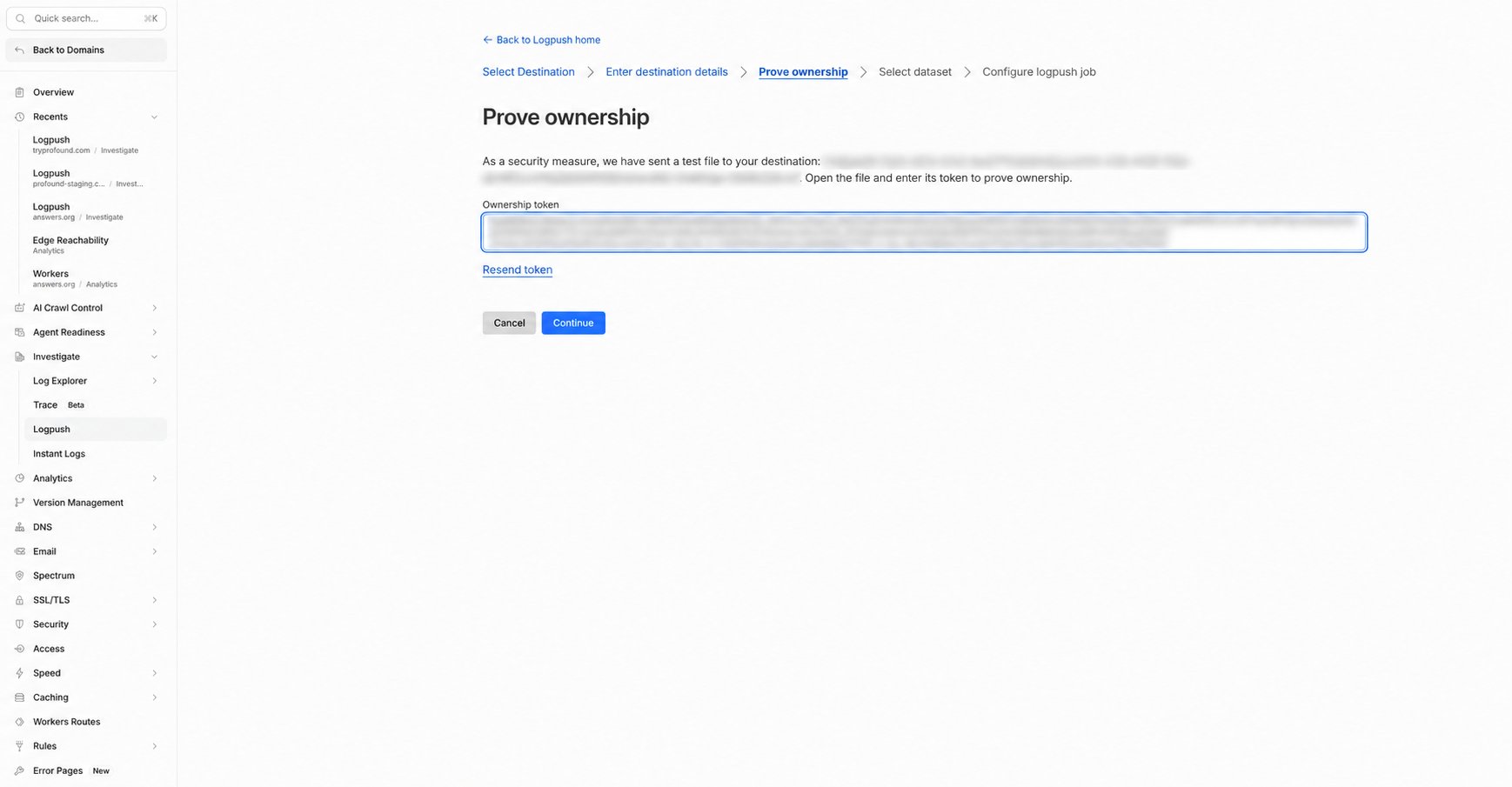 If verification fails, confirm that the token and destination belong to the same setup attempt. Ask support for help if you need to repeat verification.
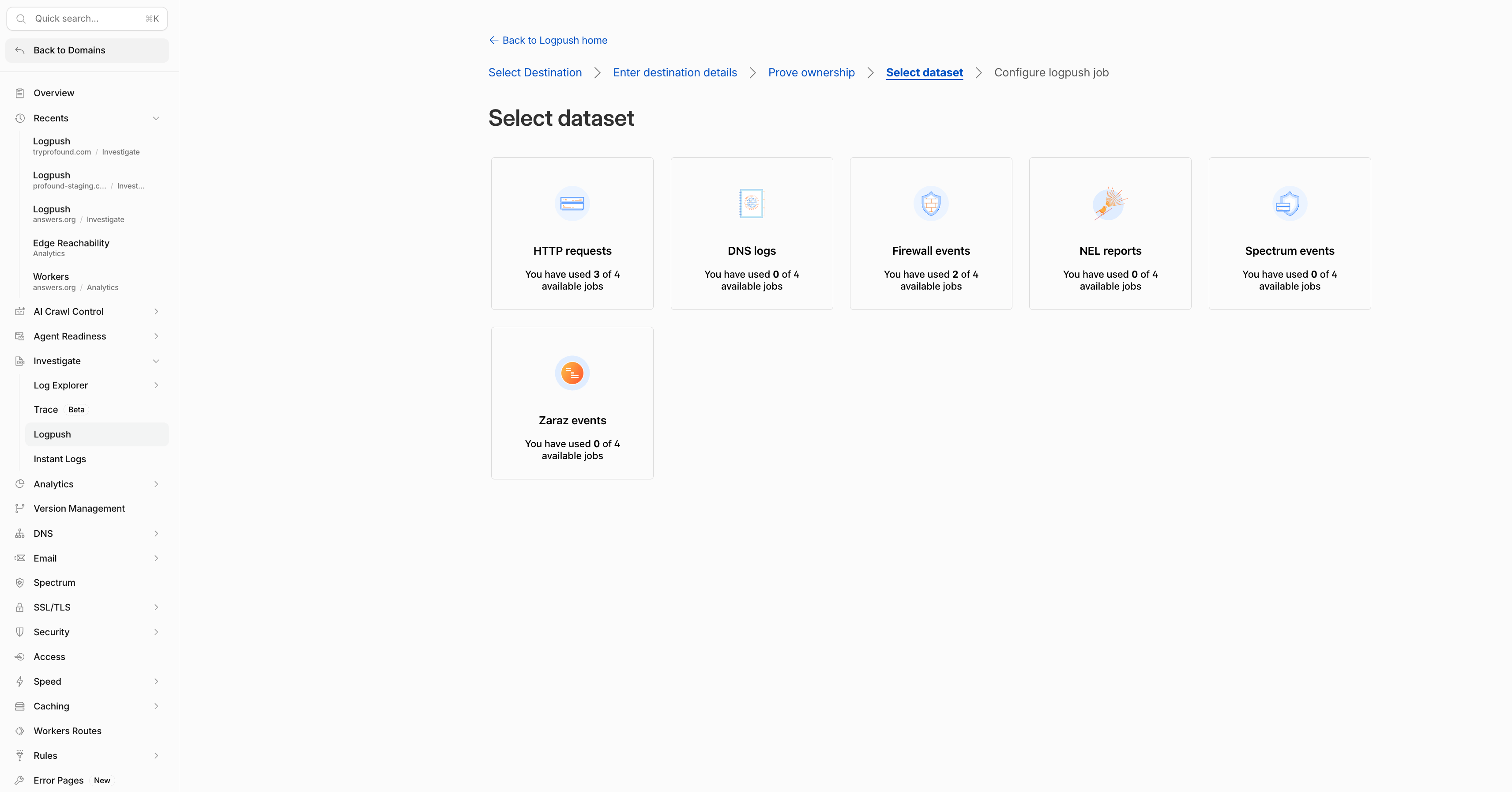
Select the **HTTP requests** dataset. Include the fields below, filter the hostname to your configured domain, and use RFC3339 timestamps. Keep the standard JSON output, with one record per line.
If verification fails, confirm that the token and destination belong to the same setup attempt. Ask support for help if you need to repeat verification.
Select the **HTTP requests** dataset. Include the fields below, filter the hostname to your configured domain, and use RFC3339 timestamps. Keep the standard JSON output, with one record per line.
 | Fields | Used for |
| ------------------------------------------------ | --------------------------- |
| `ClientIP` | Client address |
| `ClientRequestHost` | Requested domain |
| `ClientRequestMethod`, `ClientRequestURI` | Requested resource |
| `ClientRequestReferer`, `ClientRequestUserAgent` | Referral and agent analysis |
| `EdgeStartTimestamp`, `EdgeEndTimestamp` | Request timing |
| `EdgeResponseStatus`, `EdgeResponseBytes` | Response details |
These are the same record fields used by Profound's Cloudflare streaming integration. To capture all traffic, turn off sampling.
Once ownership verification is complete and Profound confirms the source is ready, save and enable your job. Generate traffic to your configured domain and check Cloudflare for delivery errors.
## Verify ingestion
Open Agent Analytics for your domain and select a date range covering the delivered records. Confirm that expected agent traffic appears. Upload success alone does not confirm successful processing.
Logs appear after Cloudflare delivers a batch and Profound processes it. If data is missing, provide support with your domain, Logpush job ID, delivery time, and the S3 file path or error shown by Cloudflare. Do not include credentials.
## Troubleshooting
| Problem | What to check |
| ------------------------------------- | ------------------------------------------------------------------------------------------------------------------ |
| Destination access denied | Confirm the supplied bucket, region, prefix, and SSE-S3 setting. Ask Profound to verify destination permissions. |
| Ownership challenge fails | Confirm the token matches the exact destination and current setup attempt. Request help retrieving or renewing it. |
| Delivery succeeds but data is missing | Check source readiness, `ClientRequestHost`, the field selection, and the selected date range. |
| Traffic counts are incomplete | Review hostname filters and sampling, and allow time for delivery and processing. |
## Additional Resources
* [Cloudflare: Configure Logpush to Amazon S3](https://developers.cloudflare.com/logs/logpush/logpush-job/enable-destinations/aws-s3/)
* [Cloudflare streaming integration](/agent-analytics/cloudflare_logpush)
* [Contact Profound support](mailto:support@tryprofound.com)
| Fields | Used for |
| ------------------------------------------------ | --------------------------- |
| `ClientIP` | Client address |
| `ClientRequestHost` | Requested domain |
| `ClientRequestMethod`, `ClientRequestURI` | Requested resource |
| `ClientRequestReferer`, `ClientRequestUserAgent` | Referral and agent analysis |
| `EdgeStartTimestamp`, `EdgeEndTimestamp` | Request timing |
| `EdgeResponseStatus`, `EdgeResponseBytes` | Response details |
These are the same record fields used by Profound's Cloudflare streaming integration. To capture all traffic, turn off sampling.
Once ownership verification is complete and Profound confirms the source is ready, save and enable your job. Generate traffic to your configured domain and check Cloudflare for delivery errors.
## Verify ingestion
Open Agent Analytics for your domain and select a date range covering the delivered records. Confirm that expected agent traffic appears. Upload success alone does not confirm successful processing.
Logs appear after Cloudflare delivers a batch and Profound processes it. If data is missing, provide support with your domain, Logpush job ID, delivery time, and the S3 file path or error shown by Cloudflare. Do not include credentials.
## Troubleshooting
| Problem | What to check |
| ------------------------------------- | ------------------------------------------------------------------------------------------------------------------ |
| Destination access denied | Confirm the supplied bucket, region, prefix, and SSE-S3 setting. Ask Profound to verify destination permissions. |
| Ownership challenge fails | Confirm the token matches the exact destination and current setup attempt. Request help retrieving or renewing it. |
| Delivery succeeds but data is missing | Check source readiness, `ClientRequestHost`, the field selection, and the selected date range. |
| Traffic counts are incomplete | Review hostname filters and sampling, and allow time for delivery and processing. |
## Additional Resources
* [Cloudflare: Configure Logpush to Amazon S3](https://developers.cloudflare.com/logs/logpush/logpush-job/enable-destinations/aws-s3/)
* [Cloudflare streaming integration](/agent-analytics/cloudflare_logpush)
* [Contact Profound support](mailto:support@tryprofound.com)