> ## Documentation Index
> Fetch the complete documentation index at: https://docs.tryprofound.com/llms.txt
> Use this file to discover all available pages before exploring further.
# Adobe Analytics Extension
> Connect Adobe Analytics with Profound Agent Analytics to correlate AI-referred traffic with human engagement, orders, and revenue
## Overview
Profound Agent Analytics now offers seamless integration with Adobe Analytics, enhancing your ability to correlate AI interactions with human engagement and business outcomes. This integration bridges the gap between AI visibility and traditional web analytics, providing a comprehensive view of your digital performance ecosystem.
By connecting your Adobe Analytics report suite, Agent Analytics can import critical engagement and revenue metrics alongside our specialized AI tracking capabilities. This integration works both as a complementary extension to our core platform or as a standalone solution, giving you flexibility in how you monitor and optimize your digital presence for both human and AI visitors.
The Adobe Analytics integration automatically synchronizes your analytics data in real-time when accessing the Adobe Analytics dashboard, allowing you to make data-driven decisions with the most current information available while maintaining strict privacy controls.
### Adobe Analytics Metrics
The following metrics are retrieved from the [Adobe Analytics Reporting API](https://developer.adobe.com/analytics-apis/docs/2.0/guides/endpoints/reports/):
* **Referrer** (`referrer`): The referring source of the visit, used to identify traffic originating from AI systems
* **Visits** (`visits`): The number of human sessions referred by AI platforms
* **Orders** (`orders`): Completed purchase events from AI-referred traffic
* **Revenue** (`revenue`): Total monetary value generated from AI-referred visits
### Dashboard
Once connected, the Adobe Analytics tab in your Profound dashboard provides a unified view of how AI-referred traffic converts on your website.
#### Summary Metrics
At the top of the dashboard, you'll see high-level metrics for your selected date range:
* **Humans visited from AI systems**: The total number of human visitors who arrived at your site after being referred by AI assistants
* **Revenue from AI systems**: The total revenue attributed to AI-referred traffic
Both metrics include period-over-period comparison to help you track trends.
#### Platforms
The Platforms table breaks down AI-referred traffic by the AI system that sent the visit. Each platform row includes:
* **Visits**: Number of human visits referred by the platform
* **Orders**: Completed purchase events from those visits
* **Revenue**: Total revenue generated from AI-referred visitors
* **Conversion Rate**: Percentage of visits that resulted in an order
#### Human Visits by Page
The page-level breakdown shows which pages humans visit most after being referred by AI assistants. Each row includes:
* **Visits**: Number of AI-referred visits to the page
* **Orders**: Purchase events that occurred on or through the page
* **Revenue**: Revenue attributed to the page
## Prerequisites
* Adobe Analytics account
* Adobe Analytics configured for your website
* Access to a target Report Suite via your Adobe account
## Configuration within Adobe Admin Console
Go to the [Adobe Admin Console](https://adminconsole.adobe.com/) and select your Adobe Analytics product.
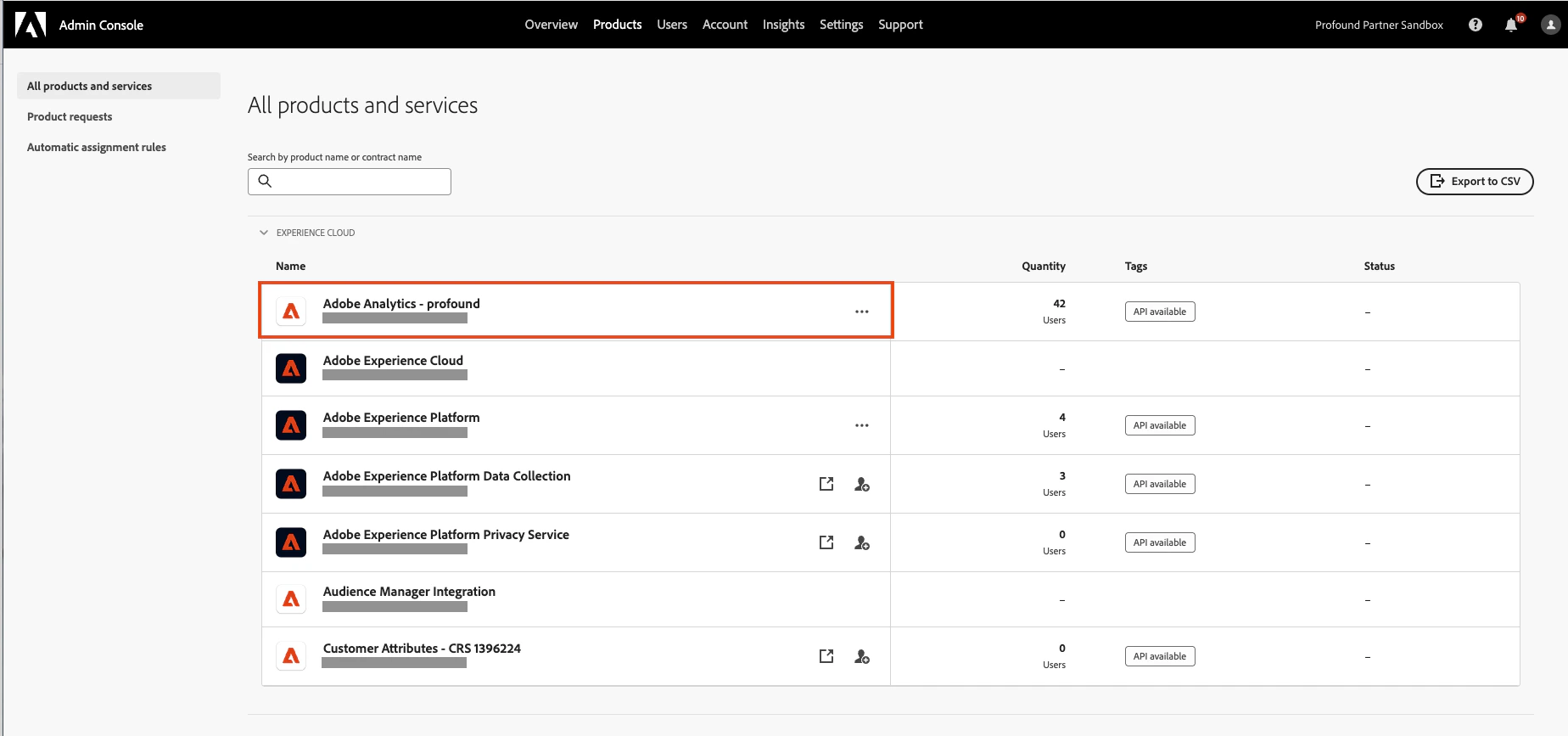 In the **Product Profiles** section, create a new profile for Profound's Agent Analytics Integration using the **New Profile** button. You'll be prompted to give it a name and optionally a description.
 Click into the new product profile and navigate to the **Permissions** tab.
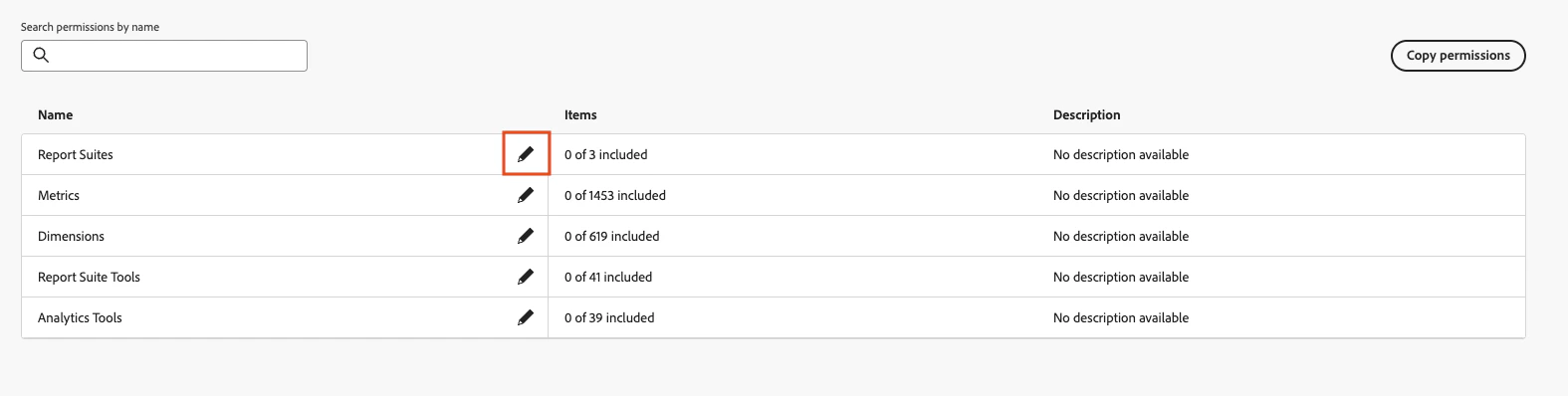
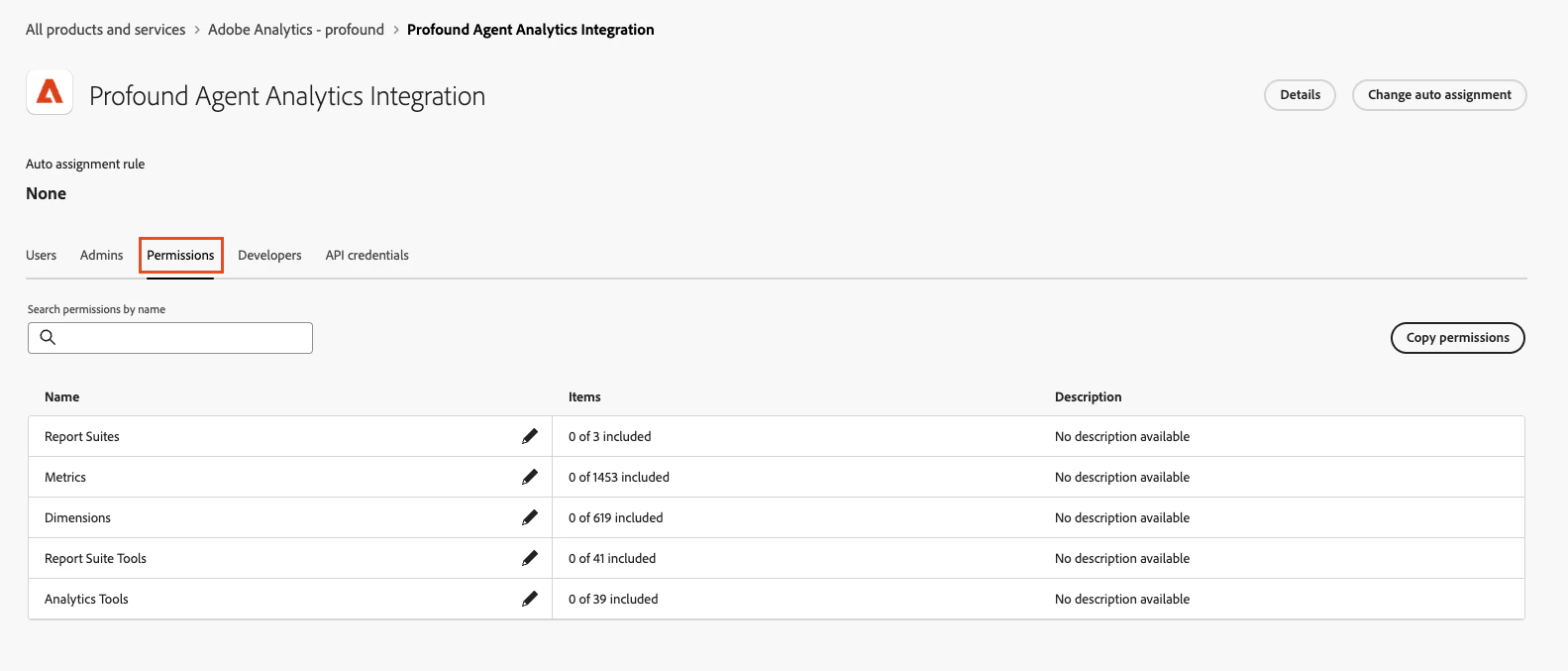 Click on the edit icon within the **Report Suites** row.
 For **Report Suites**, **Metrics**, and **Dimensions**, toggle on **Auto-include** for each one.
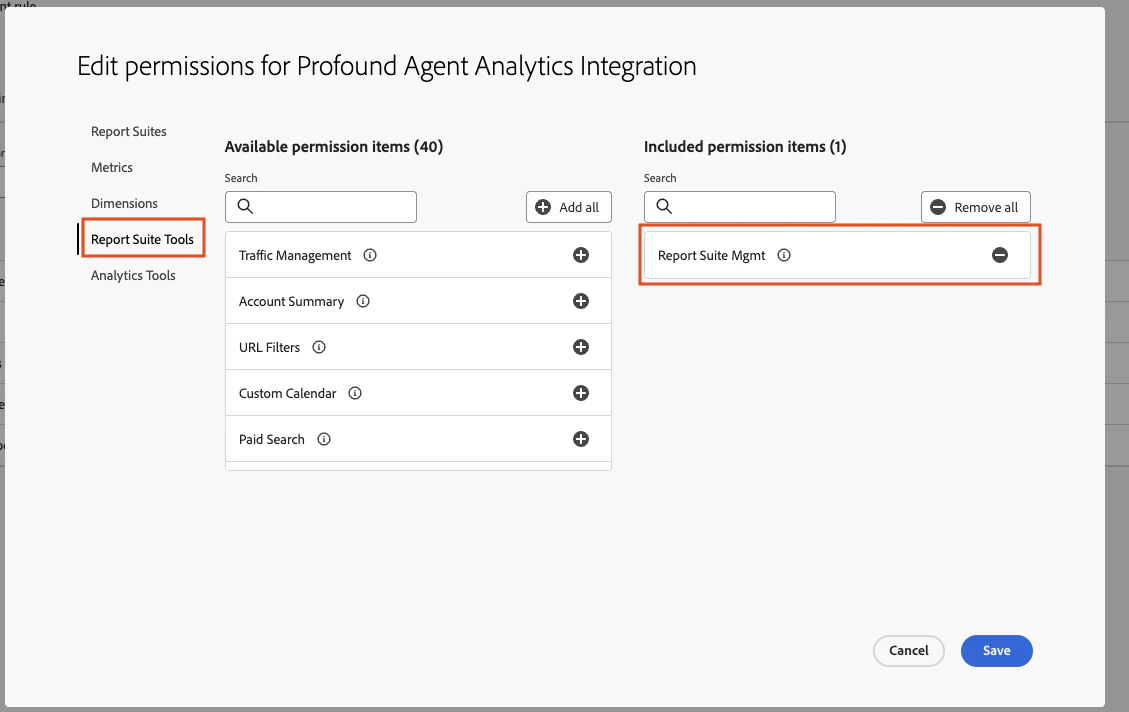
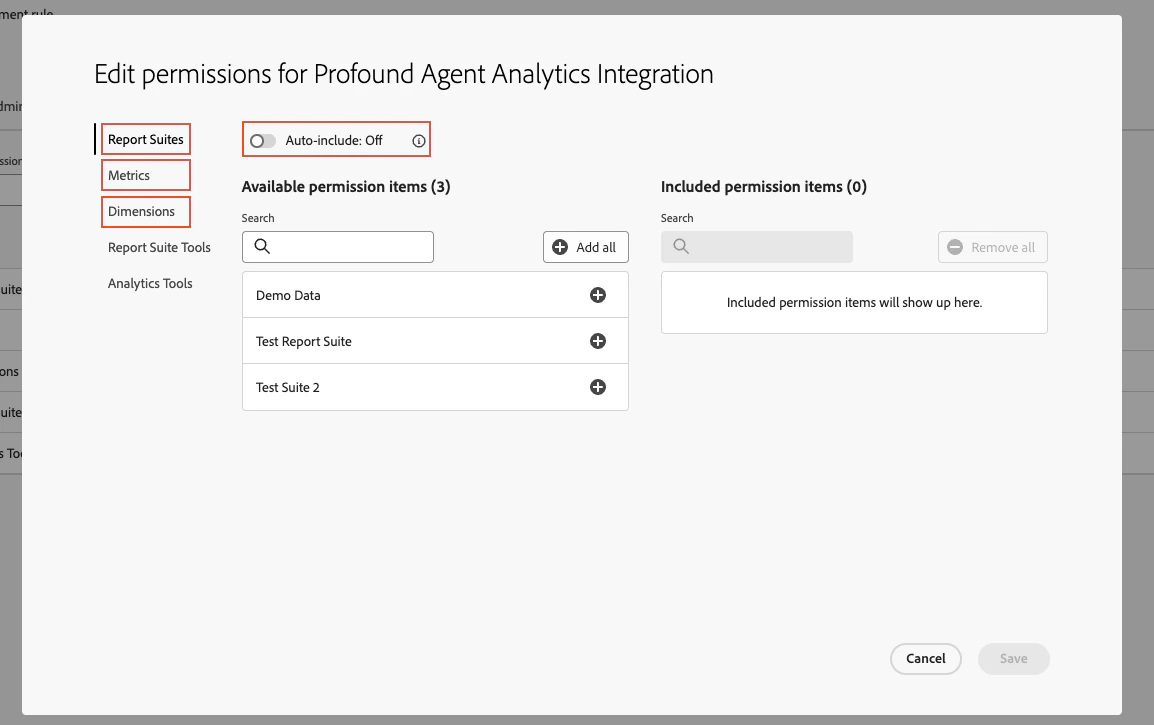 Within the **Report Suite Tools** tab, add the **Report Suite Mgmt** permission.
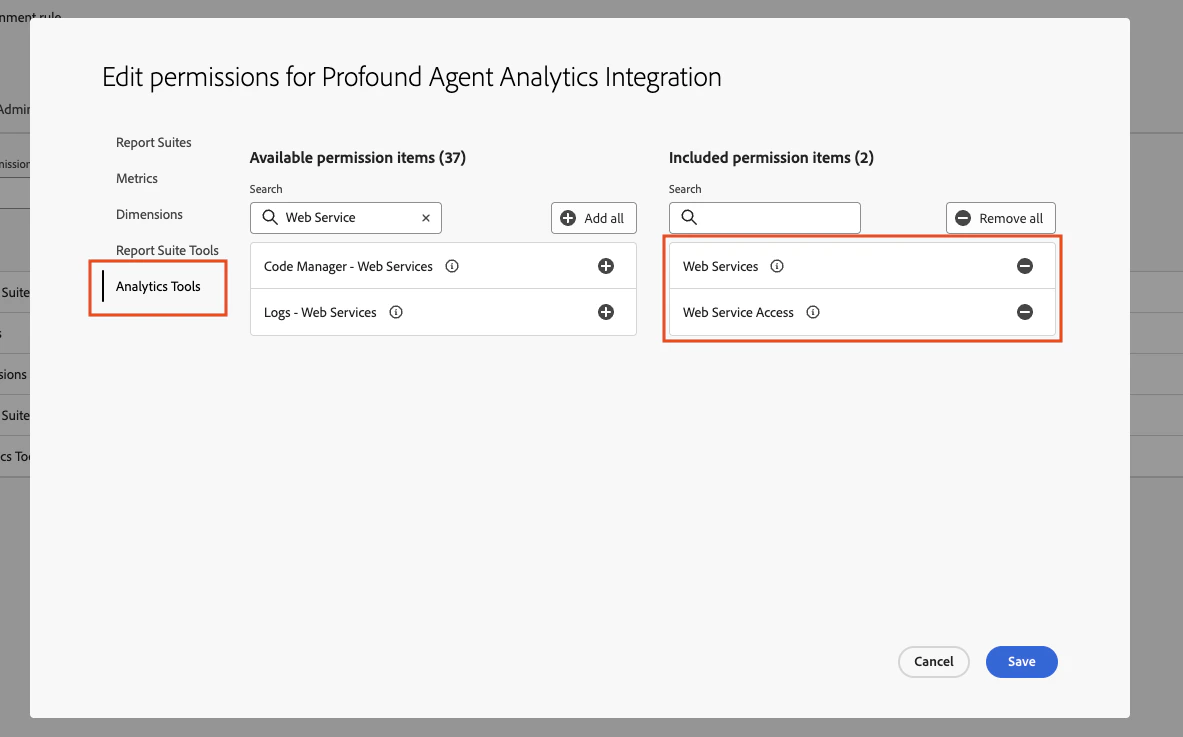
 Within the **Analytics Tools** tab, add the **Web Services** and **Web Service Access** permissions.
 Click **Save**.
## Configuration within Adobe Developer Console
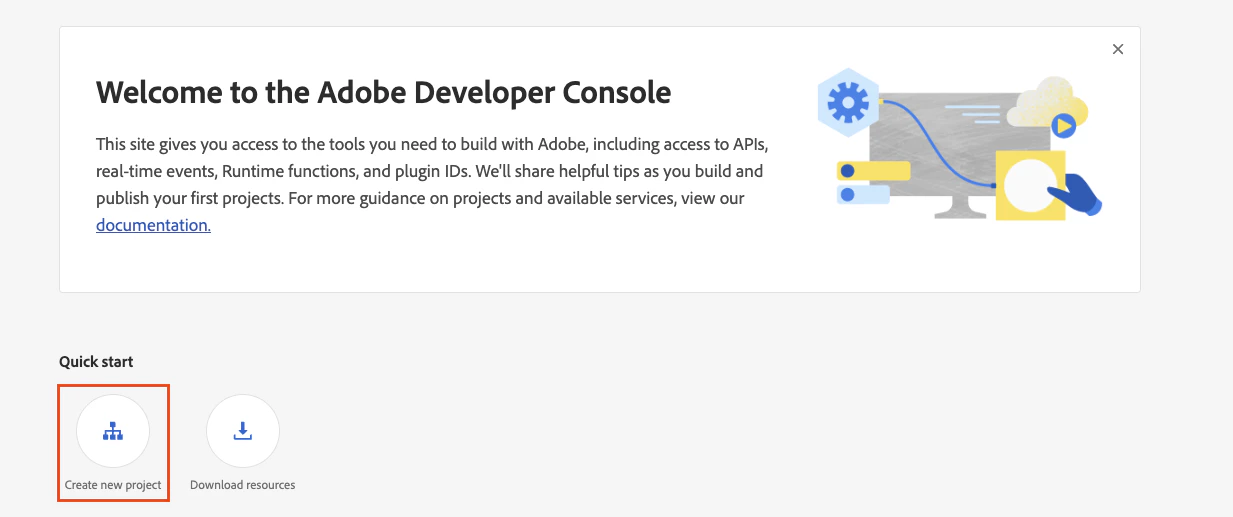
Navigate to the [Adobe Developer Console](https://developer.adobe.com/) and click **Create new project**. Make sure you are creating the project under the same organization that the product profile was created under in the Admin Console.
Click **Save**.
## Configuration within Adobe Developer Console
Navigate to the [Adobe Developer Console](https://developer.adobe.com/) and click **Create new project**. Make sure you are creating the project under the same organization that the product profile was created under in the Admin Console.
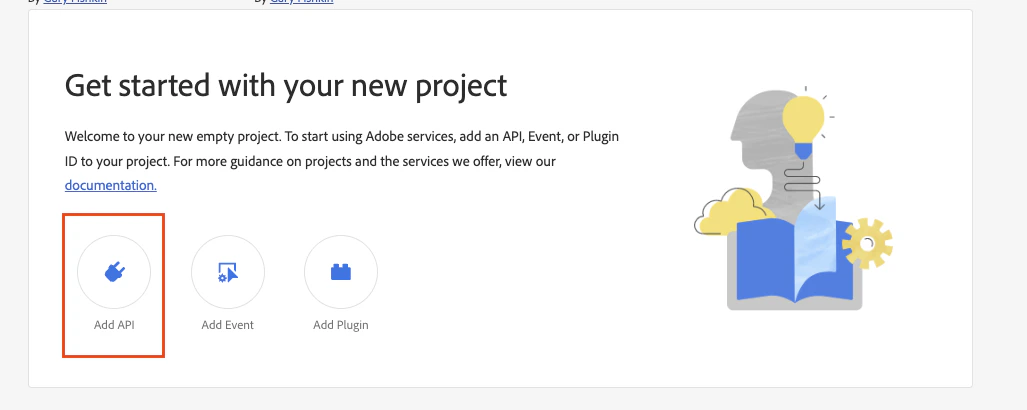
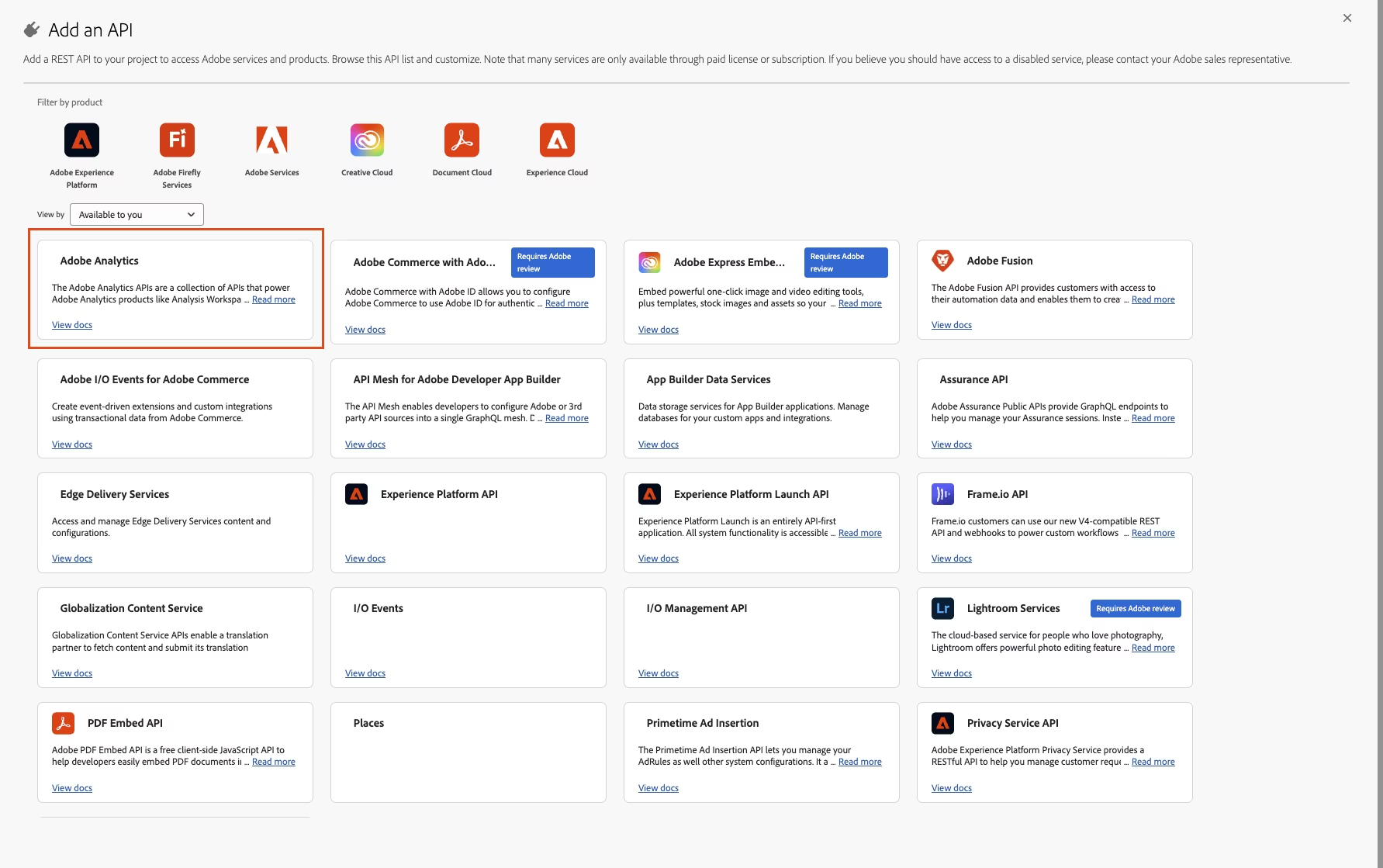
 Select **Add API**.
 Select **Adobe Analytics**.
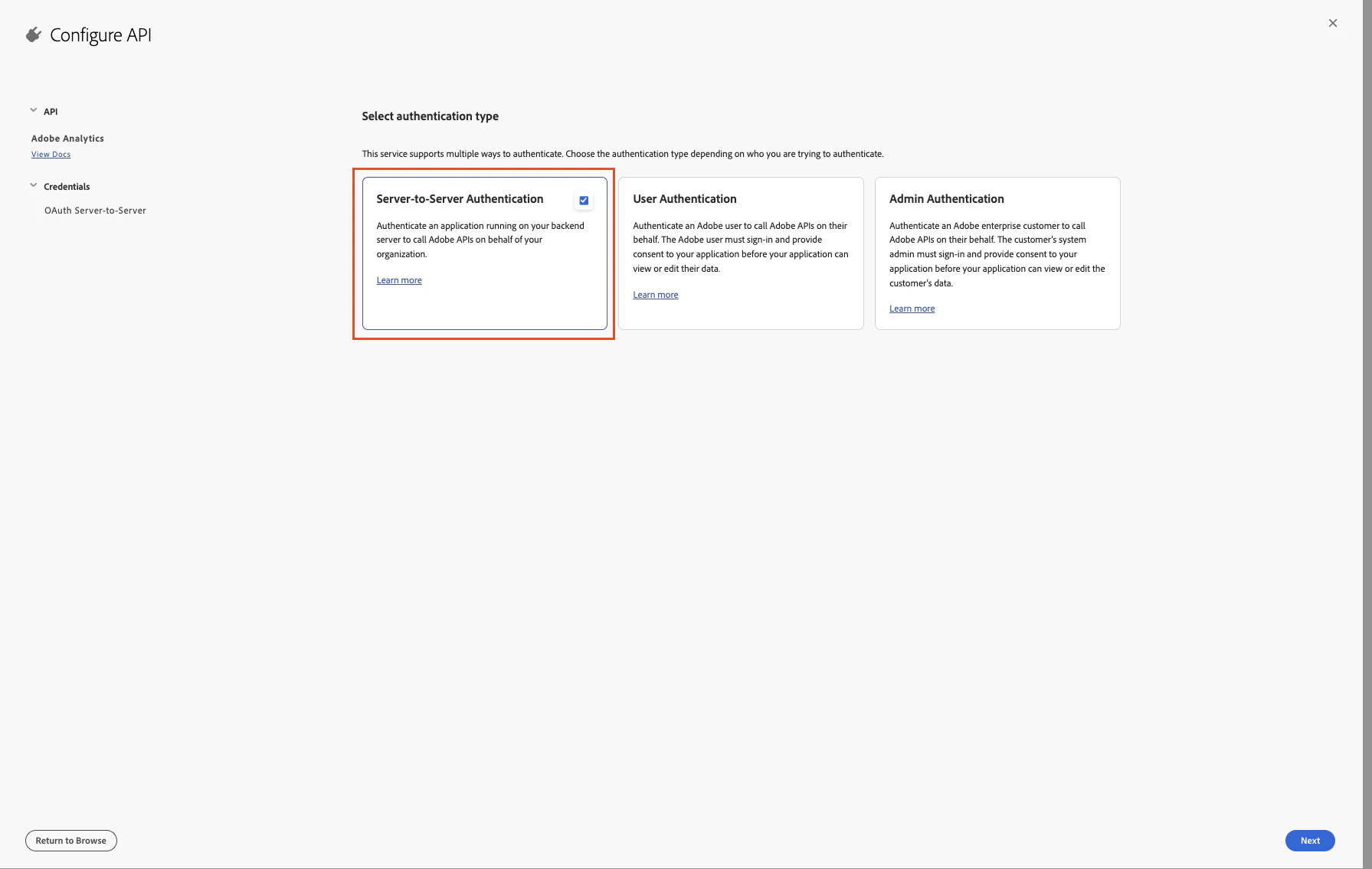
 Select **Server-to-Server Authentication** and click **Next**. After clicking next, input what you'd like to name the credential (e.g. Profound Agent Analytics) and then click **Next** again.
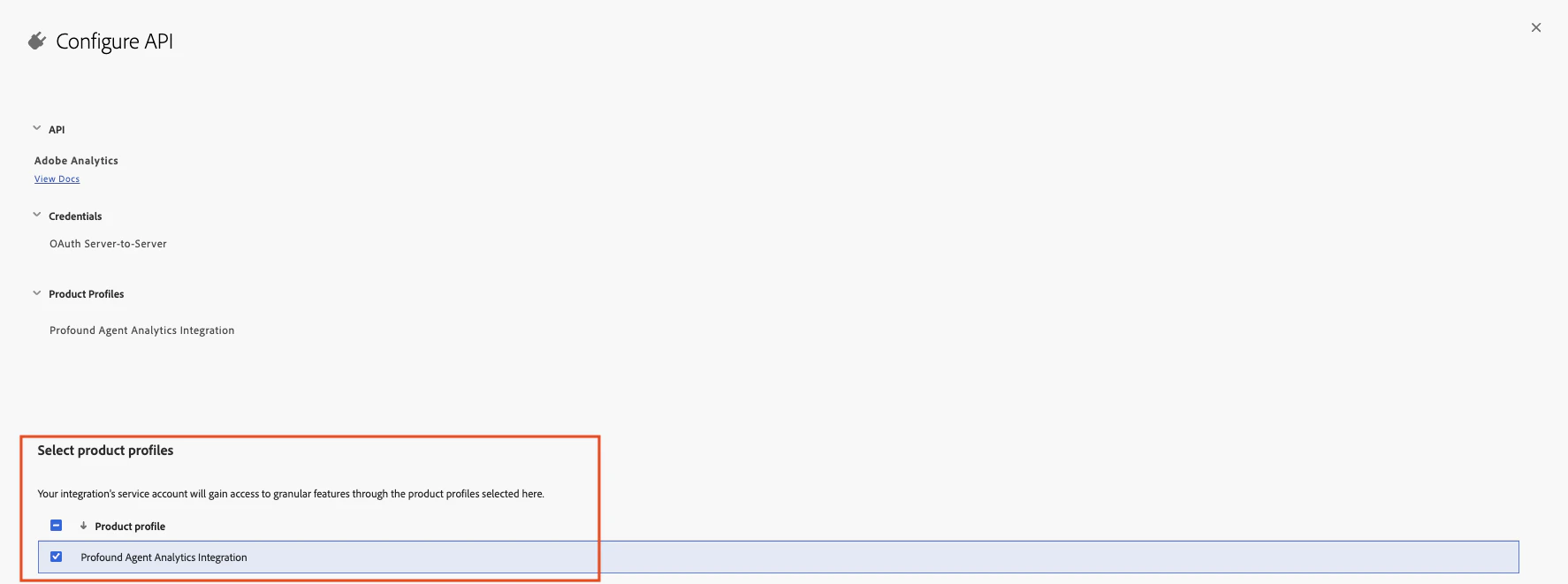
 From the **Product Profile** list, select the product profile that was created in the Admin Console in the previous steps. Then click **Save configured API** on the bottom right.
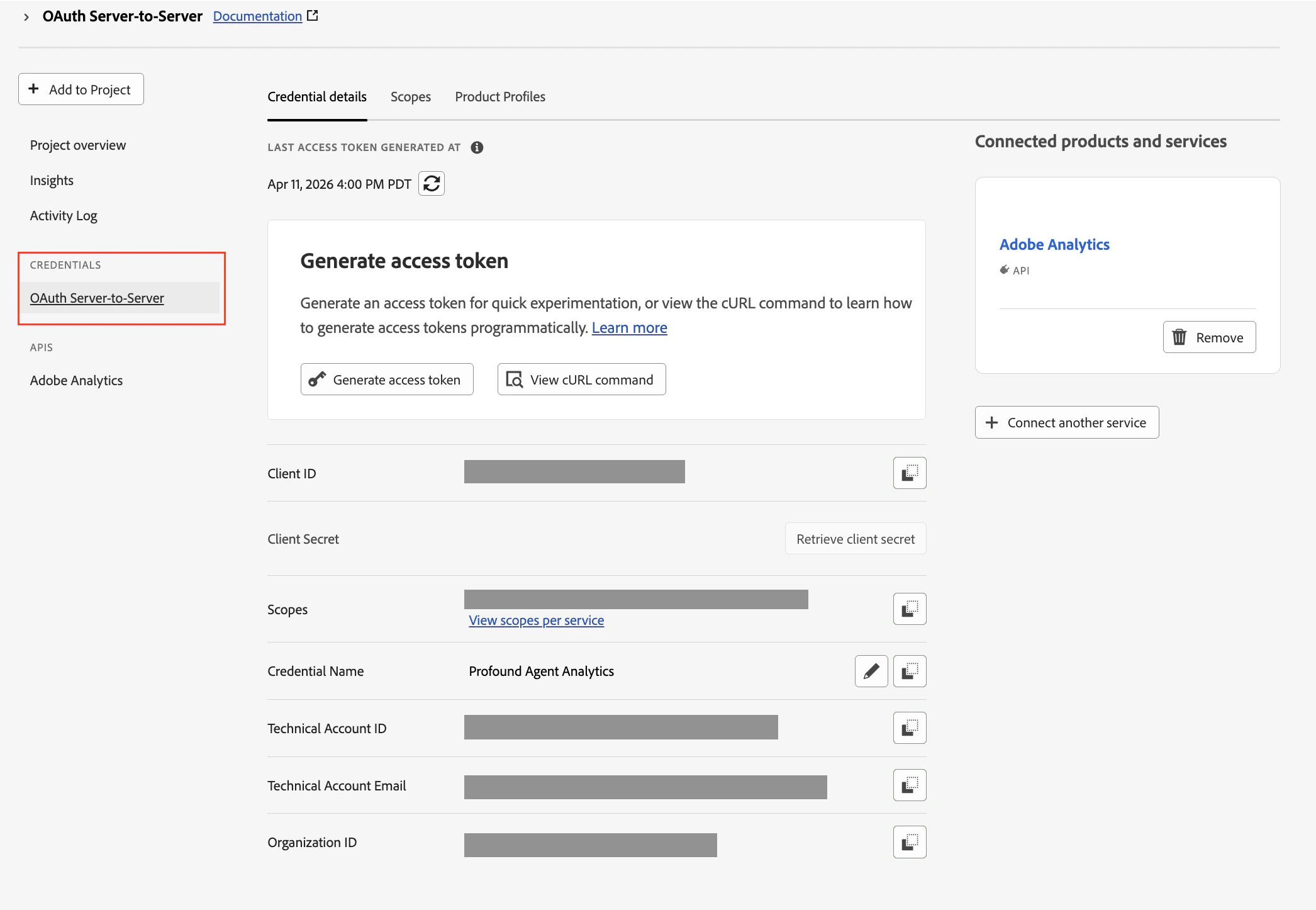
 In the newly created project, navigate to the **OAuth Server-to-Server** tab and retrieve the **Client ID**, **Client Secret**, and **Organization ID**. These values will be necessary when connecting the project within Profound.
 ## Configuration within Profound
Learn how to integrate Adobe Analytics with your existing Agent Analytics configuration.
Navigate to the **Adobe Analytics** tab. Here you will find a button to **Connect account**.
## Configuration within Profound
Learn how to integrate Adobe Analytics with your existing Agent Analytics configuration.
Navigate to the **Adobe Analytics** tab. Here you will find a button to **Connect account**.
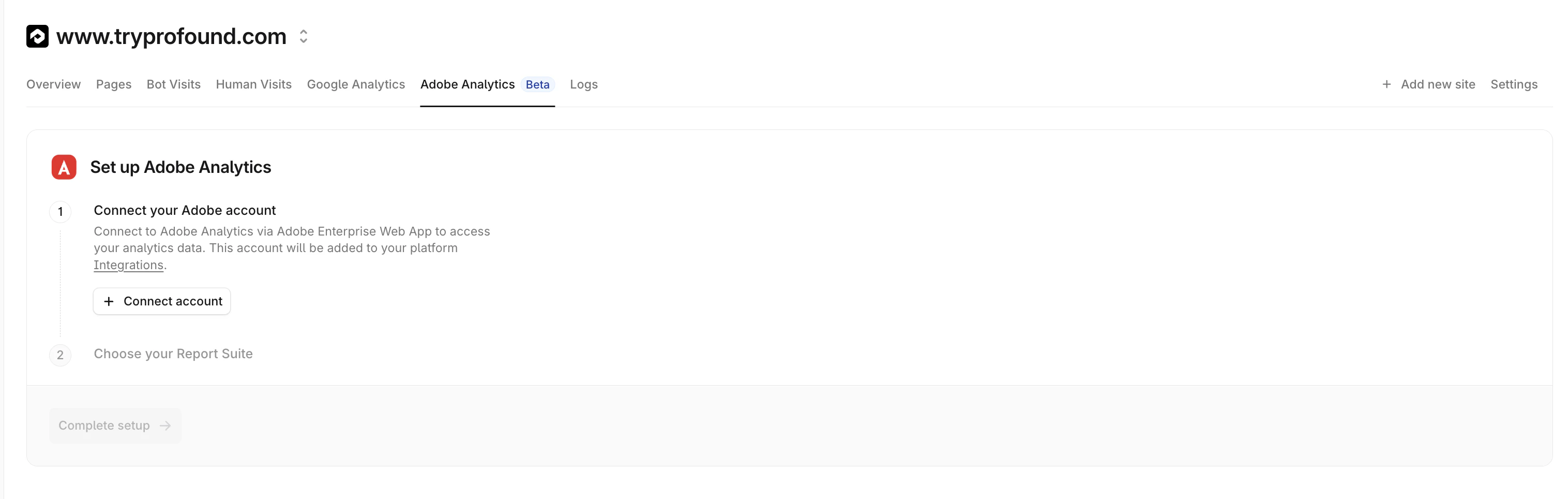 Click **Connect account**.
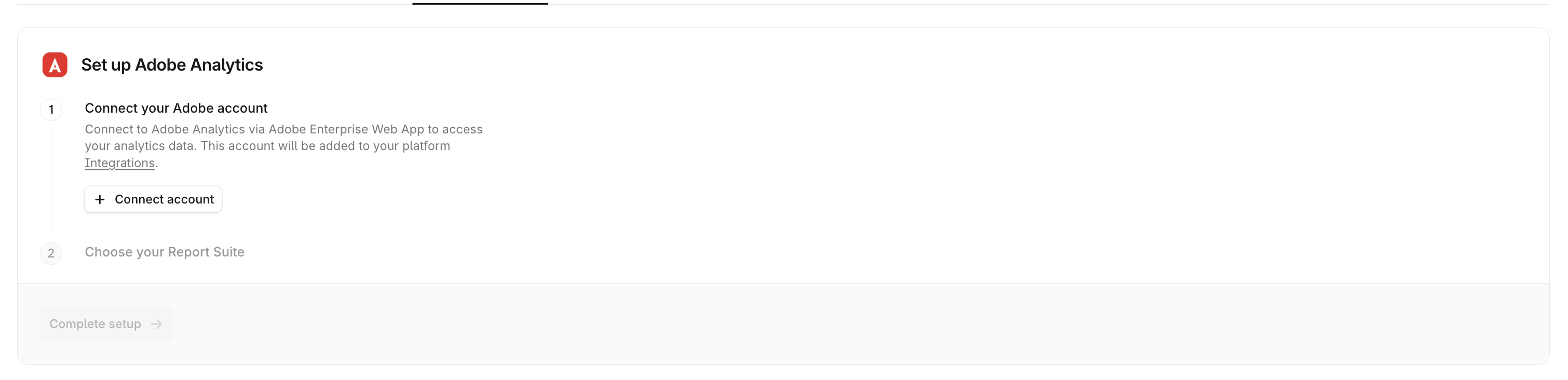 Input the **Client Secret**, **Client ID**, and **Organization ID** retrieved from the Adobe Developer Console from the previous steps.
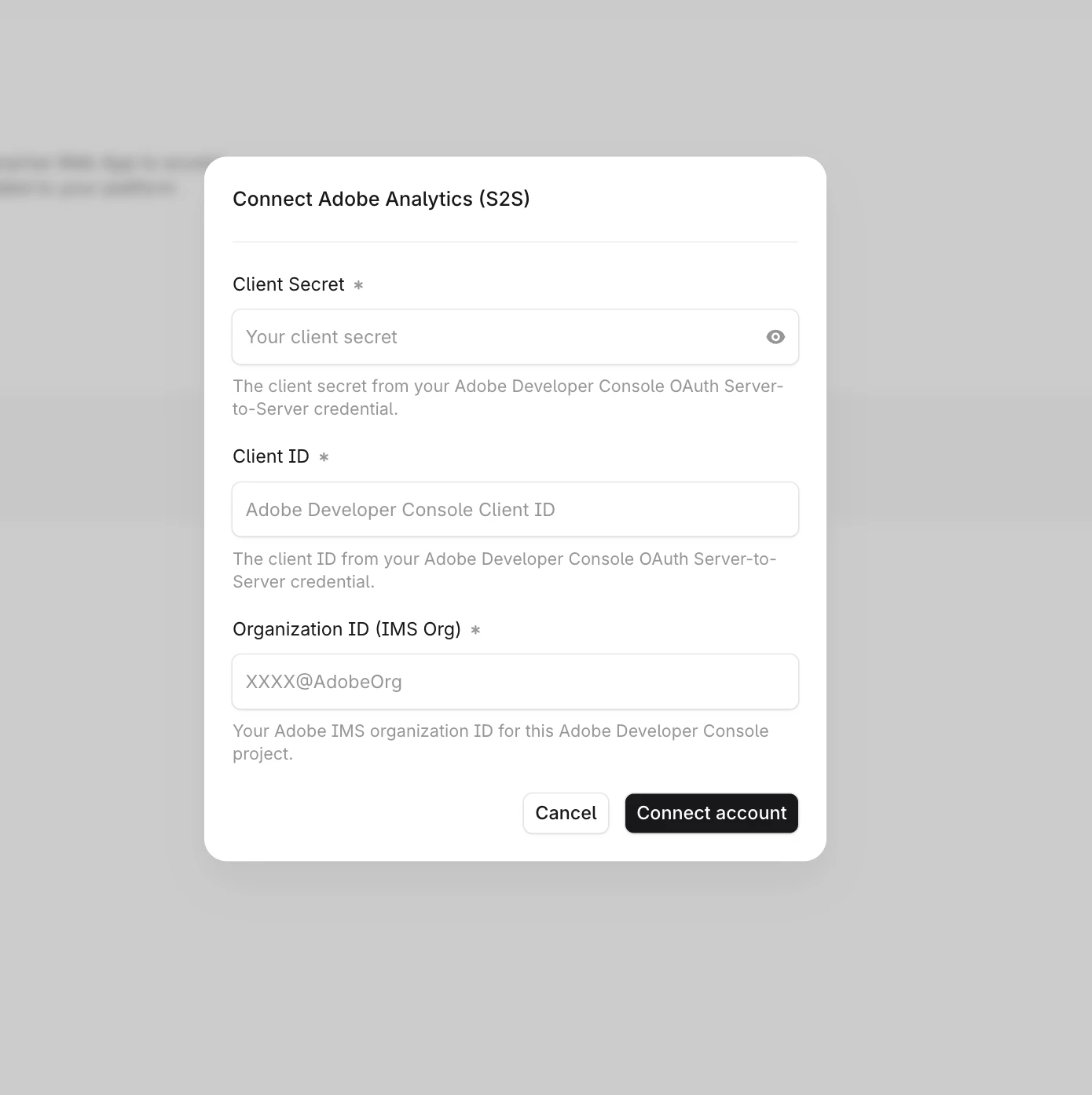 Once your Adobe account is connected, choose your Report Suite. Select a report suite to connect to this domain from the dropdown.
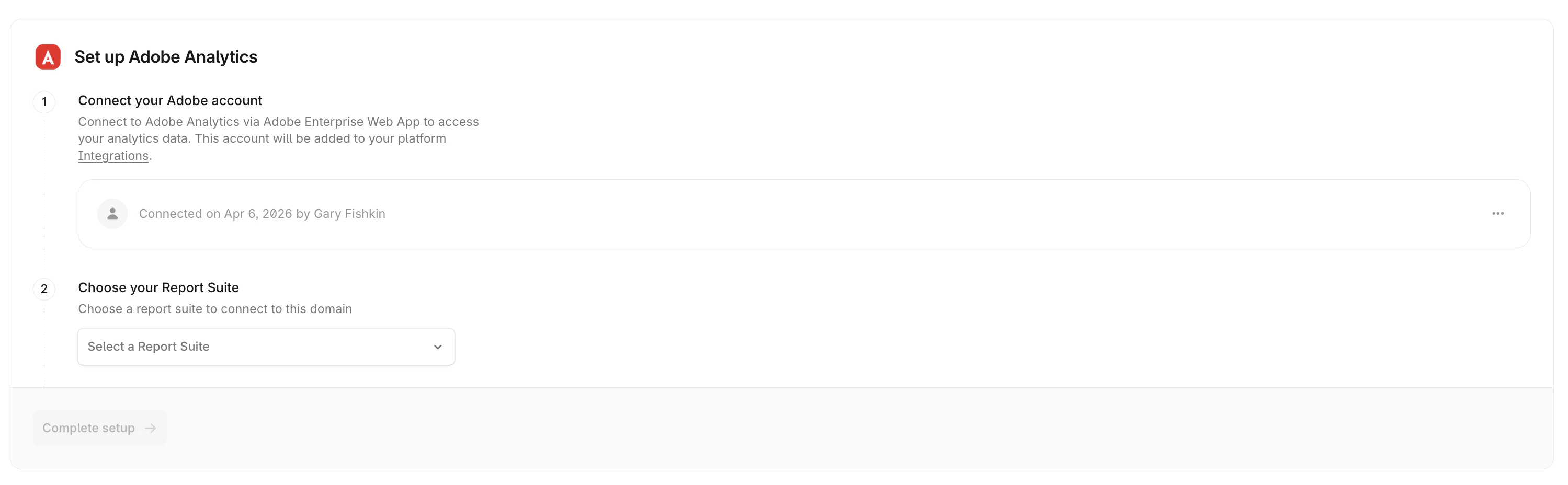 Click **Complete setup** to finalize the connection.
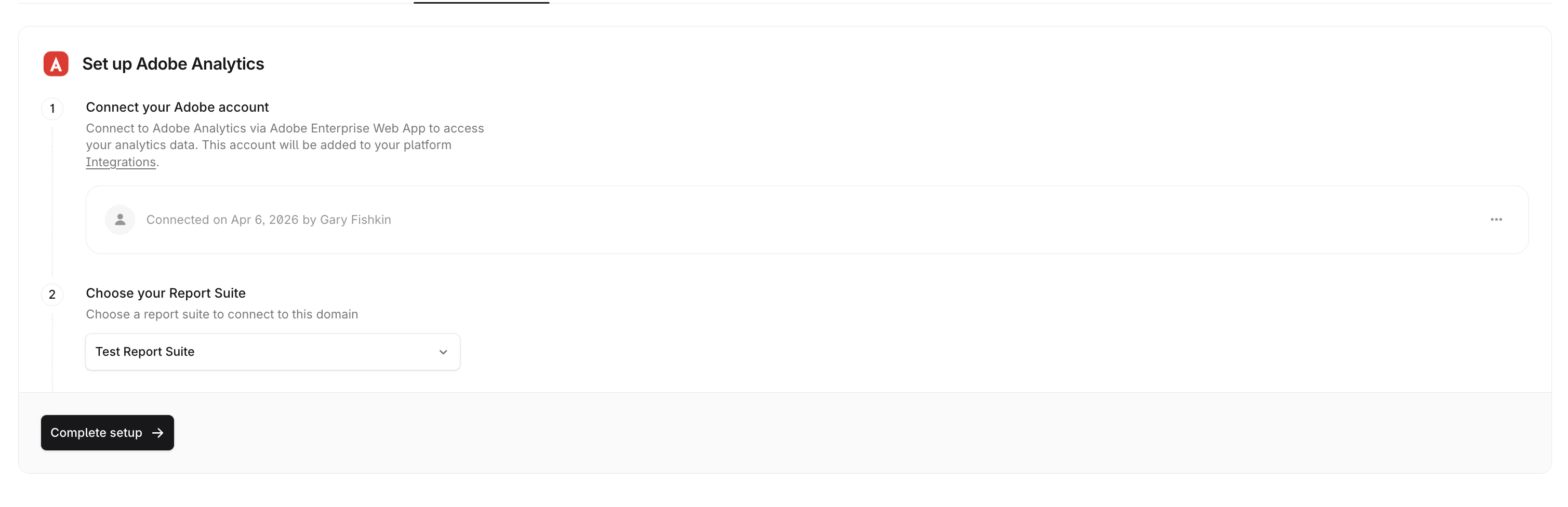 That's it! Adobe Analytics is now connected. Reload your Adobe Analytics tab to see data from your selected report suite.
Learn how to integrate Adobe Analytics without Agent Analytics
Navigate to the **Adobe Analytics Setup** tab. Here you will find a button to **Connect account**.
That's it! Adobe Analytics is now connected. Reload your Adobe Analytics tab to see data from your selected report suite.
Learn how to integrate Adobe Analytics without Agent Analytics
Navigate to the **Adobe Analytics Setup** tab. Here you will find a button to **Connect account**.
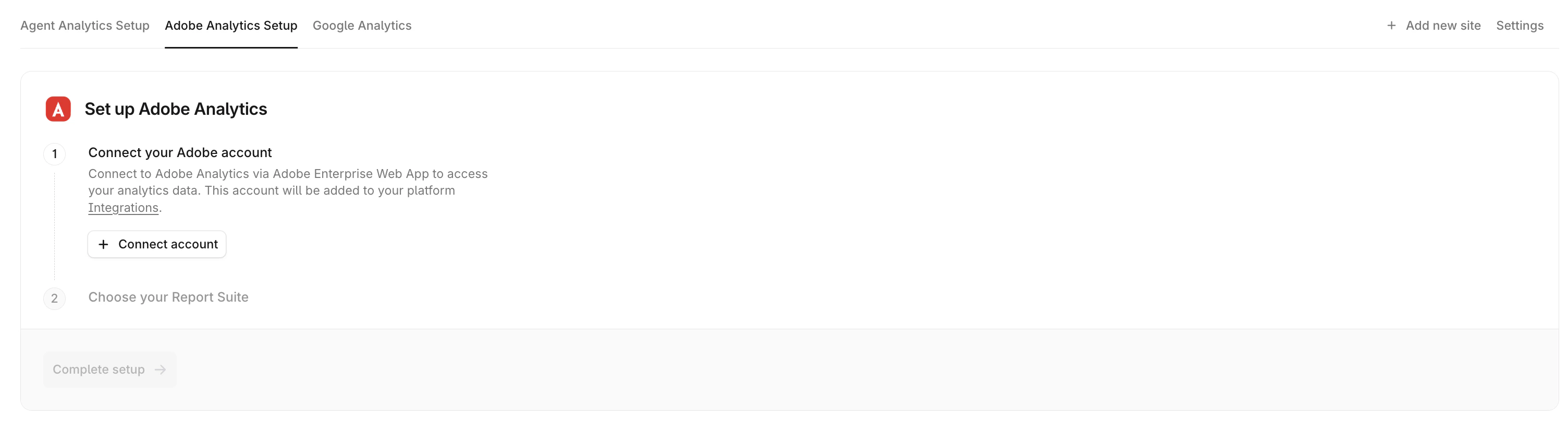 Click **Connect account**.
Input the **Client Secret**, **Client ID**, and **Organization ID** retrieved from the Adobe Developer Console from the previous steps.
Once your Adobe account is connected, choose your Report Suite. Select a report suite to connect to this domain from the dropdown.
Click **Complete setup** to finalize the connection.
That's it! Adobe Analytics is now connected. Reload your Adobe Analytics tab to see revenue data from your selected report suite.
## Disconnecting
You can disconnect the Adobe Analytics integration at any time in the Settings tab. Your integration will be disabled immediately.
## Security and Privacy
Profound requests READ ONLY access to your Adobe Analytics data and does not download, save, or otherwise retain your Adobe Analytics data.
Your data is fetched on demand for processing and display purposes only. We persist minimal report suite information (ID, name, and association with your selected website) to maintain the connection until you choose to disconnect the Adobe Analytics integration. You can opt out at any time through the Settings tab, giving you complete control over your analytics data.
## Considerations
* Only one report suite can be connected per website at this time
* Only one member of your organization must complete the Adobe authentication process. They must have access to the target Adobe Analytics account and report suites.
* Adobe Analytics can be blocked by various browsers or browser extensions. For best results, we recommend using Adobe Analytics in conjunction with the Agent Analytics platform
## Additional Resources
* [Adobe Analytics API Documentation](https://developer.adobe.com/analytics-apis/docs/2.0/)
* [Adobe Exchange Listing](https://exchange.adobe.com/apps/ec/600242/adobe-analytics-profound-agent-analytics-integration)
* Contact [support@tryprofound.com](mailto:support@tryprofound.com) for API-related questions
Click **Connect account**.
Input the **Client Secret**, **Client ID**, and **Organization ID** retrieved from the Adobe Developer Console from the previous steps.
Once your Adobe account is connected, choose your Report Suite. Select a report suite to connect to this domain from the dropdown.
Click **Complete setup** to finalize the connection.
That's it! Adobe Analytics is now connected. Reload your Adobe Analytics tab to see revenue data from your selected report suite.
## Disconnecting
You can disconnect the Adobe Analytics integration at any time in the Settings tab. Your integration will be disabled immediately.
## Security and Privacy
Profound requests READ ONLY access to your Adobe Analytics data and does not download, save, or otherwise retain your Adobe Analytics data.
Your data is fetched on demand for processing and display purposes only. We persist minimal report suite information (ID, name, and association with your selected website) to maintain the connection until you choose to disconnect the Adobe Analytics integration. You can opt out at any time through the Settings tab, giving you complete control over your analytics data.
## Considerations
* Only one report suite can be connected per website at this time
* Only one member of your organization must complete the Adobe authentication process. They must have access to the target Adobe Analytics account and report suites.
* Adobe Analytics can be blocked by various browsers or browser extensions. For best results, we recommend using Adobe Analytics in conjunction with the Agent Analytics platform
## Additional Resources
* [Adobe Analytics API Documentation](https://developer.adobe.com/analytics-apis/docs/2.0/)
* [Adobe Exchange Listing](https://exchange.adobe.com/apps/ec/600242/adobe-analytics-profound-agent-analytics-integration)
* Contact [support@tryprofound.com](mailto:support@tryprofound.com) for API-related questions