> ## Documentation Index
> Fetch the complete documentation index at: https://docs.tryprofound.com/llms.txt
> Use this file to discover all available pages before exploring further.
# Google Analytics (GA4) Extension
> Connect AI visibility with human engagement metrics to create a complete picture of your digital performance and revenue impact
## Overview
Profound Agent Analytics now offers seamless integration with Google Analytics 4 (GA4), enhancing your ability to correlate AI interactions with human engagement and business outcomes. This integration bridges the gap between AI visibility and traditional web analytics, providing a comprehensive view of your digital performance ecosystem.
By connecting your GA4 property, Agent Analytics can import critical conversion and revenue metrics alongside our specialized AI tracking capabilities. This integration works both as a complementary extension to our core platform or as a standalone solution, giving you flexibility in how you monitor and optimize your digital presence for both human and AI visitors.
The GA4 integration automatically synchronizes your analytics data in real-time when accessing the Google Analytics dashboard, allowing you to make data-driven decisions with the most current information available while maintaining strict privacy controls.
### GA4 Metrics
* Sessions (`sessions`): Track human visitor engagement based on GA4 session data
* Transactions (`transactions`): Monitor purchase-related events including completed sales and refunds
* Purchase Revenue (`purchaseRevenue`): Quantify the financial impact of your digital presence
* Session Key Event Rate (`sessionKeyEventRate`): Evaluate conversion efficiency through the percentage of sessions resulting in transactions
* Page Path Analysis (`pagePath`): Identify your most valuable content for both humans and AI systems
## Prerequisites
* Google Analytics account
* Google Analytics configured for your website
* Access to a target Property via your Google account
## Configuration
Learn how to integrate GA4 with your existing Agent Analytics Configuration.
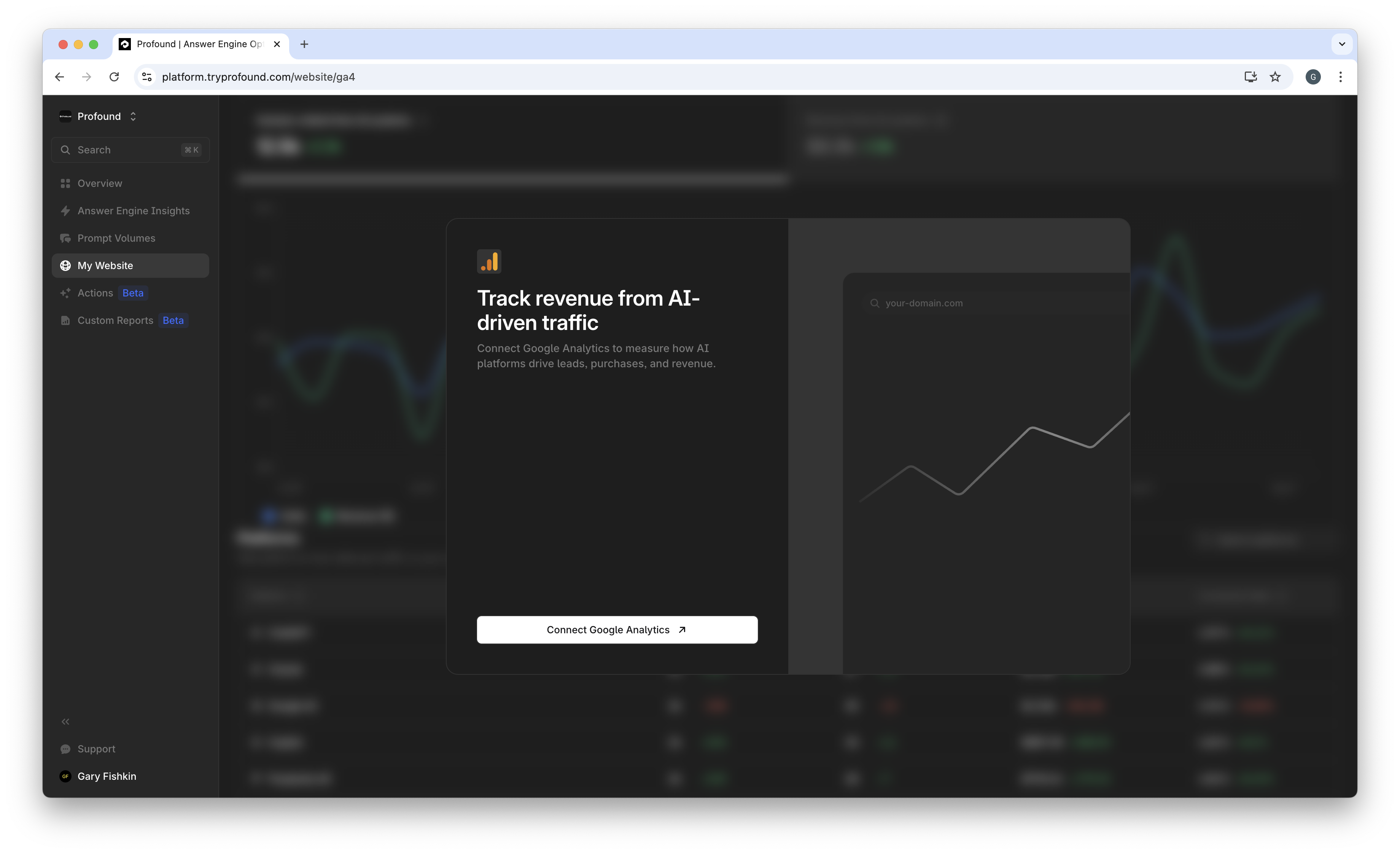
Navigate to the Google Analytics tab. Here you will find a button to Connect Google Analytics.
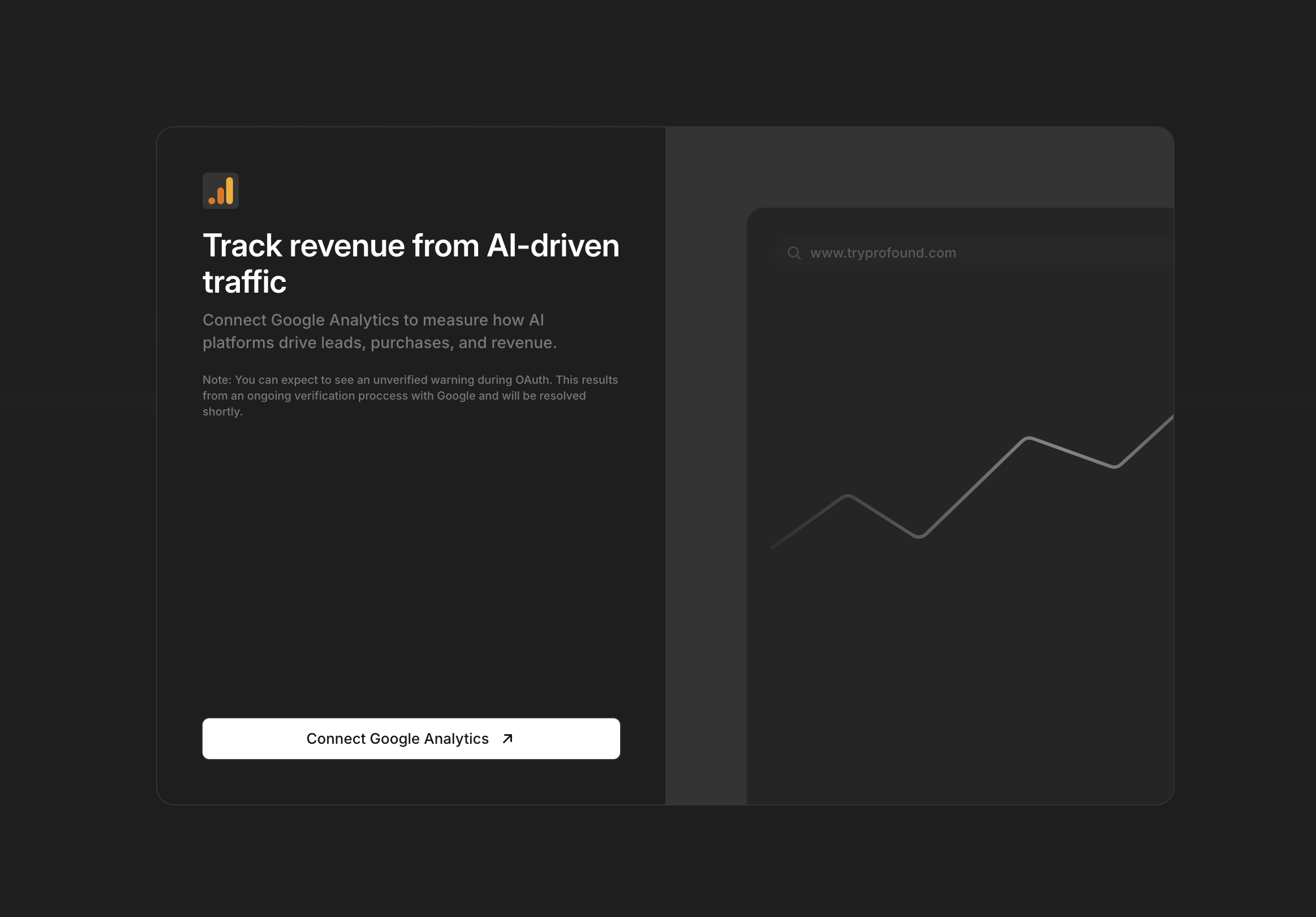
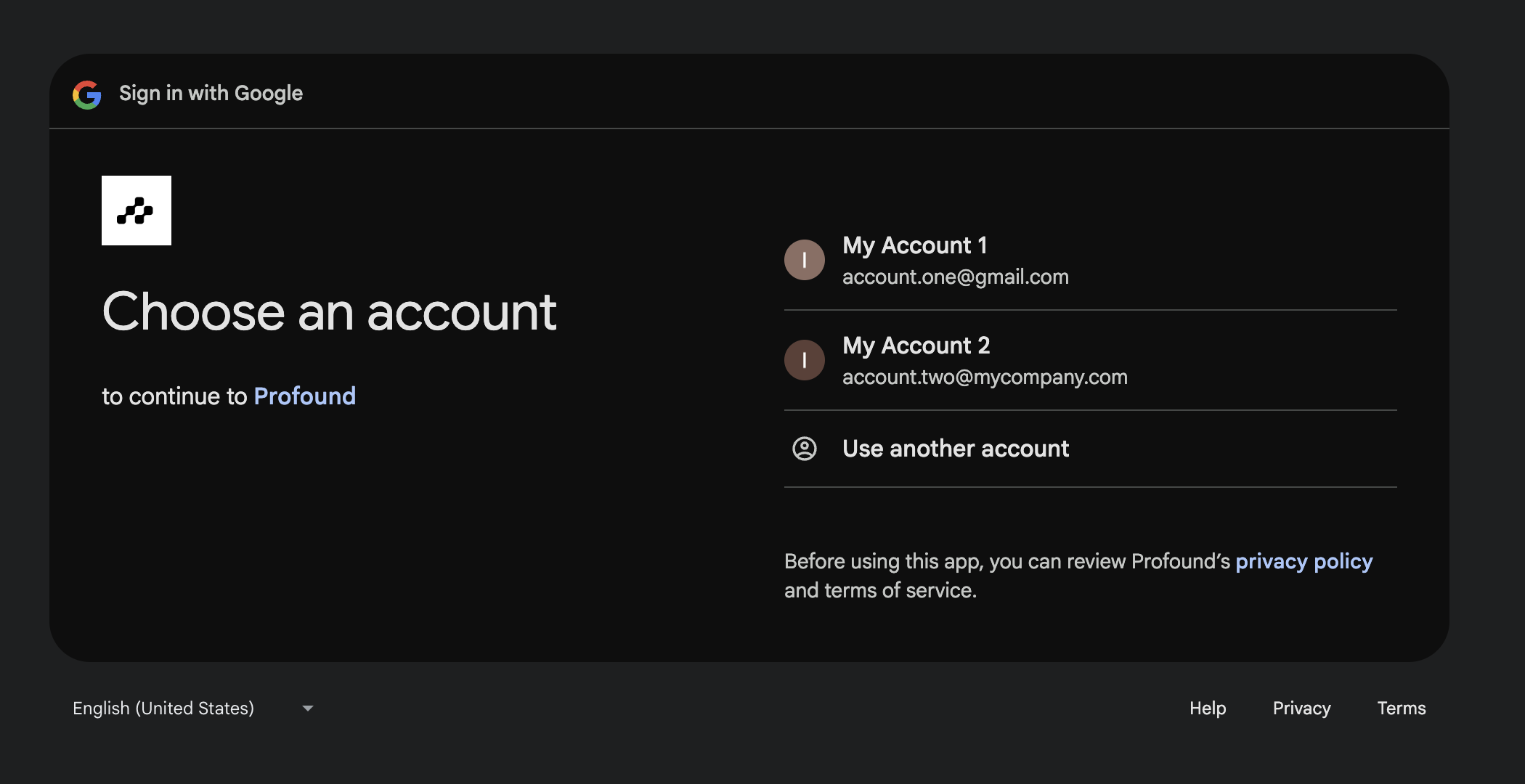
 Click **Configure Google Analytics**. This will direct you to connect your google account to Profound. When prompted, *you should select the Google account which has access to the GA4 Project you want to integrate.*
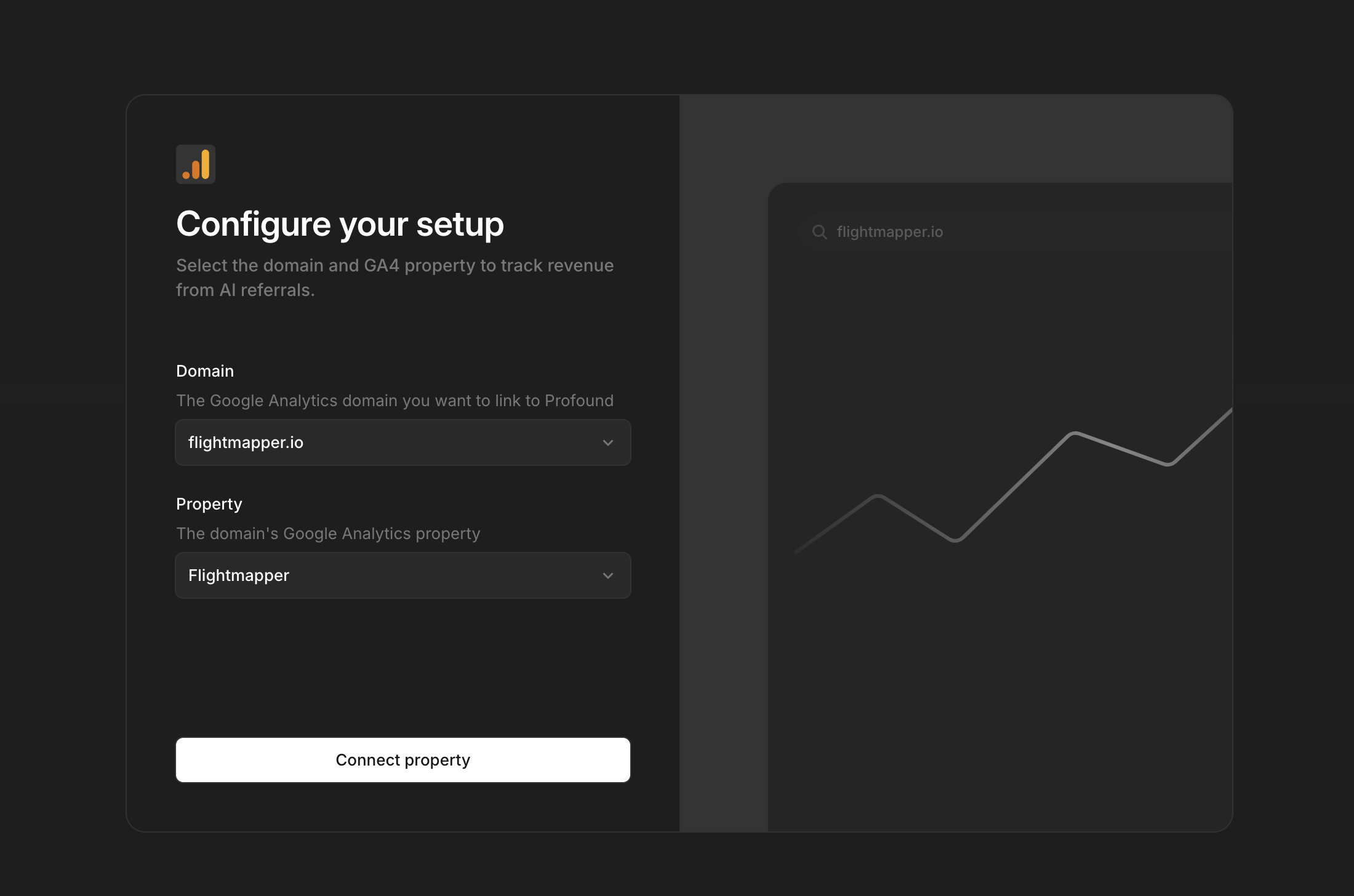
 Select the website you want to connect. This will determine which domain displays GA4 data. Then, select the GA4 property to retrieve data from.
 Profound will now verify the connection.
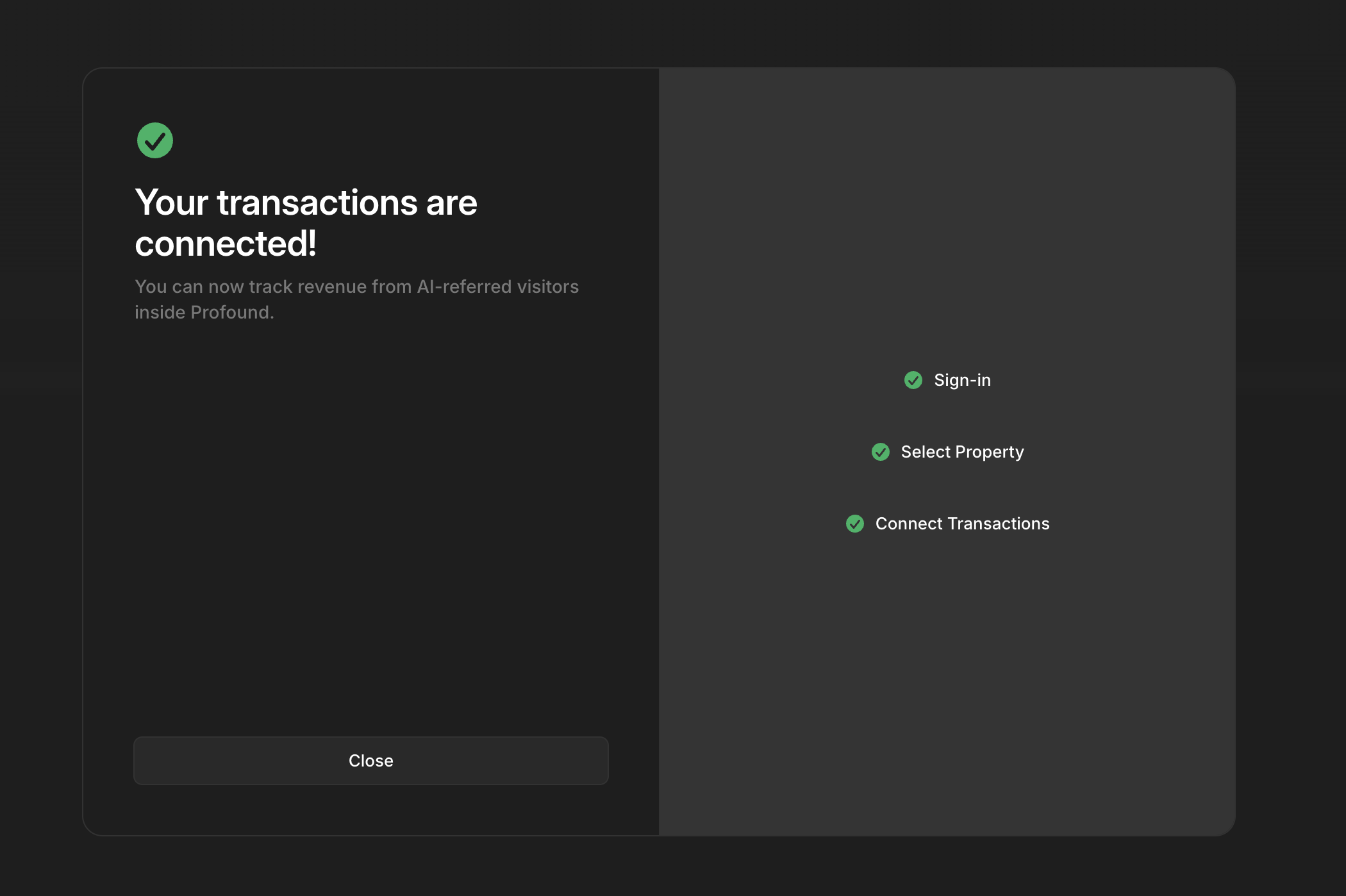 That's it! Google Analytics is now connected. Reload your Google Analytics tab to see revenue data from your selected property.
Learn how to integrate GA4 without Agent Analytics
Navigate to Website tab in the sidebar. If you have not configured Agent Analytics, you will see the following window.
That's it! Google Analytics is now connected. Reload your Google Analytics tab to see revenue data from your selected property.
Learn how to integrate GA4 without Agent Analytics
Navigate to Website tab in the sidebar. If you have not configured Agent Analytics, you will see the following window.
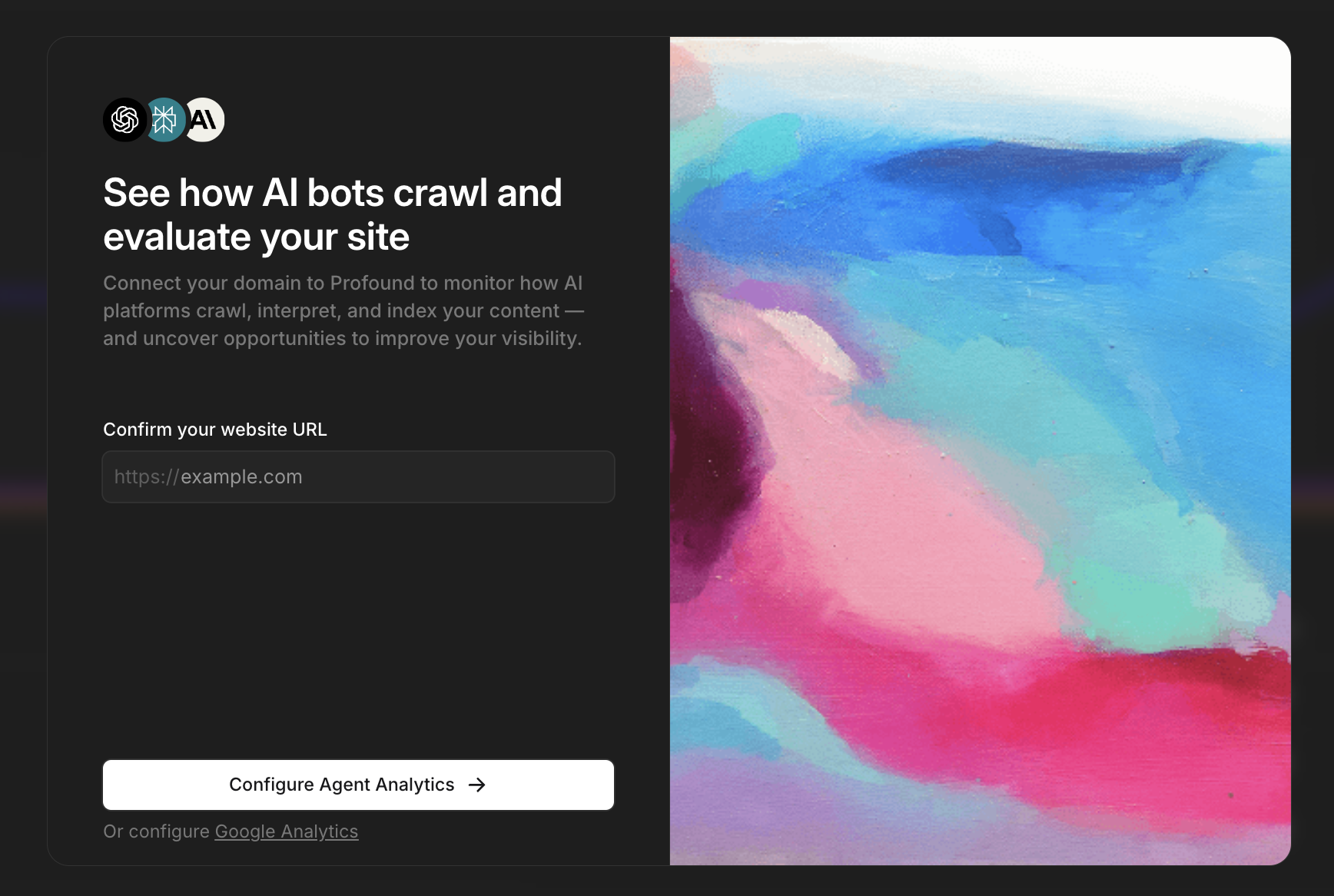 Click **Google Analytics** near the bottom. This will direct you to connect your google account to Profound. When prompted, *you should select the Google account which has access to the GA4 Project you want to integrate.*
Select **+ Add a new website** and enter your domain name. Use the domain for which your target GA4 property is configured. Then, select the GA4 property to retrieve data from.
Click **Google Analytics** near the bottom. This will direct you to connect your google account to Profound. When prompted, *you should select the Google account which has access to the GA4 Project you want to integrate.*
Select **+ Add a new website** and enter your domain name. Use the domain for which your target GA4 property is configured. Then, select the GA4 property to retrieve data from.
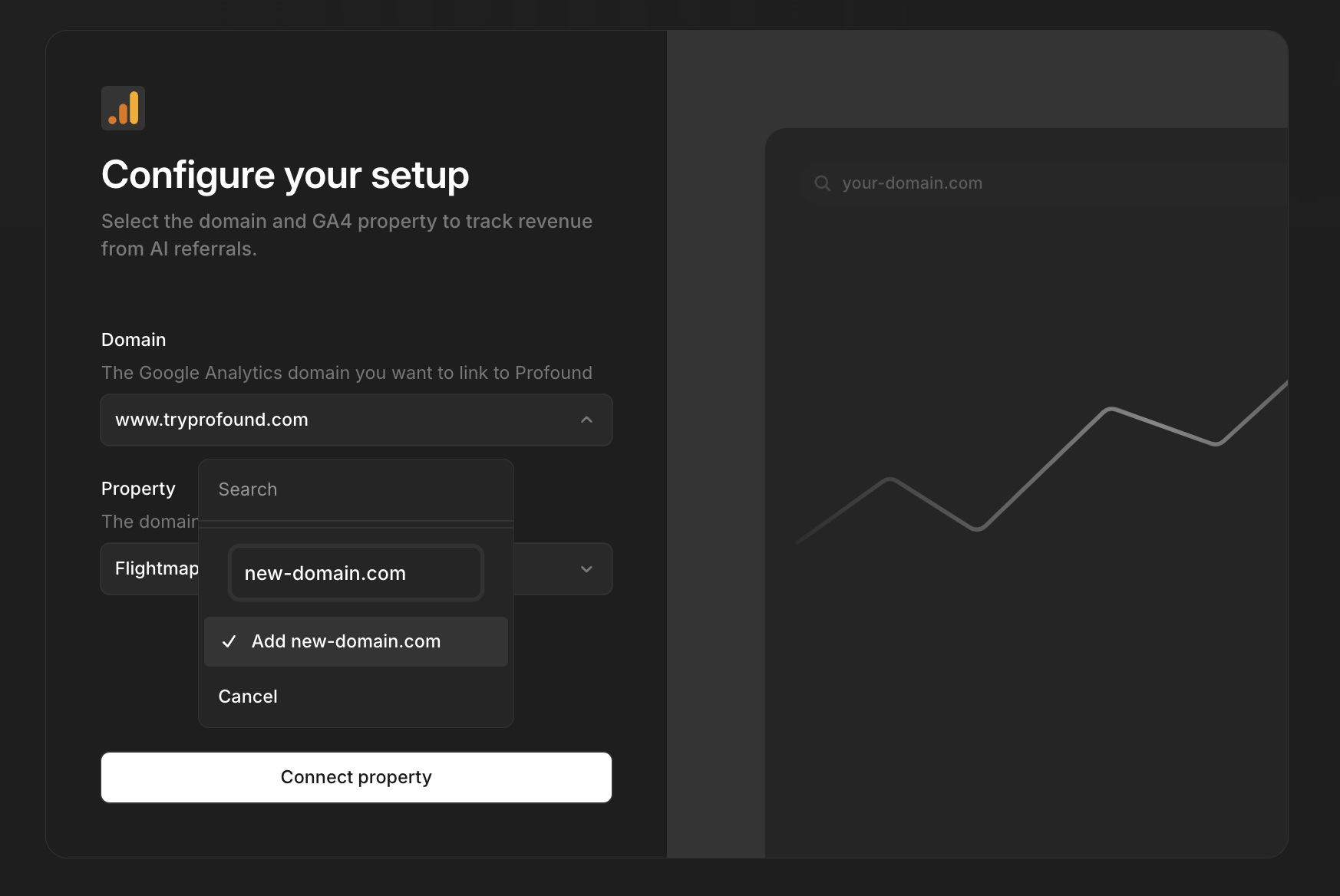 Profound will now verify the connection.
## Disconnecting
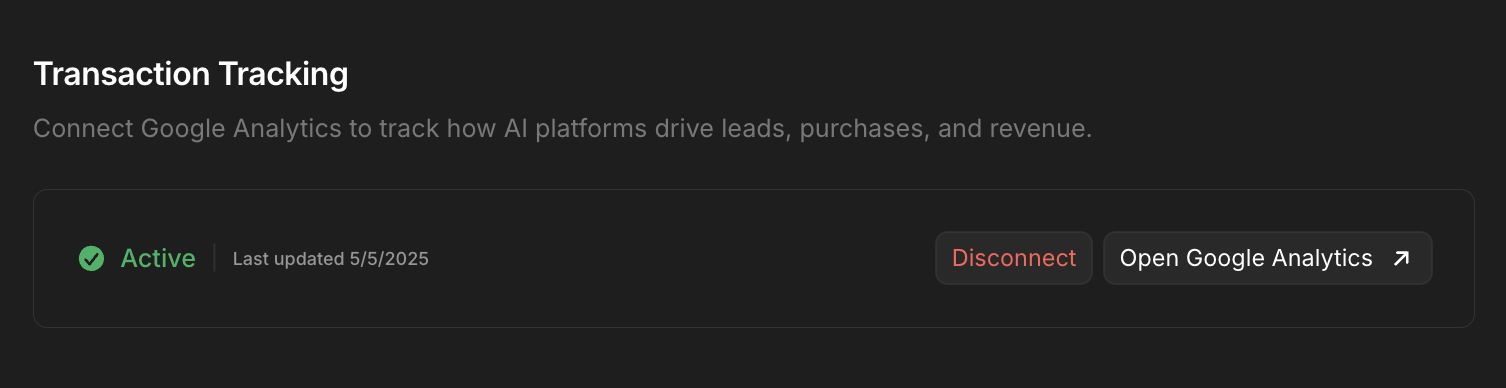
You can disconnect GA4 integration at any time in the Settings tab. Your integration will be disabled immediately.
Profound will now verify the connection.
## Disconnecting
You can disconnect GA4 integration at any time in the Settings tab. Your integration will be disabled immediately.
 ## Security and Privacy
Profound requests READ ONLY access to your Google Analytics data and does not download, save, or otherwise retain your Google Analytics data.
Your data is fetched on demand for processing and display purposes only. We persist minimal property information (ID, name, and association with your selected website) to maintain the connection until you choose to disconnect the GA4 integration. You can opt out at any time through the Settings tab, giving you complete control over your analytics data.
## Considerations
* Only one property can be connected per website at this time
* Every team member must complete the Google authentication process. They must have access to the target GA4 project and property
* Google Analytics is blocked by various browsers or browser extensions. For best results, we recommend using GA4 in conjunction with the Agent Analytics platform
## Additional Resources
* [Google Analytics Data API](https://developers.google.com/analytics/devguides/reporting/data/v1/rest)
* [Google Analytics Metric Information](https://developers.google.com/analytics/devguides/reporting/data/v1/api-schema)
* Contact [support@tryprofound.com](mailto:support@tryprofound.com) for API-related questions
## Security and Privacy
Profound requests READ ONLY access to your Google Analytics data and does not download, save, or otherwise retain your Google Analytics data.
Your data is fetched on demand for processing and display purposes only. We persist minimal property information (ID, name, and association with your selected website) to maintain the connection until you choose to disconnect the GA4 integration. You can opt out at any time through the Settings tab, giving you complete control over your analytics data.
## Considerations
* Only one property can be connected per website at this time
* Every team member must complete the Google authentication process. They must have access to the target GA4 project and property
* Google Analytics is blocked by various browsers or browser extensions. For best results, we recommend using GA4 in conjunction with the Agent Analytics platform
## Additional Resources
* [Google Analytics Data API](https://developers.google.com/analytics/devguides/reporting/data/v1/rest)
* [Google Analytics Metric Information](https://developers.google.com/analytics/devguides/reporting/data/v1/api-schema)
* Contact [support@tryprofound.com](mailto:support@tryprofound.com) for API-related questions