> ## Documentation Index
> Fetch the complete documentation index at: https://docs.tryprofound.com/llms.txt
> Use this file to discover all available pages before exploring further.
# Google Cloud CDN
> This documentation explains how to set up Google Cloud CDN log delivery to Profound Agent Analytics platform using a log sink.
## Overview
This integration uses a topic, subscription, and log sink to capture Google Cloud CDN logs and forward them to Profound Agent Analytics platform.
## Prerequisites
* A GCP account with Google Cloud CDN enabled
* Access and edit permissions to the GCP project
* API endpoint details for the Profound Agent Analytics platform
## Configuration
 Sign into the GCP Console and navigate to `Topics`, you can search for 'topics' in the search bar.
Create a new topic by clicking the `Create Topic` button near the top.
Sign into the GCP Console and navigate to `Topics`, you can search for 'topics' in the search bar.
Create a new topic by clicking the `Create Topic` button near the top.
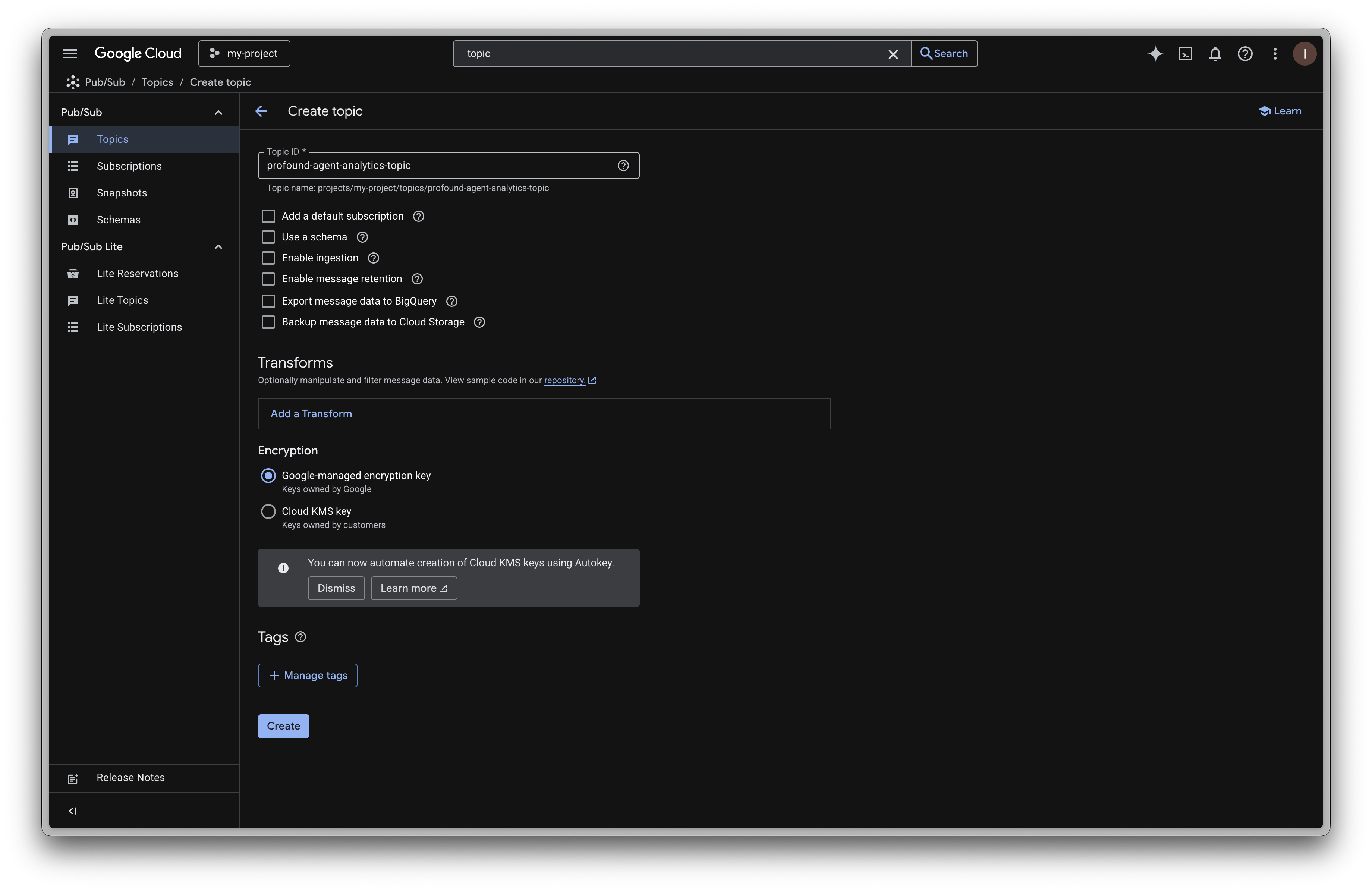 Give your topic a name and click `Create`
Navigate to the `Subscriptions` tab on the left sidebar. Click the `Create Subscription` button near the top.
Give your topic a name and click `Create`
Navigate to the `Subscriptions` tab on the left sidebar. Click the `Create Subscription` button near the top.
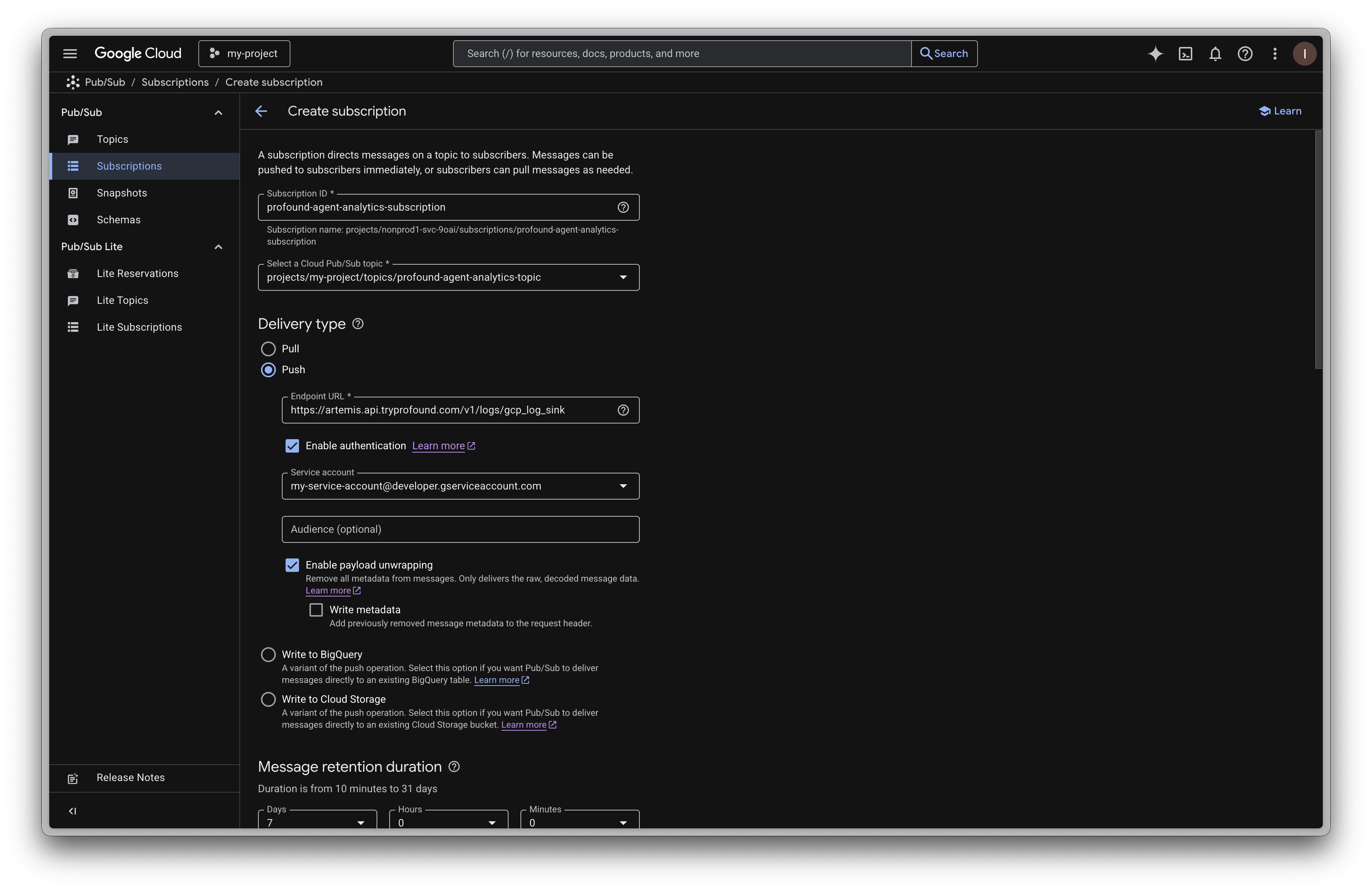 1. Give your subscription a name.
2. Select the topic you created in step 2.
3. Use delivery type `Push`
* Enter `https://artemis.api.tryprofound.com/v1/logs/gcp_log_sink` as the endpoint
* Enable authentication
* Paste the service account this subscription will use into the `Service account` field
* Leave `Audience` blank
* Enable payload unwrapping
Add retention policy configurations at your discretion.
1. Give your subscription a name.
2. Select the topic you created in step 2.
3. Use delivery type `Push`
* Enter `https://artemis.api.tryprofound.com/v1/logs/gcp_log_sink` as the endpoint
* Enable authentication
* Paste the service account this subscription will use into the `Service account` field
* Leave `Audience` blank
* Enable payload unwrapping
Add retention policy configurations at your discretion.
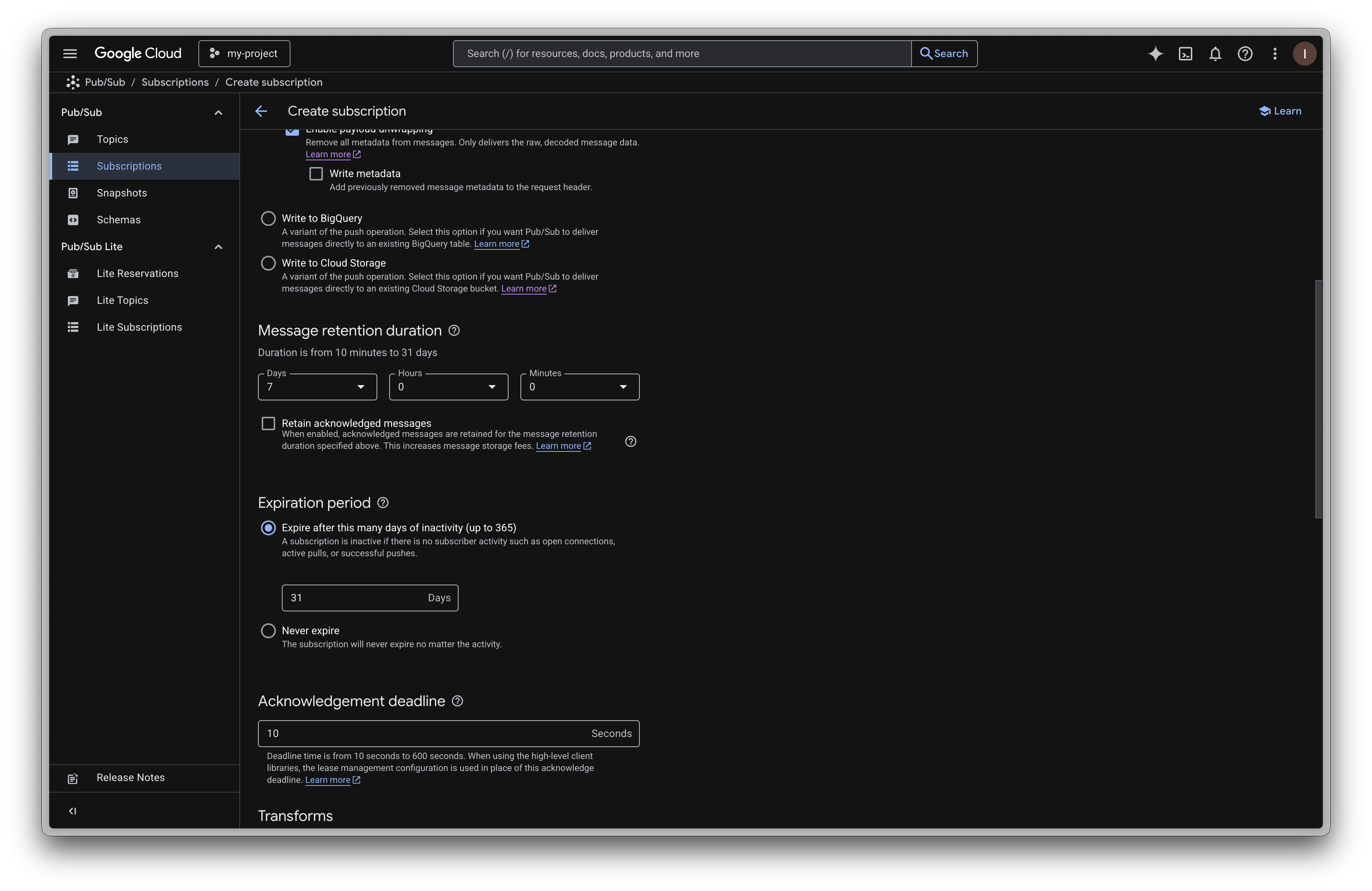 Click `Add a Transform` button. Enter `profound_agent_analytics_reduce` as the function name.
Paste the following code into the function body:
```javascript theme={null}
/* This UDF is used to filter the unused fields before sending to Profound.
*
* @param {Object} message - The message to reduce.
* @param {Object} metadata - The metadata of the message.
* @returns {Object} The reduced message.
*/
function profound_agent_analytics_reduce(message, metadata) {
// parse the message
const data = JSON.parse(message.data);
// remove unused fields
delete data['insertId'];
delete data['jsonPayload'];
delete data['logName'];
delete data['receiveTimestamp'];
delete data['resource'];
delete data['severity'];
delete data['spanId'];
delete data['trace'];
message.data = JSON.stringify(data);
return message;
}
```
This function is used to drop extraneous fields before sending to Profound. This reduces log export volume, improves performance, and enhances data security.
Click `Add a Transform` button. Enter `profound_agent_analytics_reduce` as the function name.
Paste the following code into the function body:
```javascript theme={null}
/* This UDF is used to filter the unused fields before sending to Profound.
*
* @param {Object} message - The message to reduce.
* @param {Object} metadata - The metadata of the message.
* @returns {Object} The reduced message.
*/
function profound_agent_analytics_reduce(message, metadata) {
// parse the message
const data = JSON.parse(message.data);
// remove unused fields
delete data['insertId'];
delete data['jsonPayload'];
delete data['logName'];
delete data['receiveTimestamp'];
delete data['resource'];
delete data['severity'];
delete data['spanId'];
delete data['trace'];
message.data = JSON.stringify(data);
return message;
}
```
This function is used to drop extraneous fields before sending to Profound. This reduces log export volume, improves performance, and enhances data security.
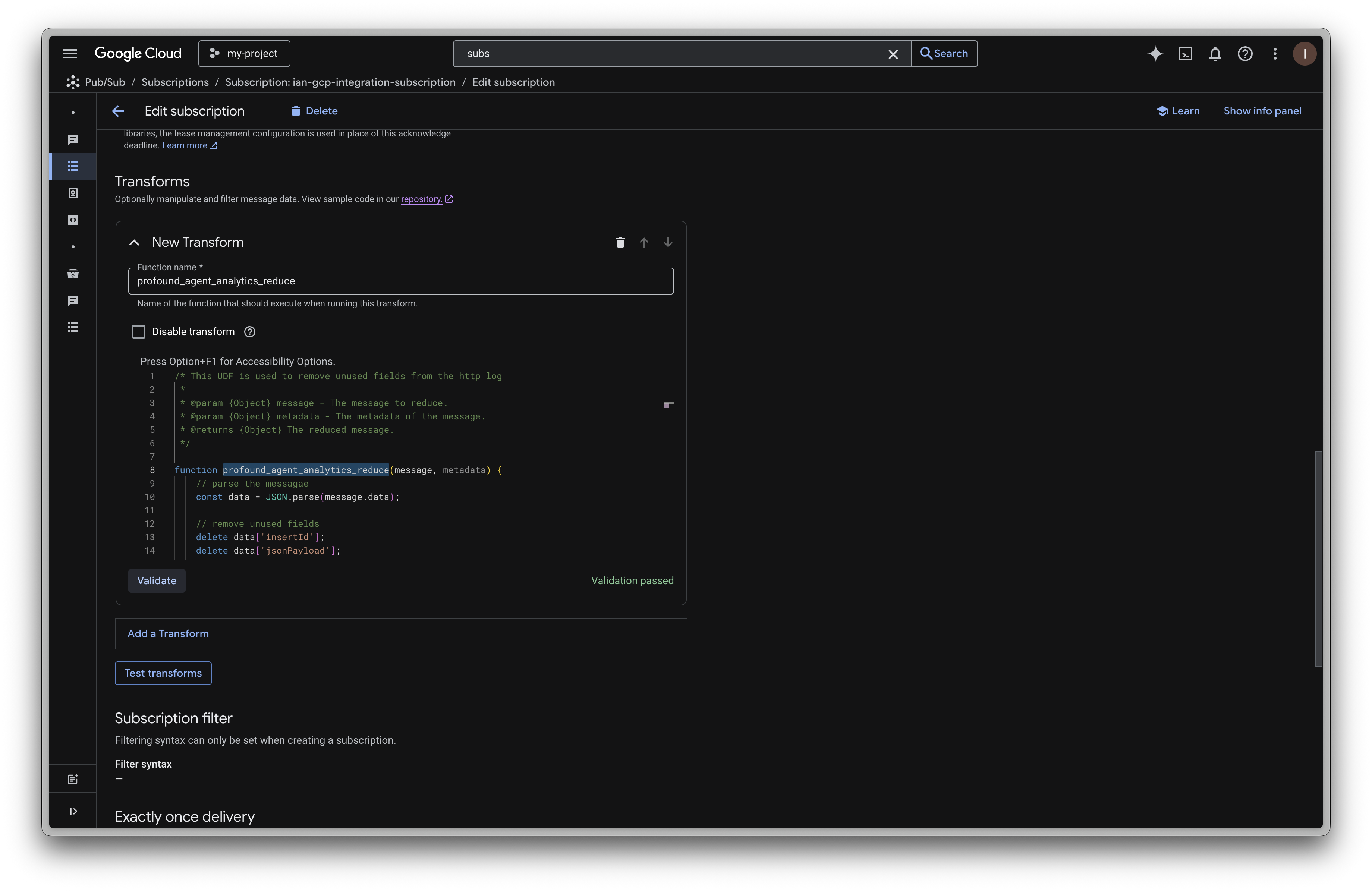 Click `Validate` to ensure the function is valid.
Add additional configurations at your discretion.
Click `Validate` to ensure the function is valid.
Add additional configurations at your discretion.
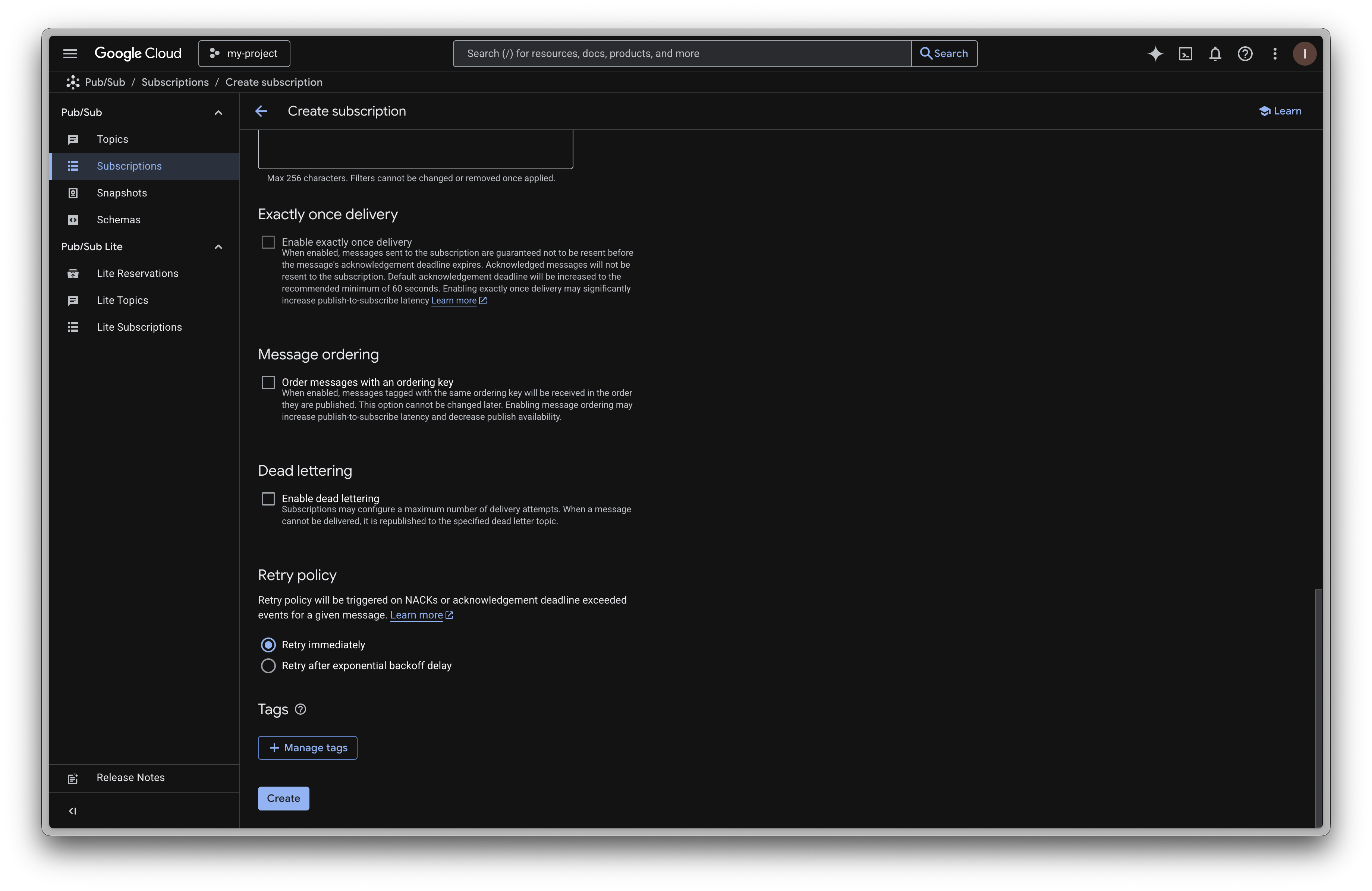 Click `Create` to create the subscription.
Navigate to the `Log Router` tab by searching 'log router' in the search bar. Click the `Create sink` button near the top.
Give your sink a name and optional description.
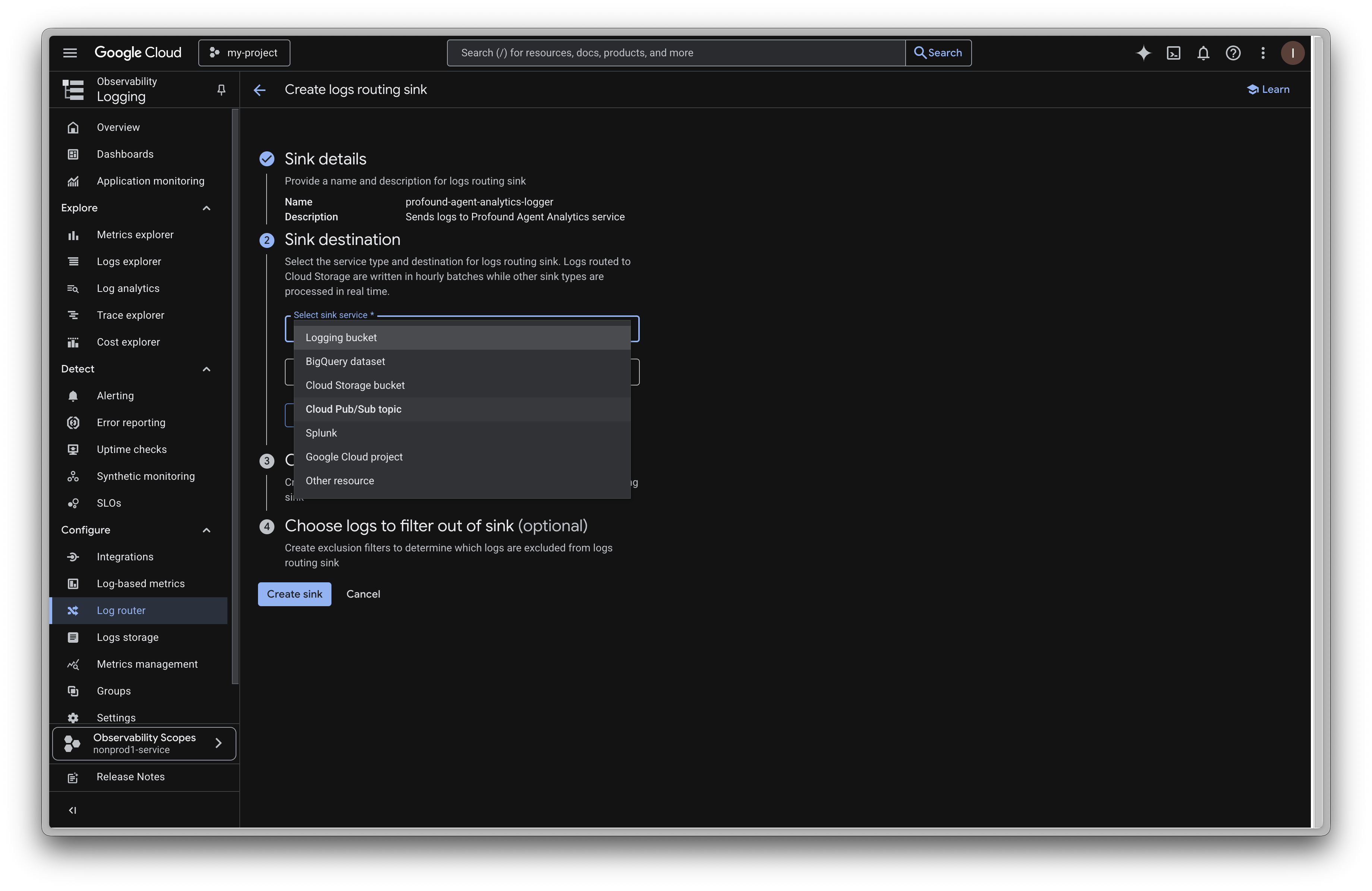
In the `Sink destination` section, select `Cloud Pub/Sub topic` as the `sink service` . In the `sink destination` field, select the topic you created in step 2.
Click `Create` to create the subscription.
Navigate to the `Log Router` tab by searching 'log router' in the search bar. Click the `Create sink` button near the top.
Give your sink a name and optional description.
In the `Sink destination` section, select `Cloud Pub/Sub topic` as the `sink service` . In the `sink destination` field, select the topic you created in step 2.
 Add the following filters to your sink in the `Choose logs to include in sink` section.
Make sure to replace the placeholders with your real load balancer and url map names. **This is only an example.**
```toml theme={null}
resource.type="http_load_balancer"
resource.labels.forwarding_rule_name="MY-FORWARDING-RULE-NAME"
resource.labels.url_map_name="MY-URL-MAP-NAME"
```
Add the following filters to your sink in the `Choose logs to include in sink` section.
Make sure to replace the placeholders with your real load balancer and url map names. **This is only an example.**
```toml theme={null}
resource.type="http_load_balancer"
resource.labels.forwarding_rule_name="MY-FORWARDING-RULE-NAME"
resource.labels.url_map_name="MY-URL-MAP-NAME"
```
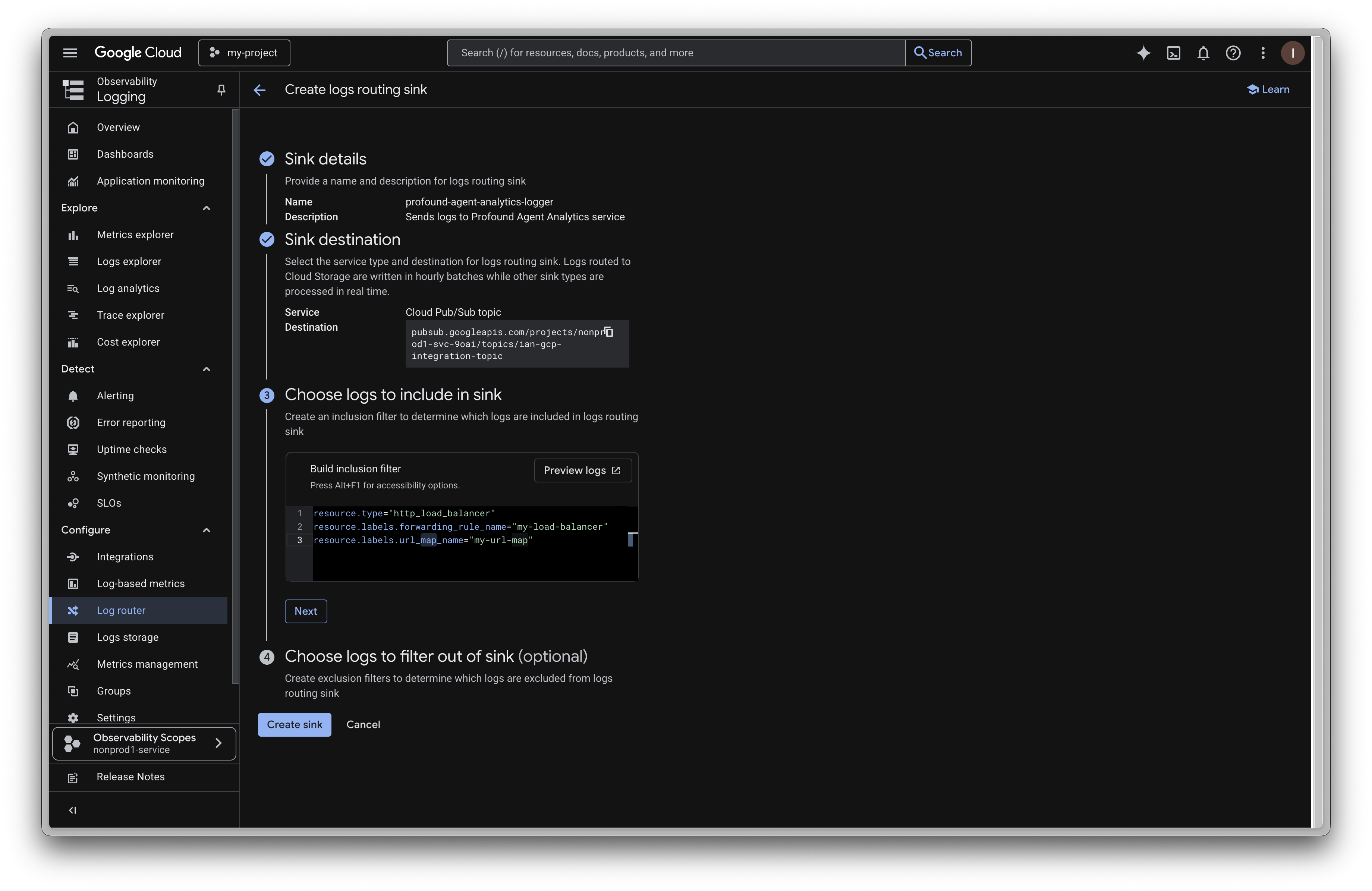 Finally, click `Create sink` at the bottom.
If you have multiple load balancers and url maps, you can modify the filters to include multiple resources like:
```toml theme={null}
resource.type="http_load_balancer"
AND (
(resource.labels.forwarding_rule_name="MY-FORWARDING-RULE-NAME"
AND resource.labels.url_map_name="MY-URL-MAP-NAME")
OR
(resource.labels.forwarding_rule_name="MY-FORWARDING-RULE-NAME-2"
AND resource.labels.url_map_name="MY-URL-MAP-NAME-2")
)
```
If you are registering multiple GCP domains with Profound, you will need to create a separate service account for each domain. The account is used to decode the JWT token and confirm the source domain.
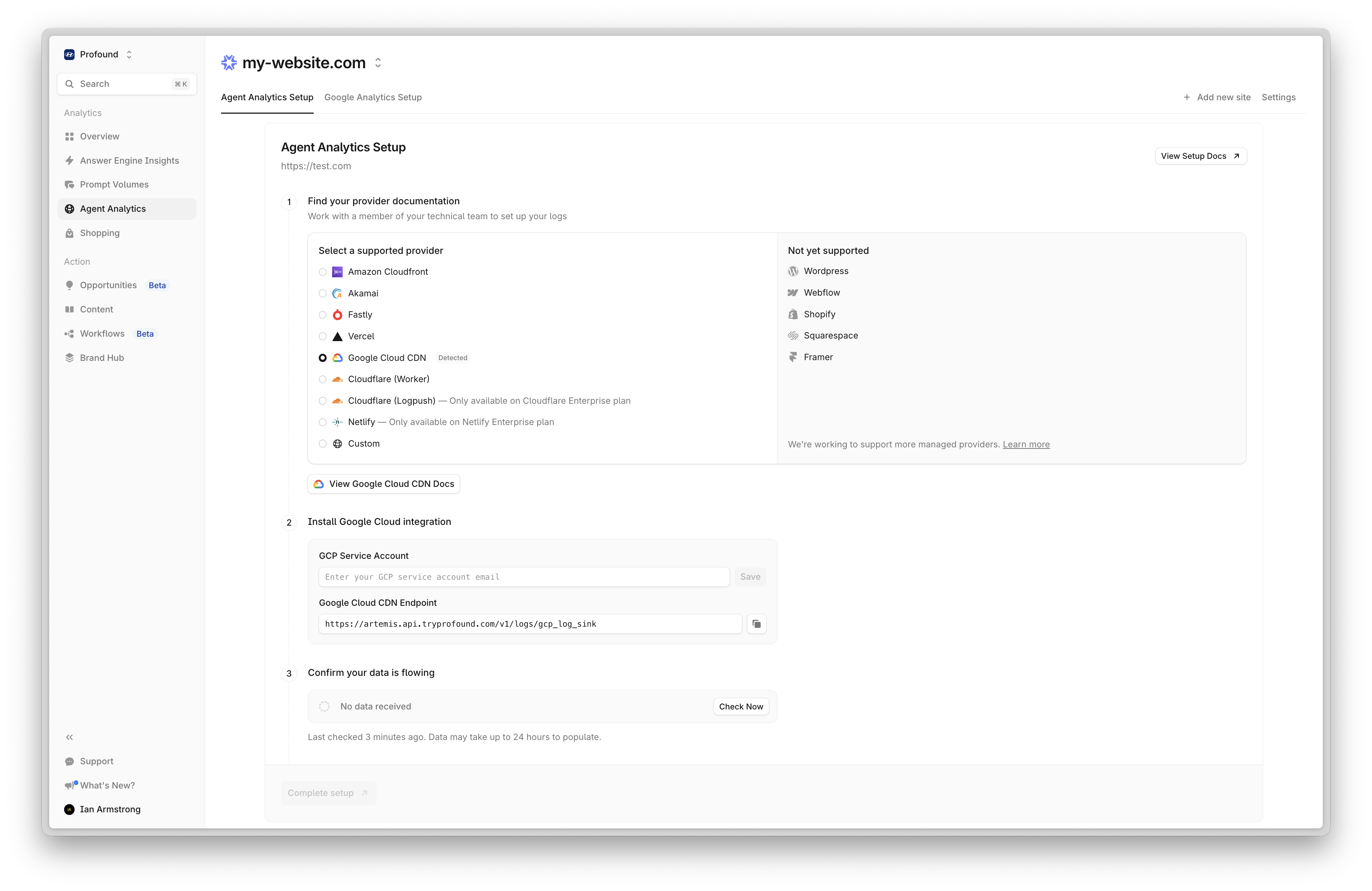
Navigate back to Profound. On the Agent Analytics onboarding page, paste the same service account email you used in step 3 into the `GCP Service Account` field. Ensure you click `Save` after pasting the email.
Click `Continue` to complete the onboarding process.
That's it! Google Cloud CDN will now send real-time logs to Profound. Data should begin appearing in your dashboard within a few minutes.
## Troubleshooting
* Ensure you have shared the same service account email with Profound that you used to create the subscription.
* Check the `Logs` tab in Profound to verify the logs are being received.
* Verify the service account has the necessary permissions to access the topic as pub/sub.
* Verify the topic is created and active.
* Verify the subscription is created and active.
## Additional Resources
* [Third Party Log Routing Documentation](https://docs.cloud.google.com/logging/docs/export/pubsub#integrate-thru-pubsub)
* [Service Account Management Documentation](https://docs.cloud.google.com/iam/docs/create-service-agents#grant-role)
* Contact [support@tryprofound.com](mailto:support@tryprofound.com) for API-related questions
Finally, click `Create sink` at the bottom.
If you have multiple load balancers and url maps, you can modify the filters to include multiple resources like:
```toml theme={null}
resource.type="http_load_balancer"
AND (
(resource.labels.forwarding_rule_name="MY-FORWARDING-RULE-NAME"
AND resource.labels.url_map_name="MY-URL-MAP-NAME")
OR
(resource.labels.forwarding_rule_name="MY-FORWARDING-RULE-NAME-2"
AND resource.labels.url_map_name="MY-URL-MAP-NAME-2")
)
```
If you are registering multiple GCP domains with Profound, you will need to create a separate service account for each domain. The account is used to decode the JWT token and confirm the source domain.
Navigate back to Profound. On the Agent Analytics onboarding page, paste the same service account email you used in step 3 into the `GCP Service Account` field. Ensure you click `Save` after pasting the email.
Click `Continue` to complete the onboarding process.
That's it! Google Cloud CDN will now send real-time logs to Profound. Data should begin appearing in your dashboard within a few minutes.
## Troubleshooting
* Ensure you have shared the same service account email with Profound that you used to create the subscription.
* Check the `Logs` tab in Profound to verify the logs are being received.
* Verify the service account has the necessary permissions to access the topic as pub/sub.
* Verify the topic is created and active.
* Verify the subscription is created and active.
## Additional Resources
* [Third Party Log Routing Documentation](https://docs.cloud.google.com/logging/docs/export/pubsub#integrate-thru-pubsub)
* [Service Account Management Documentation](https://docs.cloud.google.com/iam/docs/create-service-agents#grant-role)
* Contact [support@tryprofound.com](mailto:support@tryprofound.com) for API-related questions