> ## Documentation Index
> Fetch the complete documentation index at: https://docs.tryprofound.com/llms.txt
> Use this file to discover all available pages before exploring further.
# Vercel Integration (Connectable Account)
> This guide explains how to set up a Vercel Log Drain via the Profound Agent Analytics Integration
## Overview
Vercel Log Drains provide a way to forward your Vercel application logs to [Profound Agent Analytics](https://vercel.com/cooper-square-technologies/~/integrations/profound) platform. By integrating with Profound's Agent Analytics platform, you gain access to comprehensive monitoring features including automated agent detection and real-time performance analysis.
## Prerequisites
Before beginning the integration process, ensure you have:
* A Vercel account with administrative access
* A Profound account with an active subscription
* Administrative access to your Vercel project settings
## Configuration
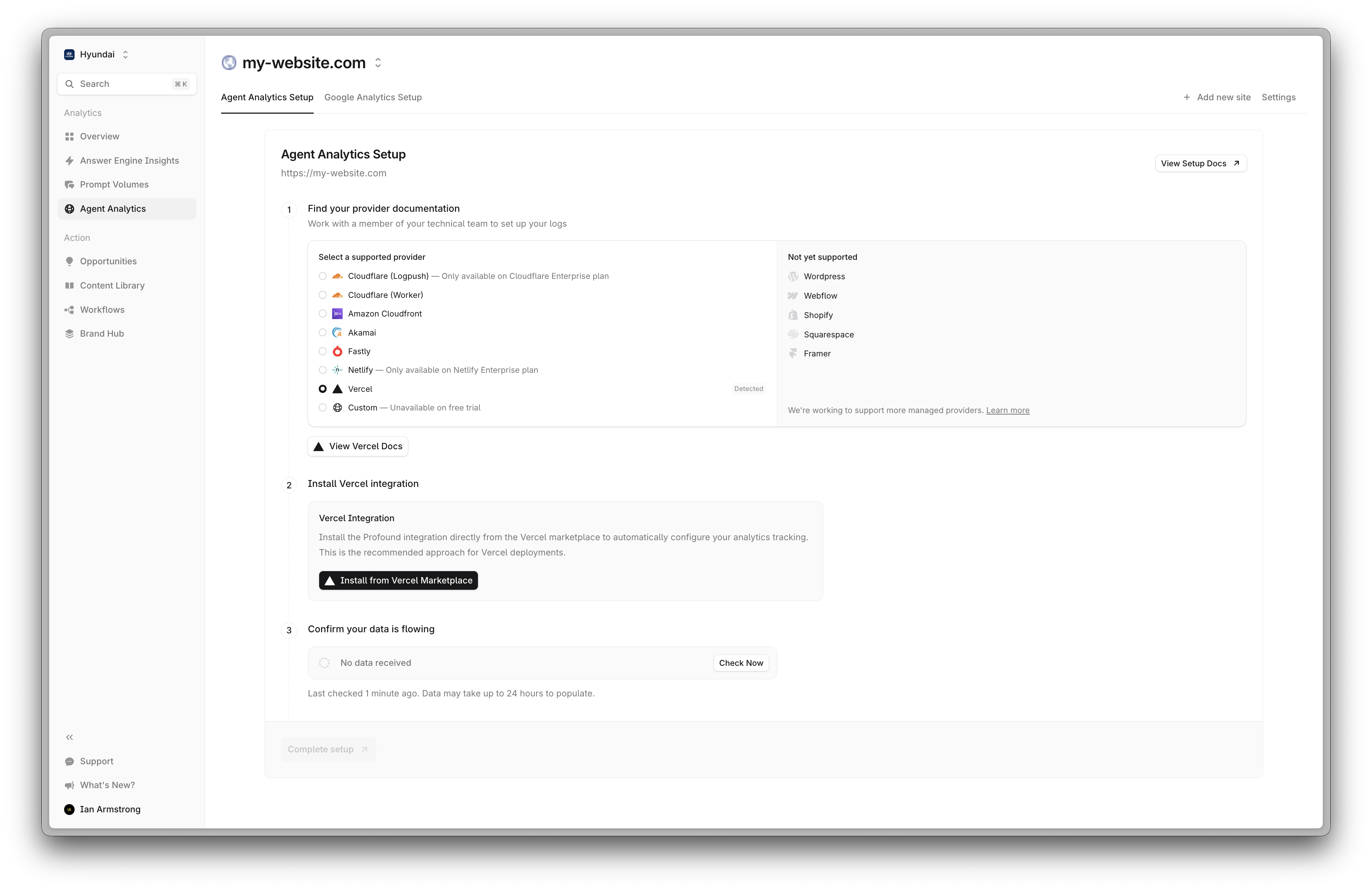 Log into your Vercel Dashboard and navigate to your projects settings at **Settings** > **Log Drains**.
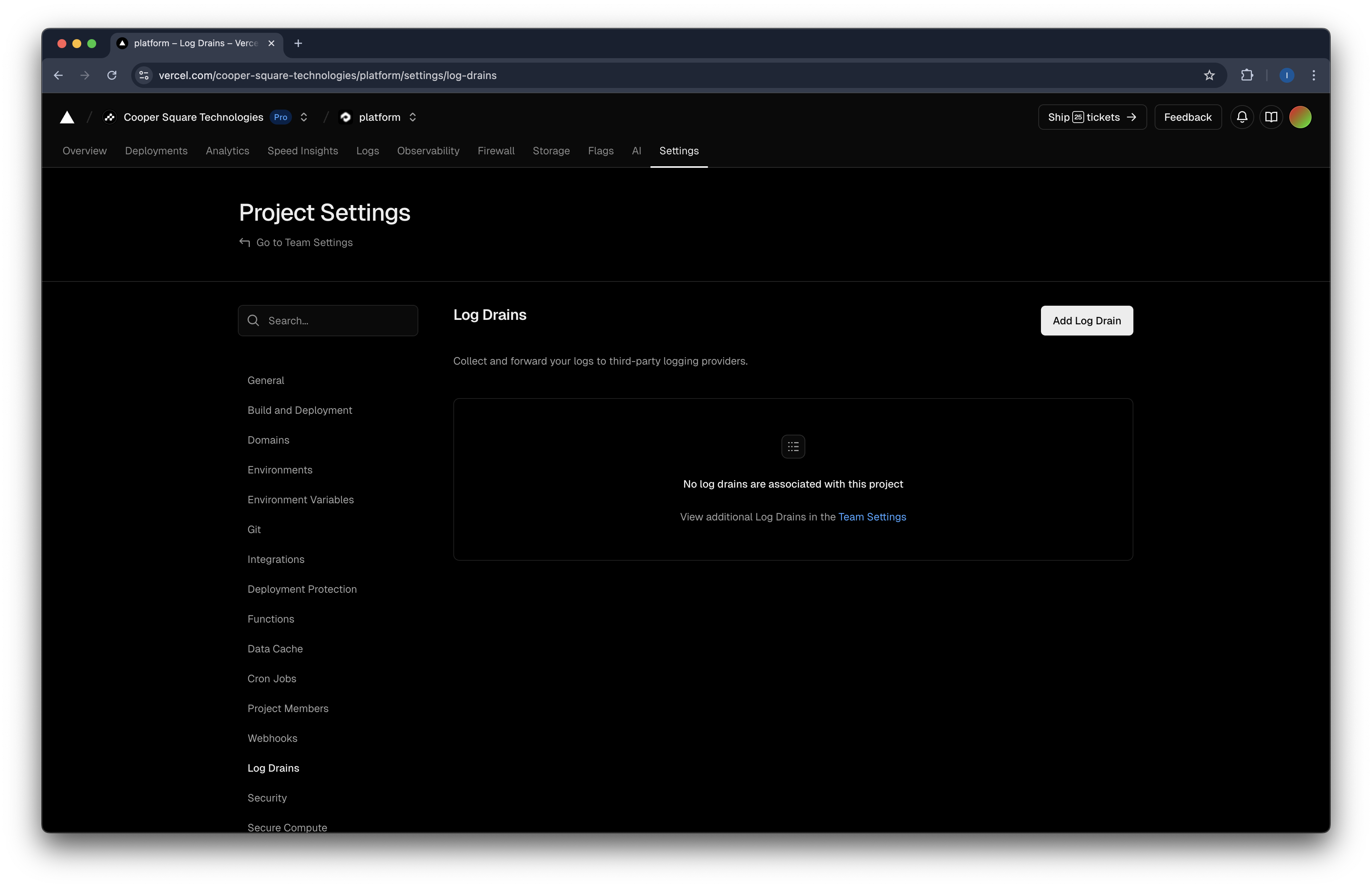 In the top right, press the **Add Log Drain** button. This will open a list of integrations. Search for "Profound Agent Analytics" and select it. Press **Continue**.
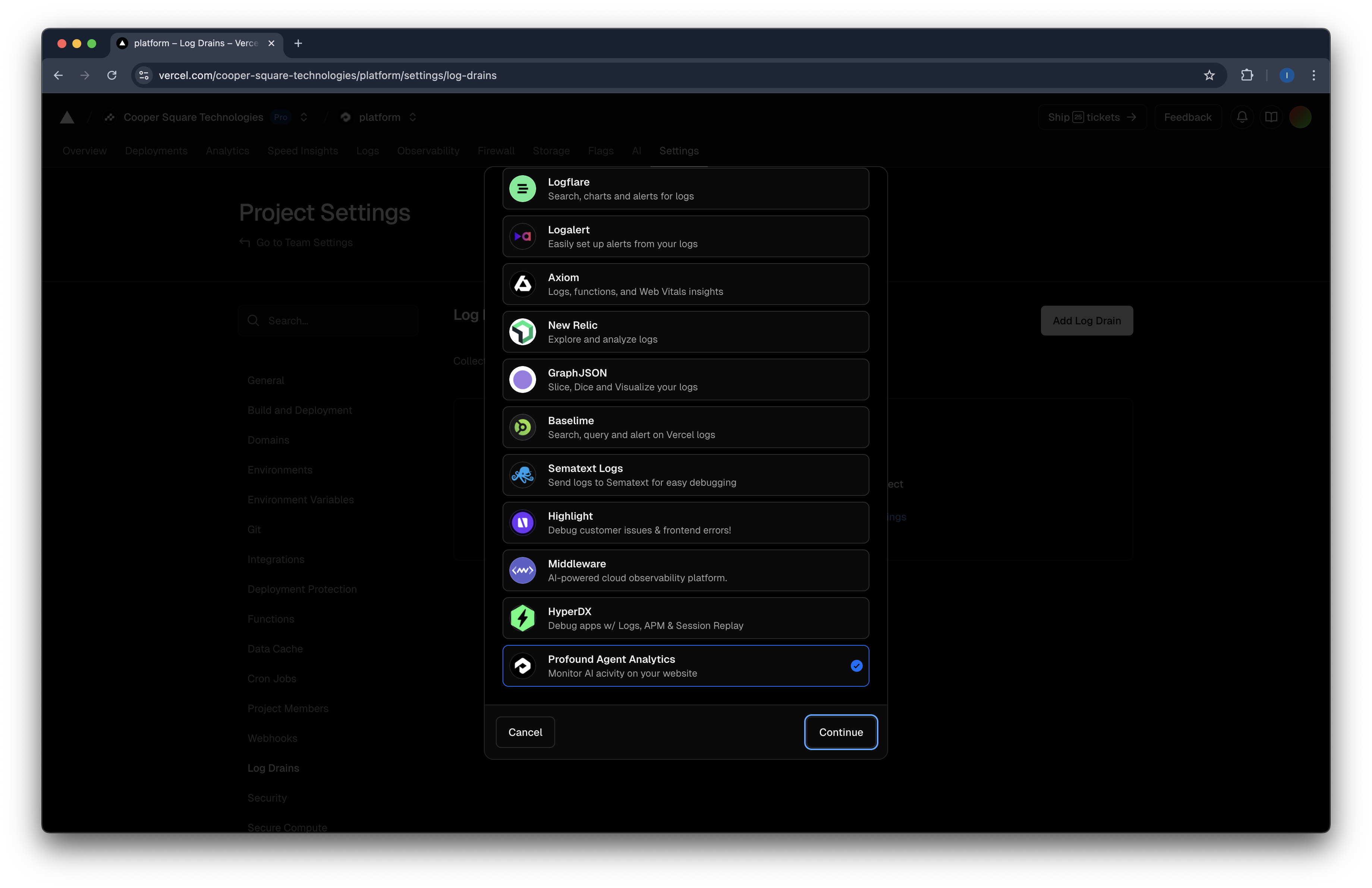 You will now be prompted to configure the log drain. Select **Specific Projects** and add the projects you would like to track via Profound's Agent Analytics service.
Press **Connect Account** when ready.
All projects you give access to will be configured for Profound's Agent Analytics.
It is critical you select only the projects you wish to track in Profound.
**Do not share access to projects you do not intend to track via Profound.**
You will now be prompted to configure the log drain. Select **Specific Projects** and add the projects you would like to track via Profound's Agent Analytics service.
Press **Connect Account** when ready.
All projects you give access to will be configured for Profound's Agent Analytics.
It is critical you select only the projects you wish to track in Profound.
**Do not share access to projects you do not intend to track via Profound.**
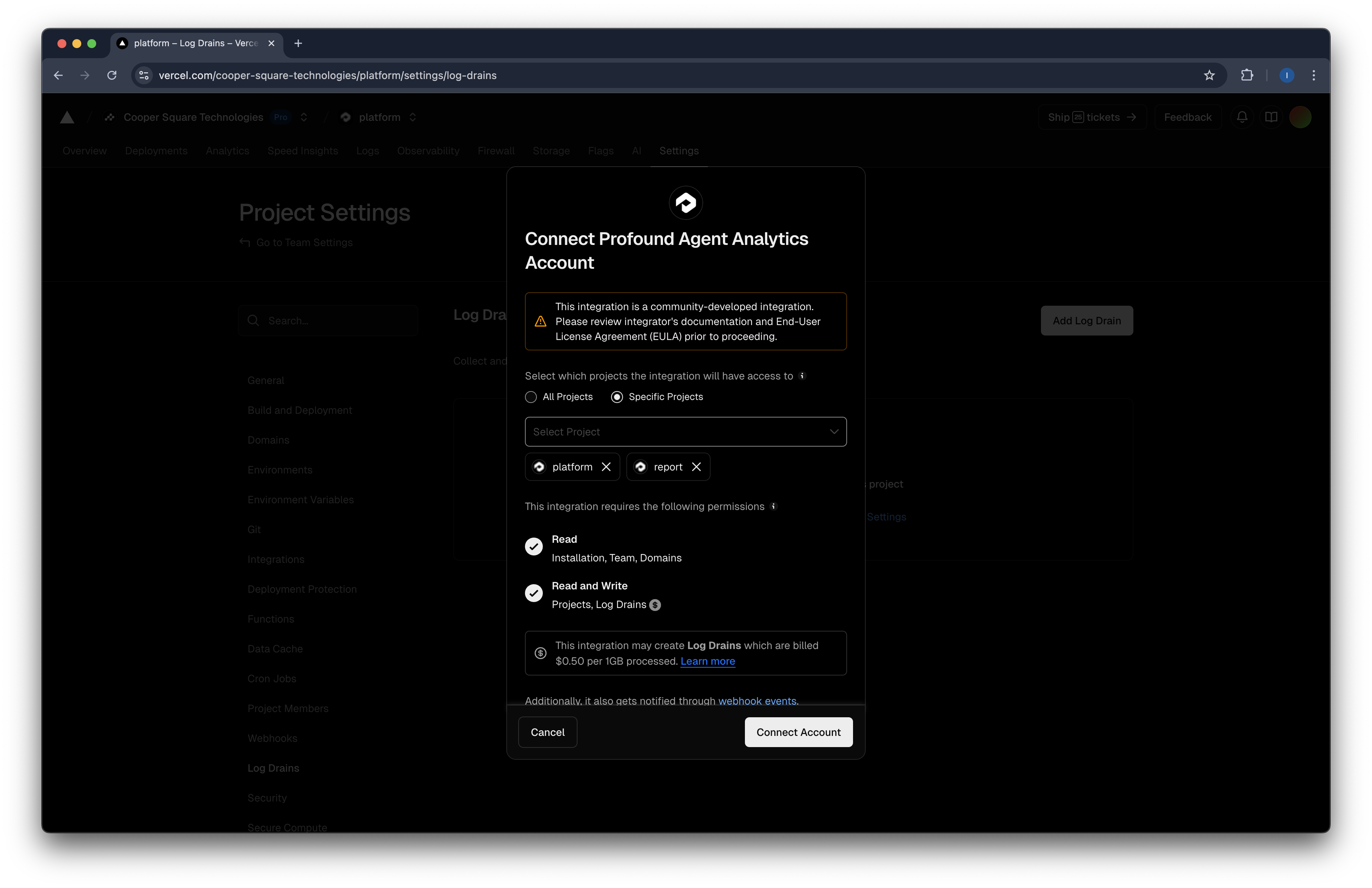 You will be redirected to Profound to finish the configuration.
If you are logged out, you will see a login prompt.
You will be redirected to Profound to finish the configuration.
If you are logged out, you will see a login prompt.
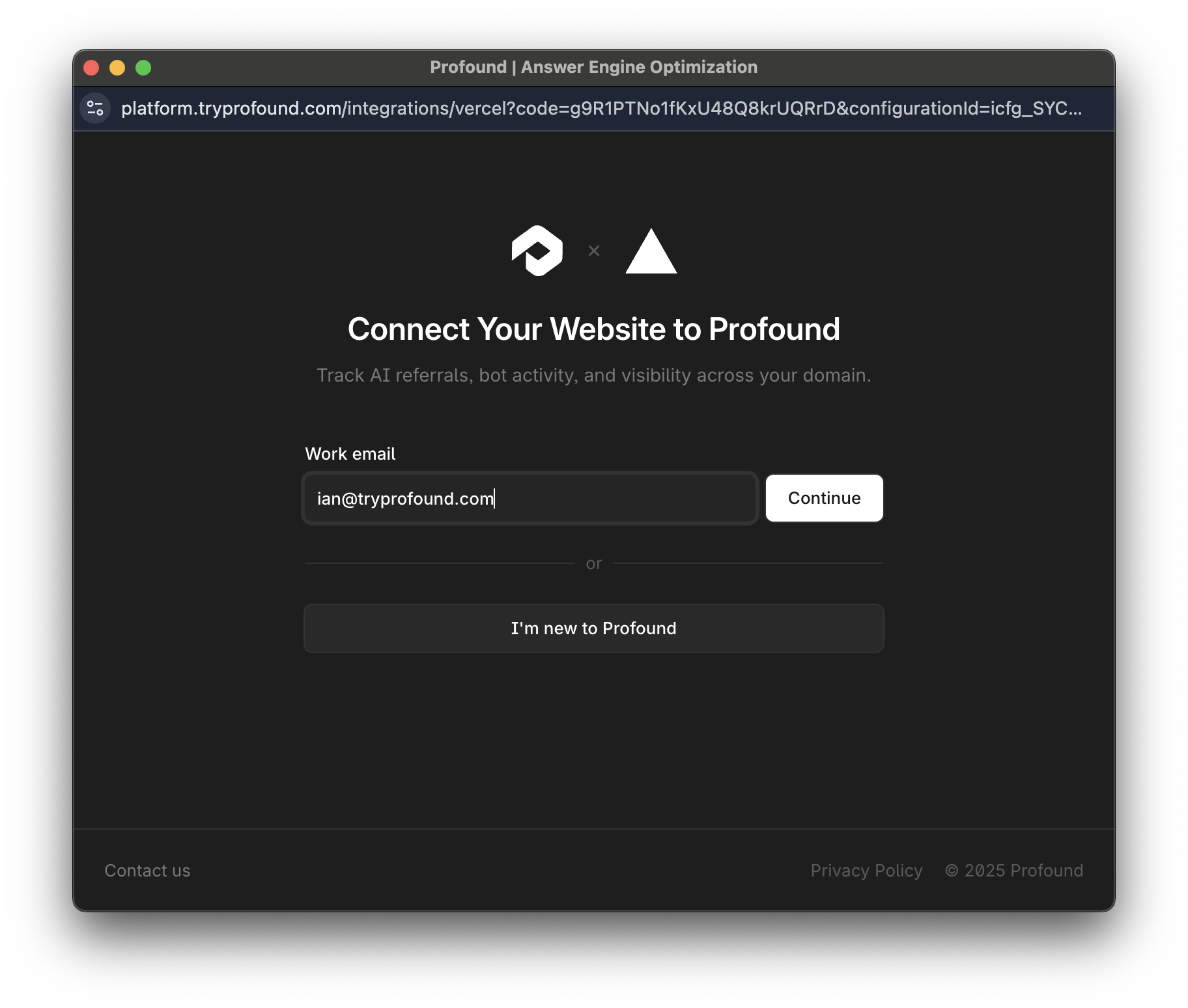 Simply enter your email, complete any OAuth or SSO steps, and you will be returned to the page below.
Agent Analytics requires access to the Profound platform and thus a profound account. If you do not have an account, press **I'm new to Profound**.
This will open the pricing page in a new tab. Press **Start** to proceed.
Simply enter your email, complete any OAuth or SSO steps, and you will be returned to the page below.
Agent Analytics requires access to the Profound platform and thus a profound account. If you do not have an account, press **I'm new to Profound**.
This will open the pricing page in a new tab. Press **Start** to proceed.
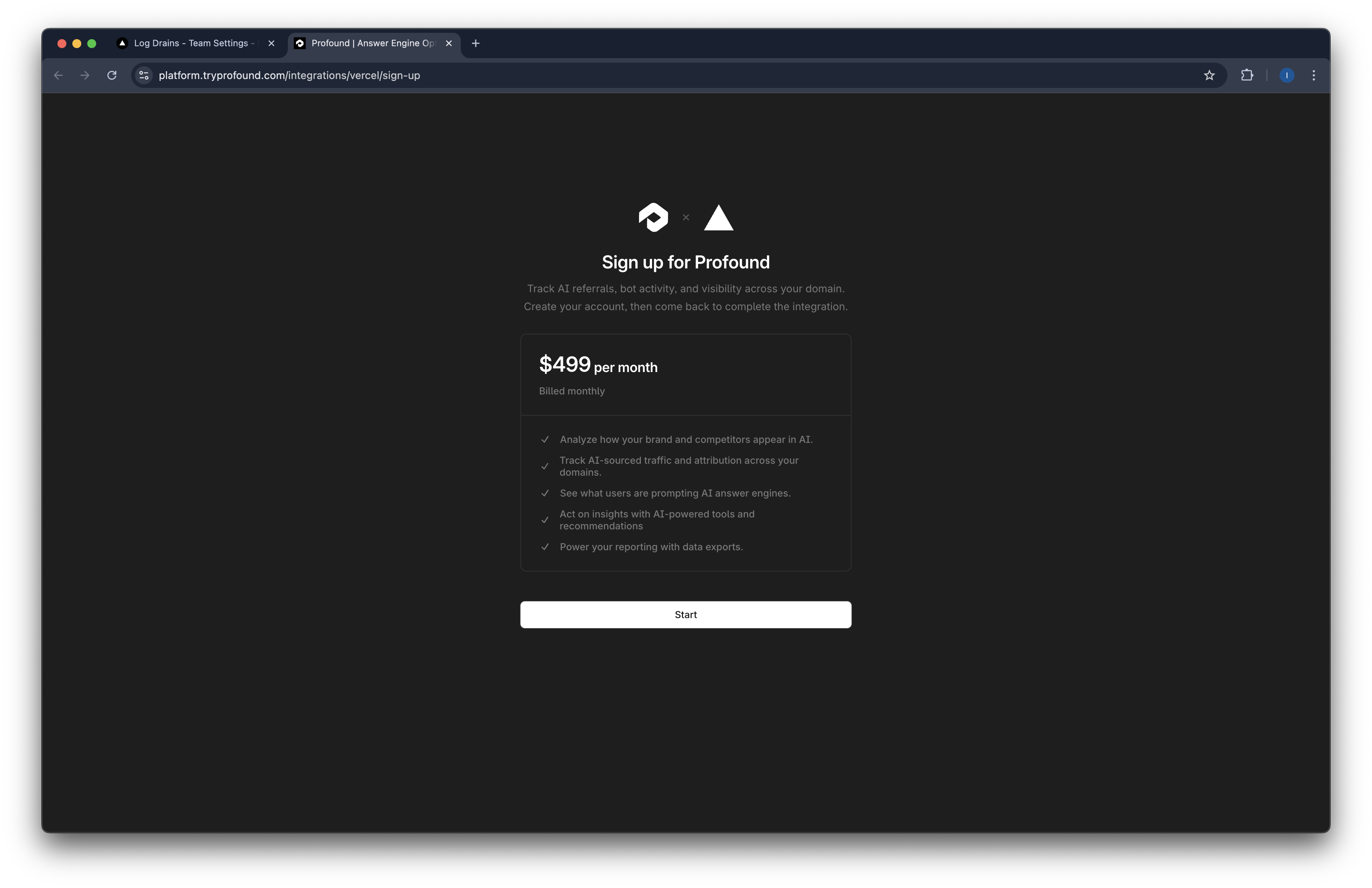 Because a Profound account is required, you must complete this process **before** completing the integration.
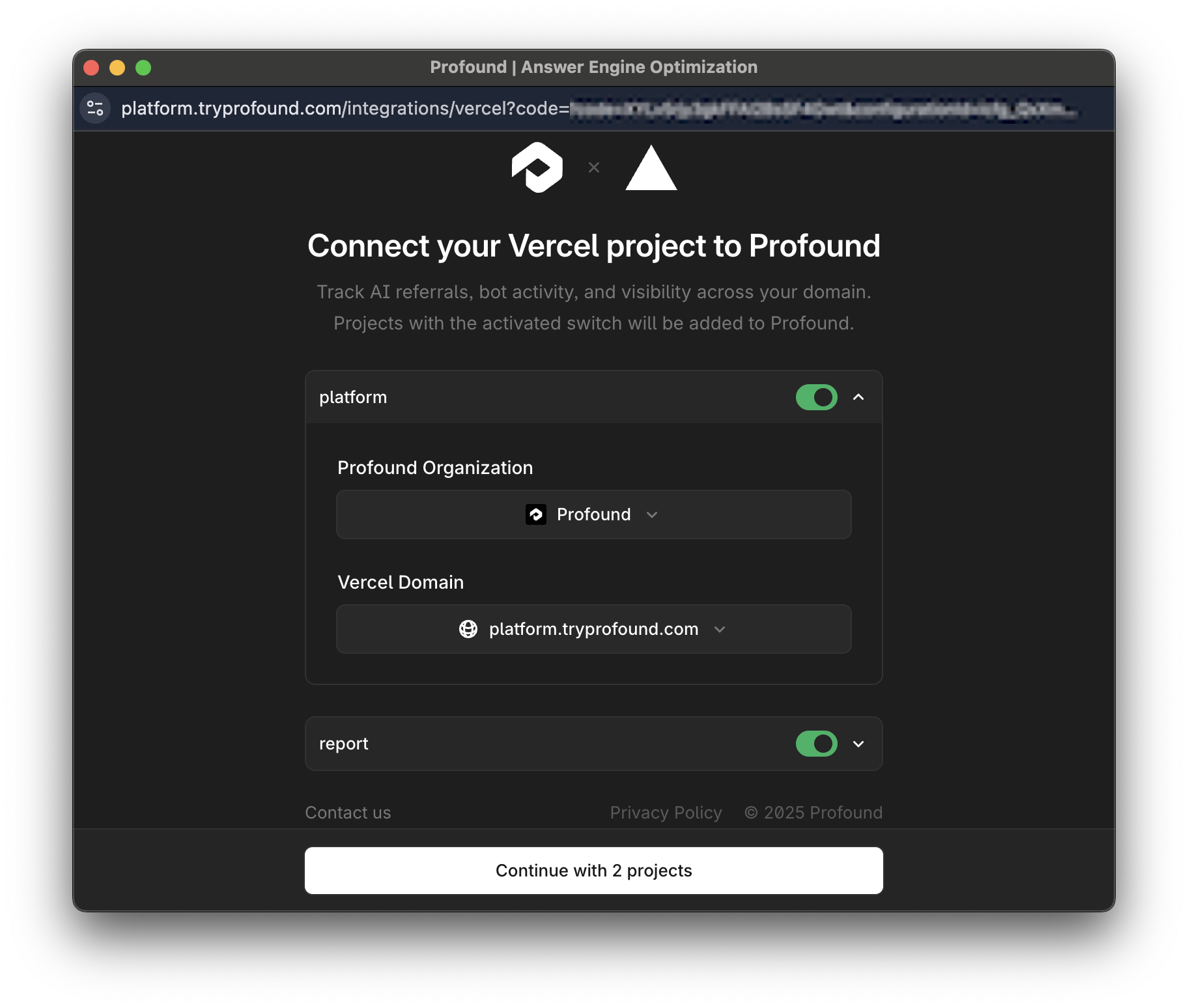
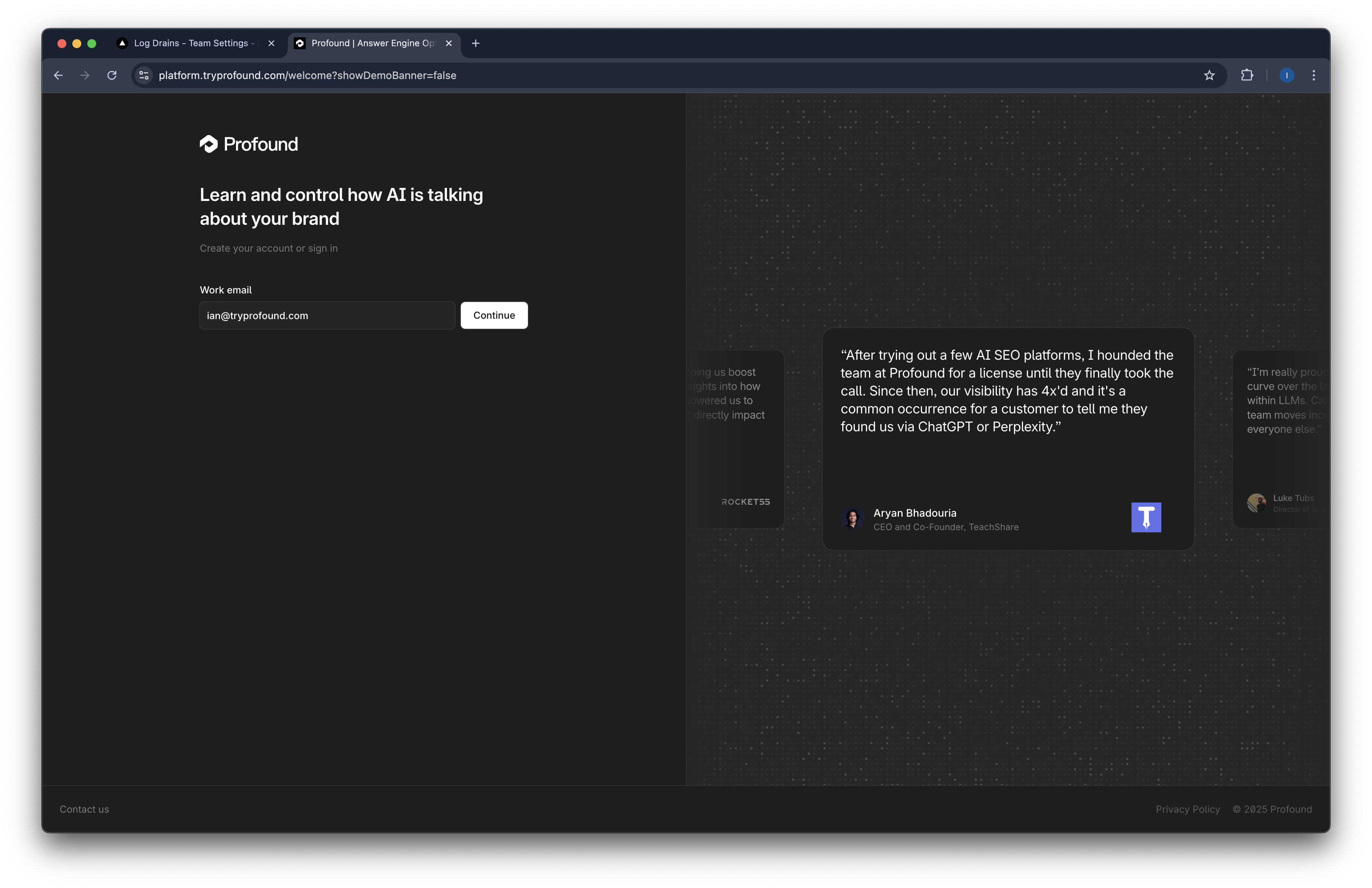 Double check the projects and domains in the list. These are the domains that will be tracked via Agent Analytics.
Likewise, ensure your Profound Organization is selected.
If you are a member of many organizations, double check the proper one is selected.
Press **Continue** when ready.
Double check the projects and domains in the list. These are the domains that will be tracked via Agent Analytics.
Likewise, ensure your Profound Organization is selected.
If you are a member of many organizations, double check the proper one is selected.
Press **Continue** when ready.
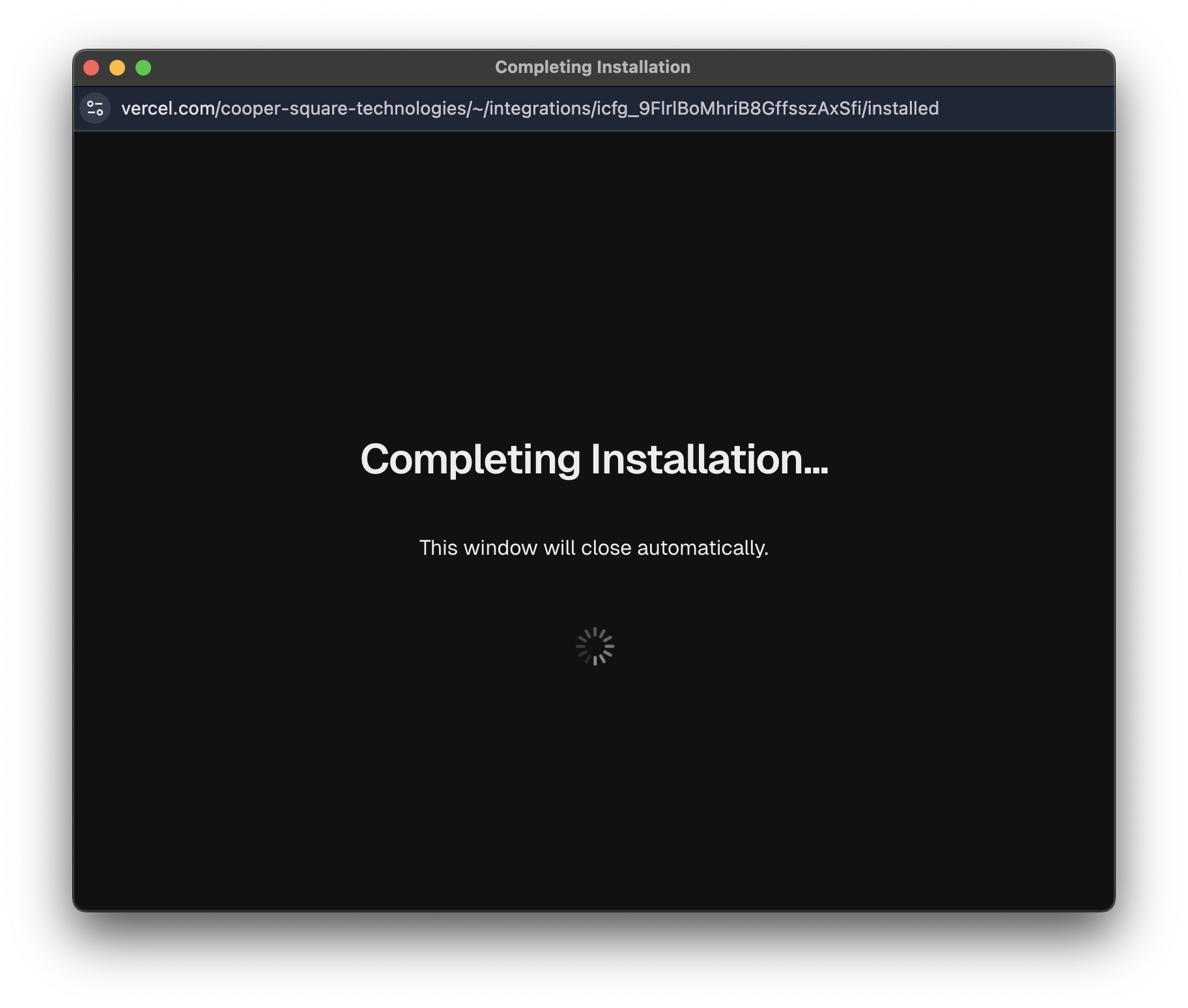
 After pressing **Continue**, Vercel will verify the integration.
 You will be returned to the integration homepage.
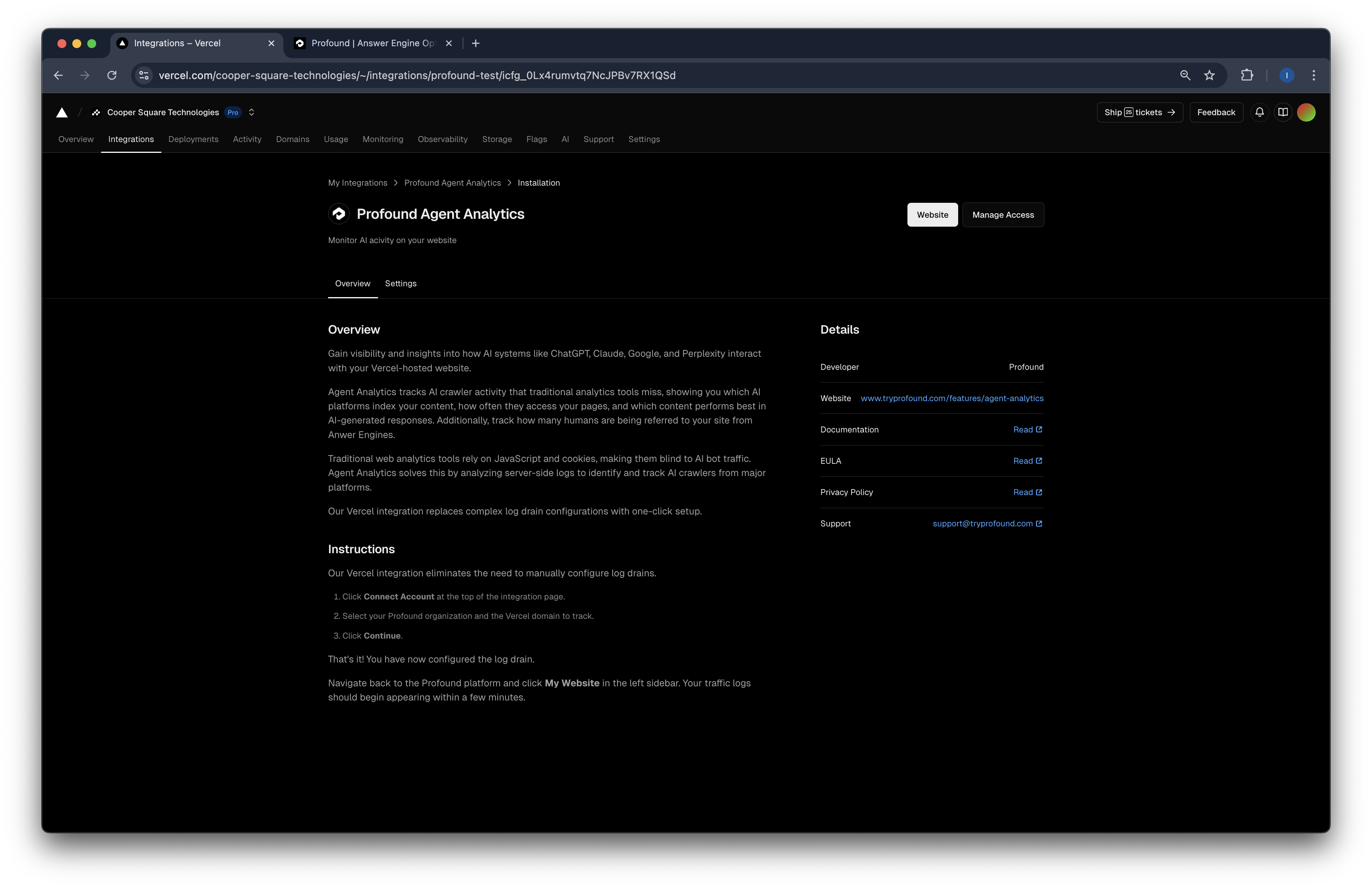 That's it! Vercel will now send real-time logs to Profound. Data should begin appearing in your dashboard within a few minutes.
## Remove Integration
There are a few ways to disable the integration.
1. Option 1
Select the project you configured. Navigate to **Settings** > **Log Drains**.
That's it! Vercel will now send real-time logs to Profound. Data should begin appearing in your dashboard within a few minutes.
## Remove Integration
There are a few ways to disable the integration.
1. Option 1
Select the project you configured. Navigate to **Settings** > **Log Drains**.
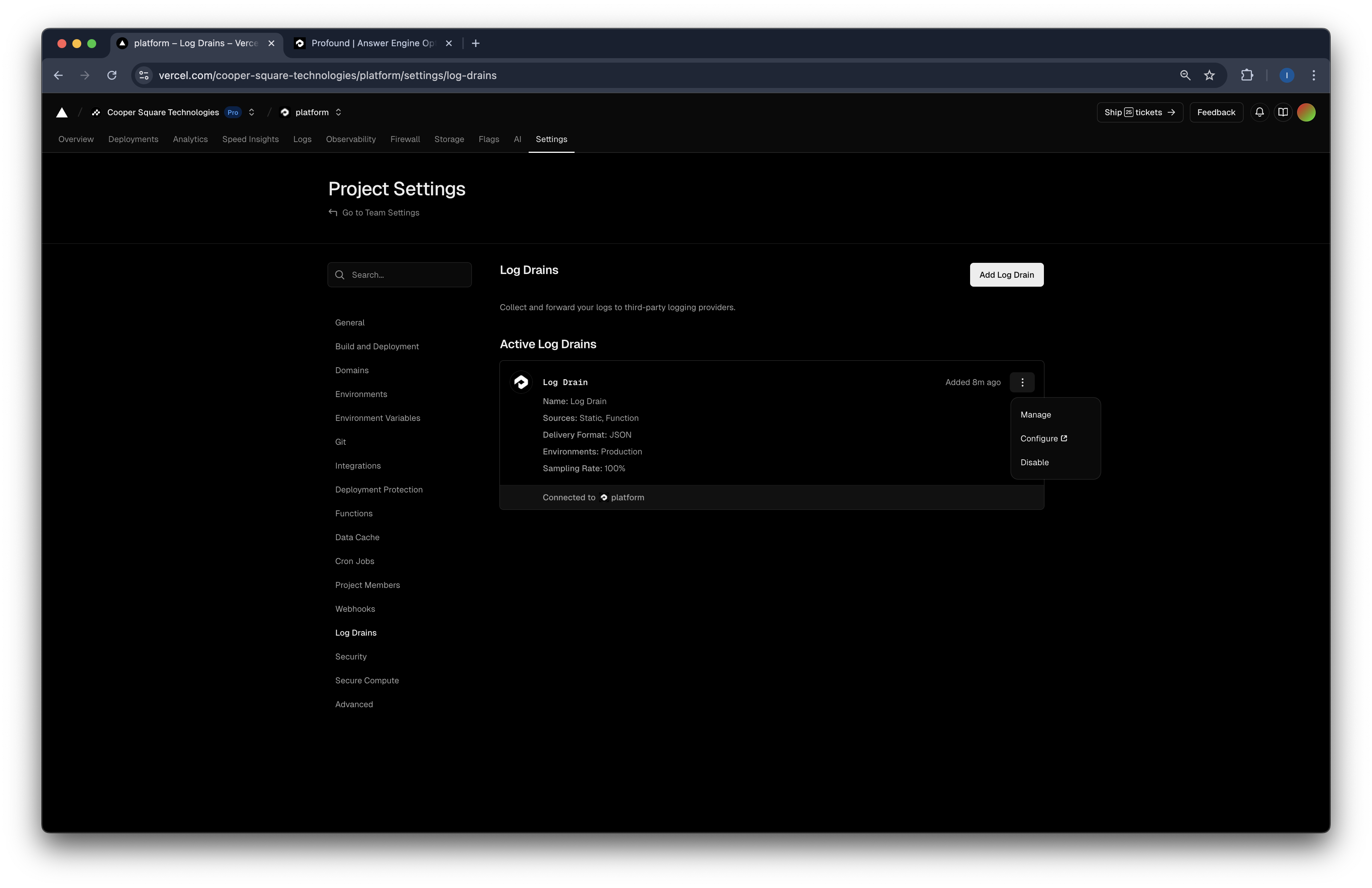 Press **Manage**.
2. Option 2
Navigate to **Project** > **Integrations** in the top toolbar.
Press **Manage**.
2. Option 2
Navigate to **Project** > **Integrations** in the top toolbar.
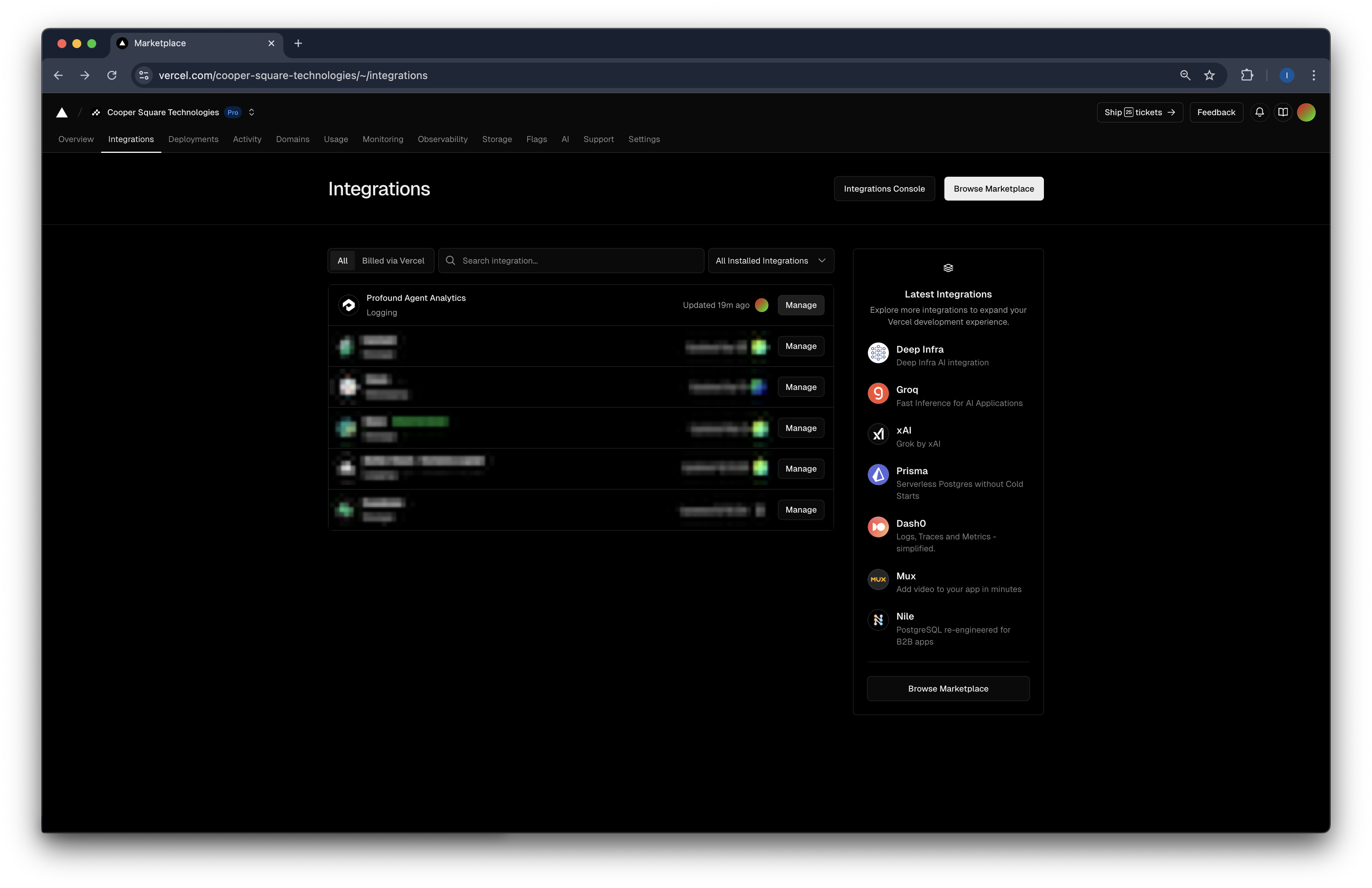 Press **Manage**.
Either option will redirect you to the integration page.
Press **Settings** in the navigation tabs at the top.
To remove the integration, scroll to the bottom of the **Settings** page and press **Uninstall Integration** and complete the steps required by Vercel.
Press **Manage**.
Either option will redirect you to the integration page.
Press **Settings** in the navigation tabs at the top.
To remove the integration, scroll to the bottom of the **Settings** page and press **Uninstall Integration** and complete the steps required by Vercel.
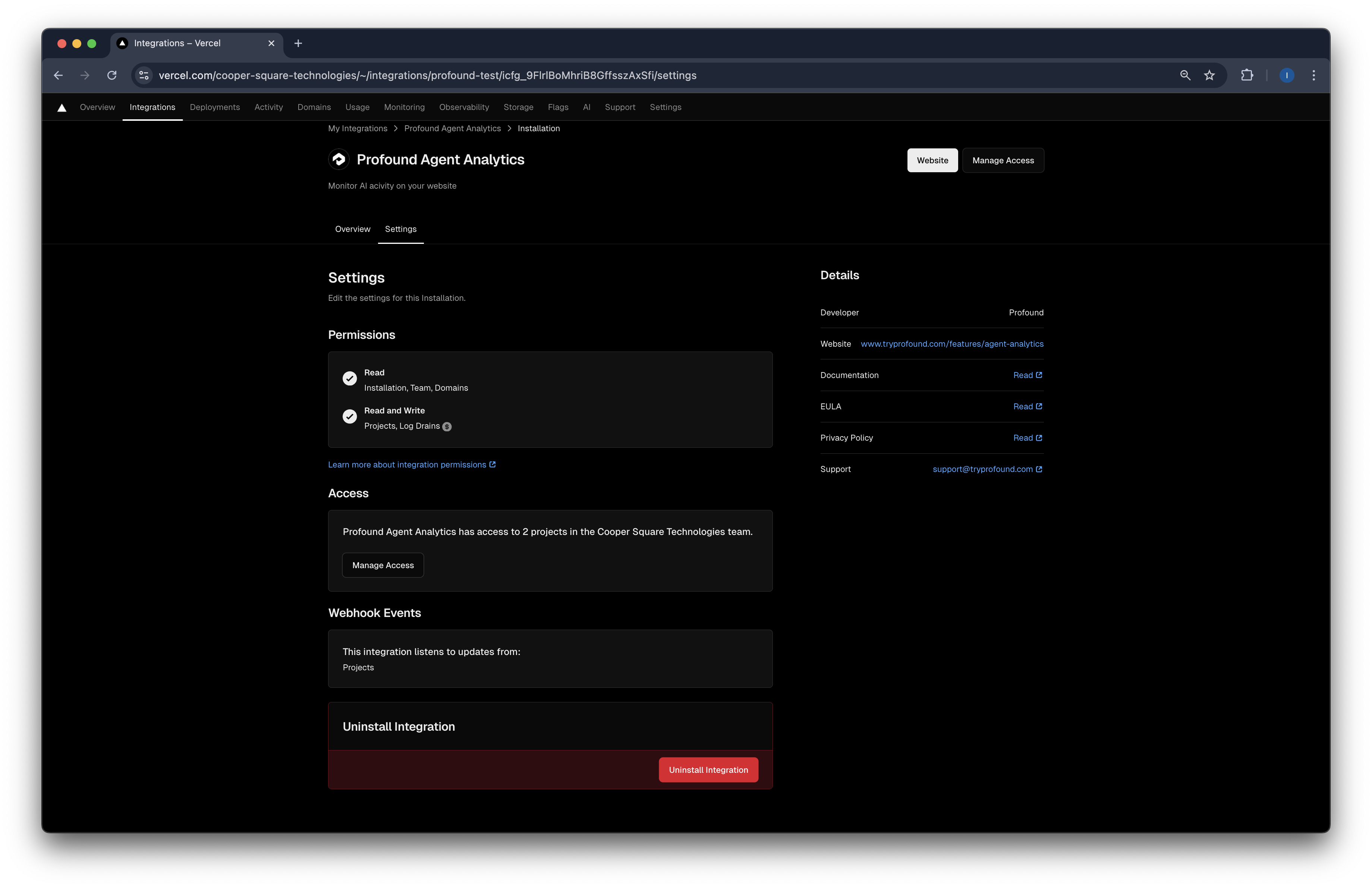 You have now removed the integration. Logs will no longer be sent to Profound Agent Analytics.
## Additional Resources
* [Integration Documentation](https://vercel.com/cooper-square-technologies/~/integrations/profound-test)
* [Vercel Log Drain Documentation](https://vercel.com/docs/observability/log-drains)
* Contact [support@tryprofound.com](mailto:support@tryprofound.com) for integration assistance
You have now removed the integration. Logs will no longer be sent to Profound Agent Analytics.
## Additional Resources
* [Integration Documentation](https://vercel.com/cooper-square-technologies/~/integrations/profound-test)
* [Vercel Log Drain Documentation](https://vercel.com/docs/observability/log-drains)
* Contact [support@tryprofound.com](mailto:support@tryprofound.com) for integration assistance