> ## Documentation Index
> Fetch the complete documentation index at: https://docs.tryprofound.com/llms.txt
> Use this file to discover all available pages before exploring further.
# Add conditionals to Agents
> Direct an Agent down different paths based on variable values
Conditionals are decision points within your Agent workflow that direct the Agent down different paths based on variable values.
Use a Conditional if an Agent must operate differently depending on an input or a value generated in a previous step. For example, route workflows to trigger different prompts based on specific user input.
## Add a Conditional
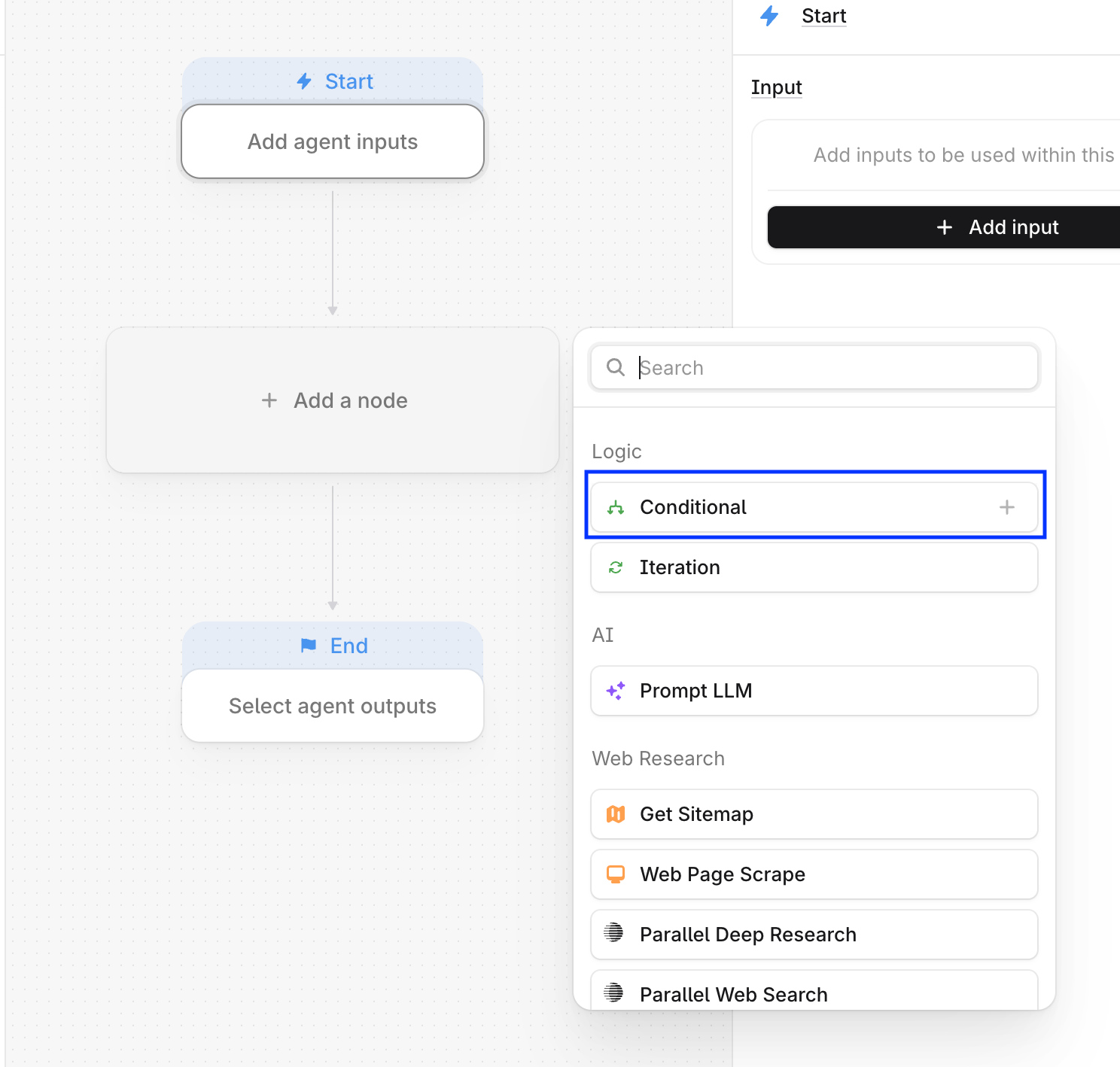
Click the **+** icon in the Agent builder and select **Conditional**. Alternatively, drag **Conditional** from the node selection menu into the workflow.
 Conditionals require you to define a condition using a comparison expression (for example: equals, greater than, less than, or contains). If the condition evaluates as true, the Agent follows the **If true** branch. If not, it follows the **If false** branch.
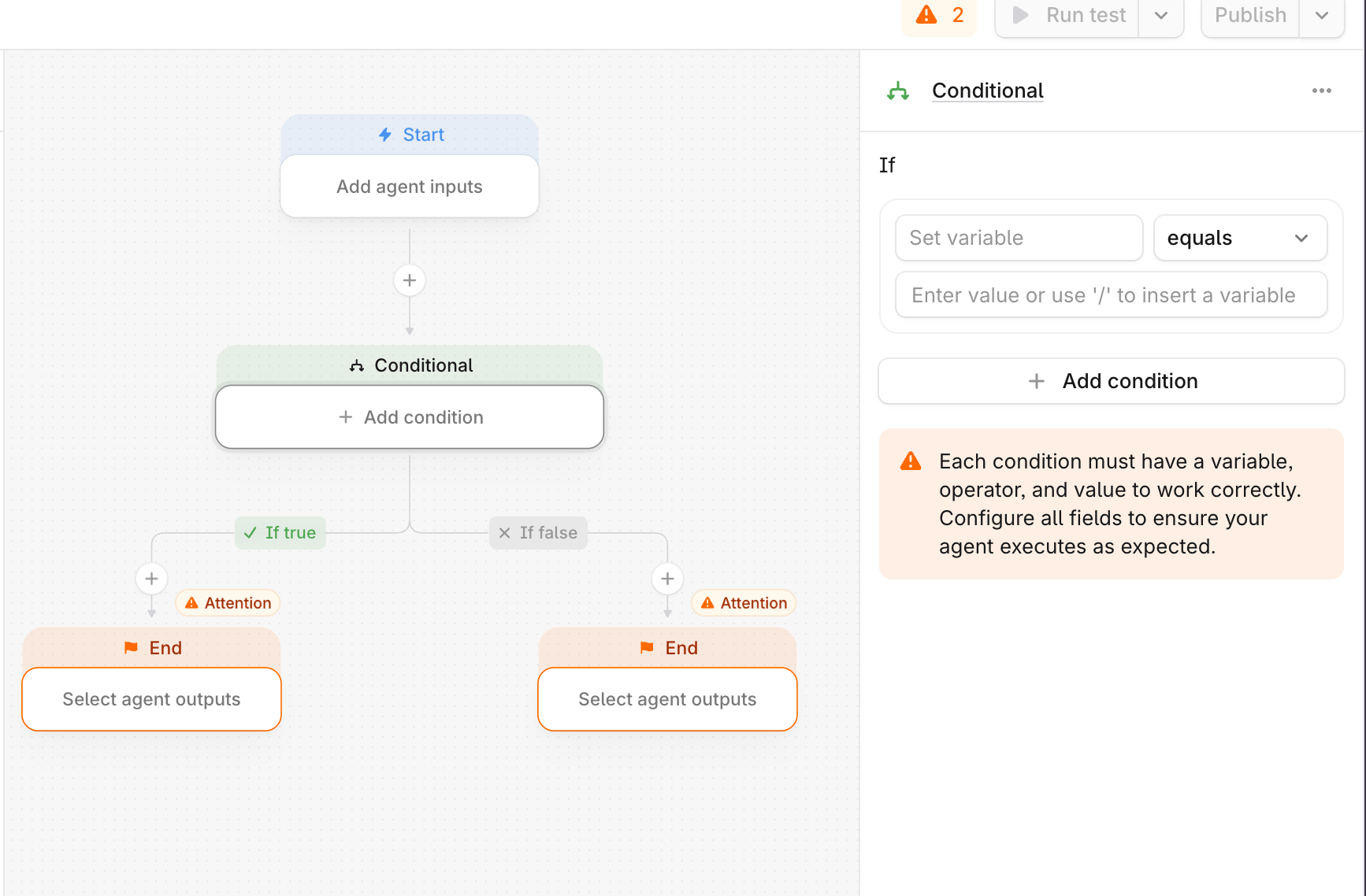 Each branch can contain its own sequence of steps.
## Configure conditions
When configuring a Conditional, select:
* The variable to evaluate
* The evaluation operator (equals, greater than, less than, and so on)
* The value to compare it against
Click **+ Add Condition** to add multiple conditions to the same branch. Multiple conditions can be combined using **AND** (all conditions must be true) or **OR** (at least one condition must be true). When multiple conditions are configured, all must be satisfied for the Agent to follow the **If True** branch.
Each branch can contain its own sequence of steps.
## Configure conditions
When configuring a Conditional, select:
* The variable to evaluate
* The evaluation operator (equals, greater than, less than, and so on)
* The value to compare it against
Click **+ Add Condition** to add multiple conditions to the same branch. Multiple conditions can be combined using **AND** (all conditions must be true) or **OR** (at least one condition must be true). When multiple conditions are configured, all must be satisfied for the Agent to follow the **If True** branch.
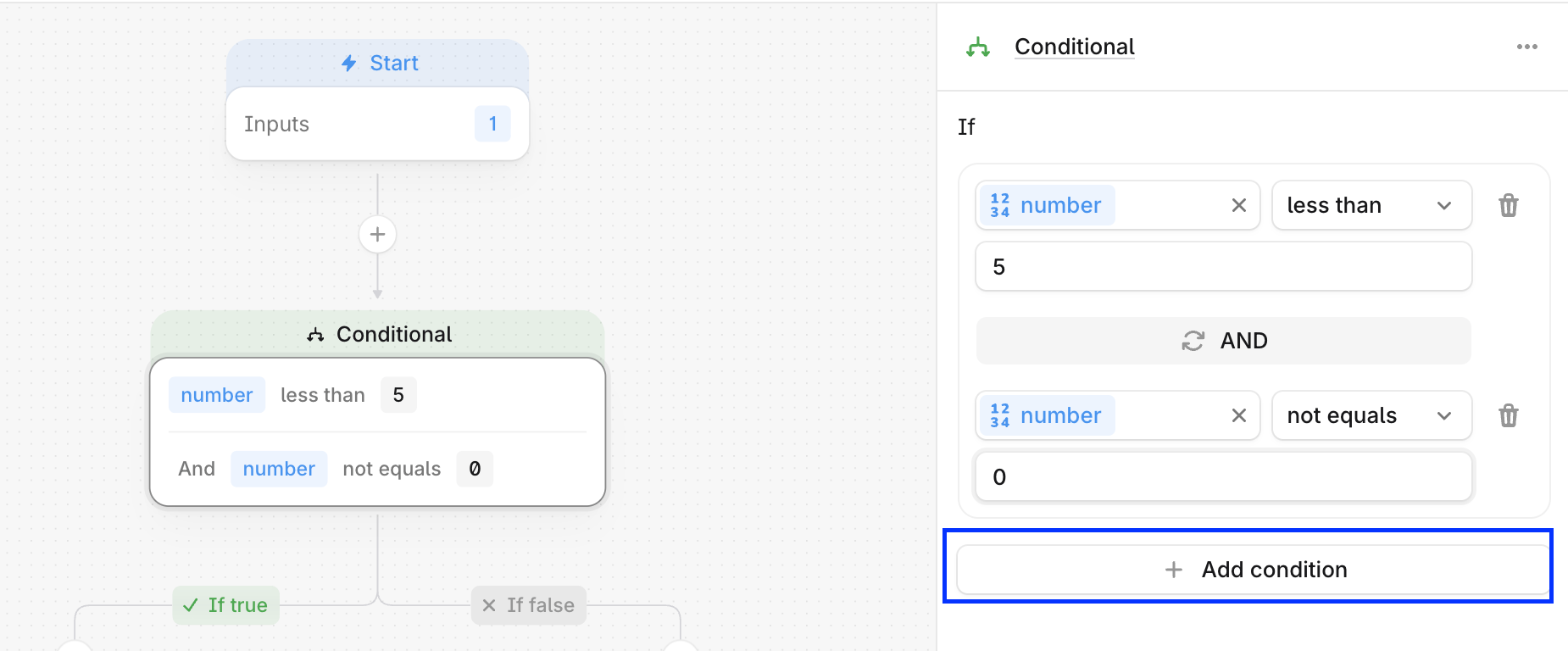 If the conditions are not satisfied, the Agent automatically follows the **If false** branch.
## Conditional branch requirements
There are several requirements to ensure an Agent executes as expected:
* The variable used in a condition must exist and must be created in a previous step
* Both branches must ultimately lead to an **End** step to complete the Agent run
* The evaluation operator must align with the input variable type:
* Numerical operators only work with numeric values. For example, **greater than** will not work on a string such as "Best AEO Tools"
* String operators only work on text strings. For example, **contains** will not work on a numeric value of 126
If the conditions are not satisfied, the Agent automatically follows the **If false** branch.
## Conditional branch requirements
There are several requirements to ensure an Agent executes as expected:
* The variable used in a condition must exist and must be created in a previous step
* Both branches must ultimately lead to an **End** step to complete the Agent run
* The evaluation operator must align with the input variable type:
* Numerical operators only work with numeric values. For example, **greater than** will not work on a string such as "Best AEO Tools"
* String operators only work on text strings. For example, **contains** will not work on a numeric value of 126