> ## Documentation Index
> Fetch the complete documentation index at: https://docs.tryprofound.com/llms.txt
> Use this file to discover all available pages before exploring further.
# YouTube Title & Description
> Extract the title and description from a public YouTube video
The **YouTube Title & Description** node extracts the title and description from any publicly accessible YouTube video. Use this step when you need structured metadata for analysis, summarization, competitive research, or to feed into downstream LLM [Agents](/agents/about).
This node provides a clean, text-based output containing both fields, making it easy to integrate YouTube content into broader research or automation pipelines.
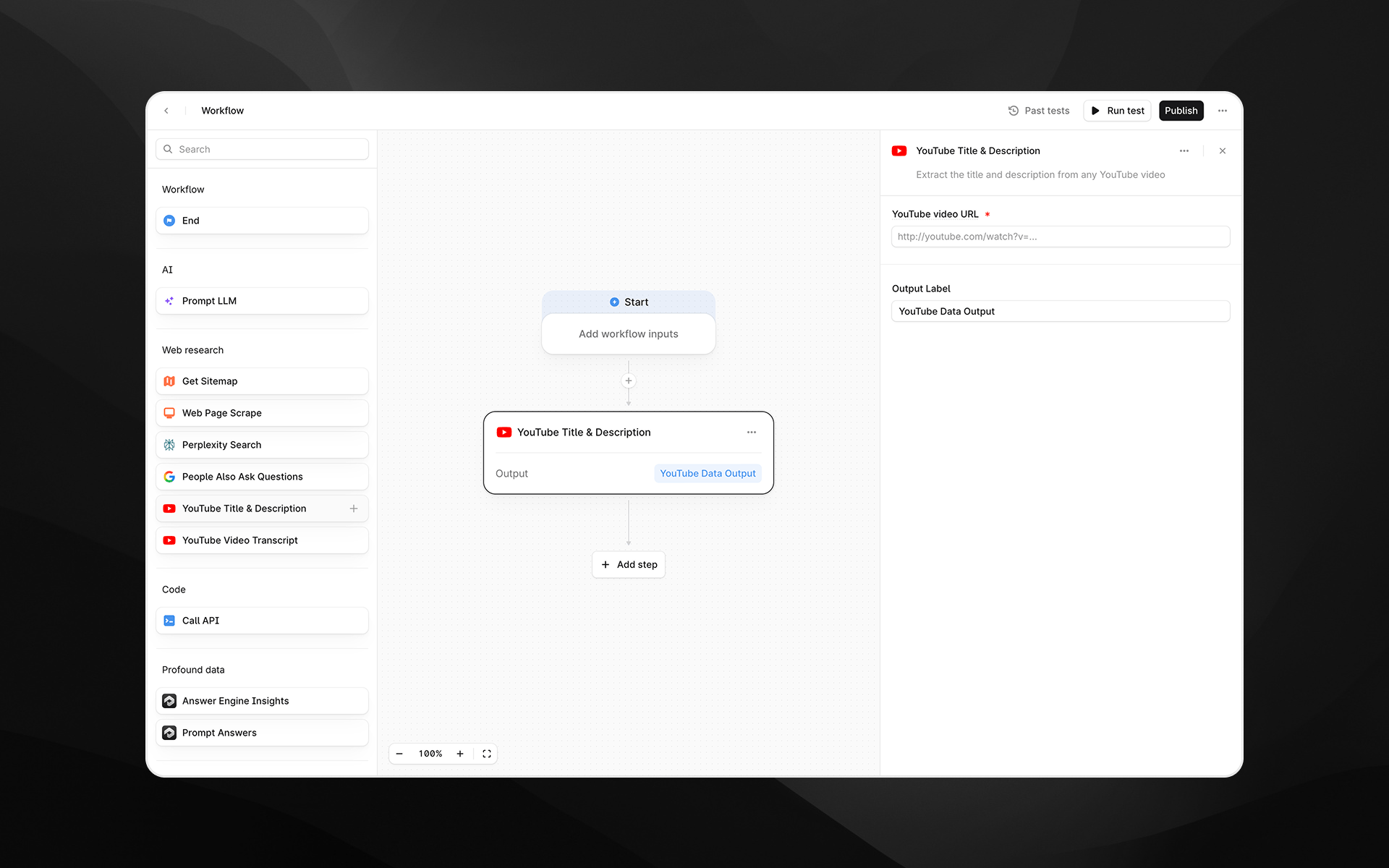 Check out [Getting started with Agents](/agents/getting-started) to learn how to add this node to an Agent.
## When to use this node
Use YouTube Title & Description for tasks such as:
* Analyzing how competitors position and describe video content
* Generating summaries, rewrites, or metadata optimizations using LLMs
* Pulling YouTube context into AEO, SEO, or content strategy Agents
* Extracting structured information before running additional transformations
## Node configuration
Selecting the YouTube Title & Description node opens its configuration panel on the right side of the Agent Builder.
### YouTube video URL (required)
Enter the URL of the YouTube video you want to extract data from.
You can:
* Paste a direct YouTube watch URL
* Insert a variable from earlier Agent steps by typing `/`
Supported formats include typical watch URLs such as:
Check out [Getting started with Agents](/agents/getting-started) to learn how to add this node to an Agent.
## When to use this node
Use YouTube Title & Description for tasks such as:
* Analyzing how competitors position and describe video content
* Generating summaries, rewrites, or metadata optimizations using LLMs
* Pulling YouTube context into AEO, SEO, or content strategy Agents
* Extracting structured information before running additional transformations
## Node configuration
Selecting the YouTube Title & Description node opens its configuration panel on the right side of the Agent Builder.
### YouTube video URL (required)
Enter the URL of the YouTube video you want to extract data from.
You can:
* Paste a direct YouTube watch URL
* Insert a variable from earlier Agent steps by typing `/`
Supported formats include typical watch URLs such as:
`https://www.youtube.com/watch?v=VIDEO_ID`
### Output Label
Provide a descriptive label for the output generated by this step. The label becomes the variable name that downstream steps reference.
Examples:
* `youtube_metadata`
* `video_info`
* `yt_title_description`
## Output
This node returns a text output containing:
* **Video title**
* **Video description**
The output can be passed into:
* Prompt LLM steps (for summarization, rewriting, tone analysis, etc.)
* Content comparison Agents
* Metadata optimization pipelines
* Any downstream step requiring structured text
## Example usage
### 1. Analyze a competitor video description
1. Add a **YouTube Title & Description** step with a competitor video link.
2. Add a [Prompt LLM](/agents/nodes/prompt-llm) step to interpret the content:
```text wrap theme={null}
Analyze the tone, target audience, and messaging strategy in the following video title and description:
{{youtube_metadata_output}}
```
### 2. Rewrite metadata for optimization
1. Add an Agent input called `video_url`.
2. Use YouTube Title & Description with `video_url`.
3. Pass the output into a [Prompt LLM](/agents/nodes/prompt-llm) node:
```text wrap theme={null}
Rewrite the following YouTube title and description to improve clarity and increase click-through rate: {{video_info.output}}
```
## Best practices
* Ensure the video URL is publicly available; private or restricted videos cannot be accessed.
* Use descriptive output labels to keep Agents clear, especially when working with multiple videos.
* Combine with the **YouTube Video Transcript** node for deeper semantic analysis of video content.
## Troubleshooting
### The node returns no data
Verify that the YouTube URL is valid and not restricted or private.
### The output includes unexpected formatting
Use a Prompt LLM step to clean or reformat the extracted text as needed.
### Variables do not resolve when used as the URL
Insert variables by typing / and selecting from the available options in the picker.