> ## Documentation Index
> Fetch the complete documentation index at: https://docs.tryprofound.com/llms.txt
> Use this file to discover all available pages before exploring further.
# Personas in Answer Engine Insights
> Use audience profiles to see how answers change by who is asking
A Persona is an audience profile: the demographics, employment, and behavior of the person asking an answer engine a question.
Add Personas to prompts to simulate the context an answer engine has about a user, so you can see how brand mentions, citations, and sentiment change by audience.
## Quick facts
* When you add a Persona to a prompt, Profound adds the Persona's details to the prompt text and **runs it as a separate prompt**. Each Persona on a prompt adds a prompt run. This affects your prompt limits.
* The baseline for a prompt is **No Persona**: it runs without any Persona context.
* Personas belong to a category. By default, you can create **up to three Personas per category**. Contact your Profound team to raise the limit or to add Personas to your plan.
* New Persona runs start with the next daily prompt run, so expect the first Persona data in [Answer Engine Insights](/answer-engine-insights/about) to appear after the next processing cycle.
## Add a new Persona
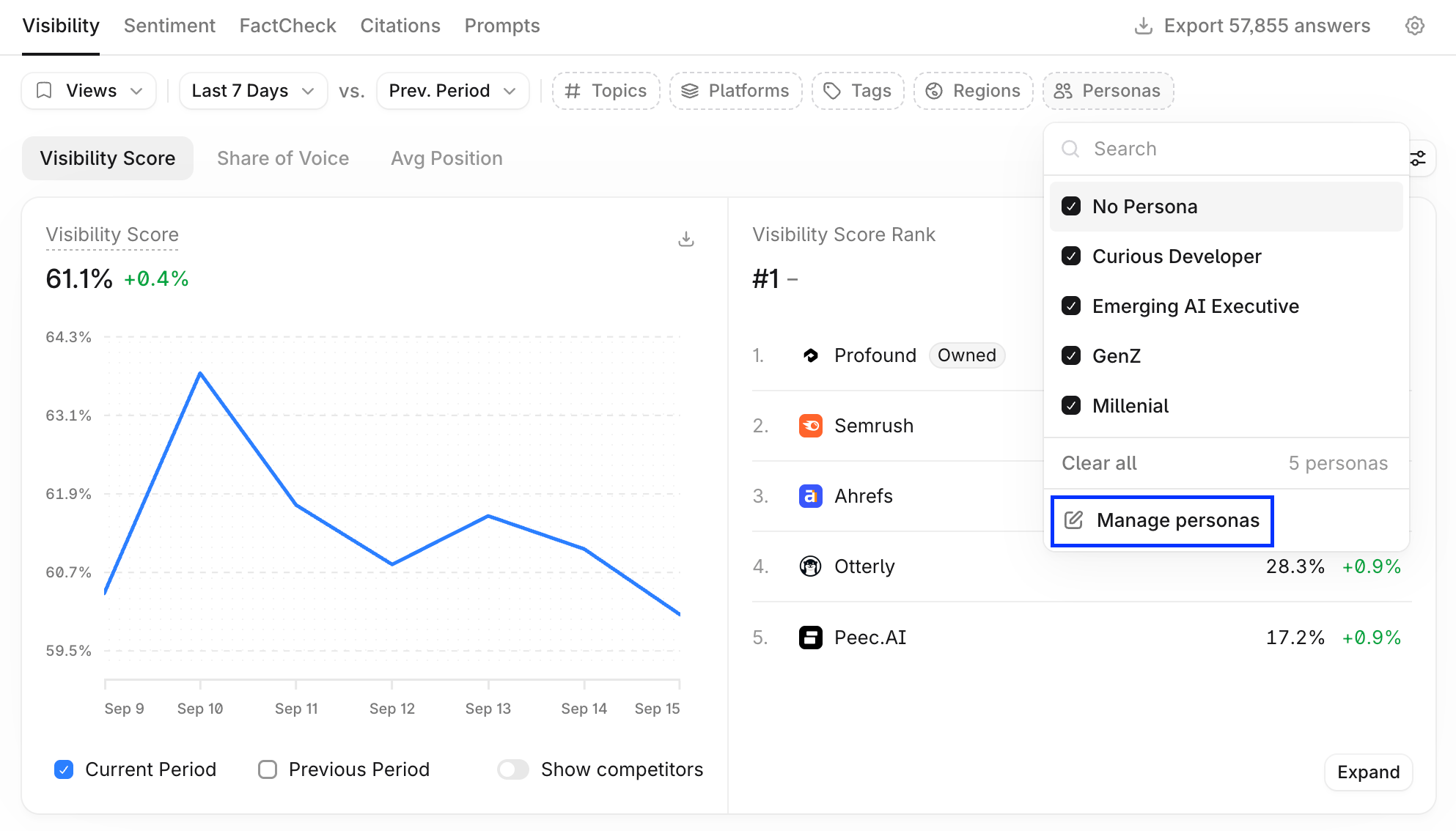 1. In [Answer Engine Insights](/answer-engine-insights/about), select **Personas** in the filter bar, then select **Manage Personas**.
2. Select **+ Create New**.
If **+ Create New** is disabled, you may have reached your Personas limit. Contact your Profound team to explore your options.
3. Enter a **Name** (up to 50 characters).
4. Fill in the fields that shape how an answer engine reads the prompt: **Demographics** (Gender and Age Range), **Employment** (Company Size, Industry, Role Seniority, and Job Title), and **Behavior** (Motivations and Pain Points, up to 500 characters each).
5. Select **Save**.
Fill in only the details that change how an answer engine interprets the prompt. Motivations and Pain Points carry the most weight.
## Manage and delete Personas
**Manage Personas** lists every Persona in the category with its details, the number of prompts it runs on, and when it was last edited. Open the **Actions** menu (**…**) on a Persona to:
* **Edit**: change any field, then select **Save**.
* **Duplicate**: create a copy in the same category.
* **Export**: download the Persona's details.
* **Delete**: remove the Persona and stop its prompt runs.
Personas are specific to a category, so to use the same Persona elsewhere, create it again in that category.
## Add Personas to prompts
Assign Personas in the [Prompt Designer](/answer-engine-insights/prompt-designer).
### One prompt
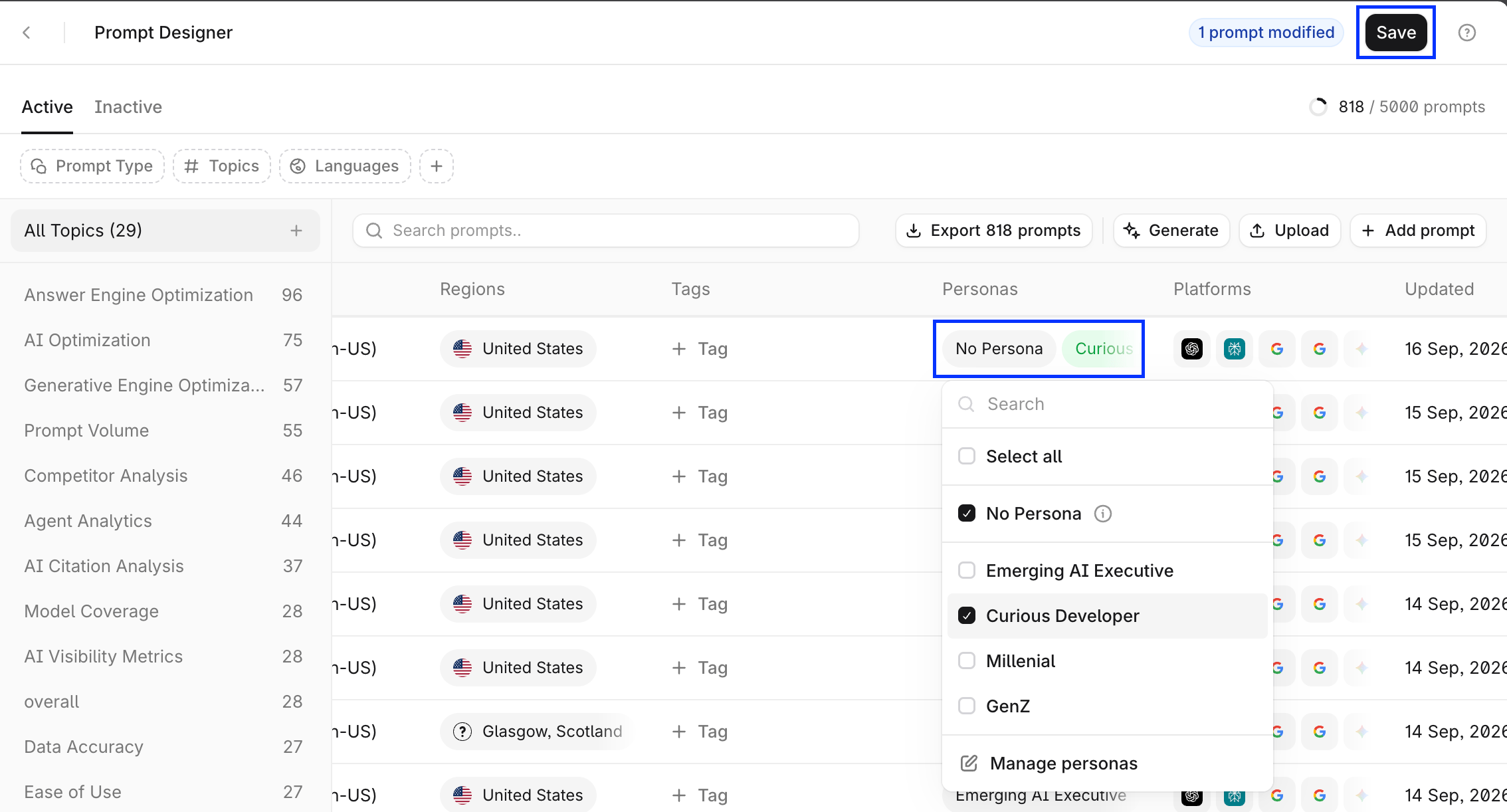
Select the prompt's **Personas** cell, check or uncheck the Personas you want to apply, then select **Save**.
1. In [Answer Engine Insights](/answer-engine-insights/about), select **Personas** in the filter bar, then select **Manage Personas**.
2. Select **+ Create New**.
If **+ Create New** is disabled, you may have reached your Personas limit. Contact your Profound team to explore your options.
3. Enter a **Name** (up to 50 characters).
4. Fill in the fields that shape how an answer engine reads the prompt: **Demographics** (Gender and Age Range), **Employment** (Company Size, Industry, Role Seniority, and Job Title), and **Behavior** (Motivations and Pain Points, up to 500 characters each).
5. Select **Save**.
Fill in only the details that change how an answer engine interprets the prompt. Motivations and Pain Points carry the most weight.
## Manage and delete Personas
**Manage Personas** lists every Persona in the category with its details, the number of prompts it runs on, and when it was last edited. Open the **Actions** menu (**…**) on a Persona to:
* **Edit**: change any field, then select **Save**.
* **Duplicate**: create a copy in the same category.
* **Export**: download the Persona's details.
* **Delete**: remove the Persona and stop its prompt runs.
Personas are specific to a category, so to use the same Persona elsewhere, create it again in that category.
## Add Personas to prompts
Assign Personas in the [Prompt Designer](/answer-engine-insights/prompt-designer).
### One prompt
Select the prompt's **Personas** cell, check or uncheck the Personas you want to apply, then select **Save**.
 ### Several prompts
1. Check the prompts you want to change.
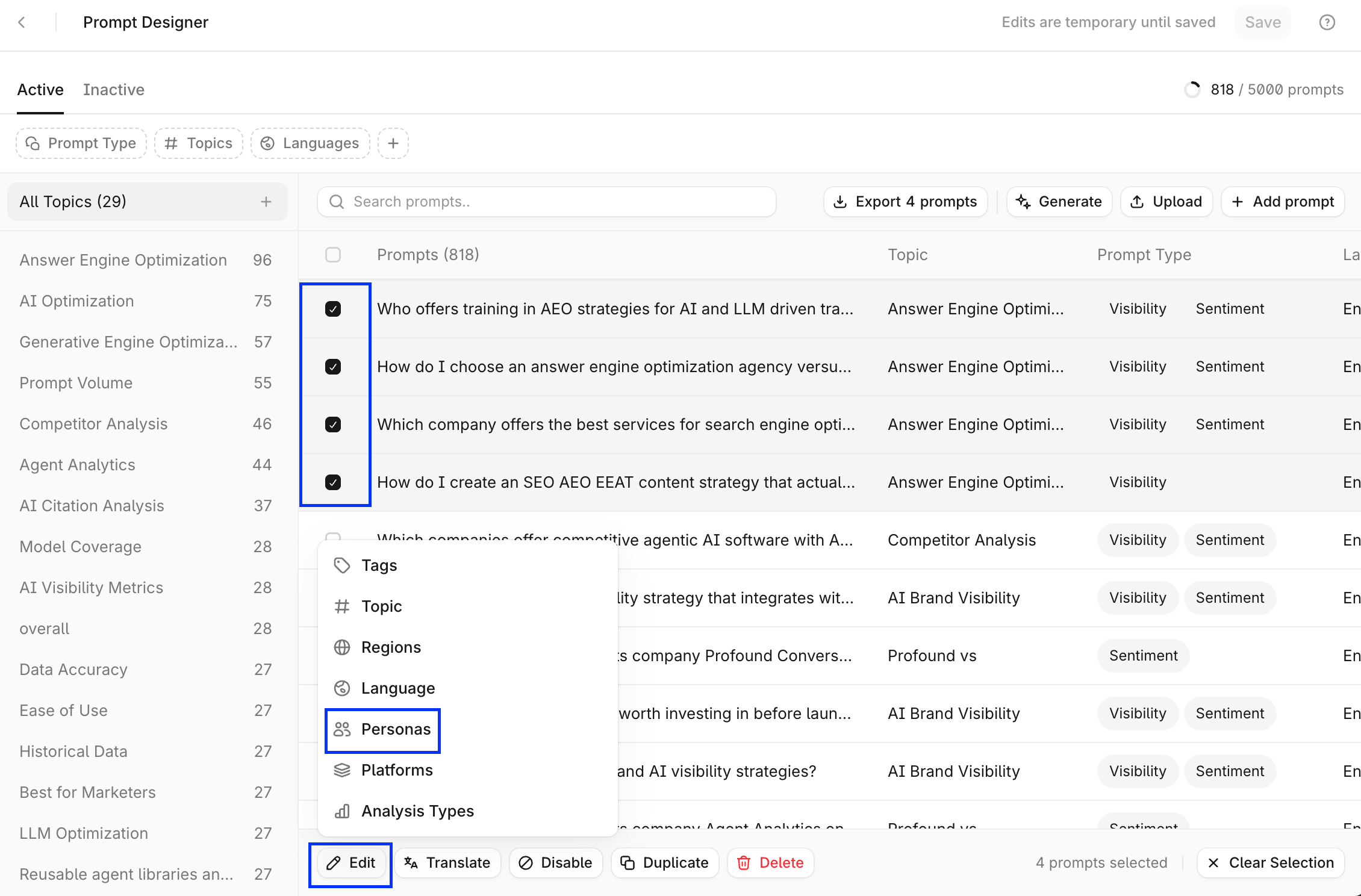
2. In the bar at the bottom, select **Edit** > **Personas**.
### Several prompts
1. Check the prompts you want to change.
2. In the bar at the bottom, select **Edit** > **Personas**.
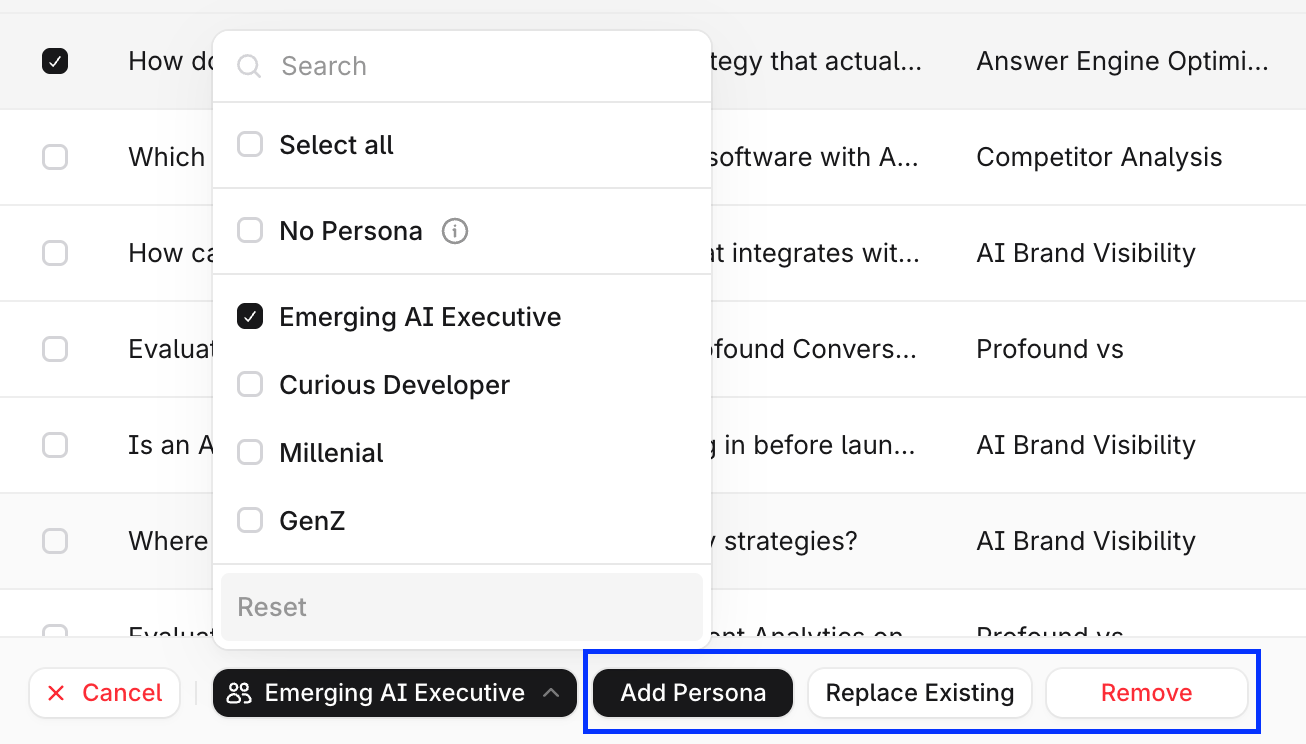
 3. Select the Personas, then choose **Add Personas**, **Replace Existing**, or **Remove**.
 3. Select **Save**.
Removing a Persona from a prompt stops that Persona's runs for the prompt. The data collected for that prompt and persona is no longer visible in Answer Engine Insights.
## Analyze topics and prompts by Persona
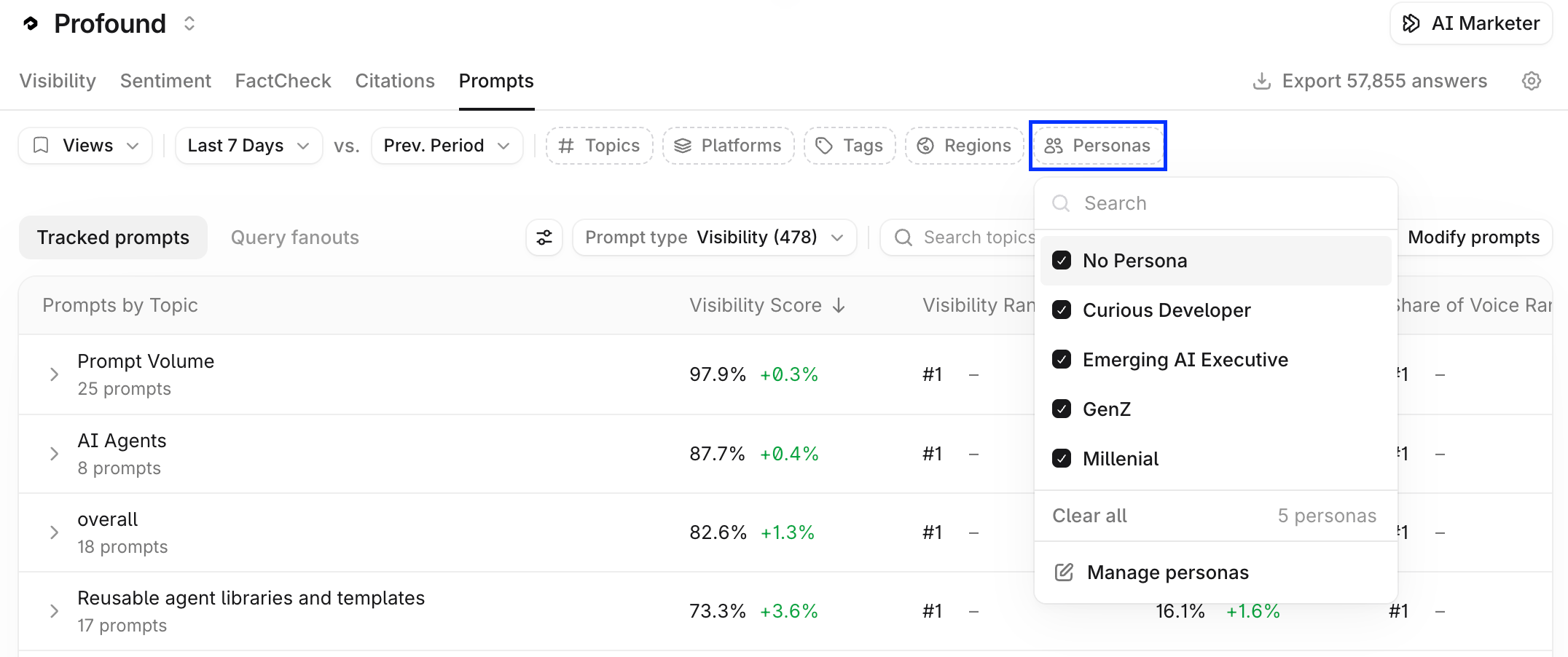
To analyze prompts by Persona, use the **Personas** [filter](/answer-engine-insights/interpret#filters) in [**Answer Engine Insights**](/answer-engine-insights/about) **> Prompts**. Then, select **Analyze** on any topic.
3. Select **Save**.
Removing a Persona from a prompt stops that Persona's runs for the prompt. The data collected for that prompt and persona is no longer visible in Answer Engine Insights.
## Analyze topics and prompts by Persona
To analyze prompts by Persona, use the **Personas** [filter](/answer-engine-insights/interpret#filters) in [**Answer Engine Insights**](/answer-engine-insights/about) **> Prompts**. Then, select **Analyze** on any topic.
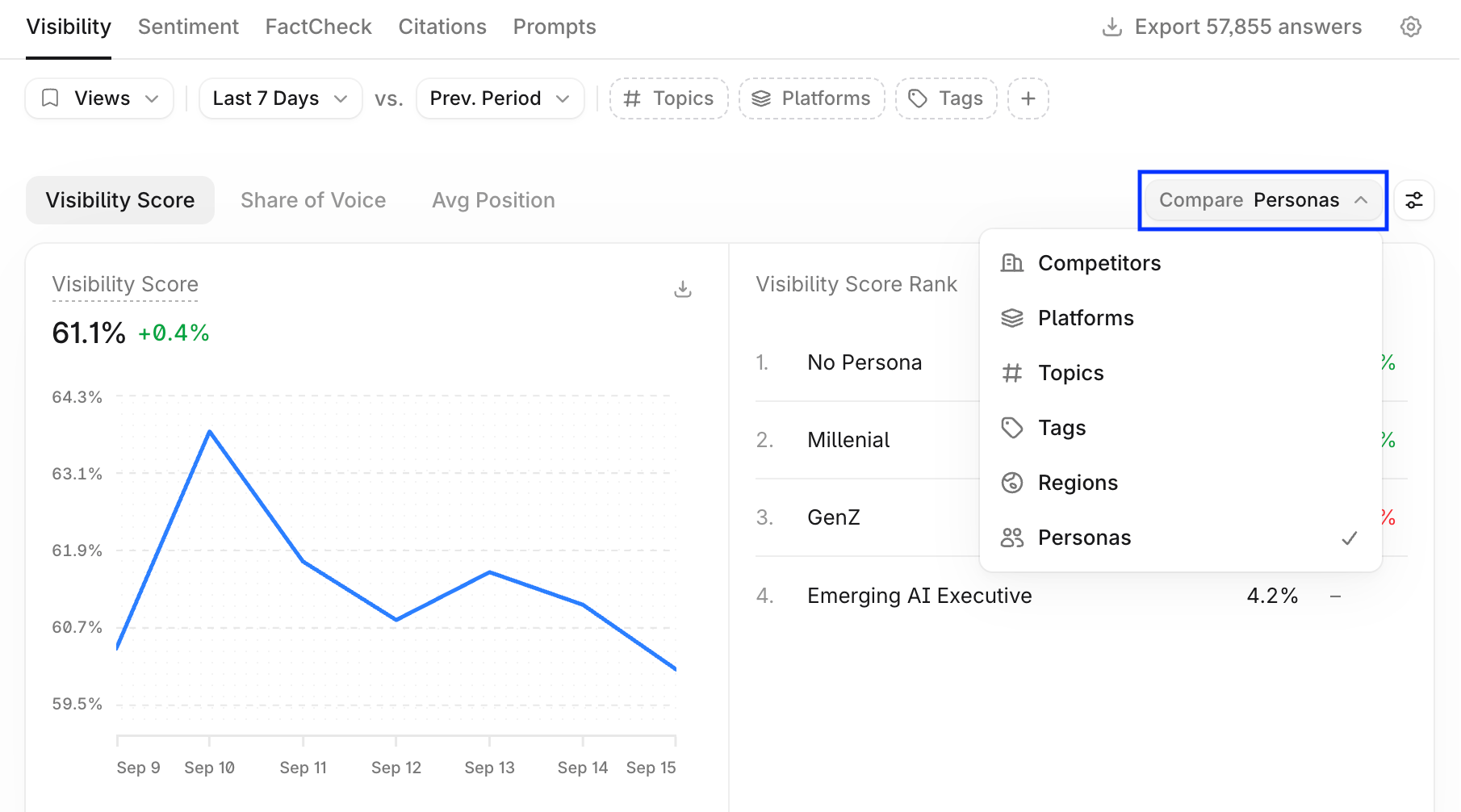
 To view the visibility and citations data for Personas, select [**Compare**](/answer-engine-insights/interpret#the-compare-dropdown) > **Personas** in the **Visibility** and **Citations** tabs.
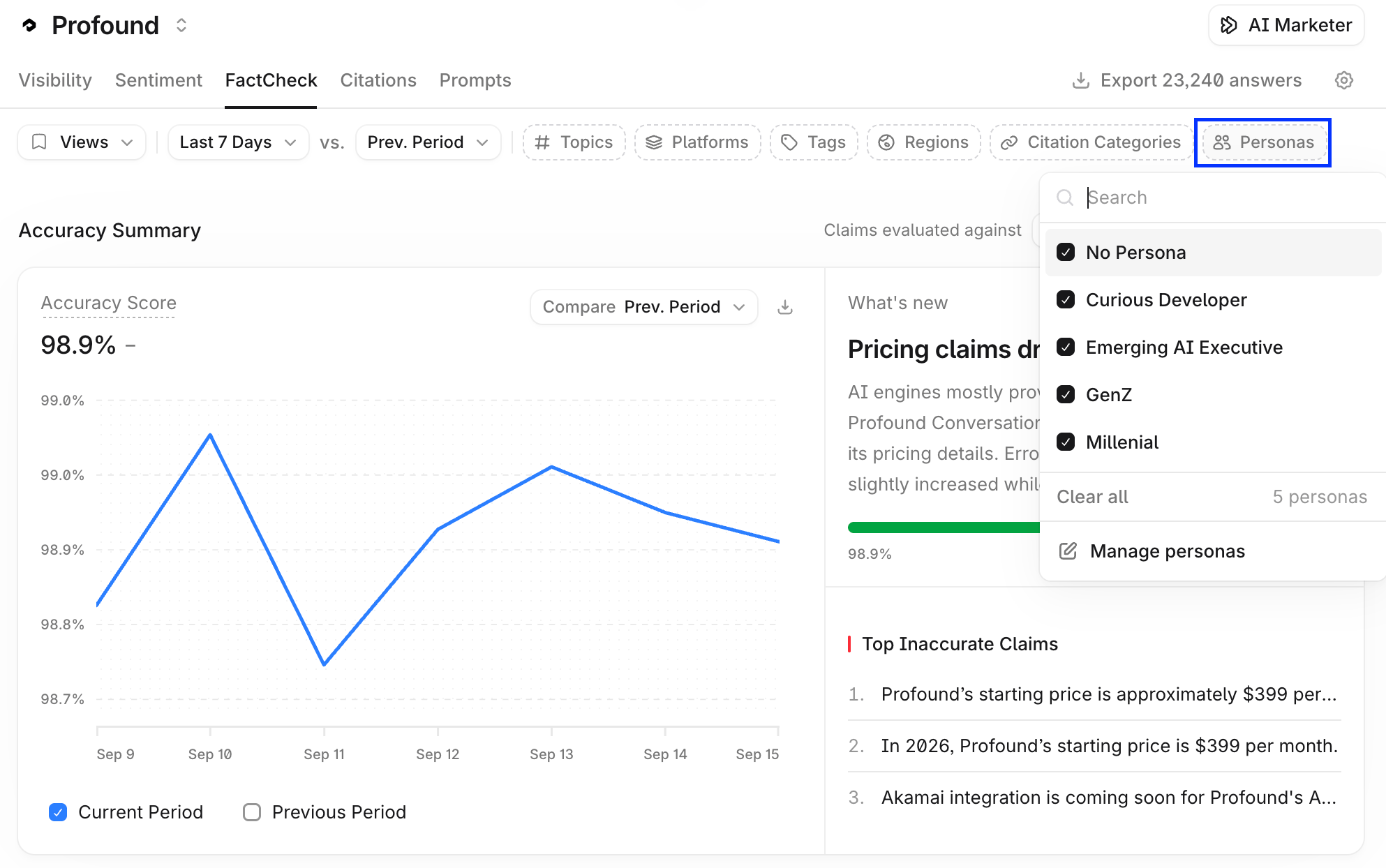
 Filtering by Persona applies to [Sentiment](/answer-engine-insights/sentiment/about) and [FactCheck](/answer-engine-insights/factcheck/about) data as well, if you have at least one Persona configured. Access the filter in the [top filters bar](/answer-engine-insights/interpret#filters) in the **Sentiment** and **Factcheck** tabs.
 Learn more about filtering and interpreting data in [Interpret Answer Engine Insights](/answer-engine-insights/interpret).