> ## Documentation Index
> Fetch the complete documentation index at: https://docs.tryprofound.com/llms.txt
> Use this file to discover all available pages before exploring further.
# Connect Drupal to Profound
This guide walks you through connecting your Drupal account to Profound. Once connected, Profound Agents can access, edit, and manage your Drupal content directly.
## Before you start
You'll need:
* [Drupal](https://www.drupal.org/) account with an administrator role, or any other role that allows you to administer users and permissions (learn more in Drupal's [Roles and Permissions documentation](https://www.drupal.org/docs/roles-and-permissions))
* A public Drupal HTTPS website
* [JSON:API](https://www.drupal.org/docs/core-modules-and-themes/core-modules/jsonapi-module) Drupal core module: it powers every action Profound performs
* [JSON:API Permission Access](https://www.drupal.org/project/jsonapi_permission_access) module to enable API authentication access for select user roles
* [Key auth](https://www.drupal.org/project/key_auth) module to enable API key authentication that allows Profound to take actions on your behalf
* [Profound](https://www.tryprofound.com/) account
## Setup guide
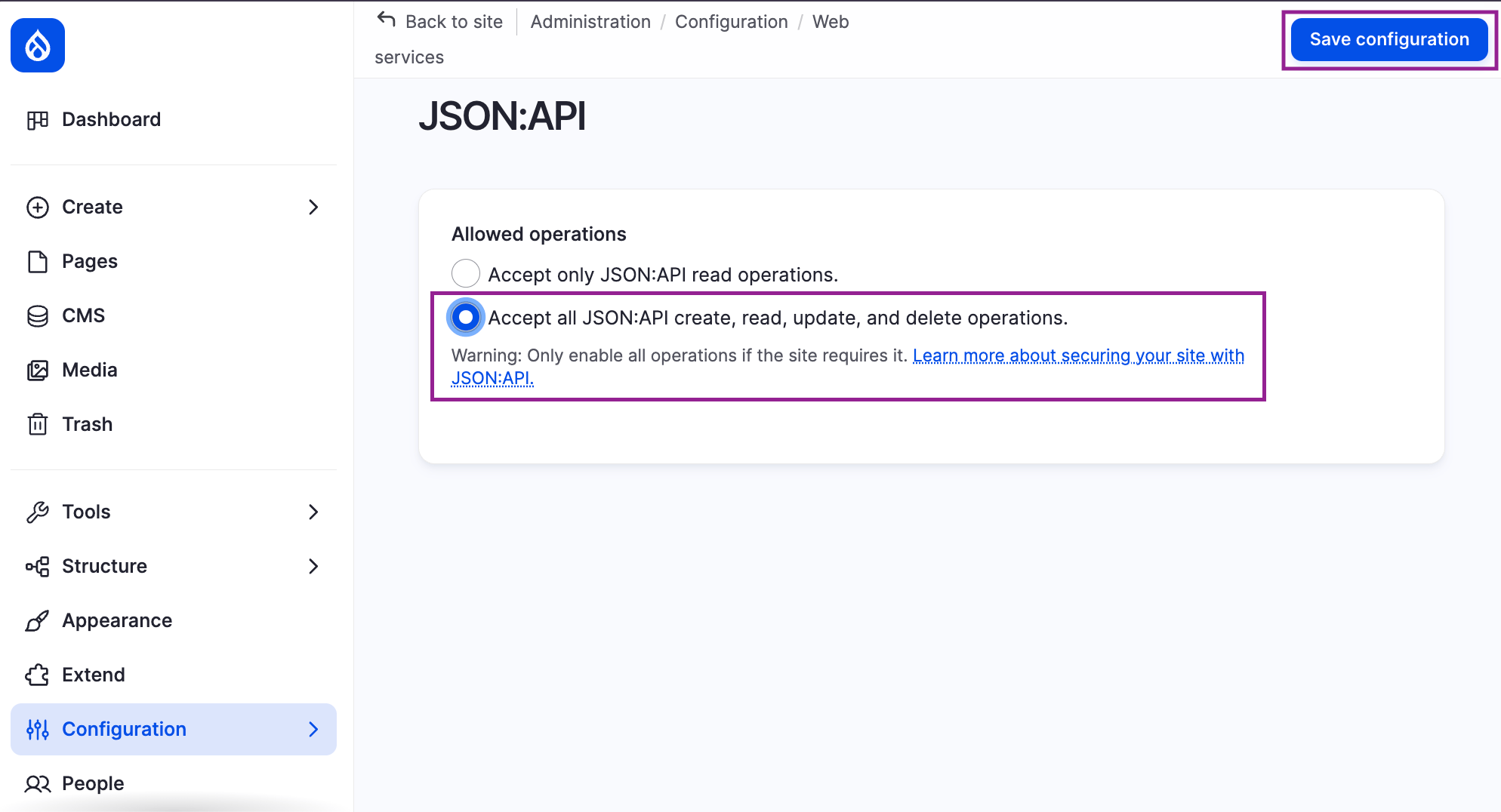
* In Drupal, navigate to **Configuration > Web Services > JSON:API**.
* Enable **Accept all JSON:API create, read, update, and delete operations**.
* Select **Save configuration**.
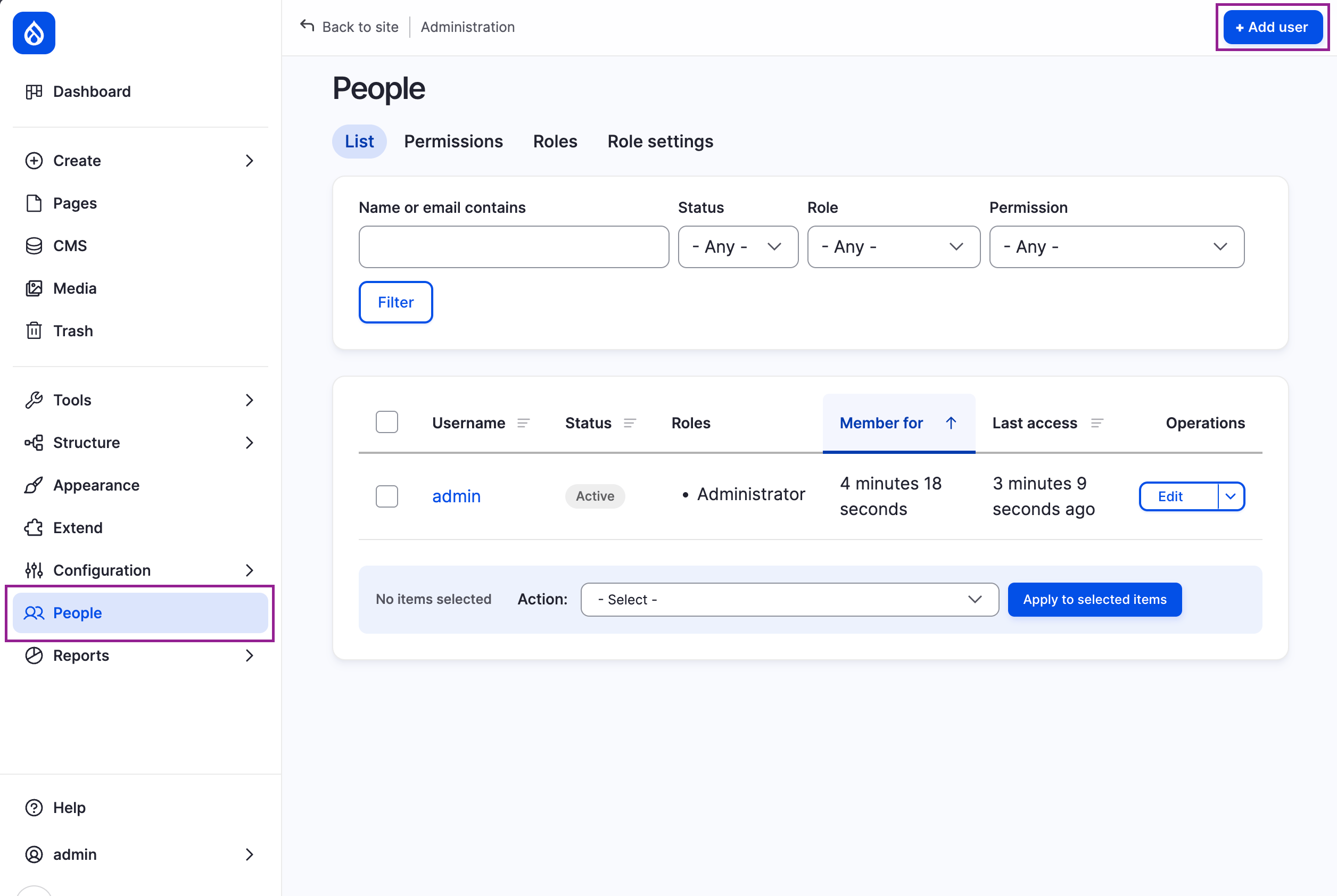
 * In the Drupal platform, navigate to **People** in the left sidebar and select **+ Add user**.
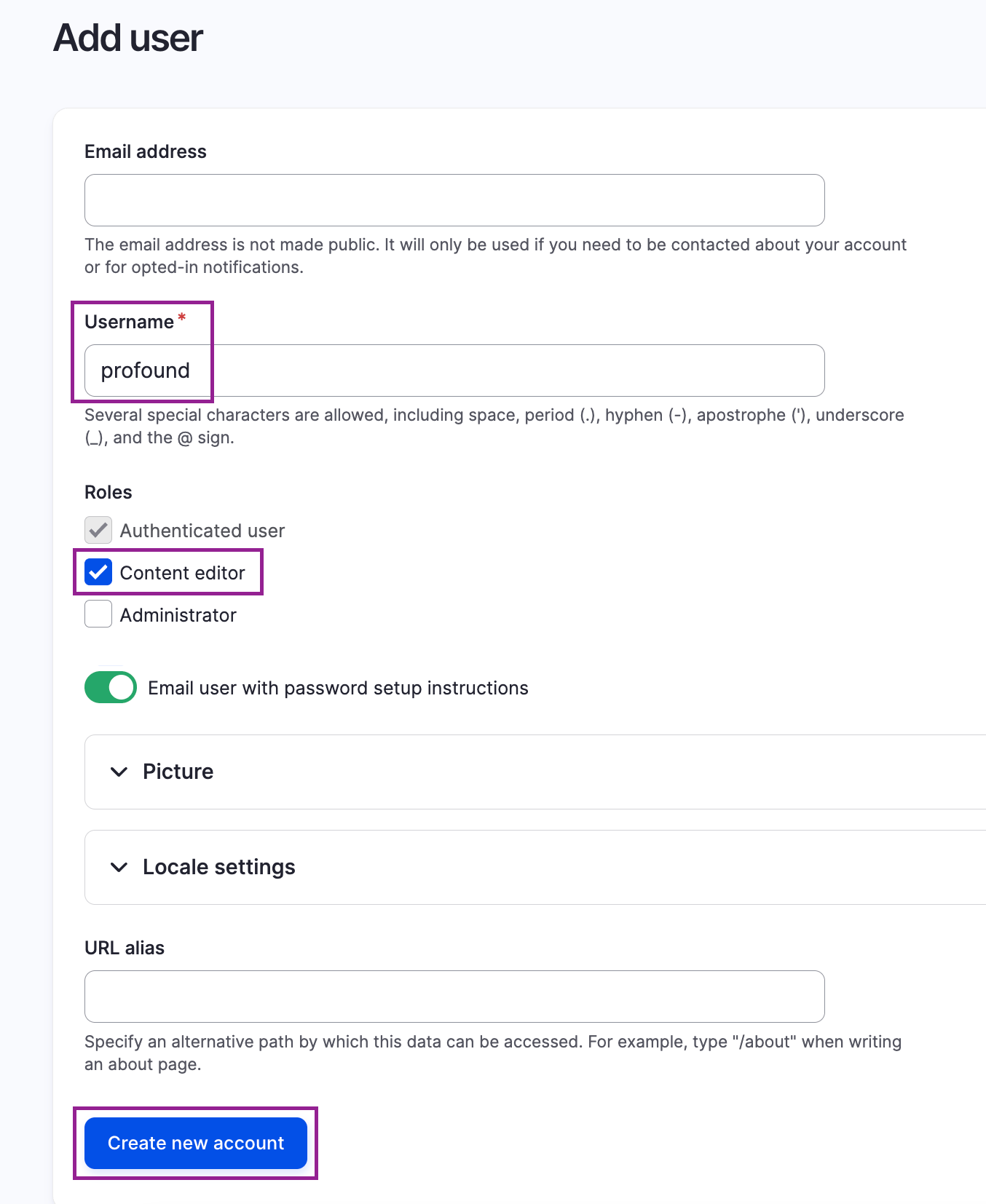
 * Name the user `profound`, give it a **Content editor** role or any other role with content management permissions, and select **Create new account**.
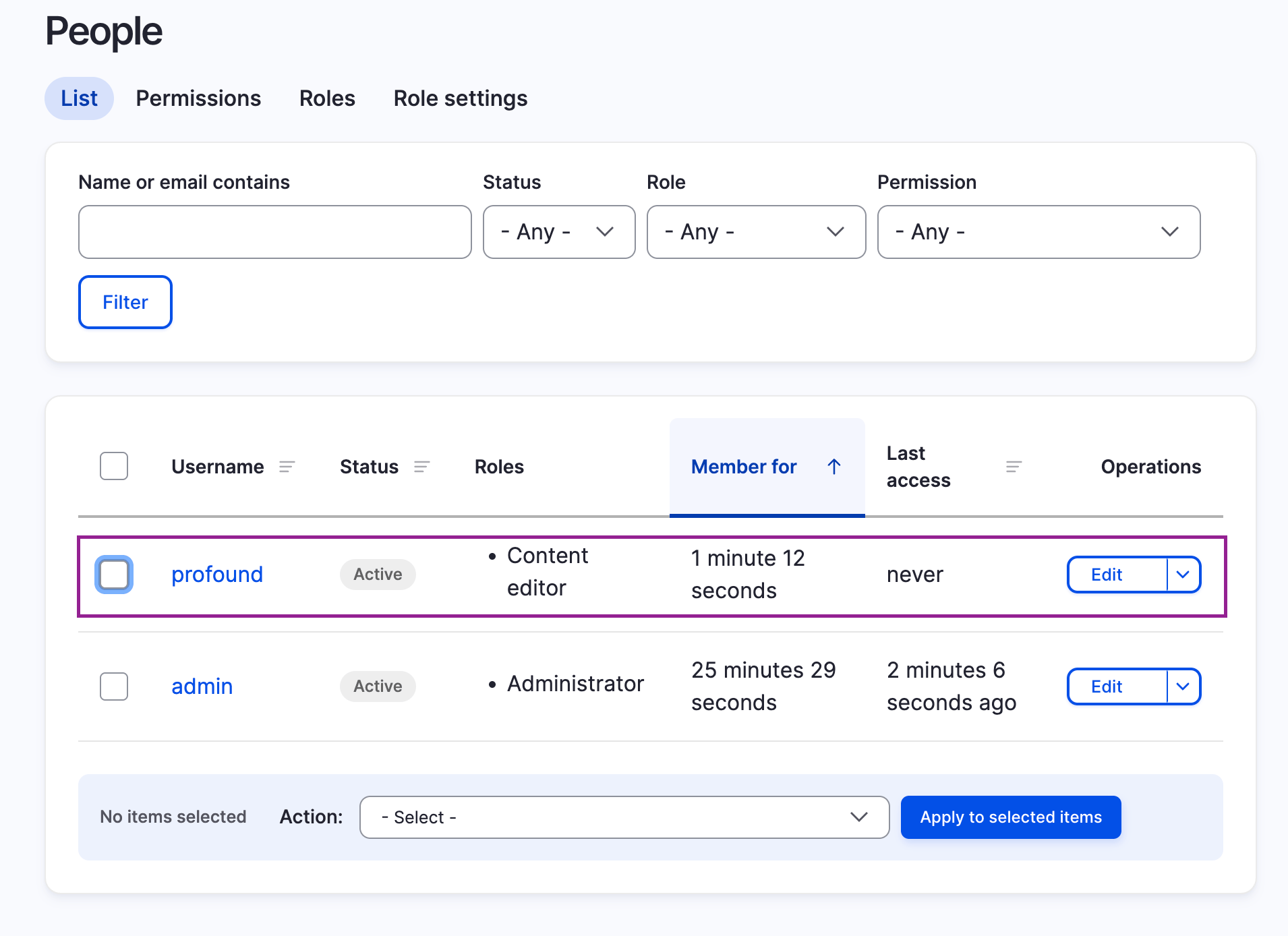
 * Once the user is created, it appears on the user list.
 To allow Profound to authenticate with Drupal using an API key, enable **Access JSON:API** and **Use key authentication** permissions for the role you assigned to your Profound user.
* In Drupal, navigate to **People > Permissions**.
* Search for the relevant permission and enable it for the role your Profound user has.
* Select **Save permissions**.
A standard Drupal content editor role has sufficient content permissions for Profound to perform the necessary actions. If you want to review or customize content permissions for Profound, you can do so anytime in the **Permissions** view in Drupal.
* Navigate to **People** and select `profound` user you created in [Step 2](#step-2).
* Append `/key-auth` to the user page URL. For example:
```text theme={null}
https://your-site.com/user/5/key-auth
```
* On the key authentication page for the user, select **Generate new key**.
To allow Profound to authenticate with Drupal using an API key, enable **Access JSON:API** and **Use key authentication** permissions for the role you assigned to your Profound user.
* In Drupal, navigate to **People > Permissions**.
* Search for the relevant permission and enable it for the role your Profound user has.
* Select **Save permissions**.
A standard Drupal content editor role has sufficient content permissions for Profound to perform the necessary actions. If you want to review or customize content permissions for Profound, you can do so anytime in the **Permissions** view in Drupal.
* Navigate to **People** and select `profound` user you created in [Step 2](#step-2).
* Append `/key-auth` to the user page URL. For example:
```text theme={null}
https://your-site.com/user/5/key-auth
```
* On the key authentication page for the user, select **Generate new key**.
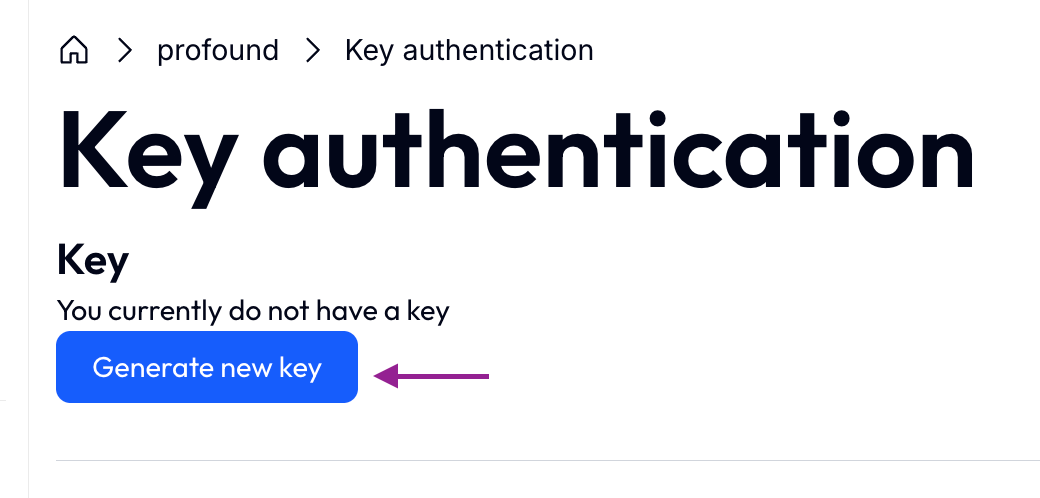 * Save the API key in a secure place, you'll need it to set up the integration in Profound.
Now that you have everything you need, create a Drupal integration in the Profound platform:
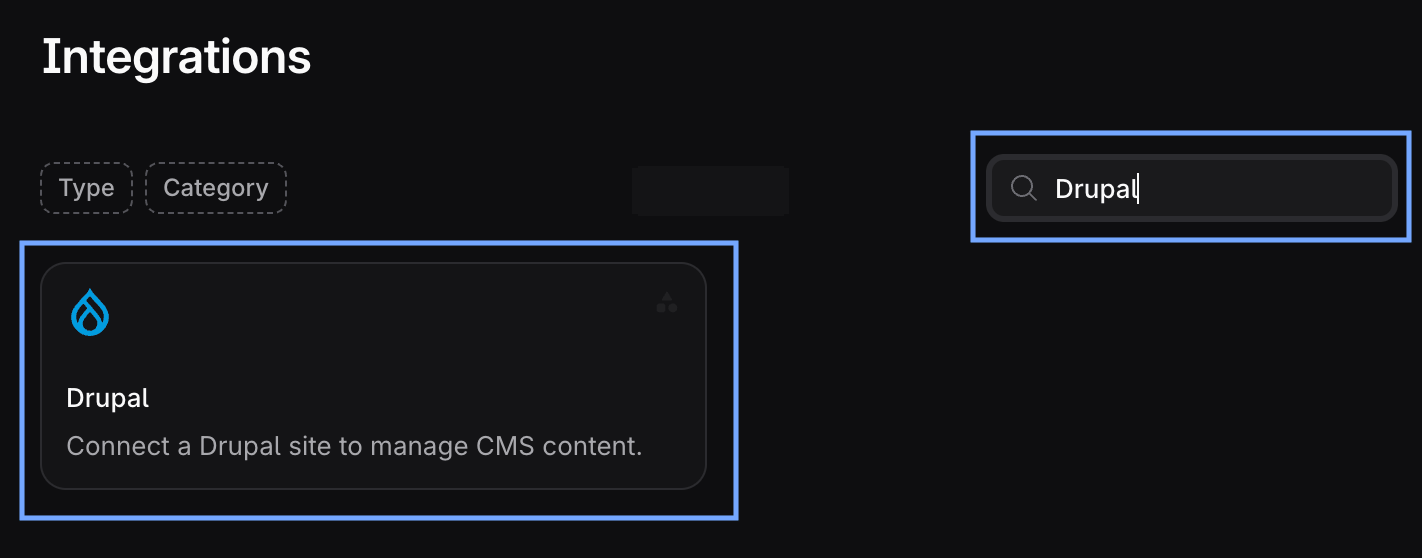
* Navigate to **Integrations** in the left sidebar.
* Search for **Drupal** and select it.
* Save the API key in a secure place, you'll need it to set up the integration in Profound.
Now that you have everything you need, create a Drupal integration in the Profound platform:
* Navigate to **Integrations** in the left sidebar.
* Search for **Drupal** and select it.
 * In the Drupal integration view, select **+ Add account**.
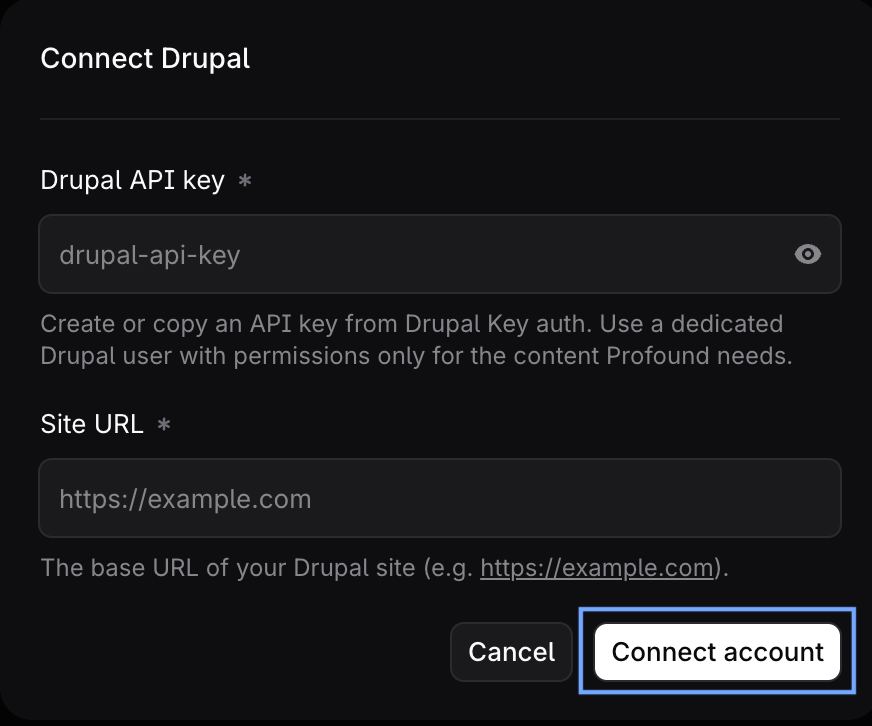
* In the **Connect Drupal** dialog, enter the API key you generated in [Step 4](#step-4) and your Drupal website's base URL.
* Select **Connect Account**.
* In the Drupal integration view, select **+ Add account**.
* In the **Connect Drupal** dialog, enter the API key you generated in [Step 4](#step-4) and your Drupal website's base URL.
* Select **Connect Account**.
 If your Drupal account appears in the list of connected accounts, the integration was successful and is ready to use with Profound.
Revoke Profound's access to your Drupal account anytime by selecting **Revoke** in the integration account action menu.
If your Drupal account appears in the list of connected accounts, the integration was successful and is ready to use with Profound.
Revoke Profound's access to your Drupal account anytime by selecting **Revoke** in the integration account action menu.
 You can also connect your Drupal account to Profound directly in the Agent builder view. Navigate to **Agents > + Create new**, add one of the Drupal nodes to the canvas, select it to open its configuration panel, and follow the **Connect account** flow.
## Best practices
* Make sure your Drupal website is public and uses HTTPS. Profound rejects non-HTTPS websites.
* To customize permissions specifically for the Profound Drupal user, consider creating a custom role for it. Learn more in the Drupal [Roles and Permissions](https://www.drupal.org/docs/roles-and-permissions#s-create-a-custom-role) documentation.
* When reviewing Profound user permissions, grant it permissions only for the content you intend Profound to use.
* Always store your API keys in a secure place, such as secure notes in your password manager.
## Troubleshooting
### There is no JSON:API permission in my Drupal Permissions view
Check that the JSON:API Permission Access module is installed in your Drupal platform:
* Navigate to **Extend** in the left sidebar.
* If the module is installed, it appears on the module list with a selected checkbox.
* If it's not on the list, install it via the **Browse modules** tab.
### I see "We couldn't save these credentials" error in Profound
When connecting your Drupal account to Profound, you may see this error:
```txt wrap theme={null}
We couldn't save these credentials
Drupal JSON:API is reachable without a valid API key. Configure JSON:API to require key authentication.
```
It likely means that you're missing either the [JSON:API Permission Access](https://www.drupal.org/project/jsonapi_permission_access) module in Drupal or the **Access JSON:API** permission for your Profound user.
If that's the case, install the module and enable the permission as instructed in [Step 3](#step-3).
You can also connect your Drupal account to Profound directly in the Agent builder view. Navigate to **Agents > + Create new**, add one of the Drupal nodes to the canvas, select it to open its configuration panel, and follow the **Connect account** flow.
## Best practices
* Make sure your Drupal website is public and uses HTTPS. Profound rejects non-HTTPS websites.
* To customize permissions specifically for the Profound Drupal user, consider creating a custom role for it. Learn more in the Drupal [Roles and Permissions](https://www.drupal.org/docs/roles-and-permissions#s-create-a-custom-role) documentation.
* When reviewing Profound user permissions, grant it permissions only for the content you intend Profound to use.
* Always store your API keys in a secure place, such as secure notes in your password manager.
## Troubleshooting
### There is no JSON:API permission in my Drupal Permissions view
Check that the JSON:API Permission Access module is installed in your Drupal platform:
* Navigate to **Extend** in the left sidebar.
* If the module is installed, it appears on the module list with a selected checkbox.
* If it's not on the list, install it via the **Browse modules** tab.
### I see "We couldn't save these credentials" error in Profound
When connecting your Drupal account to Profound, you may see this error:
```txt wrap theme={null}
We couldn't save these credentials
Drupal JSON:API is reachable without a valid API key. Configure JSON:API to require key authentication.
```
It likely means that you're missing either the [JSON:API Permission Access](https://www.drupal.org/project/jsonapi_permission_access) module in Drupal or the **Access JSON:API** permission for your Profound user.
If that's the case, install the module and enable the permission as instructed in [Step 3](#step-3).