> ## Documentation Index
> Fetch the complete documentation index at: https://docs.tryprofound.com/llms.txt
> Use this file to discover all available pages before exploring further.
# Answer Engine Insights の Personas
> オーディエンスプロファイルを使って、質問者によって回答がどう変わるかを確認します
Persona とは、アンサーエンジンに質問する人物の属性、雇用情報、行動を表すオーディエンスプロファイルです。
プロンプトに Personas を追加すると、アンサーエンジンがユーザーについて持っているコンテキストをシミュレートでき、オーディエンスによってブランドの言及、引用、センチメントがどのように変わるかを確認できます。
## 概要
* プロンプトに Persona を追加すると、Profound は Persona の詳細をプロンプトのテキストに追加し、**別のプロンプトとして実行**します。プロンプトに Persona を 1 つ追加するごとに、プロンプトの実行が 1 回増えます。これはプロンプトの上限に影響します。
* プロンプトのベースラインは **No Persona** で、Persona のコンテキストなしで実行されます。
* Personas はカテゴリに属します。デフォルトでは、**カテゴリごとに最大 3 つの Personas** を作成できます。上限を引き上げたい場合や、プランに Personas を追加したい場合は、Profound の担当チームにお問い合わせください。
* 新しい Persona の実行は次回の日次プロンプト実行から開始されるため、[Answer Engine Insights](/answer-engine-insights/about) に最初の Persona データが表示されるのは、次の処理サイクルの後になります。
## 新しい Persona を追加する
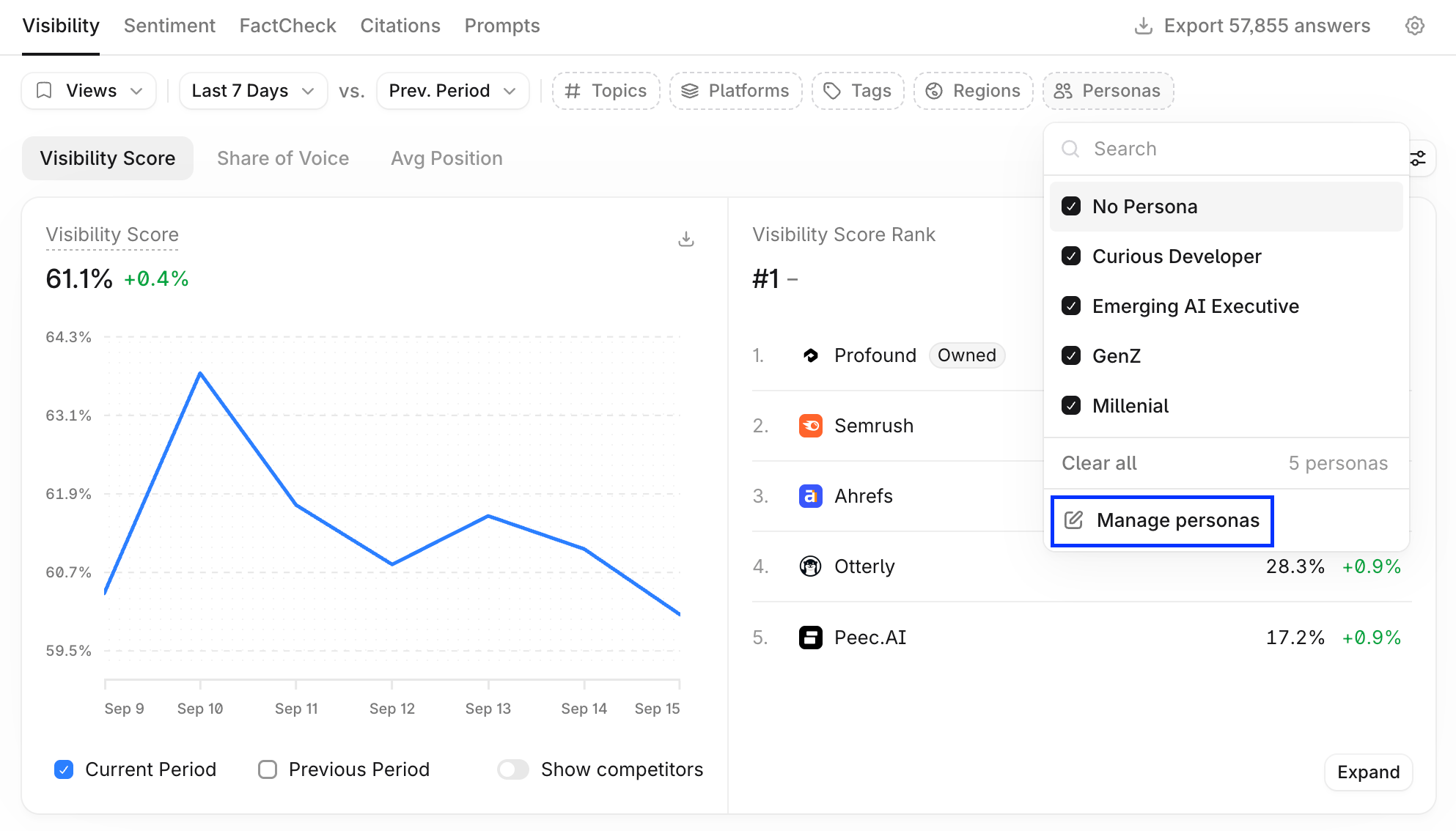 1. [Answer Engine Insights](/answer-engine-insights/about) で、フィルターバーの **Personas** を選択し、**Manage Personas** を選択します。
2. **+ Create New** を選択します。
**+ Create New** が無効になっている場合は、Personas の上限に達している可能性があります。Profound の担当チームにお問い合わせのうえ、ご相談ください。
3. **Name**(最大 50 文字)を入力します。
4. アンサーエンジンがプロンプトをどのように解釈するかを左右するフィールドに入力します:**Demographics**(Gender と Age Range)、**Employment**(Company Size、Industry、Role Seniority、Job Title)、**Behavior**(Motivations と Pain Points、それぞれ最大 500 文字)。
5. **Save** を選択します。
入力するのは、アンサーエンジンによるプロンプトの解釈を変える詳細だけにしてください。Motivations と Pain Points が最も大きな影響を持ちます。
## Personas を管理・削除する
**Manage Personas** には、カテゴリ内のすべての Persona が、その詳細、実行対象のプロンプト数、最終編集日時とともに一覧表示されます。Persona の **Actions** メニュー(**…**)を開くと、次の操作ができます。
* **Edit**:任意のフィールドを変更し、**Save** を選択します。
* **Duplicate**:同じカテゴリ内にコピーを作成します。
* **Export**:Persona の詳細をダウンロードします。
* **Delete**:Persona を削除し、そのプロンプト実行を停止します。
Personas はカテゴリごとに固有のものです。同じ Persona を別の場所で使用するには、そのカテゴリで改めて作成してください。
## プロンプトに Personas を追加する
Personas は [Prompt Designer](/ja-jp/answer-engine-insights/prompt-designer) で割り当てます。
### 1 つのプロンプトの場合
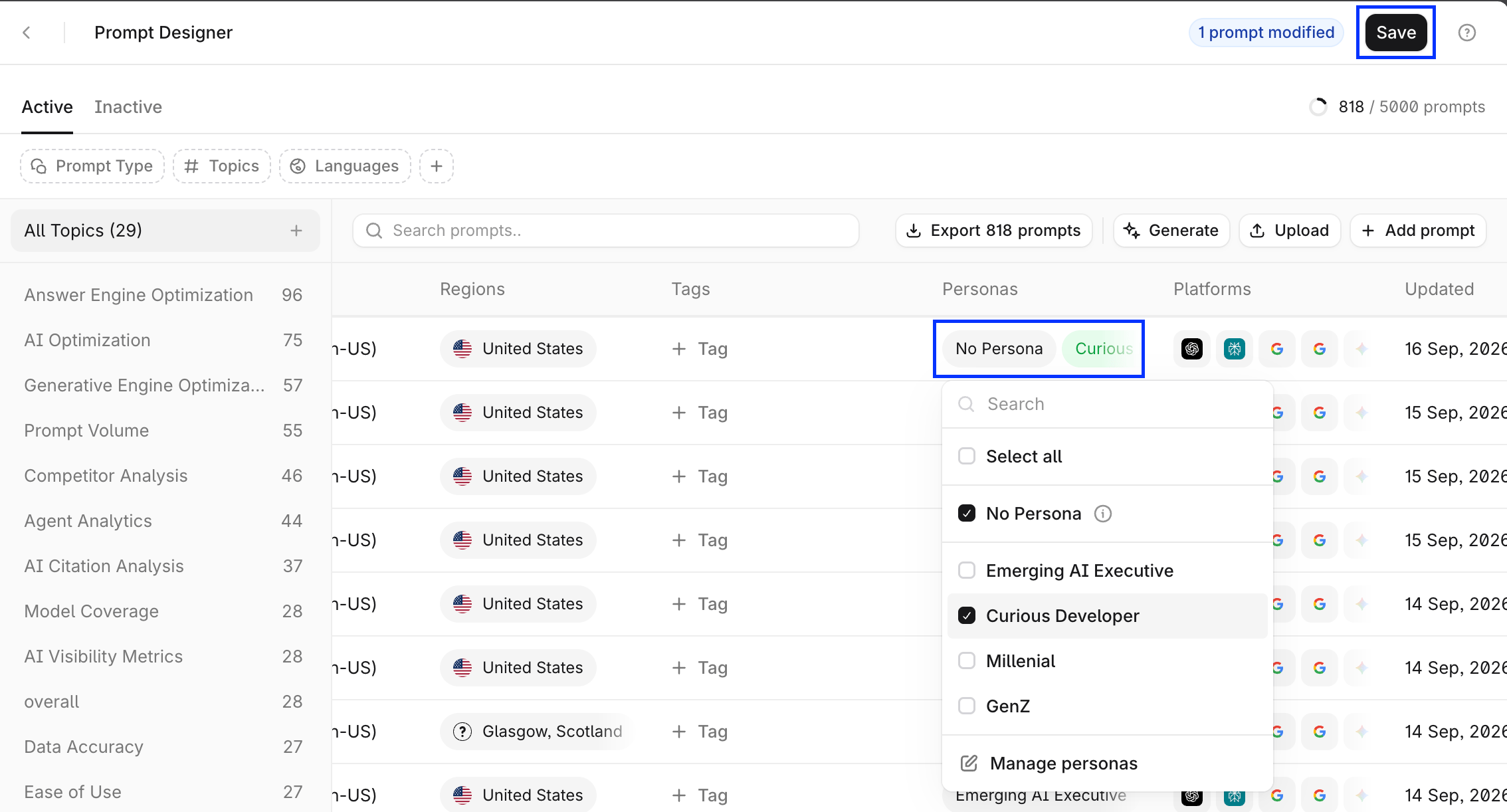
プロンプトの **Personas** セルを選択し、適用する Personas のチェックを付けるか外して、**Save** を選択します。
1. [Answer Engine Insights](/answer-engine-insights/about) で、フィルターバーの **Personas** を選択し、**Manage Personas** を選択します。
2. **+ Create New** を選択します。
**+ Create New** が無効になっている場合は、Personas の上限に達している可能性があります。Profound の担当チームにお問い合わせのうえ、ご相談ください。
3. **Name**(最大 50 文字)を入力します。
4. アンサーエンジンがプロンプトをどのように解釈するかを左右するフィールドに入力します:**Demographics**(Gender と Age Range)、**Employment**(Company Size、Industry、Role Seniority、Job Title)、**Behavior**(Motivations と Pain Points、それぞれ最大 500 文字)。
5. **Save** を選択します。
入力するのは、アンサーエンジンによるプロンプトの解釈を変える詳細だけにしてください。Motivations と Pain Points が最も大きな影響を持ちます。
## Personas を管理・削除する
**Manage Personas** には、カテゴリ内のすべての Persona が、その詳細、実行対象のプロンプト数、最終編集日時とともに一覧表示されます。Persona の **Actions** メニュー(**…**)を開くと、次の操作ができます。
* **Edit**:任意のフィールドを変更し、**Save** を選択します。
* **Duplicate**:同じカテゴリ内にコピーを作成します。
* **Export**:Persona の詳細をダウンロードします。
* **Delete**:Persona を削除し、そのプロンプト実行を停止します。
Personas はカテゴリごとに固有のものです。同じ Persona を別の場所で使用するには、そのカテゴリで改めて作成してください。
## プロンプトに Personas を追加する
Personas は [Prompt Designer](/ja-jp/answer-engine-insights/prompt-designer) で割り当てます。
### 1 つのプロンプトの場合
プロンプトの **Personas** セルを選択し、適用する Personas のチェックを付けるか外して、**Save** を選択します。
 ### 複数のプロンプトの場合
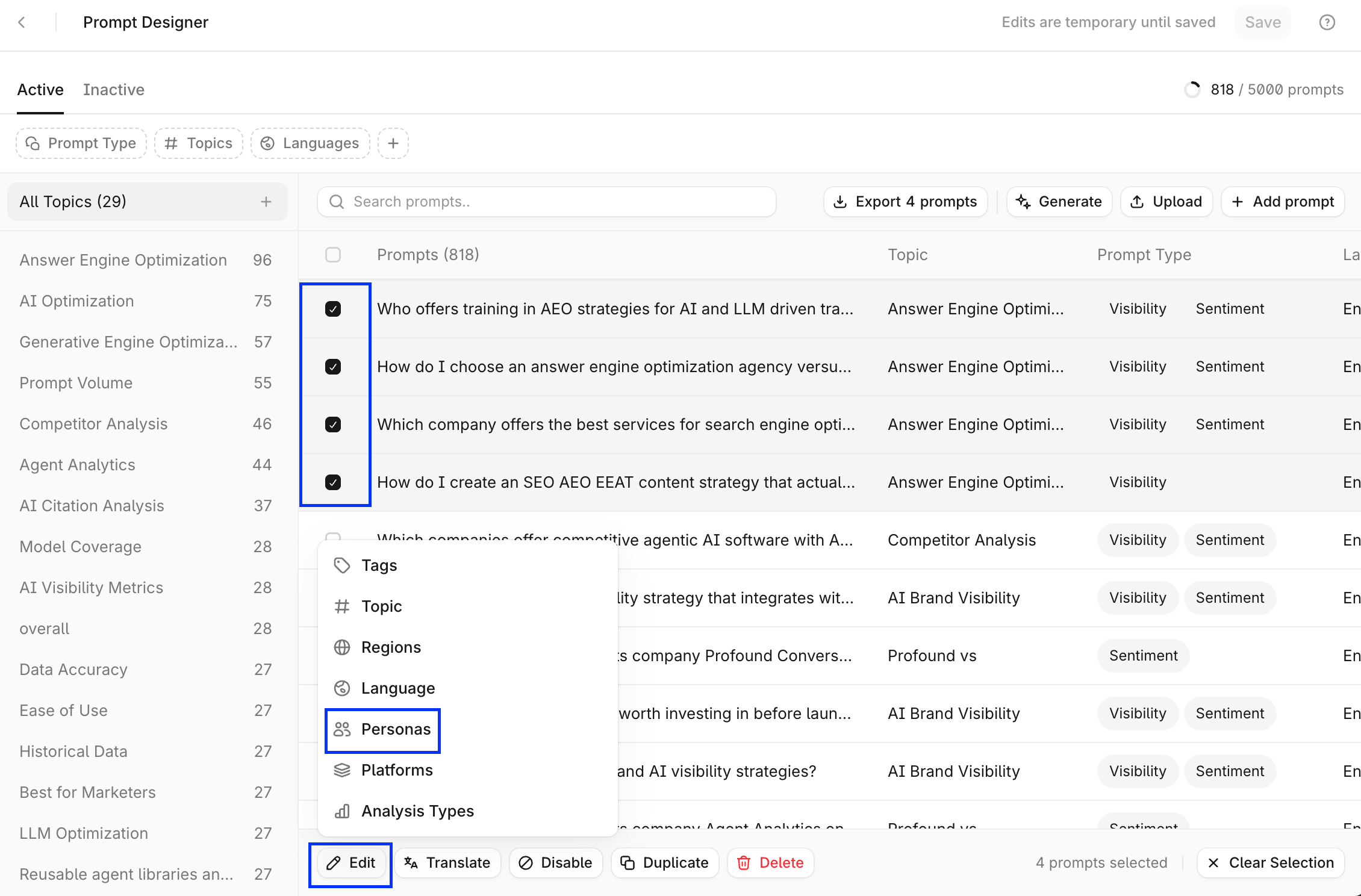
1. 変更するプロンプトにチェックを付けます。
2. 下部のバーで **Edit** > **Personas** を選択します。
### 複数のプロンプトの場合
1. 変更するプロンプトにチェックを付けます。
2. 下部のバーで **Edit** > **Personas** を選択します。
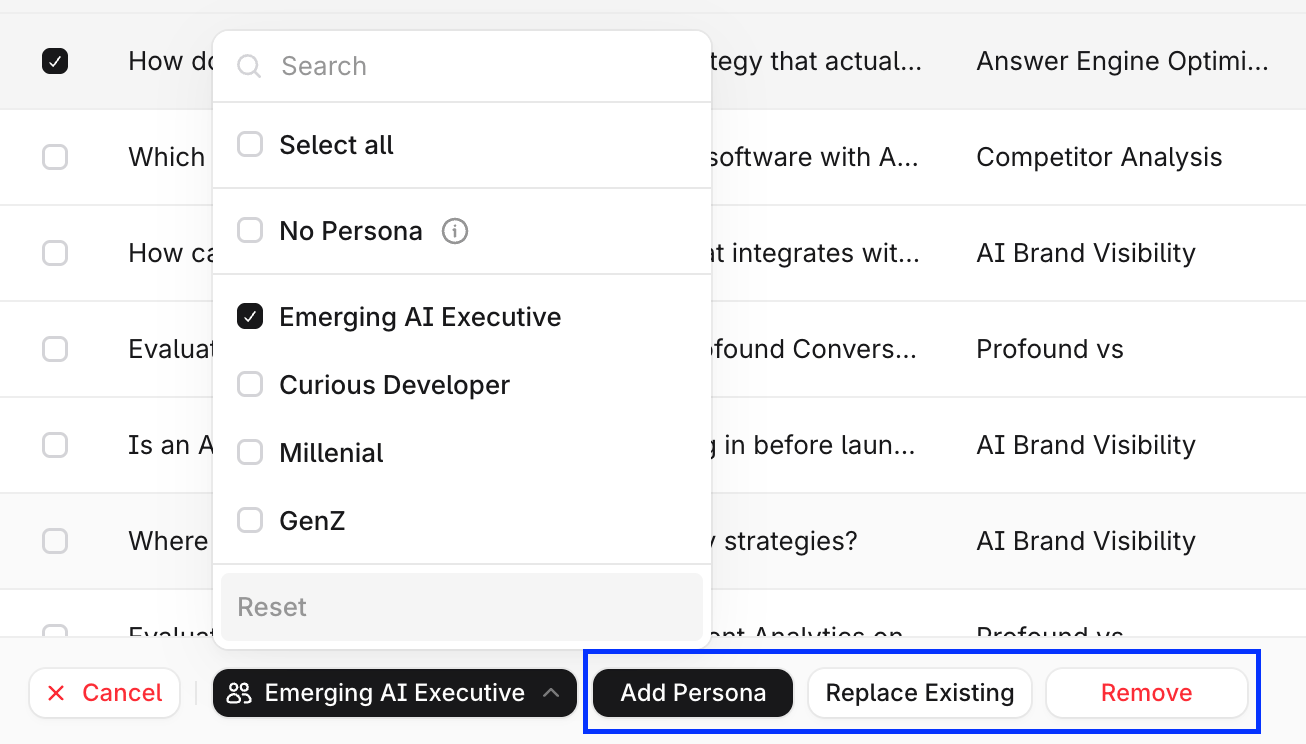
 3. Personas を選択し、**Add Personas**、**Replace Existing**、または **Remove** を選択します。
 3. **Save** を選択します。
プロンプトから Persona を削除すると、そのプロンプトに対する Persona の実行が停止します。そのプロンプトと Persona について収集されたデータは、Answer Engine Insights に表示されなくなります。
## Persona 別にトピックとプロンプトを分析する
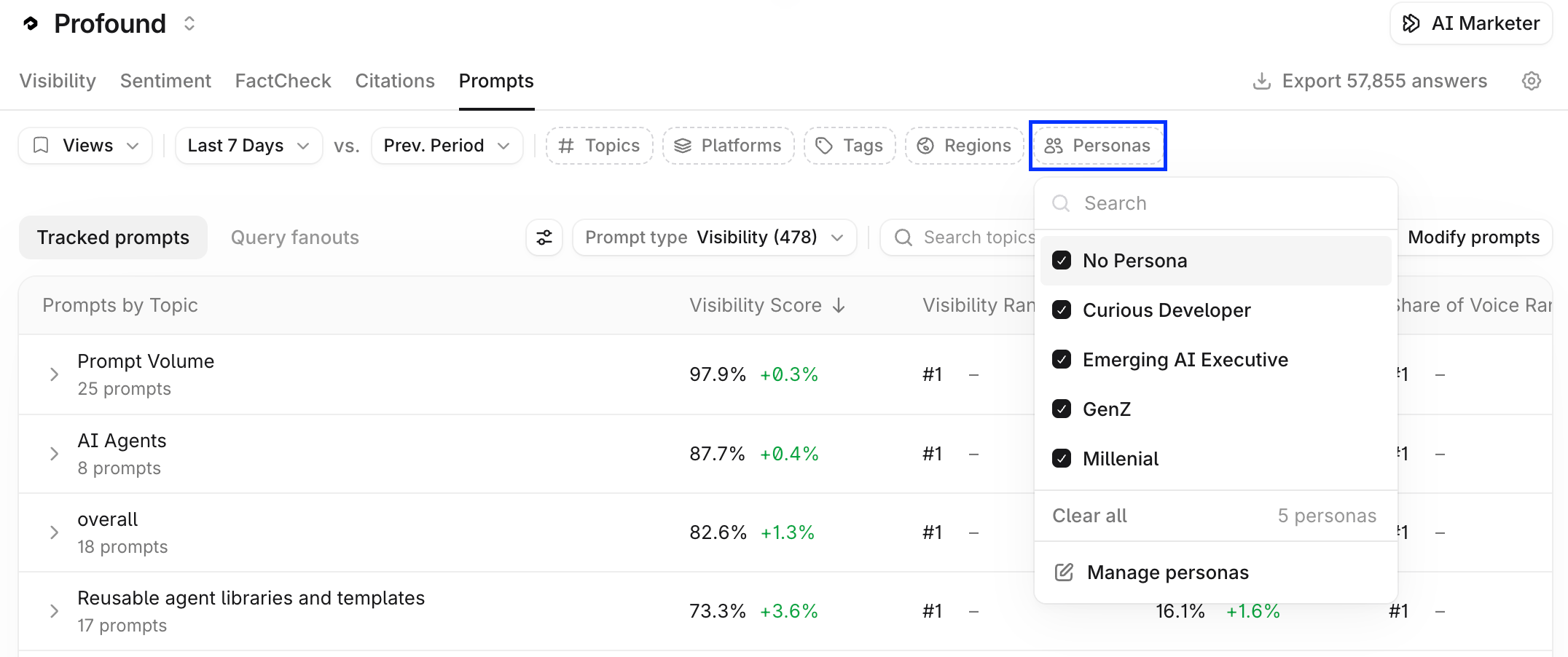
Persona 別にプロンプトを分析するには、[**Answer Engine Insights**](/answer-engine-insights/about) **> Prompts** で **Personas** [フィルター](/ja-jp/answer-engine-insights/interpret#フィルター)を使用します。次に、任意のトピックで **Analyze** を選択します。
3. **Save** を選択します。
プロンプトから Persona を削除すると、そのプロンプトに対する Persona の実行が停止します。そのプロンプトと Persona について収集されたデータは、Answer Engine Insights に表示されなくなります。
## Persona 別にトピックとプロンプトを分析する
Persona 別にプロンプトを分析するには、[**Answer Engine Insights**](/answer-engine-insights/about) **> Prompts** で **Personas** [フィルター](/ja-jp/answer-engine-insights/interpret#フィルター)を使用します。次に、任意のトピックで **Analyze** を選択します。
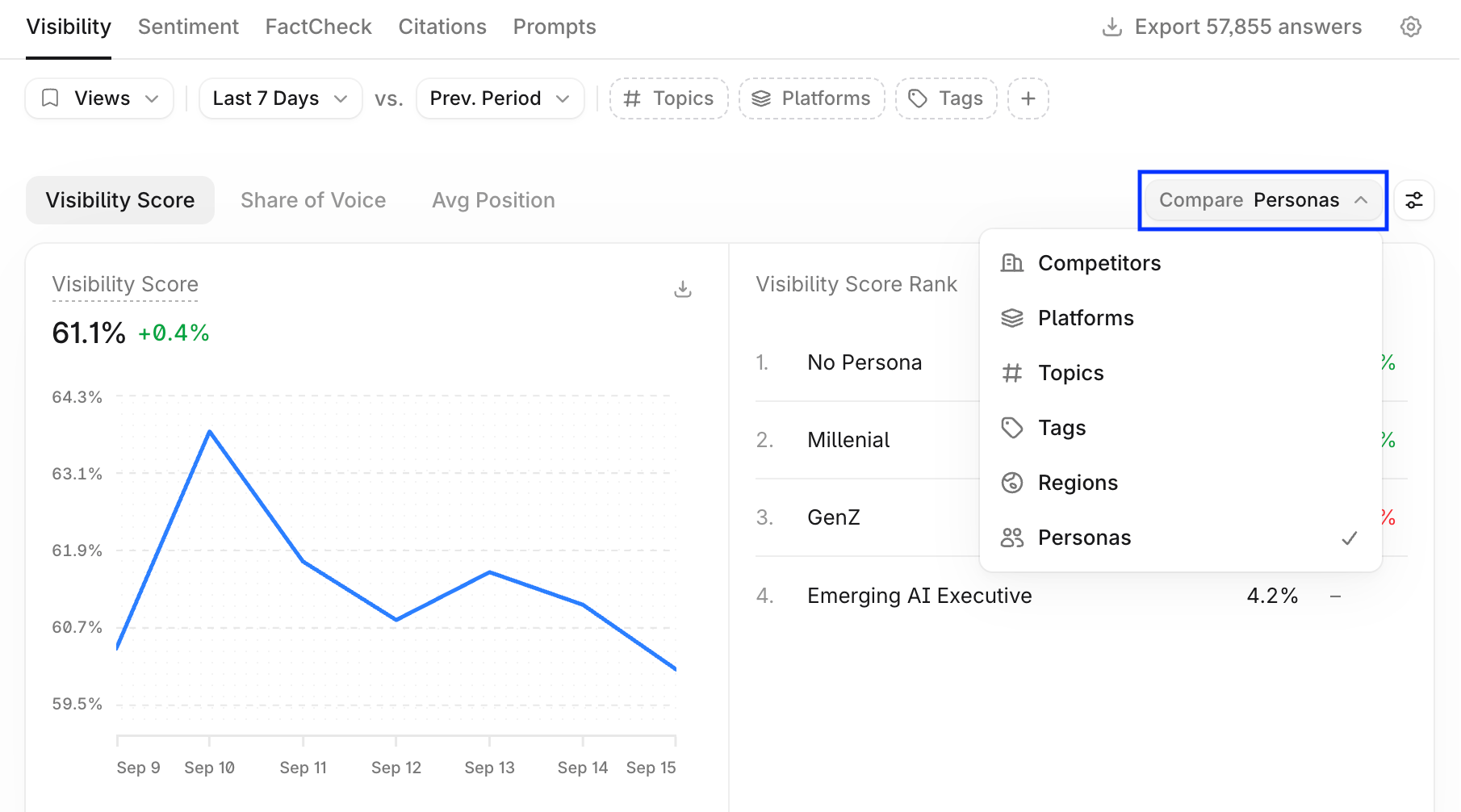
 Personas の可視性と引用のデータを表示するには、**Visibility** タブと **Citations** タブで [**Compare**](/ja-jp/answer-engine-insights/interpret#compare-ドロップダウン) > **Personas** を選択します。
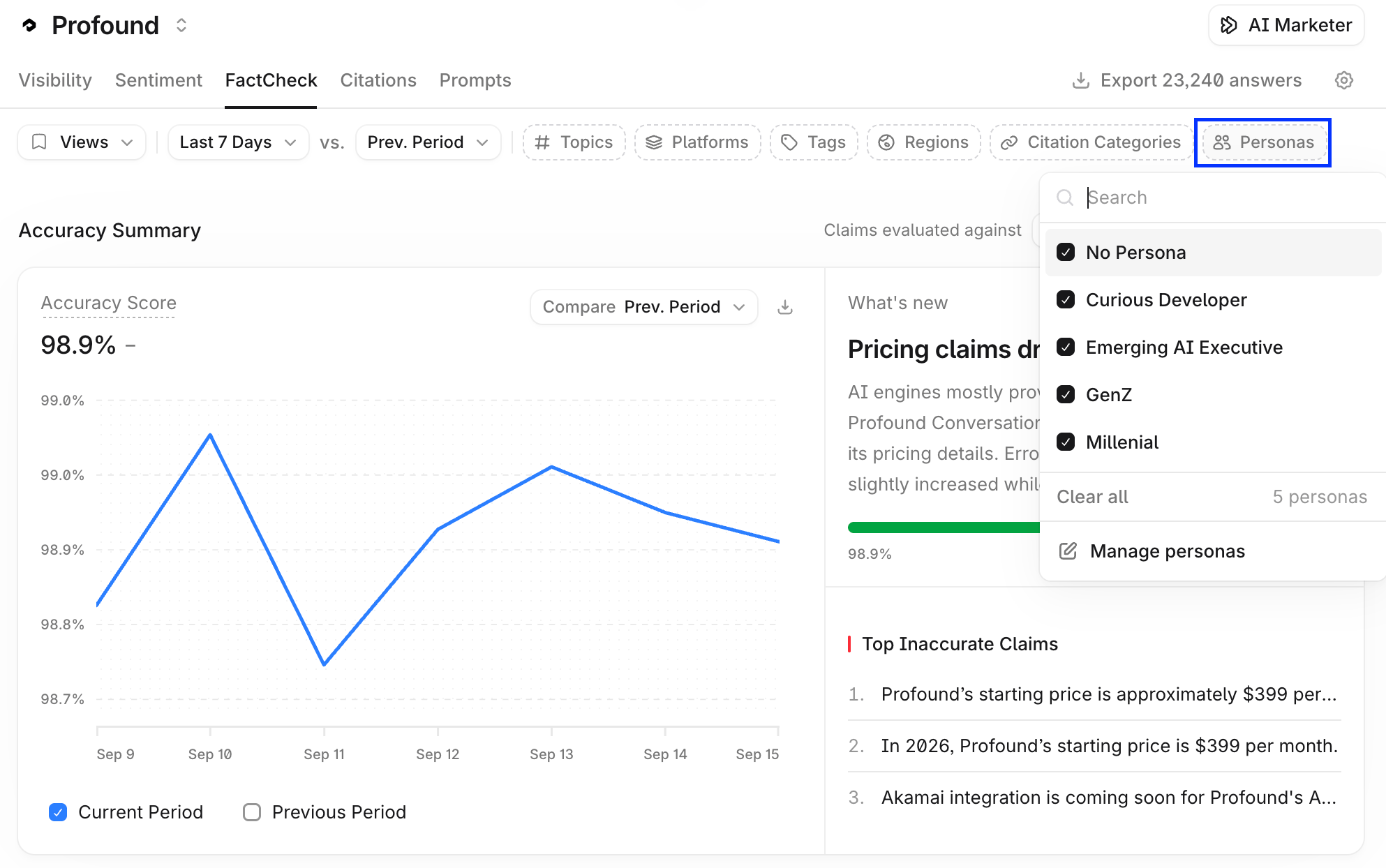
 Persona が 1 つ以上設定されている場合、Persona による絞り込みは [Sentiment](/ja-jp/answer-engine-insights/sentiment/about) と [FactCheck](/ja-jp/answer-engine-insights/factcheck/about) のデータにも適用されます。**Sentiment** タブと **Factcheck** タブの[上部のフィルターバー](/ja-jp/answer-engine-insights/interpret#フィルター)からフィルターにアクセスできます。
 データの絞り込みと読み解き方について詳しくは、[Answer Engine Insights を読み解く](/ja-jp/answer-engine-insights/interpret)をご覧ください。