> ## Documentation Index
> Fetch the complete documentation index at: https://docs.tryprofound.com/llms.txt
> Use this file to discover all available pages before exploring further.
# WDC 2.0
> Web Data Connector 2.0 を使用して Tableau にデータをインポートします
WDC 2.0 は非推奨です。代わりに [Profound Tableau コネクタ (WDC 3.0)](/ja-jp/rest-api/integrations/tableau/usage) を使用してください。
[https://tableau.tryprofound.com/](https://tableau.tryprofound.com/)
## 要件
目的のエンドポイントへのアクセス権限を持つ有効な API キー
エクスポートツールにアクセスするための安定した接続
## 使い方
Tableau Desktop を起動します (バージョン 10.4 以降が必要です)
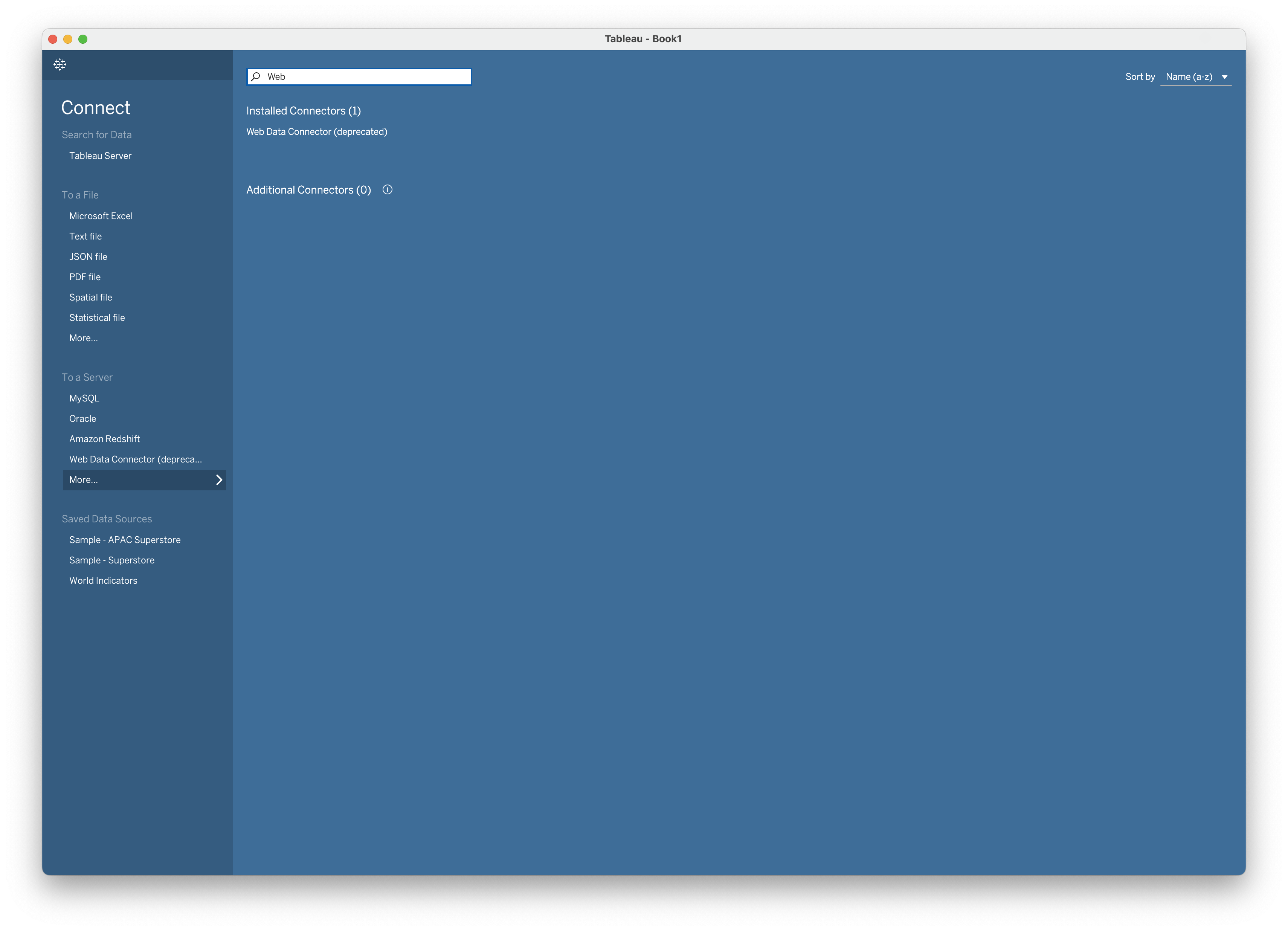
画面左側の **More** を選択し、**Web Data Connector** を検索します。
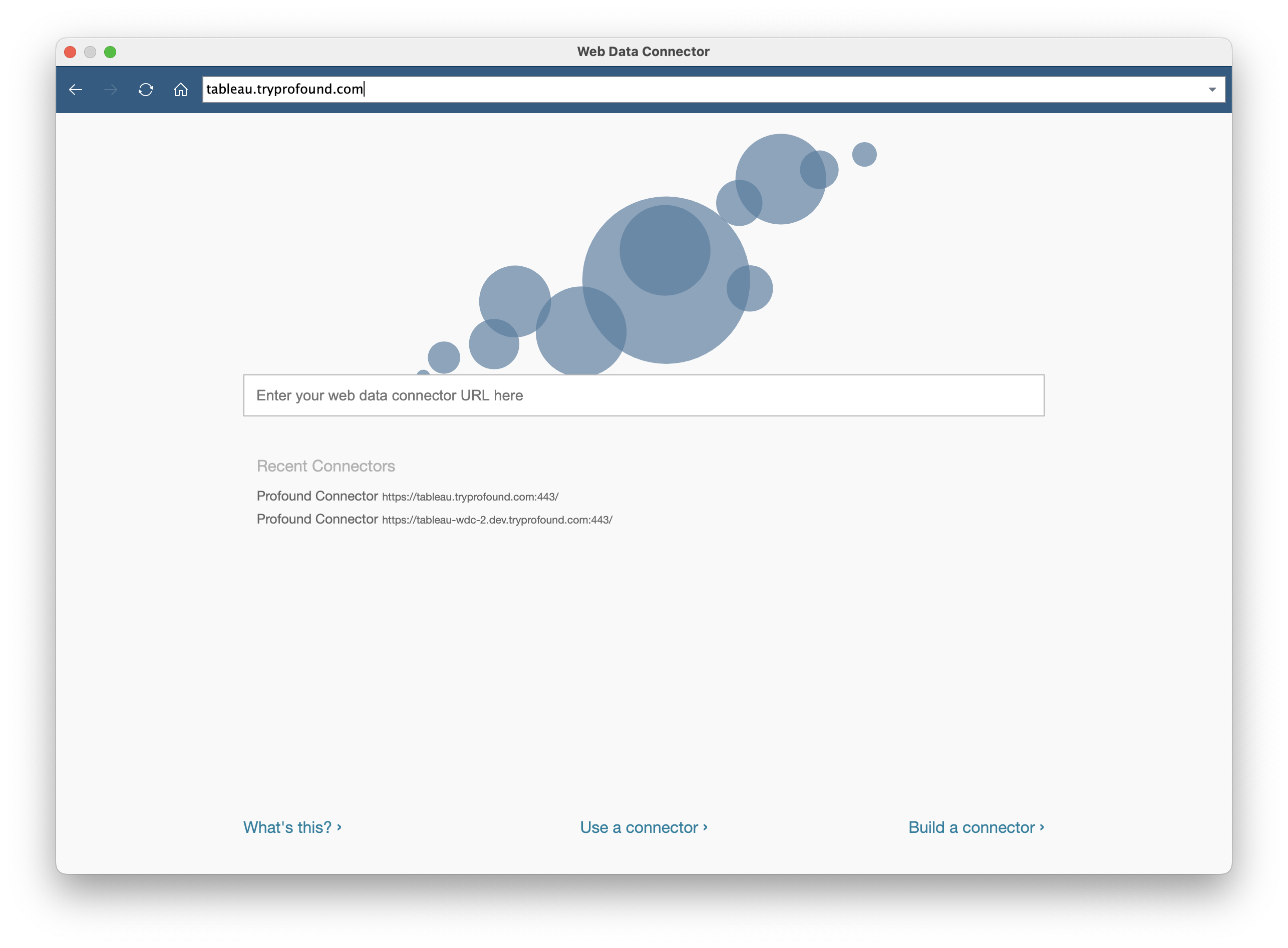
 ツールの URL `https://tableau.tryprofound.com/` を入力します。
 API キーをお探しですか? [こちらをクリックしてください](/ja-jp/rest-api/authentication#getting-your-api-key)
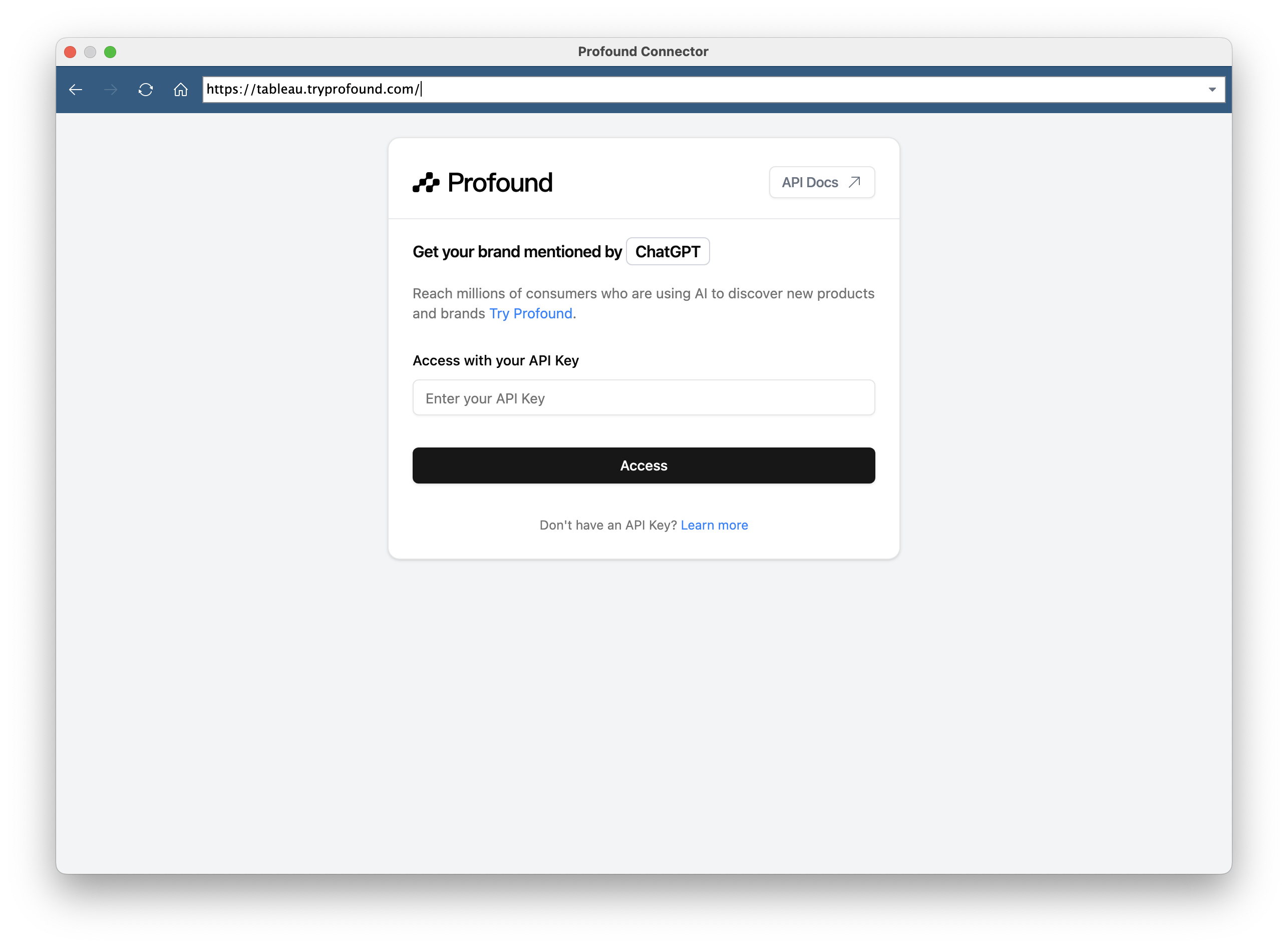
プロンプトが表示されたら API キーを入力します。準備ができたら **Access** を選択します。
API キーをお探しですか? [こちらをクリックしてください](/ja-jp/rest-api/authentication#getting-your-api-key)
プロンプトが表示されたら API キーを入力します。準備ができたら **Access** を選択します。
 目的のデータを選択し、必要に応じて追加のフィルタを設定します。
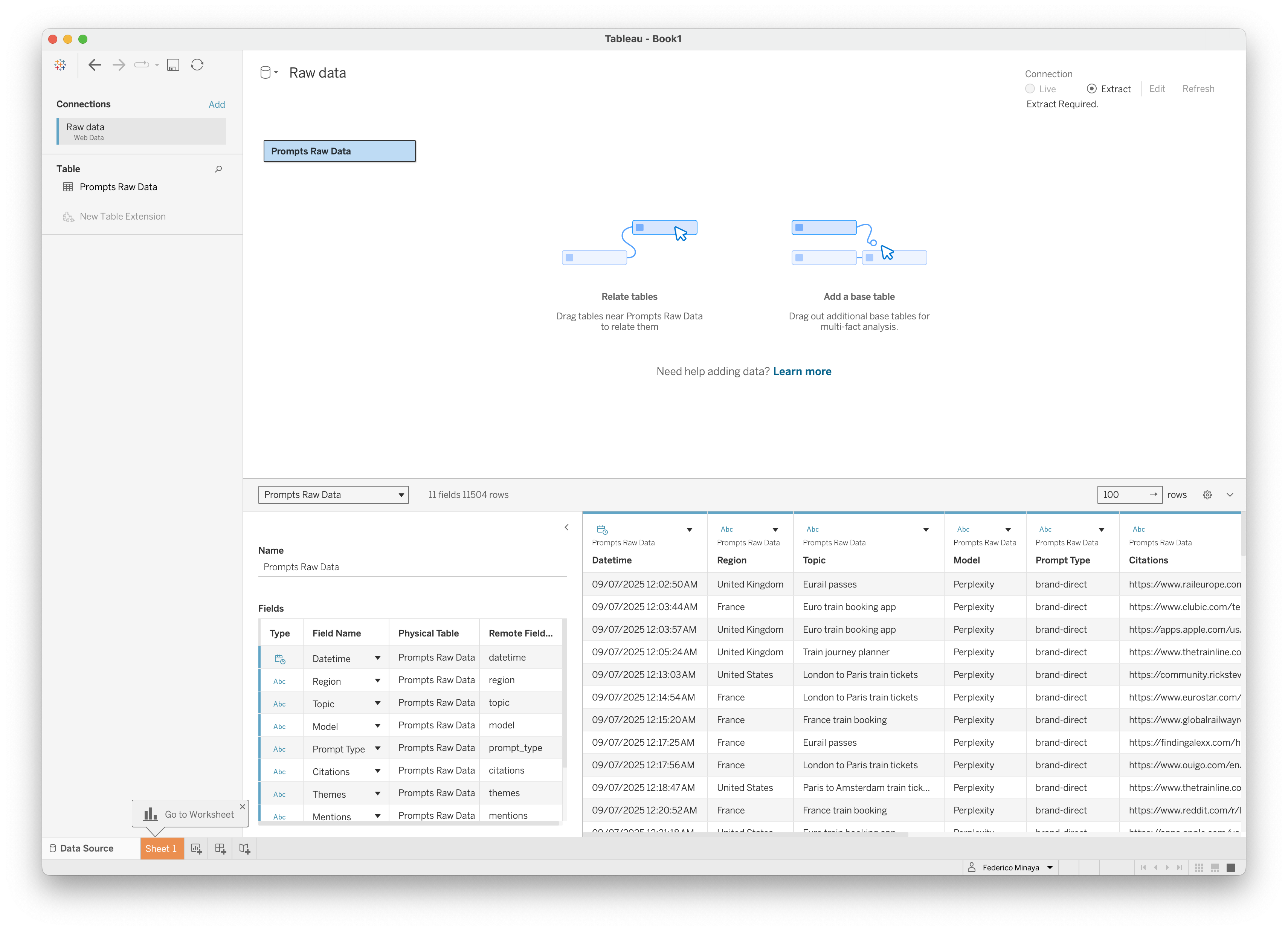
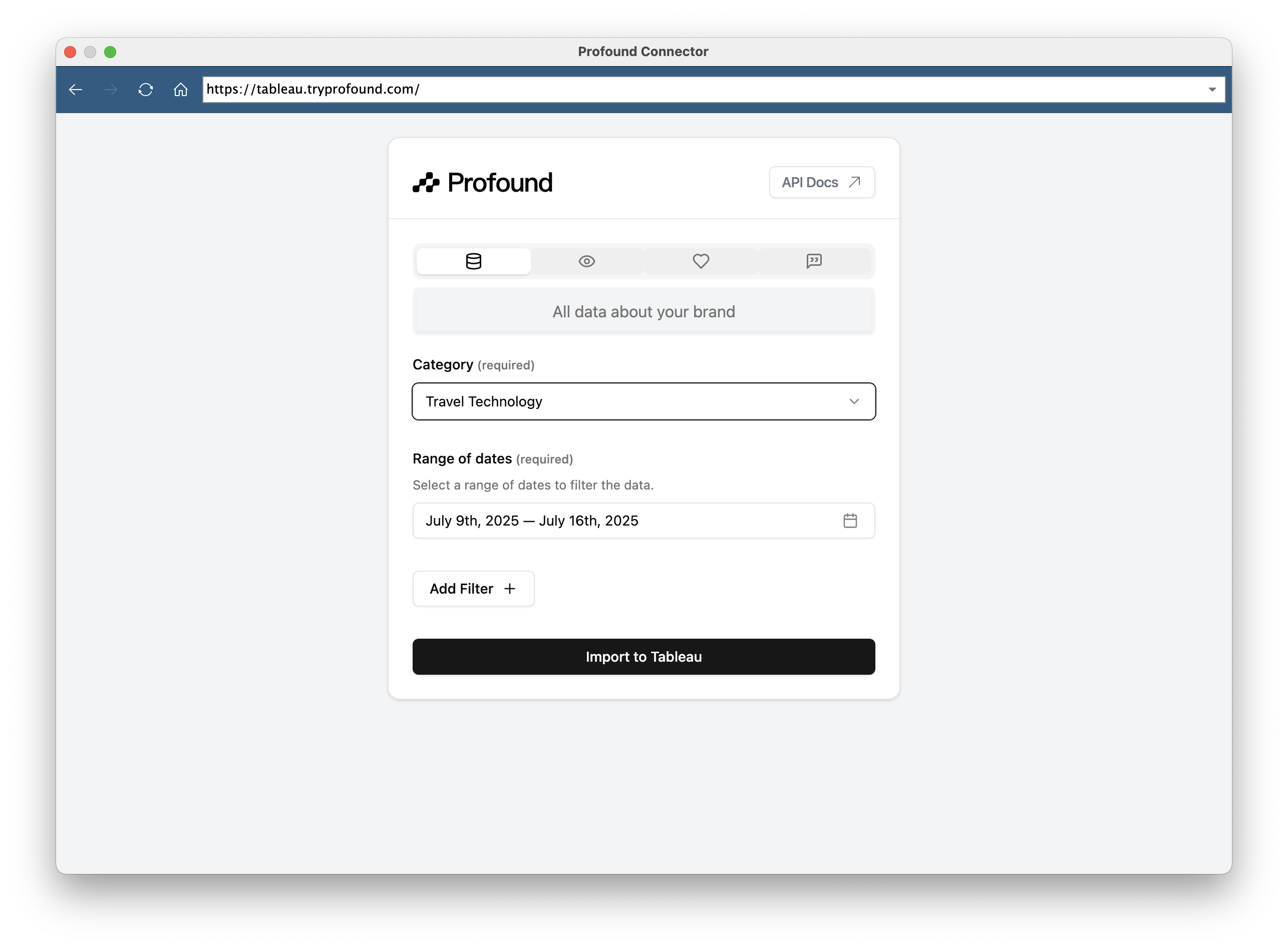 **Import to Tableau** をクリックして、データを Tableau のワークスペースに直接インポートします
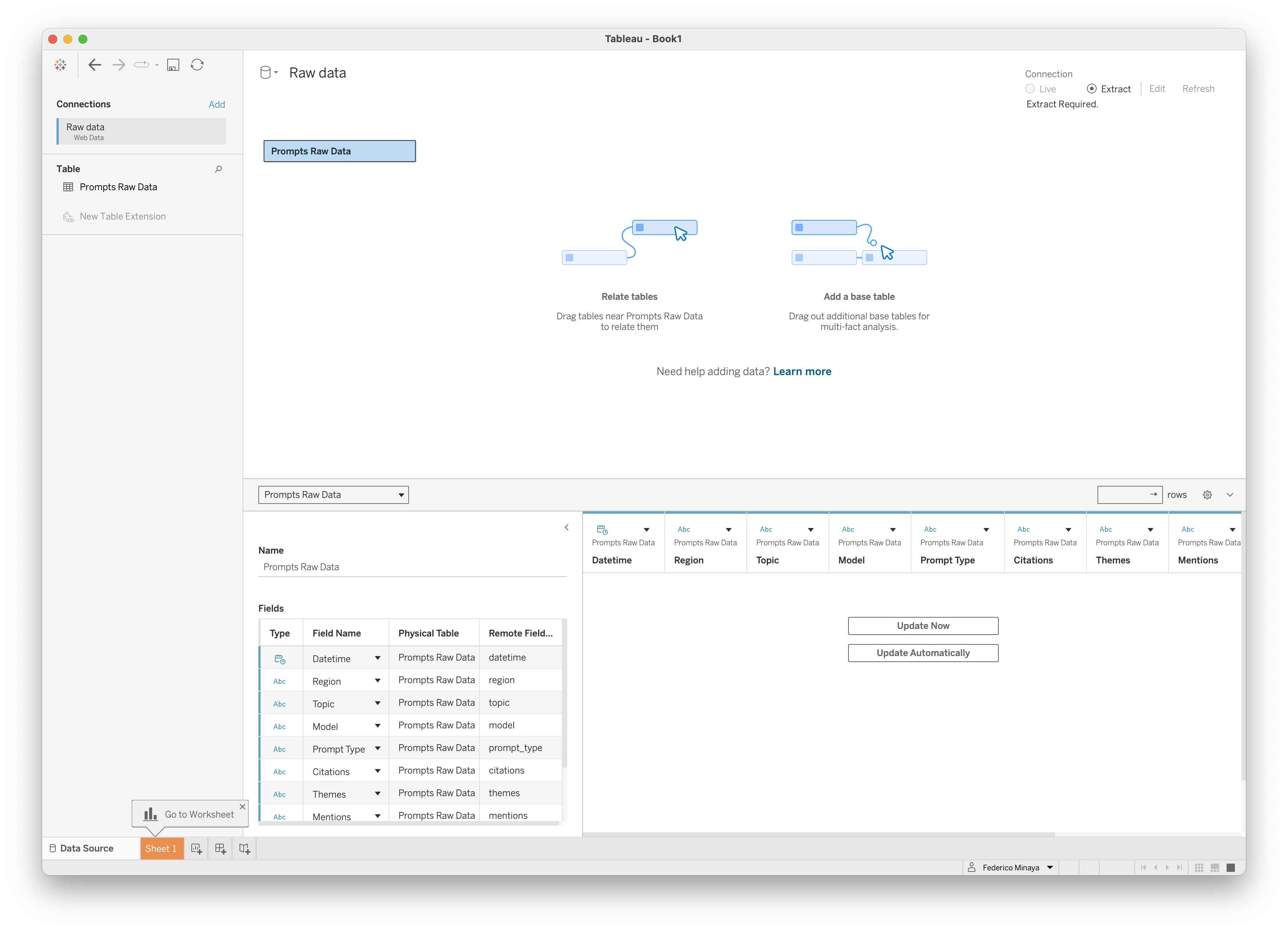 Tableau にデータが反映されるまで数分かかる場合があります。
 ## 利用可能なデータソース
このツールは、処理済みのレポートと生データの両方のエンドポイントに対応しています
* **レポートエンドポイント**: 事前処理済みの分析データおよびサマリーデータ
* **生データ**: データベースから直接取得した未処理のデータ
## トラブルシューティング
選択したエンドポイントに対して API キーが適切な権限を持っていることを確認してください
**解決策:**
* API キーが正しく、有効であることを確認します
**解決策:**
* 選択したエンドポイントに、指定したフィルタに該当するデータがあることを確認します
* 期間の指定が厳しすぎないか確認します
* API キーが要求したデータへのアクセス権を持っていることを確認します
**解決策:**
* データの期間を短くしてみてください
* より具体的なフィルタを使用してデータ量を制限してください
* 大規模なエクスポートが定期的に必要な場合は、サポートにお問い合わせください
Tableau 連携は WDC 2.0 を使用しており、ほとんどの Tableau Desktop バージョンで動作します
**解決策:**
* Tableau Desktop 10.4 以降を使用していることを確認します
* ファイアウォールの設定で WDC 接続が許可されていることを確認します
* Tableau にツールの URL が正しく入力されていることを確認します
## 技術的な注意事項
Tableau 連携では Web Data Connector 2.0 を使用しています。これは Tableau がサポートするレガシーですが安定した技術です
* **データ型**: 日付、数値、テキストを自動で検出し、フォーマットします
* **ファイルサイズ**: 大規模なエクスポートは処理に追加の時間がかかる場合があります
* **更新**: Tableau の接続を更新して最新のデータを取得できます
## お困りですか?
問題が発生した場合は、[サポートチーム](mailto:support@tryprofound.com) までお問い合わせください。
## 利用可能なデータソース
このツールは、処理済みのレポートと生データの両方のエンドポイントに対応しています
* **レポートエンドポイント**: 事前処理済みの分析データおよびサマリーデータ
* **生データ**: データベースから直接取得した未処理のデータ
## トラブルシューティング
選択したエンドポイントに対して API キーが適切な権限を持っていることを確認してください
**解決策:**
* API キーが正しく、有効であることを確認します
**解決策:**
* 選択したエンドポイントに、指定したフィルタに該当するデータがあることを確認します
* 期間の指定が厳しすぎないか確認します
* API キーが要求したデータへのアクセス権を持っていることを確認します
**解決策:**
* データの期間を短くしてみてください
* より具体的なフィルタを使用してデータ量を制限してください
* 大規模なエクスポートが定期的に必要な場合は、サポートにお問い合わせください
Tableau 連携は WDC 2.0 を使用しており、ほとんどの Tableau Desktop バージョンで動作します
**解決策:**
* Tableau Desktop 10.4 以降を使用していることを確認します
* ファイアウォールの設定で WDC 接続が許可されていることを確認します
* Tableau にツールの URL が正しく入力されていることを確認します
## 技術的な注意事項
Tableau 連携では Web Data Connector 2.0 を使用しています。これは Tableau がサポートするレガシーですが安定した技術です
* **データ型**: 日付、数値、テキストを自動で検出し、フォーマットします
* **ファイルサイズ**: 大規模なエクスポートは処理に追加の時間がかかる場合があります
* **更新**: Tableau の接続を更新して最新のデータを取得できます
## お困りですか?
問題が発生した場合は、[サポートチーム](mailto:support@tryprofound.com) までお問い合わせください。