> ## Documentation Index
> Fetch the complete documentation index at: https://docs.tryprofound.com/llms.txt
> Use this file to discover all available pages before exploring further.
# Connect Gemini CLI to Profound MCP
This guide shows you how to connect Gemini CLI to the Profound MCP server, so Gemini can pull your Profound visibility data and run Profound actions directly from the terminal.
## Before you start
Make sure you have:
* [Gemini CLI](https://geminicli.com/) installed
* A [Profound](https://www.tryprofound.com/) account
## Setup guide
1. Run Gemini CLI in your terminal:
```bash theme={null}
gemini
```
2. When asked **How would you like to authenticate for this project?**, select **Sign in with Google**. Gemini will launch a browser session.
3. In the browser, select your Google account and sign in.
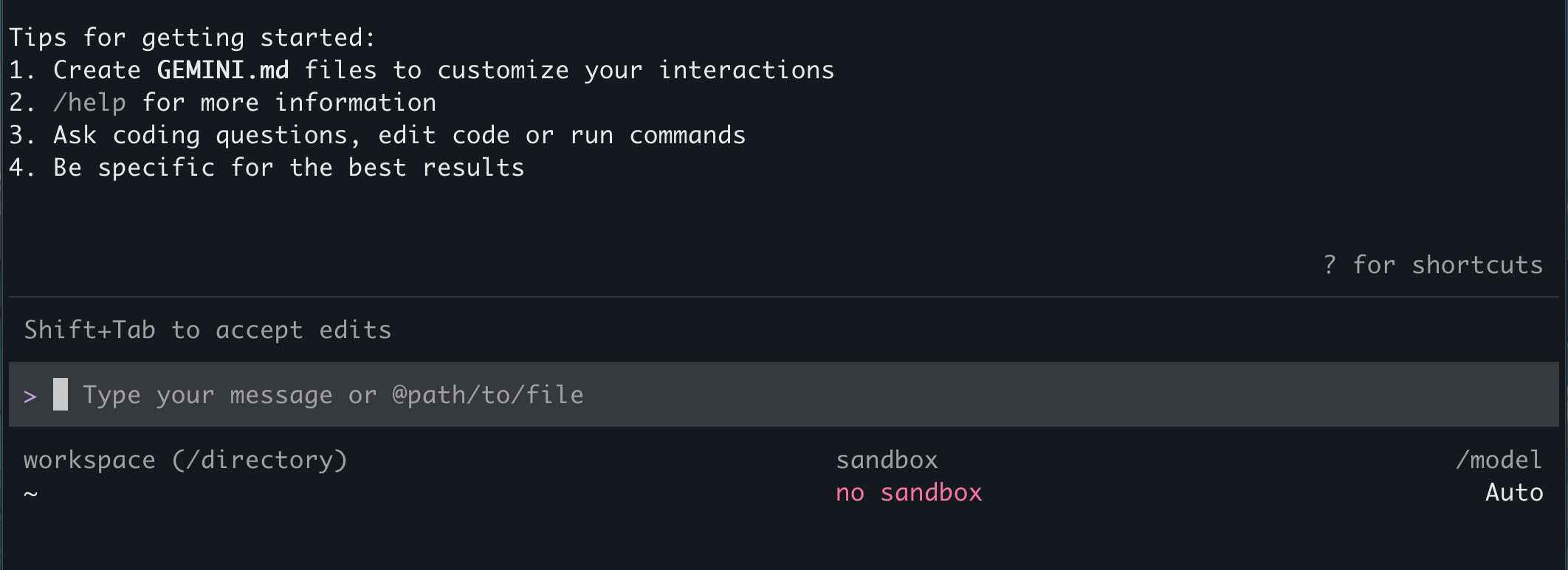
If successful, you'll see tips to get started and the command line.
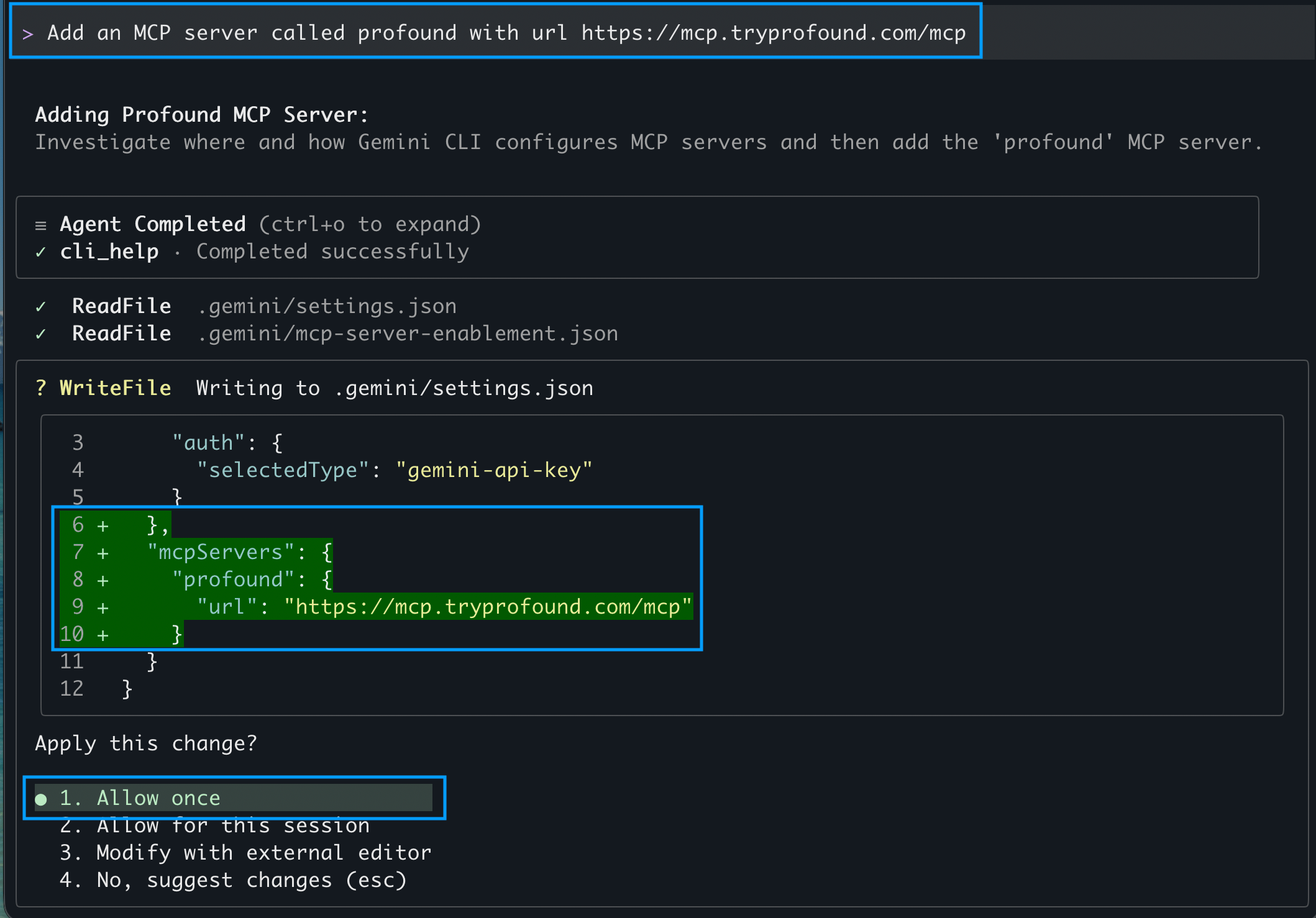
 1. MCP servers are configured in the `~/.gemini/settings.json` configuration file. To add the Profound server, create the `mcpServers` block with the Profound server details in `settings.json`:
```json theme={null}
"mcpServers": {
"profound": {
"url": "https://mcp.tryprofound.com/mcp"
}
}
```
You can do this in your preferred code editor, or directly from Gemini CLI by entering the prompt:
```text theme={null}
Add an MCP server called profound with url https://mcp.tryprofound.com/mcp
```
2. Review the changes and apply them if the `mcpServers` block looks correct.
1. MCP servers are configured in the `~/.gemini/settings.json` configuration file. To add the Profound server, create the `mcpServers` block with the Profound server details in `settings.json`:
```json theme={null}
"mcpServers": {
"profound": {
"url": "https://mcp.tryprofound.com/mcp"
}
}
```
You can do this in your preferred code editor, or directly from Gemini CLI by entering the prompt:
```text theme={null}
Add an MCP server called profound with url https://mcp.tryprofound.com/mcp
```
2. Review the changes and apply them if the `mcpServers` block looks correct.
 3. For the changes to take effect, quit and reopen your Gemini CLI.
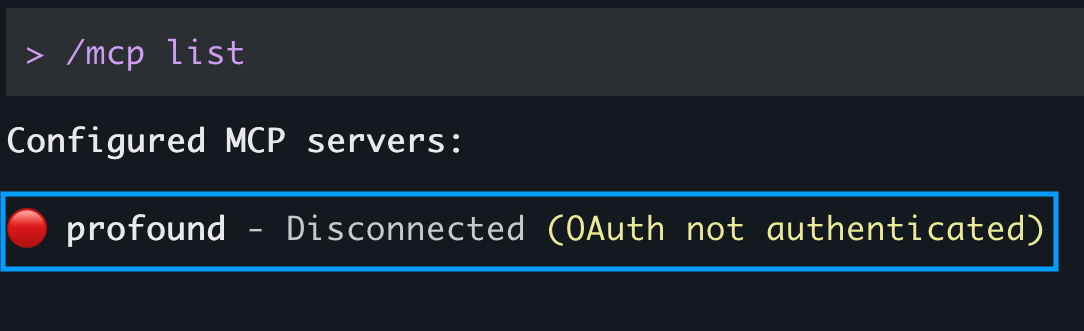
4. To verify the server was added, run the command to list the MCP servers inside the CLI.
```bash theme={null}
/mcp list
```
It should show `profound` among the configured MCP servers.
3. For the changes to take effect, quit and reopen your Gemini CLI.
4. To verify the server was added, run the command to list the MCP servers inside the CLI.
```bash theme={null}
/mcp list
```
It should show `profound` among the configured MCP servers.
 Profound authenticates with OAuth. Gemini CLI discovers the OAuth endpoints automatically, so no API keys, client ID, or secret are needed.
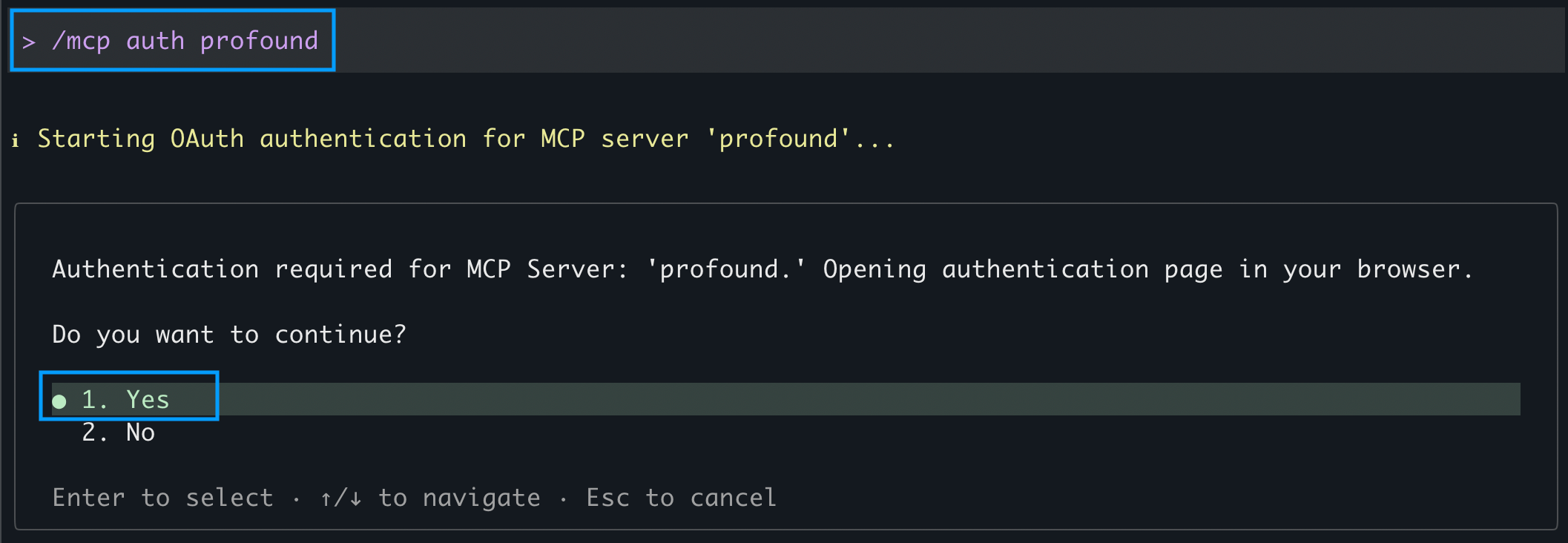
1. Inside the CLI, run the command to authenticate with Profound:
```bash theme={null}
/mcp auth profound
```
2. Select **Yes** when asked to authenticate in the browser. This will open the browser to the Profound sign-in page.
Profound authenticates with OAuth. Gemini CLI discovers the OAuth endpoints automatically, so no API keys, client ID, or secret are needed.
1. Inside the CLI, run the command to authenticate with Profound:
```bash theme={null}
/mcp auth profound
```
2. Select **Yes** when asked to authenticate in the browser. This will open the browser to the Profound sign-in page.
 3. If you're not logged in, follow the prompts to log in to your Profound account. Then approve access.
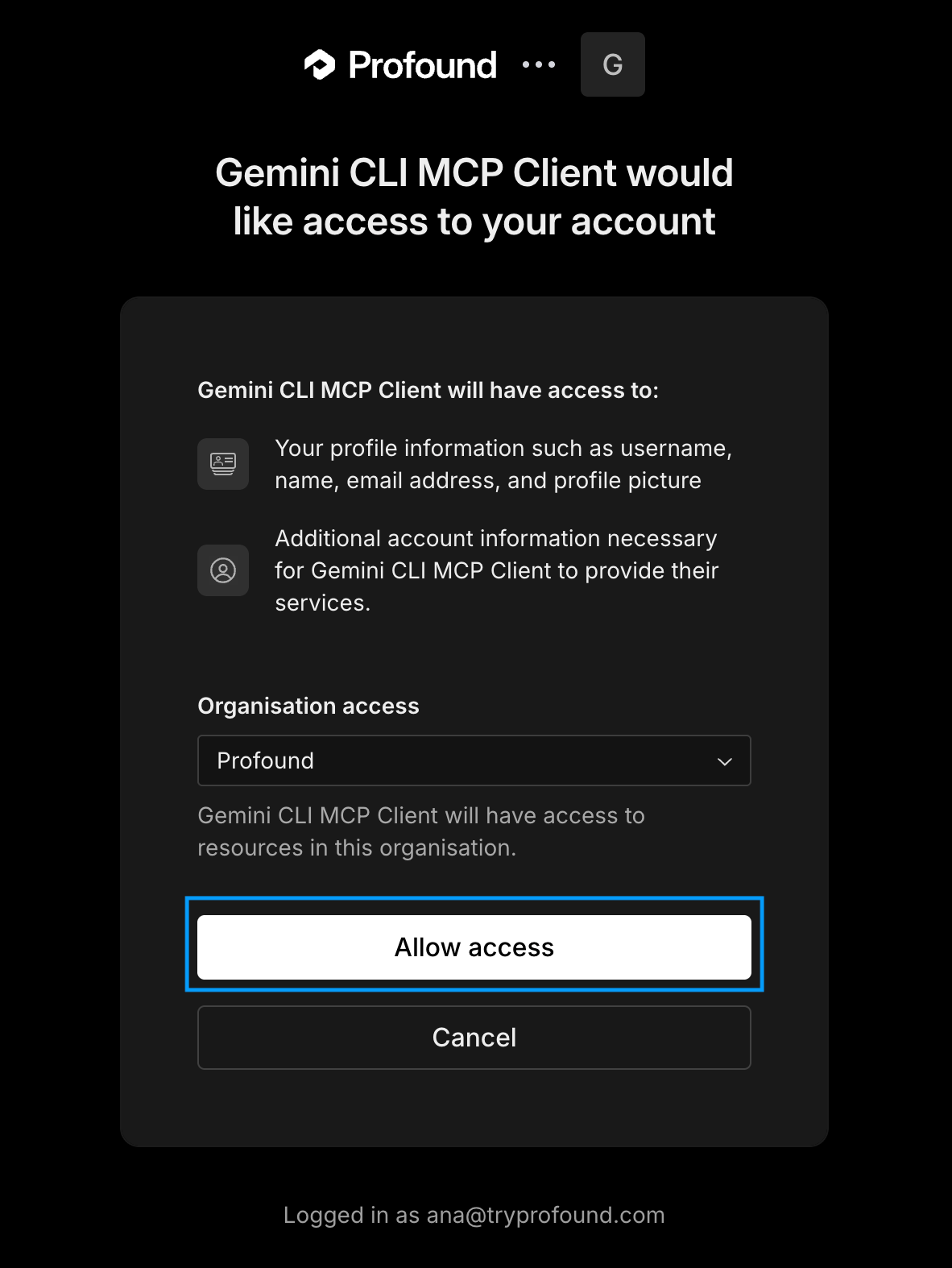 When you see the success message, return to the Gemini CLI session in your terminal.
Still inside Gemini CLI, run the MCP list command again.
```bash theme={null}
/mcp list
```
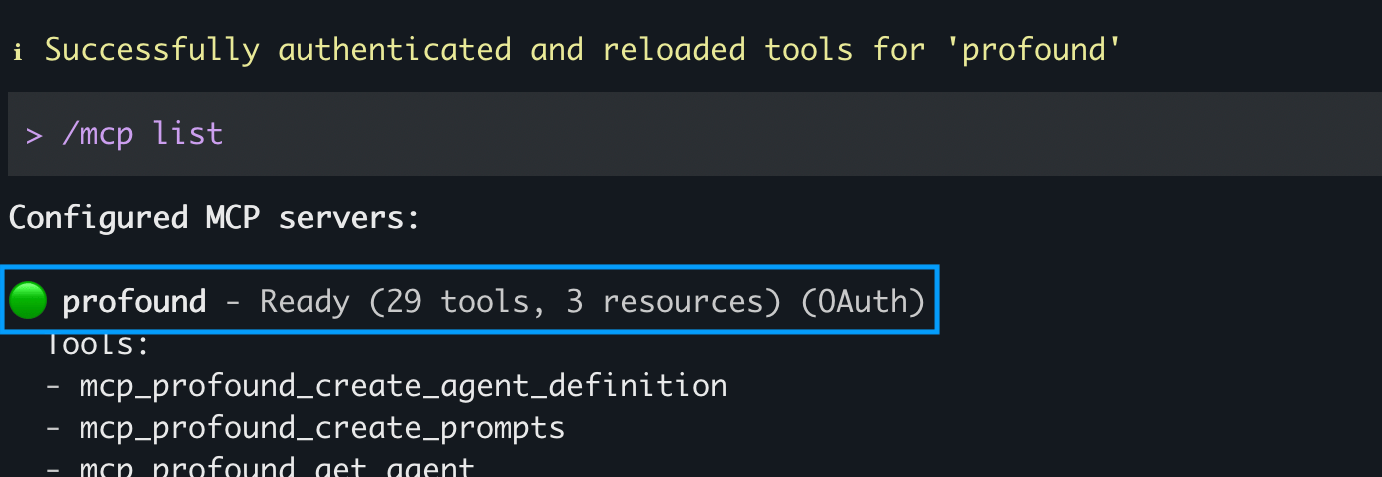
If the Profound server shows as **Ready** with a green circle and has available tools listed, it's connected and ready to go.
When you see the success message, return to the Gemini CLI session in your terminal.
Still inside Gemini CLI, run the MCP list command again.
```bash theme={null}
/mcp list
```
If the Profound server shows as **Ready** with a green circle and has available tools listed, it's connected and ready to go.
 For more details about configuring MCP server connections in Gemini CLI, see Gemini CLI's [MCP server documentation](https://geminicli.com/docs/tools/mcp-server).
## Troubleshooting
### The browser doesn't open during sign-in
Make sure you have a local browser installed. OAuth won't work in headless or remote sessions without browser access. Run the setup where you can open a browser, then retry signing in or authenticating with Profound.
### Profound server shows as disconnected
Re-run `/mcp auth profound` to refresh the token. If it still fails, sign out of Profound in your browser, sign back in, and retry.
For more details about configuring MCP server connections in Gemini CLI, see Gemini CLI's [MCP server documentation](https://geminicli.com/docs/tools/mcp-server).
## Troubleshooting
### The browser doesn't open during sign-in
Make sure you have a local browser installed. OAuth won't work in headless or remote sessions without browser access. Run the setup where you can open a browser, then retry signing in or authenticating with Profound.
### Profound server shows as disconnected
Re-run `/mcp auth profound` to refresh the token. If it still fails, sign out of Profound in your browser, sign back in, and retry.