> ## Documentation Index
> Fetch the complete documentation index at: https://docs.tryprofound.com/llms.txt
> Use this file to discover all available pages before exploring further.
# Getting started
> Open Pages, review your content, and act on page-level insights
## Step 1: Open Pages
Log in to the Profound platform and open **Pages** from the left sidebar.
## Step 2: Choose your domain and date range
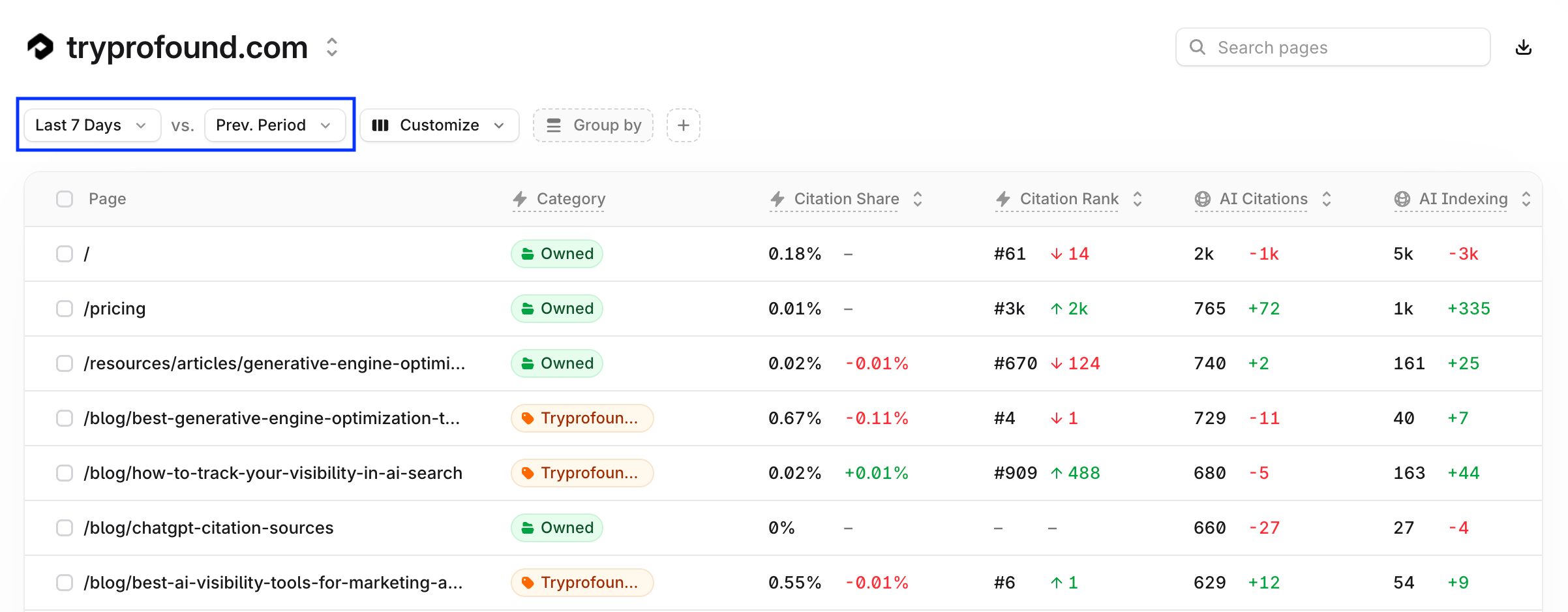
Select the domain you want to review, then set the date range and comparison period at the top of the view, for example, Last 7 Days versus the previous period.
 ## Step 3: Find your top pages
Pages lists every page with its metrics in one row. Sort by **Citation Share** to see which pages answer engines reference most, use the **Customize** option to choose which columns appear in the dashboard, or use Group by to roll pages up by category.
## Step 4: Open a page to see its analytics
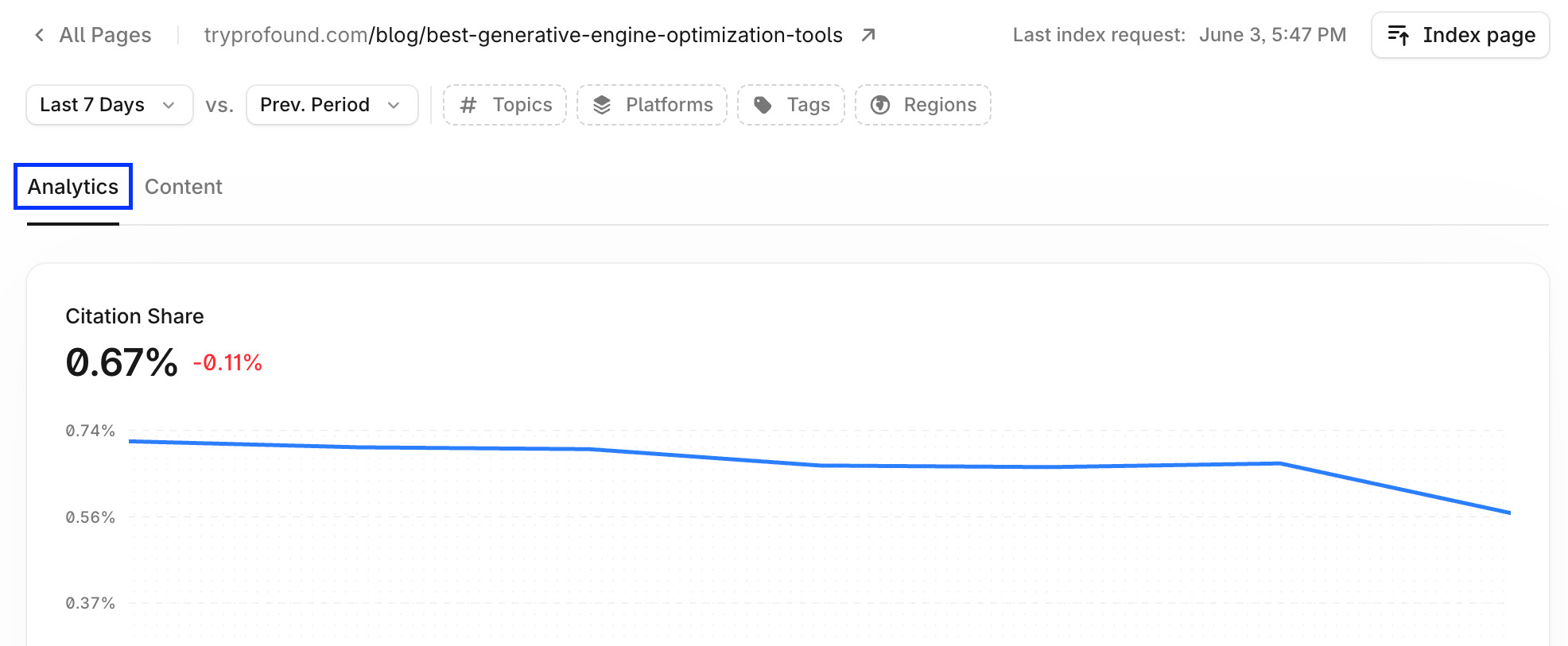
Click any page to open its detailed view. The **Analytics** tab shows the citation share trend, AI bot activity by platform, what information on the page is accessible to bots, how the page ranks against the Profound Network, and a breakdown of where the page is cited by prompt, topic, platform, and more.
## Step 3: Find your top pages
Pages lists every page with its metrics in one row. Sort by **Citation Share** to see which pages answer engines reference most, use the **Customize** option to choose which columns appear in the dashboard, or use Group by to roll pages up by category.
## Step 4: Open a page to see its analytics
Click any page to open its detailed view. The **Analytics** tab shows the citation share trend, AI bot activity by platform, what information on the page is accessible to bots, how the page ranks against the Profound Network, and a breakdown of where the page is cited by prompt, topic, platform, and more.
 ## Step 5: Review and improve content
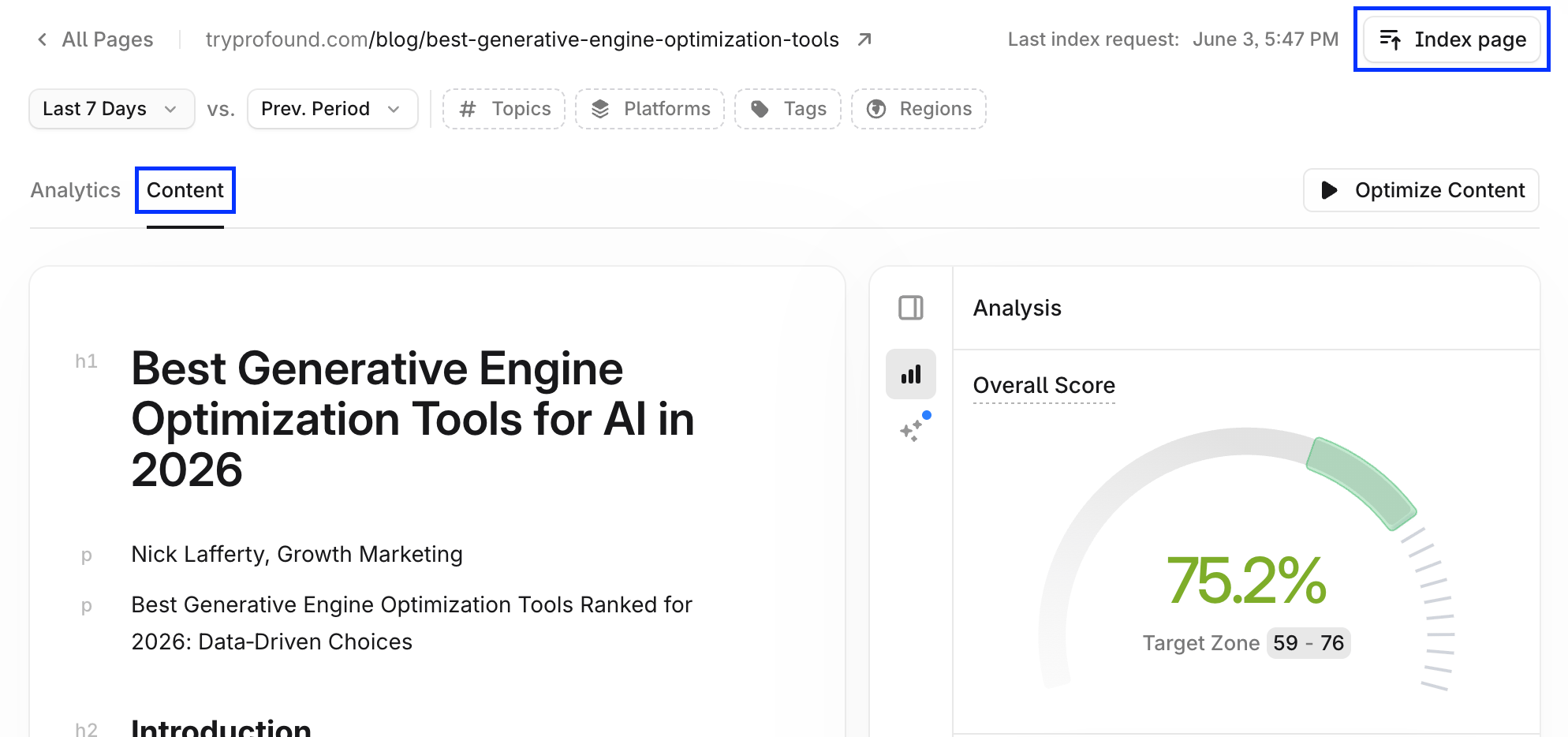
Switch to the **Content** tab to see the page's content score and optimization recommendations. Work through the suggested content fixes. Select **Index page** in the top right of the view to submit updated content for faster indexing.
## Step 5: Review and improve content
Switch to the **Content** tab to see the page's content score and optimization recommendations. Work through the suggested content fixes. Select **Index page** in the top right of the view to submit updated content for faster indexing.
 ## Step 6: Connect Agent Analytics for the full picture
To add live bot and referral activity, AI agent visits, and per-page benchmarks, set up Agent Analytics through your CDN or server-level integration.
To learn more about setting up Agent Analytics, see the [Agent Analytics](/agent-analytics/overview) section in the Profound developer documentation.
## Step 6: Connect Agent Analytics for the full picture
To add live bot and referral activity, AI agent visits, and per-page benchmarks, set up Agent Analytics through your CDN or server-level integration.
To learn more about setting up Agent Analytics, see the [Agent Analytics](/agent-analytics/overview) section in the Profound developer documentation.