> ## Documentation Index
> Fetch the complete documentation index at: https://docs.tryprofound.com/llms.txt
> Use this file to discover all available pages before exploring further.
# Getting started
> Review, filter, and export your organization's Activity Logs for the first time
Activity Logs are available to users with an Admin role. No setup is required: once you open the page, your organization's event history is already there.
View or revise your team roles on the **People** page under the **Organization** section. See [Add and manage team members in Profound](/platform-config/people/add-and-manage-team-members)**.**
Here's how to review and export your organization's activity for the first time.
## Step 1: Open Activity Logs
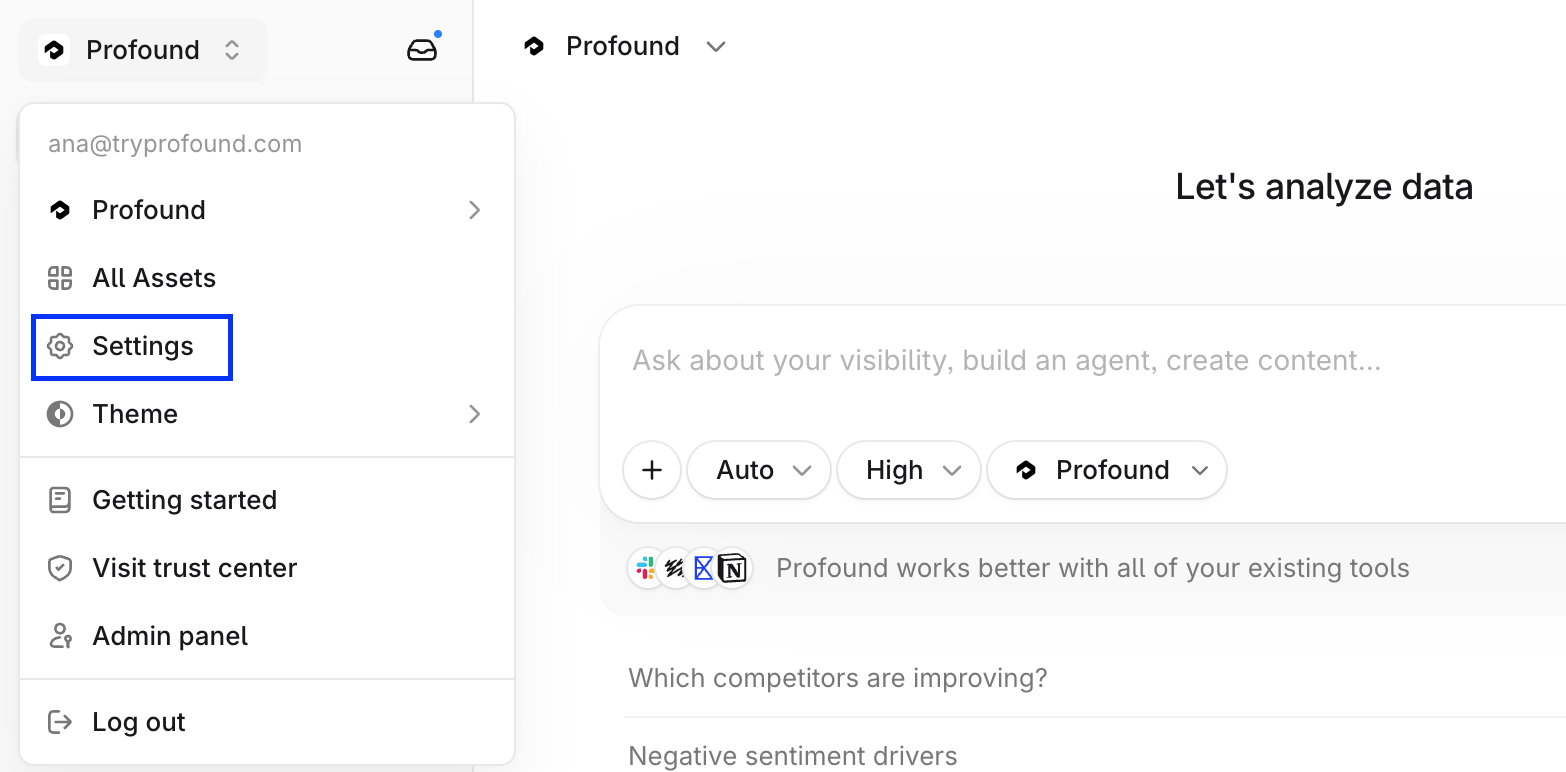
In Profound, select your organization name at the top left of the platform, then select **Settings**.
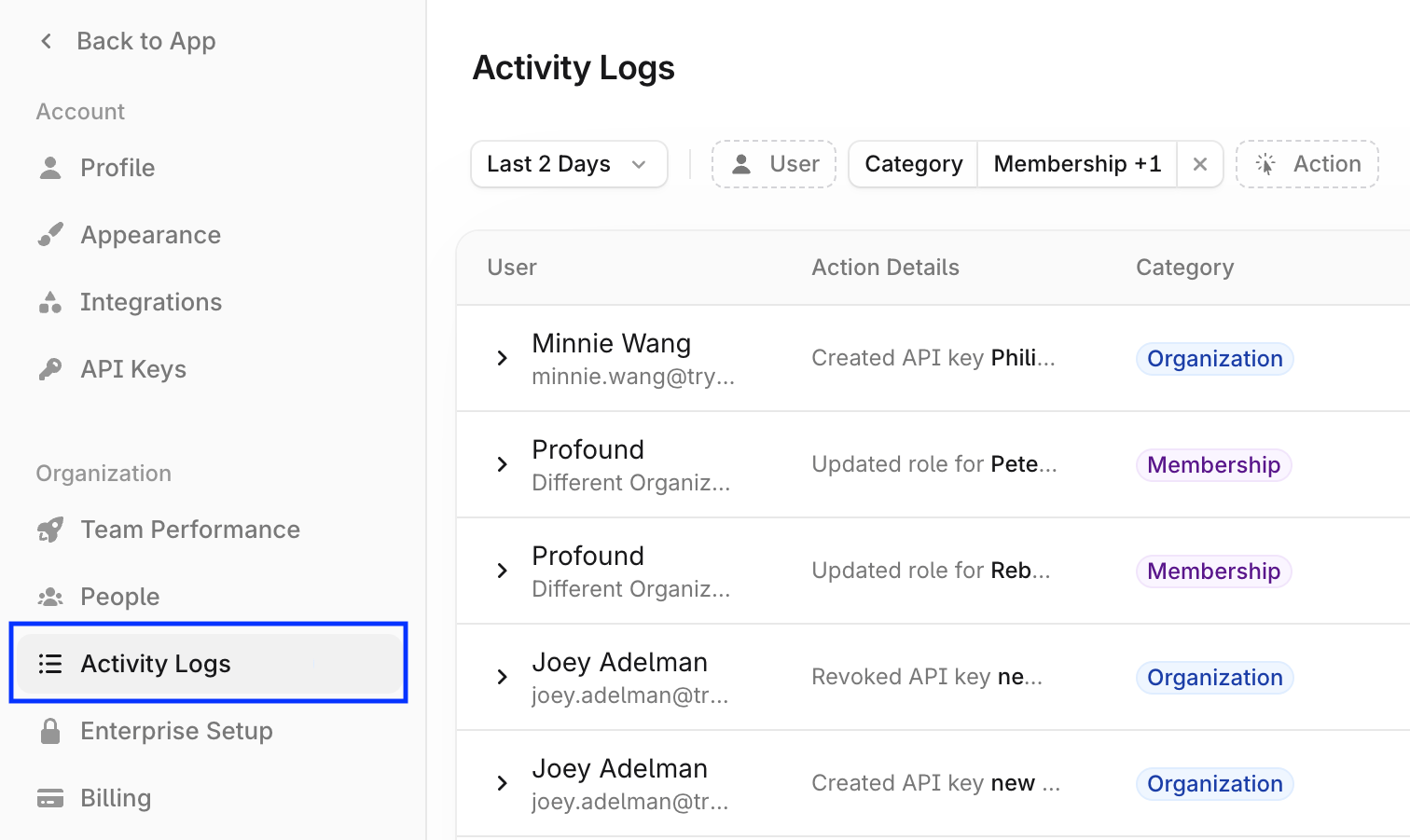
 Select **Activity Logs** under **Organization** in the left navigation sidebar.
 ## Step 2: Filter the logs
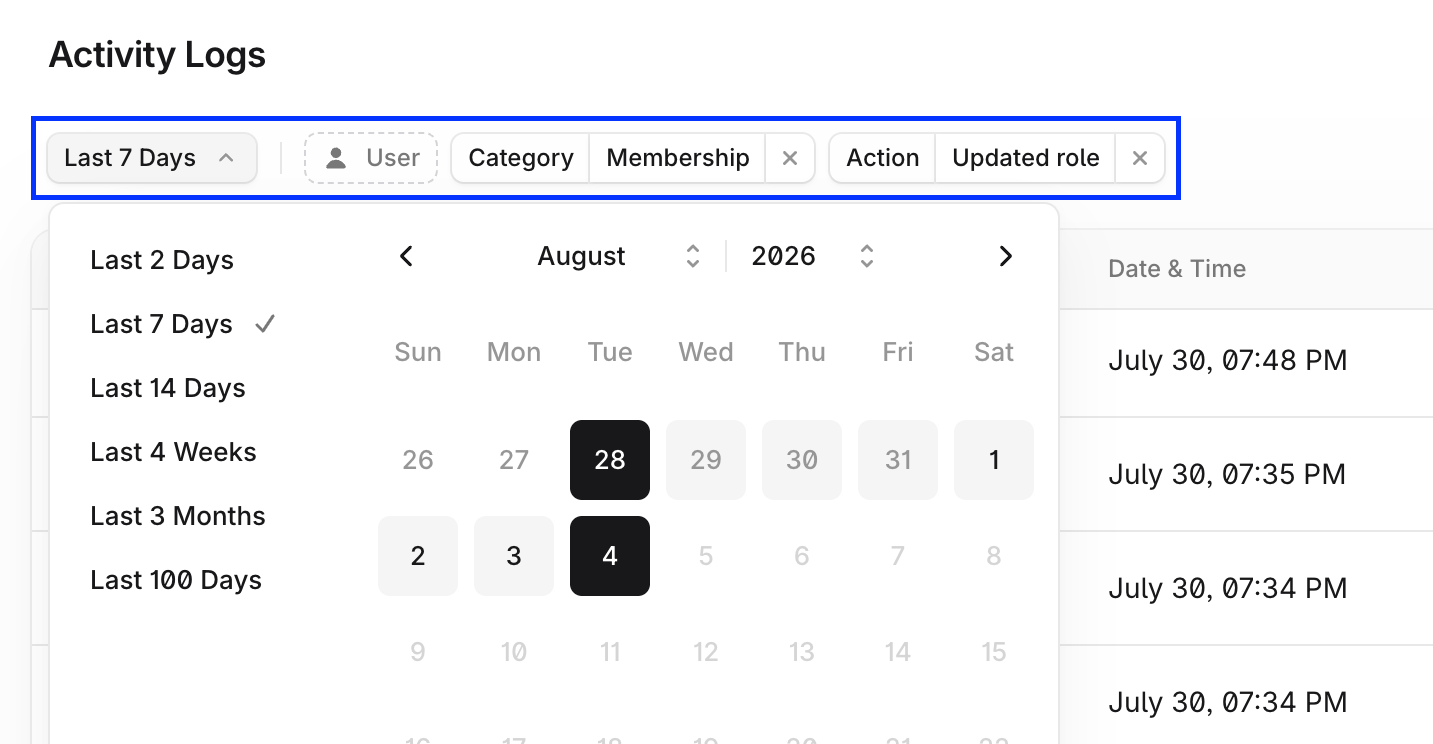
Use the date, action, and other filters above the logs table to view the events you care about.
## Step 2: Filter the logs
Use the date, action, and other filters above the logs table to view the events you care about.
 ## Step 3: Export the results
Export the logs to share them with your security team or keep it for compliance records:
* Select **Export** on the top right corner of the logs table.
## Step 3: Export the results
Export the logs to share them with your security team or keep it for compliance records:
* Select **Export** on the top right corner of the logs table.
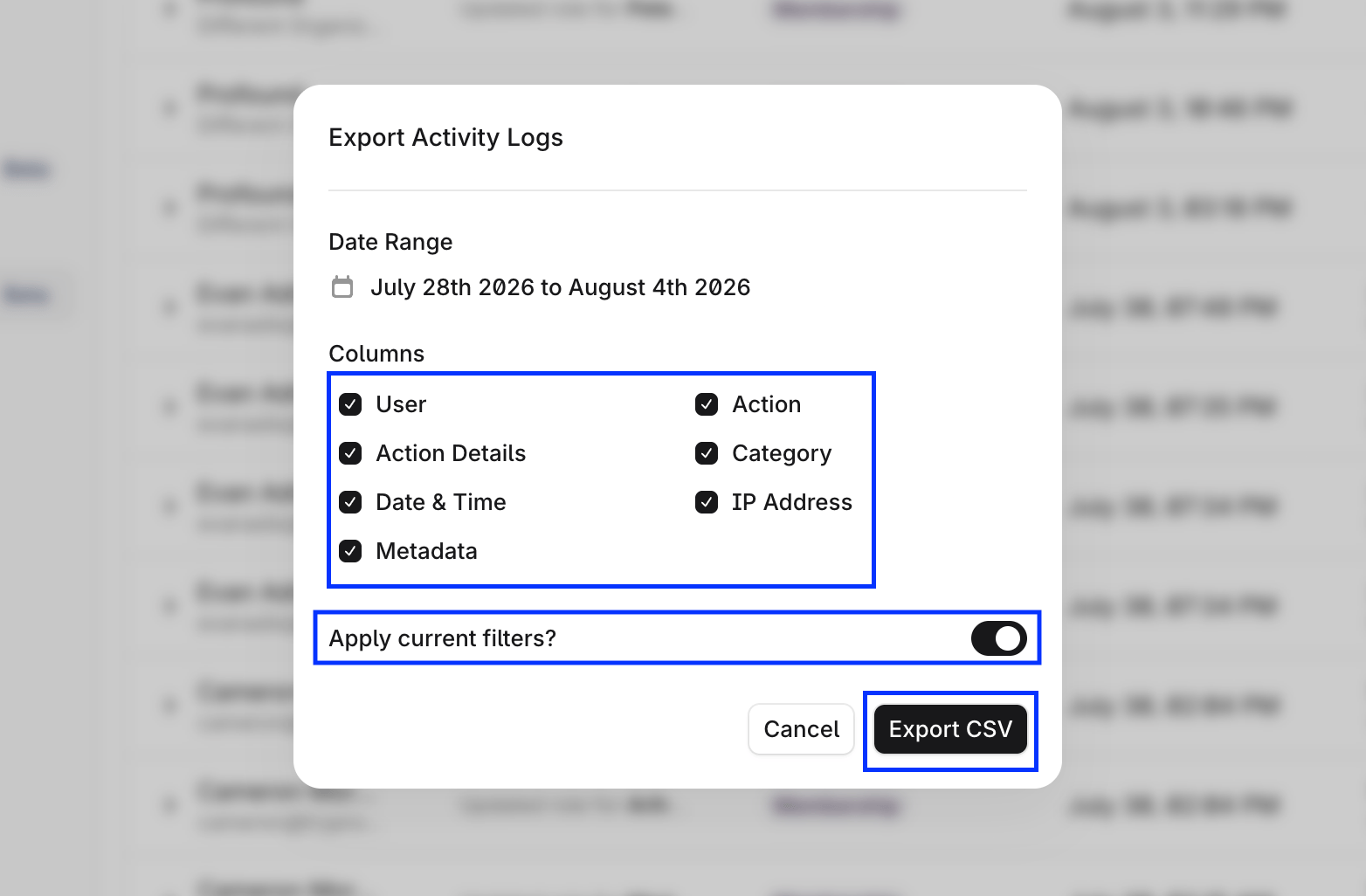
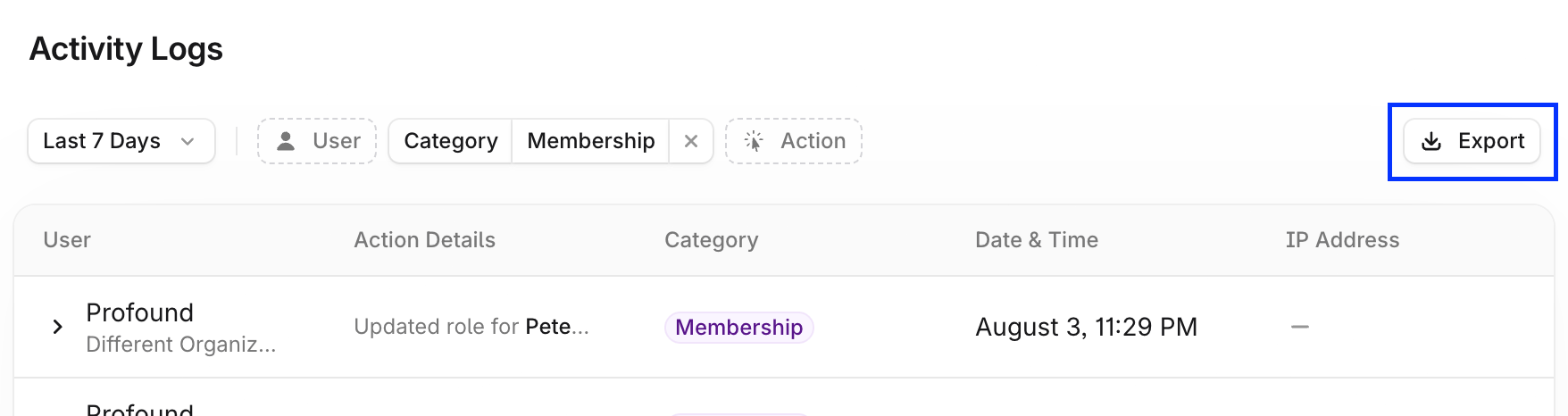 * Select the columns you want to export, toggle **Apply current filters** to export filtered records, and select **Export**.