> ## Documentation Index
> Fetch the complete documentation index at: https://docs.tryprofound.com/llms.txt
> Use this file to discover all available pages before exploring further.
# Domain verification for SSO
> Prove that your organization owns a domain by adding a DNS TXT record
Domain verification is a part of the [Single Sign-On(SSO) configuration](/platform-config/authentication/configure-sso) process. It lets your organization claim ownership of a domain, such as `example.com`. After a domain is verified, Profound can trust it for features that need a higher level of security, starting with [Single Sign-On (SSO)](/platform-config/authentication/sso-overview).
Verification is self-serve. You add a single DNS TXT record containing a token that Profound generates for your organization. Profound checks your DNS for the record and marks the domain as **Verified** when it finds it. You don't need to change your website, mail setup, or other DNS records.
## How it works
1. You enter the domain you want to verify in the [SSO configuration portal](/platform-config/authentication/configure-sso#step-1).
2. Profound generates a unique verification token for that domain and shows you the TXT record to add. When it recognizes your DNS provider, it also shows provider-specific instructions.
3. You add the TXT record in your DNS provider's console, alongside any records already on the host.
4. Profound looks up the domain's TXT records. When it finds the token, the domain becomes **Verified** and you can continue with the rest of your SSO configuration.
The token proves ownership because only someone with control over the domain's DNS can publish it. Profound compares the email domain of each user who signs in with SSO against your verified domains, so verification also confirms which users belong to your organization.
## Before you start
You'll need:
* The [Admin role](/platform-config/people/roles-and-permissions) in your Profound organization
* Access to the DNS records for the domain you want to verify (or an IT contact who has it)
* The domain that appears in your users' email addresses. For example, if your team signs in with `name@example.com`, verify `example.com`, even if your identity provider runs at `example.myidp.com`
## Verify a domain
1. In Profound, select your organization name at the top left of the screen, then select **Settings**.
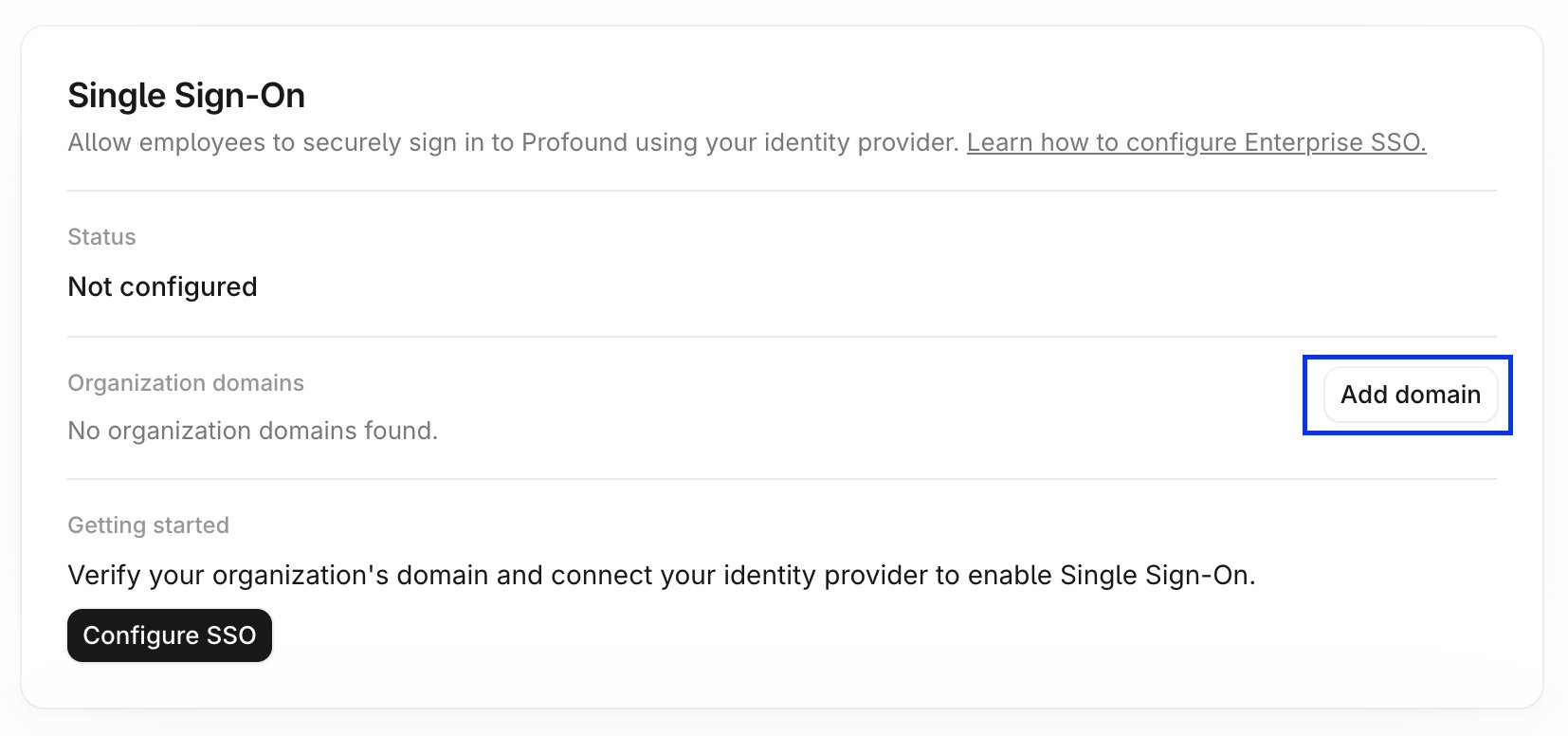
2. Select **Enterprise Setup** under **Organization** in the left navigation sidebar. The **Single Sign-On** card lists your domains and their verification status.
3. Select **Add domain**, and the SSO configuration portal opens on the domain verification step.
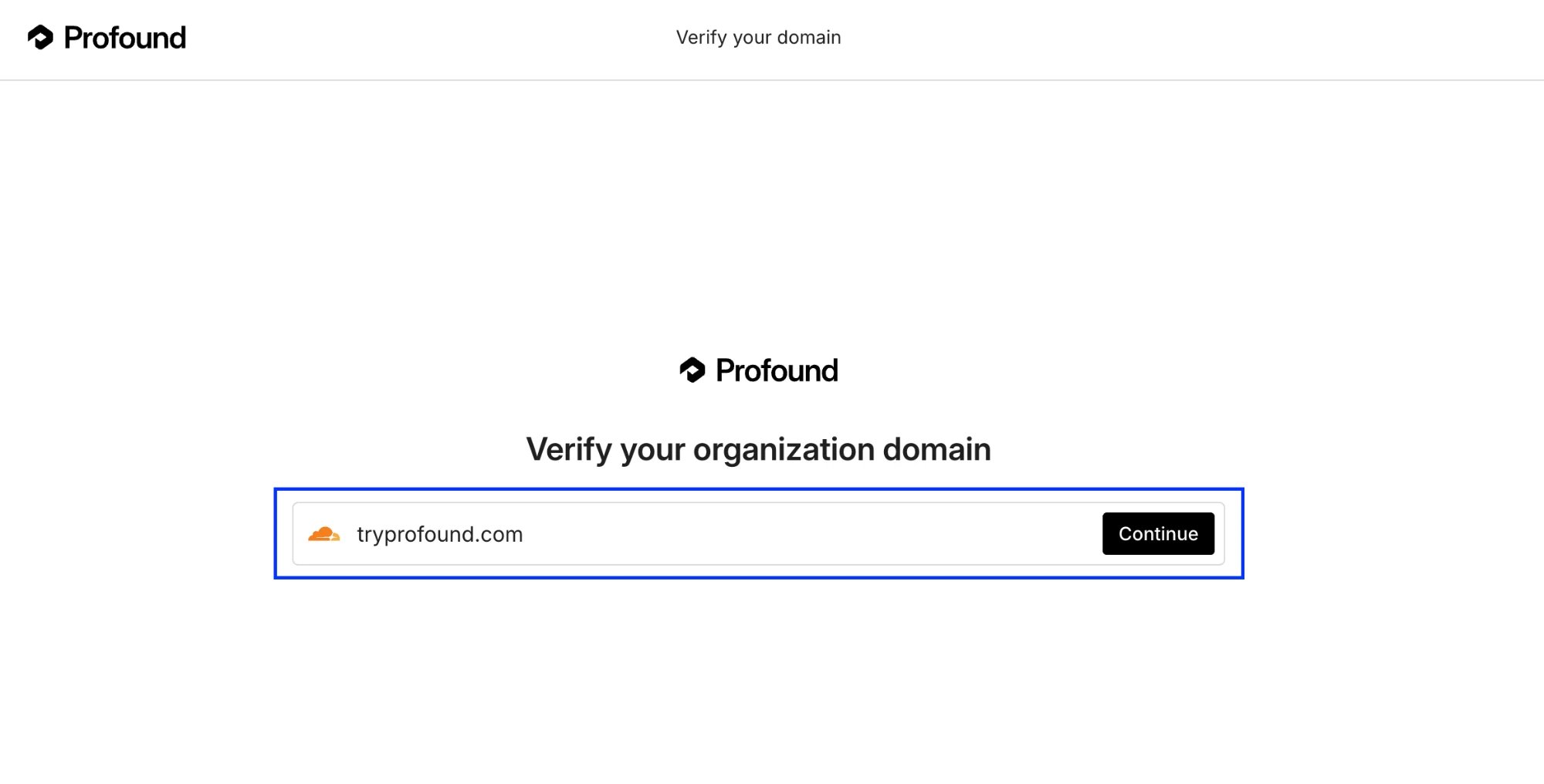
 Enter the domain you want to verify and select **Continue**.
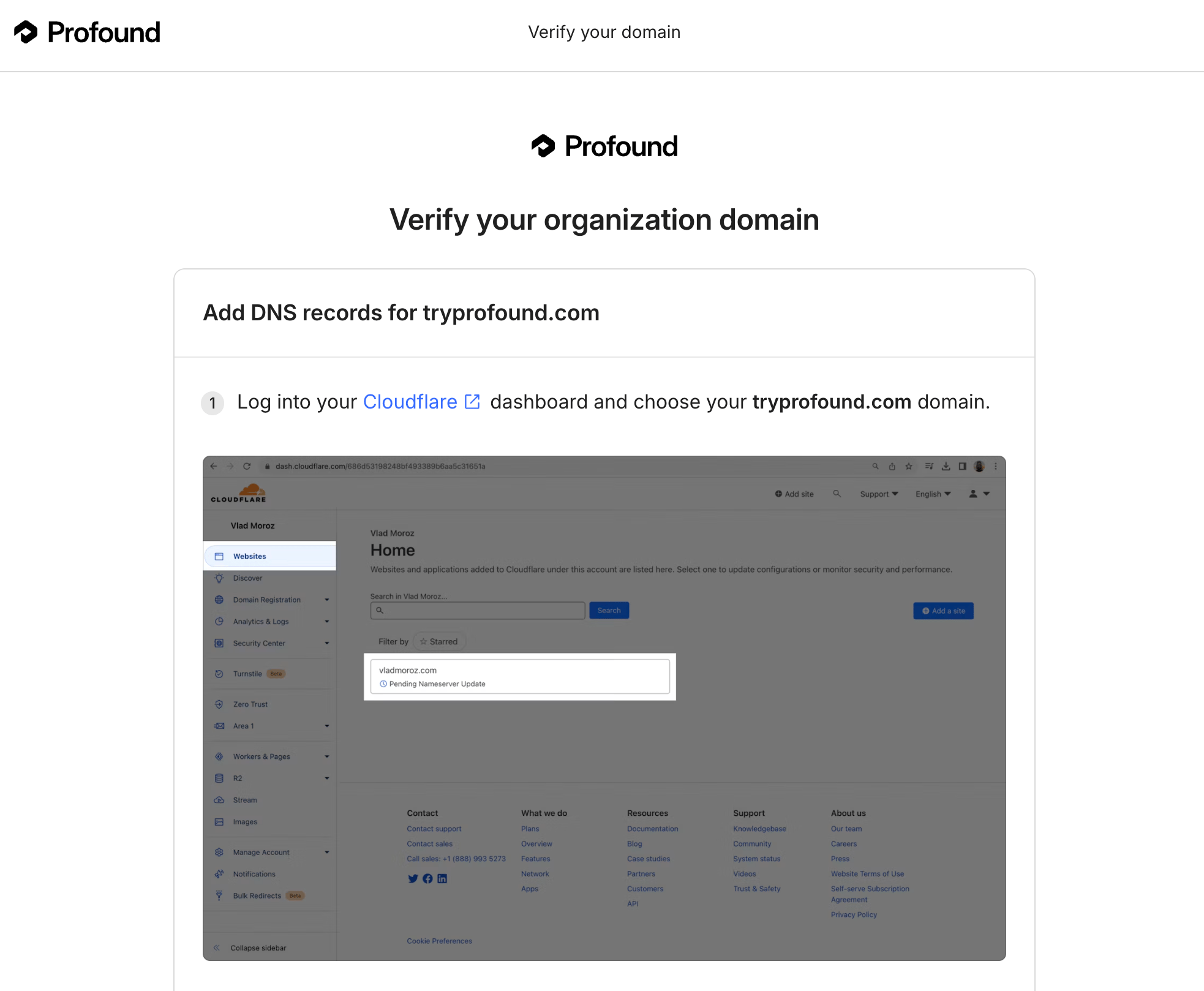
 The portal detects your DNS provider and takes you to the setup instructions specific to it.
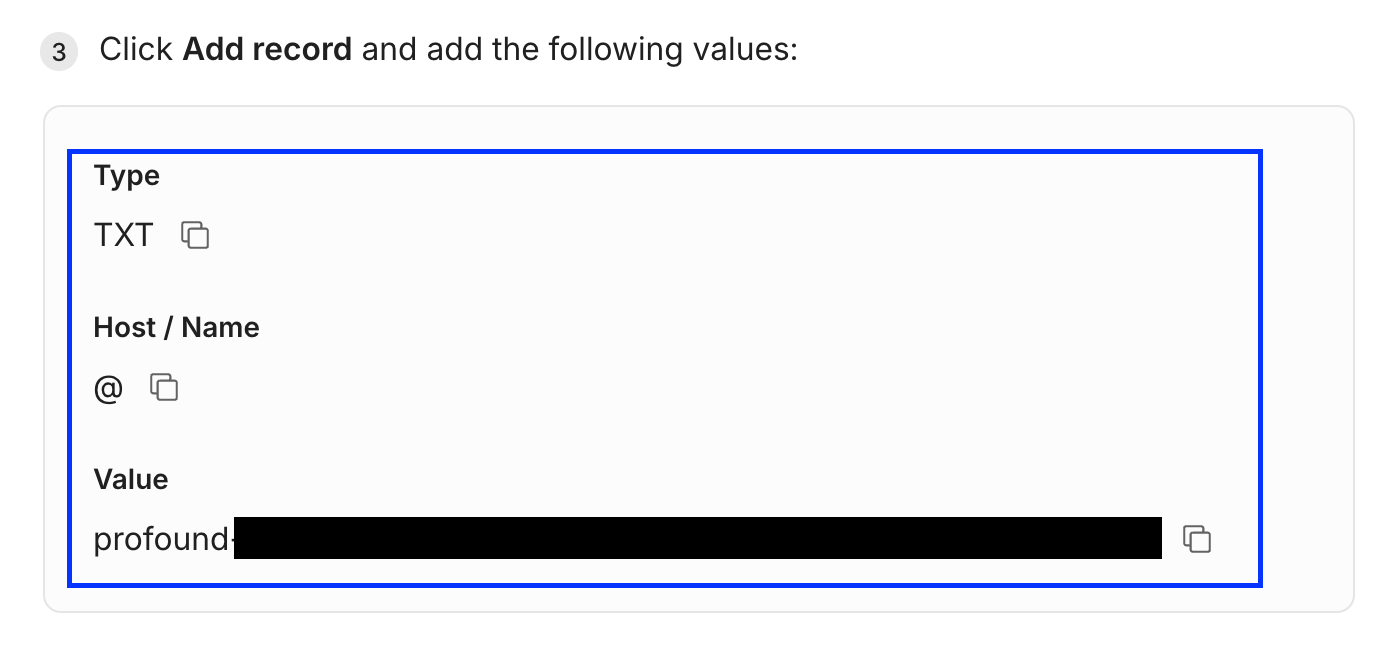
 The portal generates a verification token and shows the TXT record to add: the **Host** (or **Name**) and the **Value** that contains the token.
 Sign in to your DNS provider (for example, Cloudflare, GoDaddy, Route 53, or Squarespace Domains) and create a new TXT record with the host and value shown in the portal. Leave the time to live (TTL) at your provider's default.
Keep any existing TXT records on the same host, such as the Sender Policy Framework (SPF) record, or other verification records from other services. Add the new record next to them instead of replacing them.
If someone else manages your DNS, copy the host and value from the portal and send them to that person. They don't need a Profound account to add the record.
Return to the SSO configuration portal and select the option to check the record, or select **Check status** on the **Enterprise Setup** page. When Profound finds the token, the domain status changes to **Verified**.
Sign in to your DNS provider (for example, Cloudflare, GoDaddy, Route 53, or Squarespace Domains) and create a new TXT record with the host and value shown in the portal. Leave the time to live (TTL) at your provider's default.
Keep any existing TXT records on the same host, such as the Sender Policy Framework (SPF) record, or other verification records from other services. Add the new record next to them instead of replacing them.
If someone else manages your DNS, copy the host and value from the portal and send them to that person. They don't need a Profound account to add the record.
Return to the SSO configuration portal and select the option to check the record, or select **Check status** on the **Enterprise Setup** page. When Profound finds the token, the domain status changes to **Verified**.
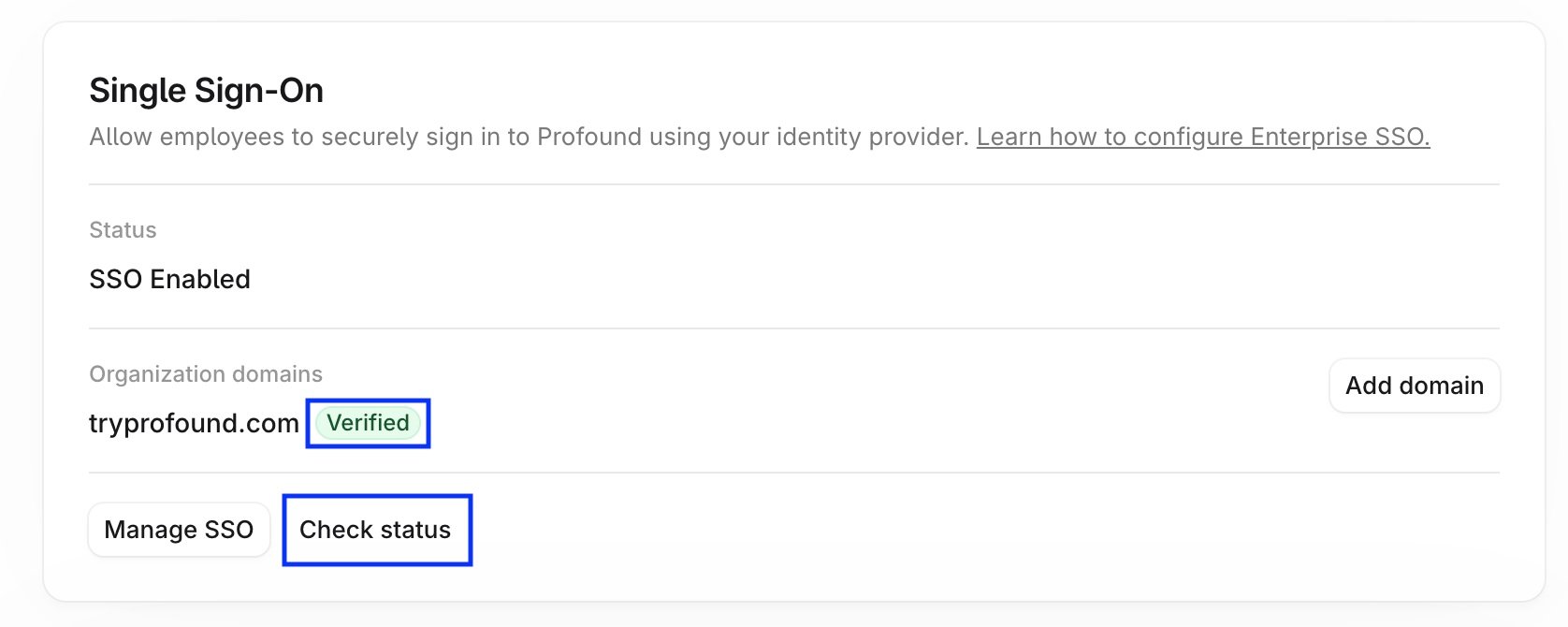 DNS changes usually appear within 15 to 30 minutes and can take up to 48 hours to take effect. If the domain still appears as **Pending** on the Single Sign-On card in Profound, leave the record in place and check back later.
After the domain is verified, continue with the [Configure SSO](/platform-config/authentication/configure-sso#step-3) guide to connect your identity provider.
## Verify multiple domains
Each domain gets its own verification token, so repeat the [domain verification steps](#verify-a-domain) for every domain your users sign in with.
Add each TXT record to the domain it was issued for. For example, a record issued for `www.example.com` belongs on `www.example.com`, and `example.com` needs the separate record issued for `example.com`.
Each subdomain needs its own verification. Verifying `example.com` doesn't verify `mail.example.com`, and each subdomain also [needs its own SSO connection](/platform-config/authentication/sso-overview#domain-matching-and-subdomain-support).
## Keep the record in place
Keep the verification TXT record in your DNS for as long as you use SSO with that domain. Profound rechecks the record periodically. If the record is removed or changed, the domain returns to **Pending** and sign-in through your identity provider stops working until the record is restored.
## Troubleshooting
Confirm you added the record as a TXT record on the correct host and that the value matches the token in the portal, including any prefix. Then allow up to 48 hours for DNS propagation and select **Check status** again. If after 48 hours your domain verification is still pending, contact [customer support](mailto:support@tryprofound.com).
in many DNS consoles, the Host or Name field is relative to your domain, so entering `example.com` there creates a record for `example.com.example.com`. When the portal asks for a host of `example.com`, enter @ or leave the field blank instead. Both mean the domain itself.
If the domain verification token has changed, remove the old TXT record from your DNS provider, and add the new one as instructed in the [domain verification guide](#verify-a-domain) above.
DNS changes usually appear within 15 to 30 minutes and can take up to 48 hours to take effect. If the domain still appears as **Pending** on the Single Sign-On card in Profound, leave the record in place and check back later.
After the domain is verified, continue with the [Configure SSO](/platform-config/authentication/configure-sso#step-3) guide to connect your identity provider.
## Verify multiple domains
Each domain gets its own verification token, so repeat the [domain verification steps](#verify-a-domain) for every domain your users sign in with.
Add each TXT record to the domain it was issued for. For example, a record issued for `www.example.com` belongs on `www.example.com`, and `example.com` needs the separate record issued for `example.com`.
Each subdomain needs its own verification. Verifying `example.com` doesn't verify `mail.example.com`, and each subdomain also [needs its own SSO connection](/platform-config/authentication/sso-overview#domain-matching-and-subdomain-support).
## Keep the record in place
Keep the verification TXT record in your DNS for as long as you use SSO with that domain. Profound rechecks the record periodically. If the record is removed or changed, the domain returns to **Pending** and sign-in through your identity provider stops working until the record is restored.
## Troubleshooting
Confirm you added the record as a TXT record on the correct host and that the value matches the token in the portal, including any prefix. Then allow up to 48 hours for DNS propagation and select **Check status** again. If after 48 hours your domain verification is still pending, contact [customer support](mailto:support@tryprofound.com).
in many DNS consoles, the Host or Name field is relative to your domain, so entering `example.com` there creates a record for `example.com.example.com`. When the portal asks for a host of `example.com`, enter @ or leave the field blank instead. Both mean the domain itself.
If the domain verification token has changed, remove the old TXT record from your DNS provider, and add the new one as instructed in the [domain verification guide](#verify-a-domain) above.