> ## Documentation Index
> Fetch the complete documentation index at: https://docs.tryprofound.com/llms.txt
> Use this file to discover all available pages before exploring further.
# Directory Sync (SCIM)
> Automatically add and remove team members from your identity provider's directory
Directory Sync keeps your Profound organization's member list in sync with your identity provider (IdP) using System for Cross-domain Identity Management (SCIM) provisioning.
Directory Sync is available for customers on the Enterprise plan. Setup requires the [Admin role](/platform-config/people/roles-and-permissions) in your Profound organization.
## How Directory Sync works
Once you connect a directory, it becomes the source of truth for who belongs to your Profound organization:
* **Assignments grant access.** When you connect a directory, everyone currently assigned to it is synced into your organization. After that, anyone your IdP assigns to Profound is provisioned automatically.
* **Unassignments remove access.** When your IdP unassigns or deactivates someone, their organization membership is removed and any pending invitation is revoked. Their Profound account itself isn't deleted: if they belong to other Profound organizations, those are unaffected.
* **New members start with the Member role.** People provisioned through Directory Sync get the [Member role](/platform-config/people/roles-and-permissions), and organization Admins can [change roles in Profound](/platform-config/people/add-and-manage-team-members) afterwards. If someone leaves the directory and is later reassigned, they return with the default Member role.
* **Members who aren't in the directory lose access.** Any members you added manually on the [People page](/platform-config/people/add-and-manage-team-members) who aren't assigned in your IdP directory lose access to your organization.
### How new members sign in
How a new member signs in for the first time depends on your [Single Sign-On (SSO) setup](/platform-config/authentication/sso-overview):
* **With SSO enabled**, their account is created and they sign in directly through your IdP. No invitation email is sent.
* **Without SSO**, they receive an email invitation to create a password. The invitation stays valid for 30 days.
You don't need SSO to use Directory Sync. They are independent features: enable either one, or both.
## Configure Directory Sync
To configure Directory Sync, you need the [Admin role](/platform-config/people/roles-and-permissions) in your Profound organization and administrative access to your IdP.
1. In Profound, go to **Settings** in the gear icon menu at the bottom left of the screen.
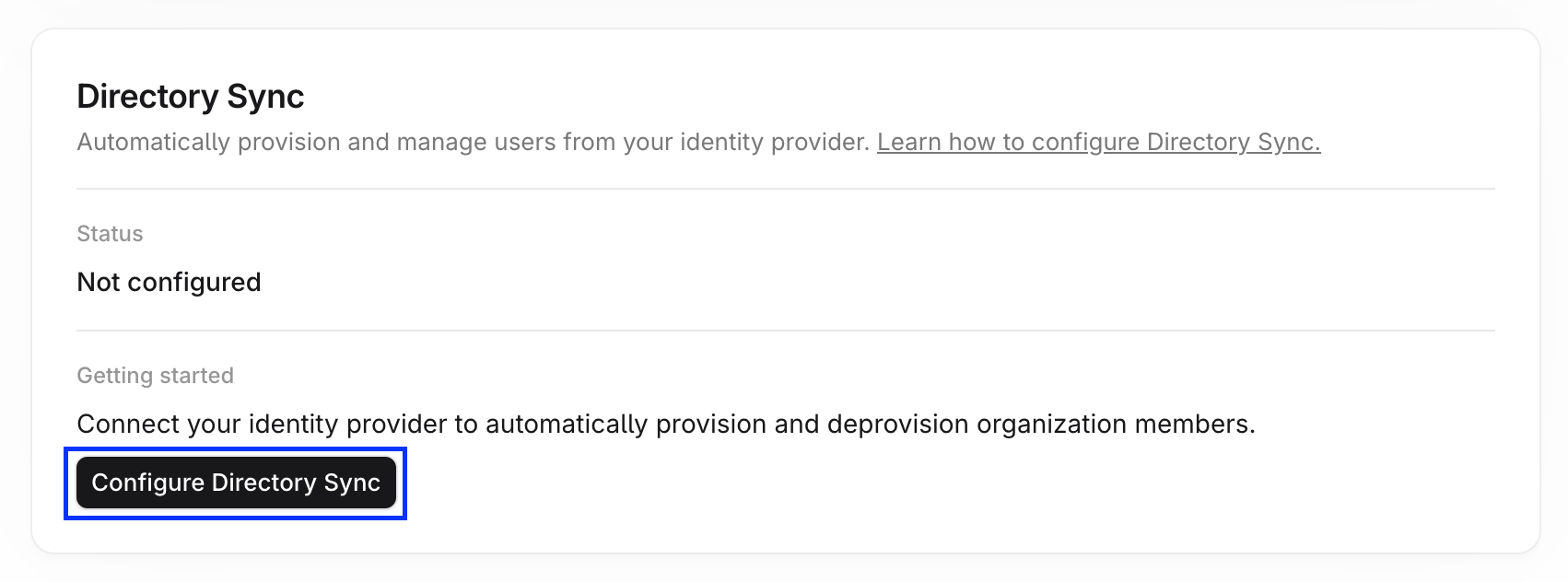
2. Select **Enterprise Setup** under **Organization** in the left navigation sidebar. The **Directory Sync** card shows your current sync status.
3. Select **Configure Directory Sync** to open the configuration portal.
 The portal tailors the setup to your directory provider, walking you through creating a SCIM integration in your IdP, connecting it to Profound, and choosing which people and groups to sync.
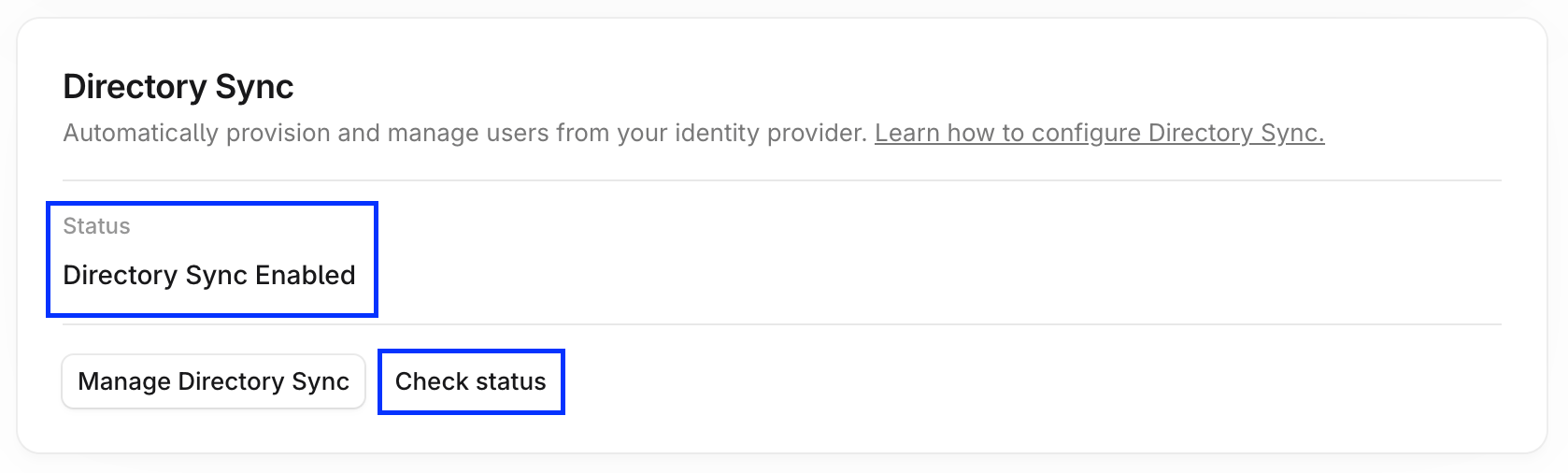
Use the portal's test step to verify the directory connection. Once syncing is live, the **Directory Sync** card on the **Enterprise Setup** page shows **Directory Sync Enabled**. Select **Check status** to refresh.
The portal tailors the setup to your directory provider, walking you through creating a SCIM integration in your IdP, connecting it to Profound, and choosing which people and groups to sync.
Use the portal's test step to verify the directory connection. Once syncing is live, the **Directory Sync** card on the **Enterprise Setup** page shows **Directory Sync Enabled**. Select **Check status** to refresh.
 ## Manage members with Directory Sync
With Directory Sync enabled, you add and remove members through your IdP:
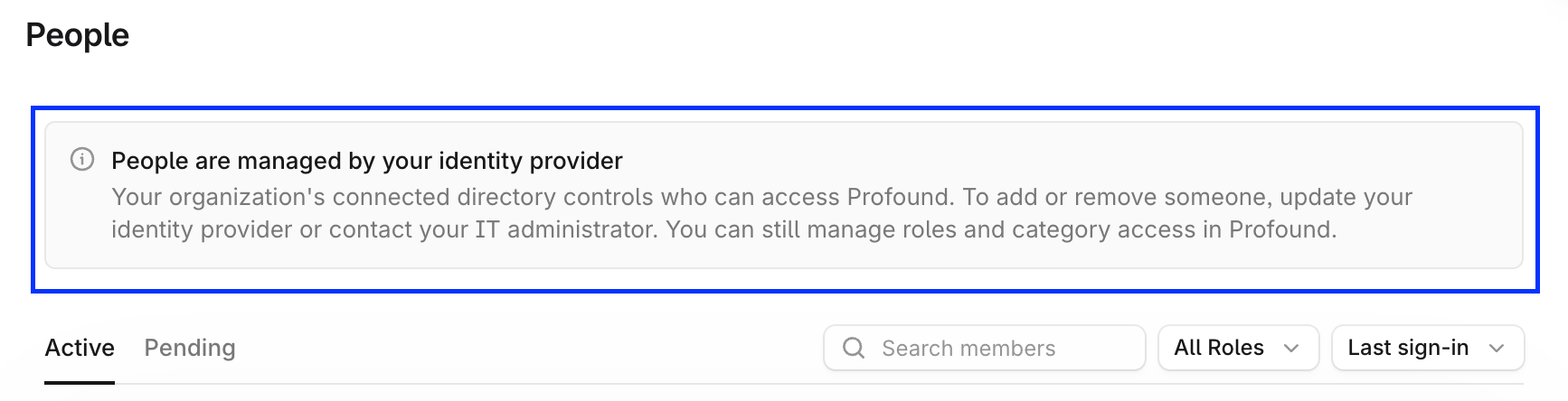
* The **People** page shows a banner explaining that people are managed by your identity provider.
## Manage members with Directory Sync
With Directory Sync enabled, you add and remove members through your IdP:
* The **People** page shows a banner explaining that people are managed by your identity provider.
 * Adding members, removing members, and revoking invitations are disabled in Profound. Make these changes in your IdP's directory instead.
* Roles and category access are still managed in Profound. See [Add and manage team members](/platform-config/people/add-and-manage-team-members).
## Admin failsafe
Directory Sync always keeps at least one Admin in your organization. If your directory unassigns the organization's only Admin, that person keeps their access and role. This prevents a misconfiguration in your IdP, such as an incorrect group assignment, from locking everyone out of administering the organization.
To remove your organization's only Admin, first grant the Admin role to someone else. Once another Admin exists, the directory's unassignment takes effect normally.
## Notes
* Directory Sync is configured per Profound organization: each organization needs its own Directory Sync connection.
* Contact [customer support](mailto:support@tryprofound.com) if you need assistance during setup.
* Adding members, removing members, and revoking invitations are disabled in Profound. Make these changes in your IdP's directory instead.
* Roles and category access are still managed in Profound. See [Add and manage team members](/platform-config/people/add-and-manage-team-members).
## Admin failsafe
Directory Sync always keeps at least one Admin in your organization. If your directory unassigns the organization's only Admin, that person keeps their access and role. This prevents a misconfiguration in your IdP, such as an incorrect group assignment, from locking everyone out of administering the organization.
To remove your organization's only Admin, first grant the Admin role to someone else. Once another Admin exists, the directory's unassignment takes effect normally.
## Notes
* Directory Sync is configured per Profound organization: each organization needs its own Directory Sync connection.
* Contact [customer support](mailto:support@tryprofound.com) if you need assistance during setup.