> ## Documentation Index
> Fetch the complete documentation index at: https://docs.tryprofound.com/llms.txt
> Use this file to discover all available pages before exploring further.
# Suggestions from Aim
> How AI Marketer (Aim) recommends work in Projects and how to act on it
Suggestions are pieces of work that [AI Marketer (Aim)](/aim/about) recommends based on your data, such as a page that's losing citations, a publication that describes your product incorrectly, or a topic where a competitor leads in visibility.
Suggestions appear on Profound's home page (**Workspace > AI Marketer**), on the **Projects** page, and inside each Project. The **Suggestions** page lists all of them.
## Types of Suggestions
### Tasks and Projects
Aim suggests new tasks and Projects.
A task Suggestion is one piece of work: refresh a page, pitch a publication, or add prompts to a topic. A Project Suggestion is an initiative with a goal and a set of tasks.
A task can belong to a Project or run as a stand-alone chat with Aim. From a stand-alone task chat, ask Aim to start a new Project.
Learn more about Projects and tasks in [About Projects](/projects/about).
### What you see when you open a Suggestion
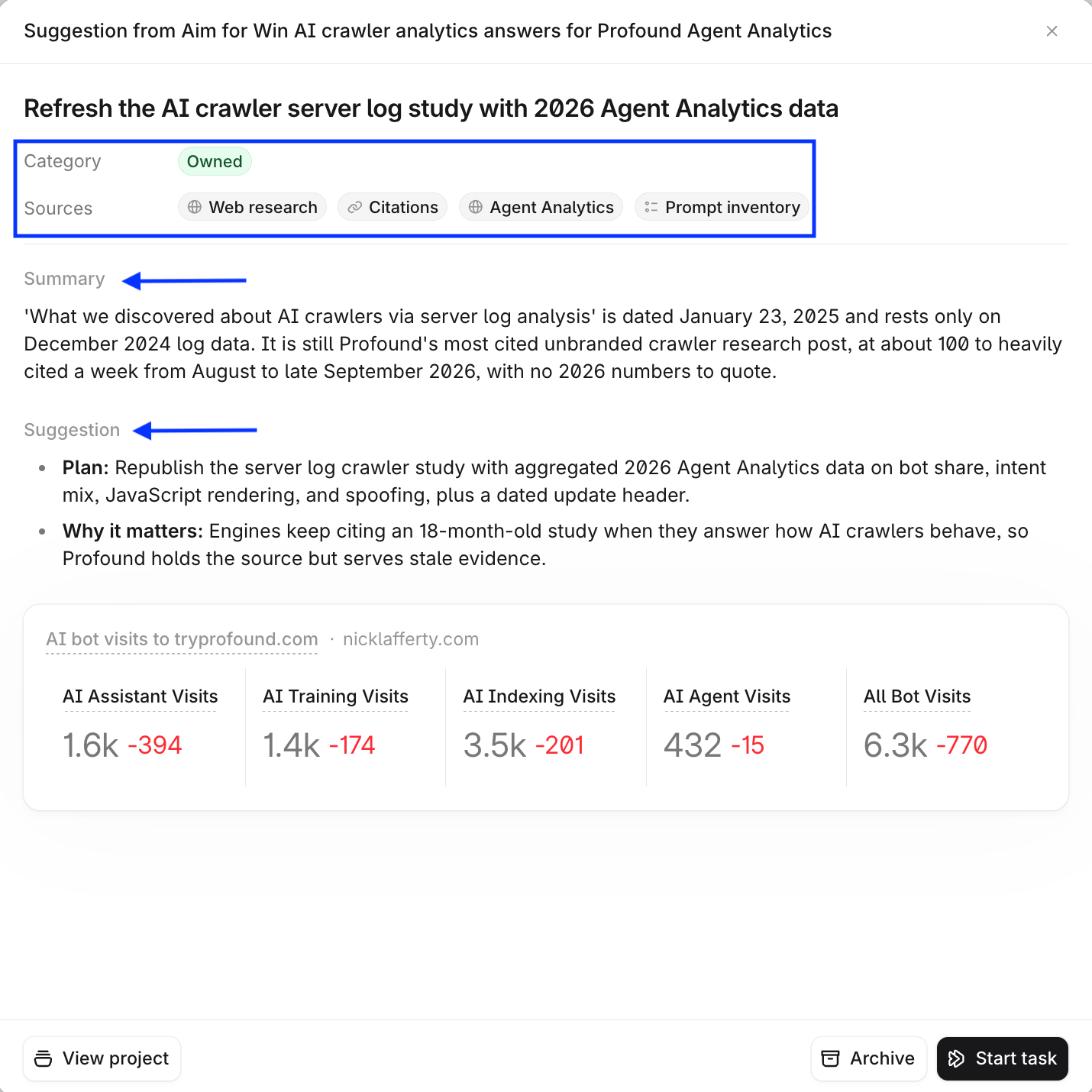
A task Suggestion shows:
* **Category**: Owned, Earned, Social, or Paid.
* **Sources**: the data Aim drew on, such as Visibility, Citations, Prompt inventory, or Web research.
* **Summary**: what the data shows.
* **Suggestion**: the plan and why it matters.
 A **Project** Suggestion shows its description and a list of recommended tasks. Open any recommendation to see the same details.
To accept a Suggestion, select **Start task** or **Create Project**. To dismiss it, select **Archive**.
## Where to find Suggestions
### Profound's home page
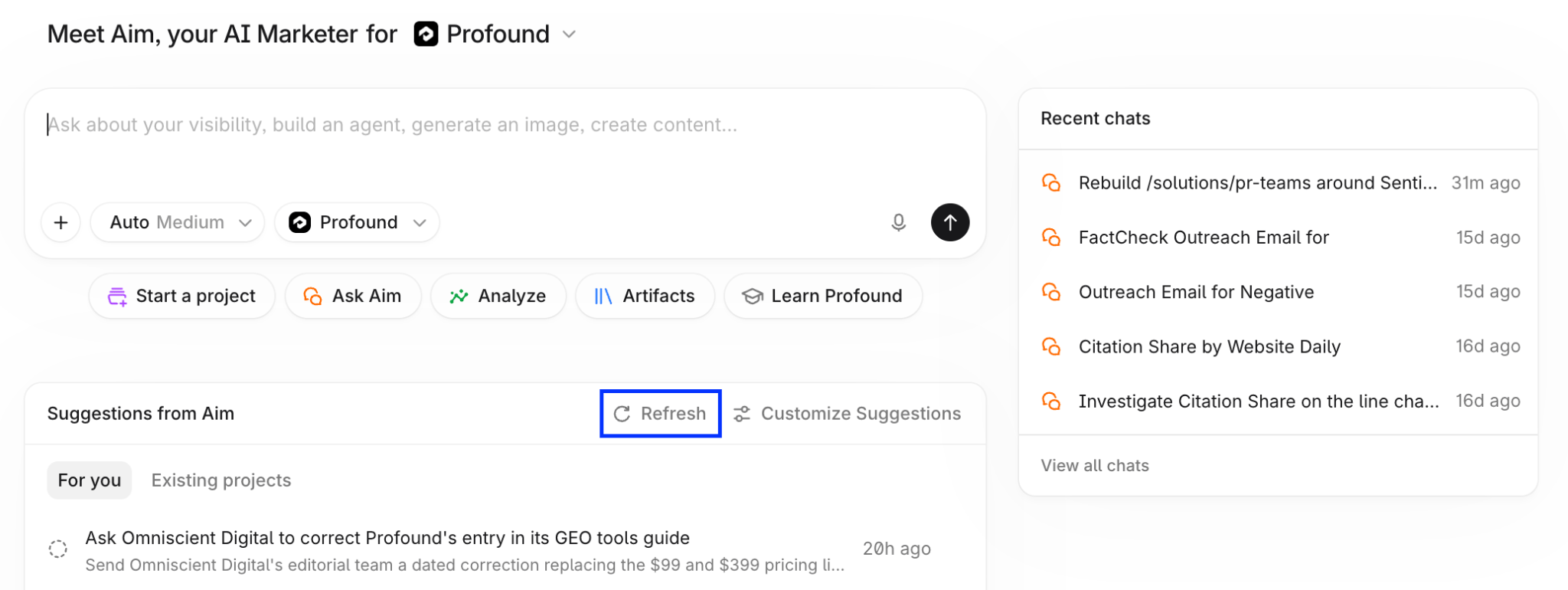
The **Suggestions from Aim** panel is below the Aim chat box.
A **Project** Suggestion shows its description and a list of recommended tasks. Open any recommendation to see the same details.
To accept a Suggestion, select **Start task** or **Create Project**. To dismiss it, select **Archive**.
## Where to find Suggestions
### Profound's home page
The **Suggestions from Aim** panel is below the Aim chat box.
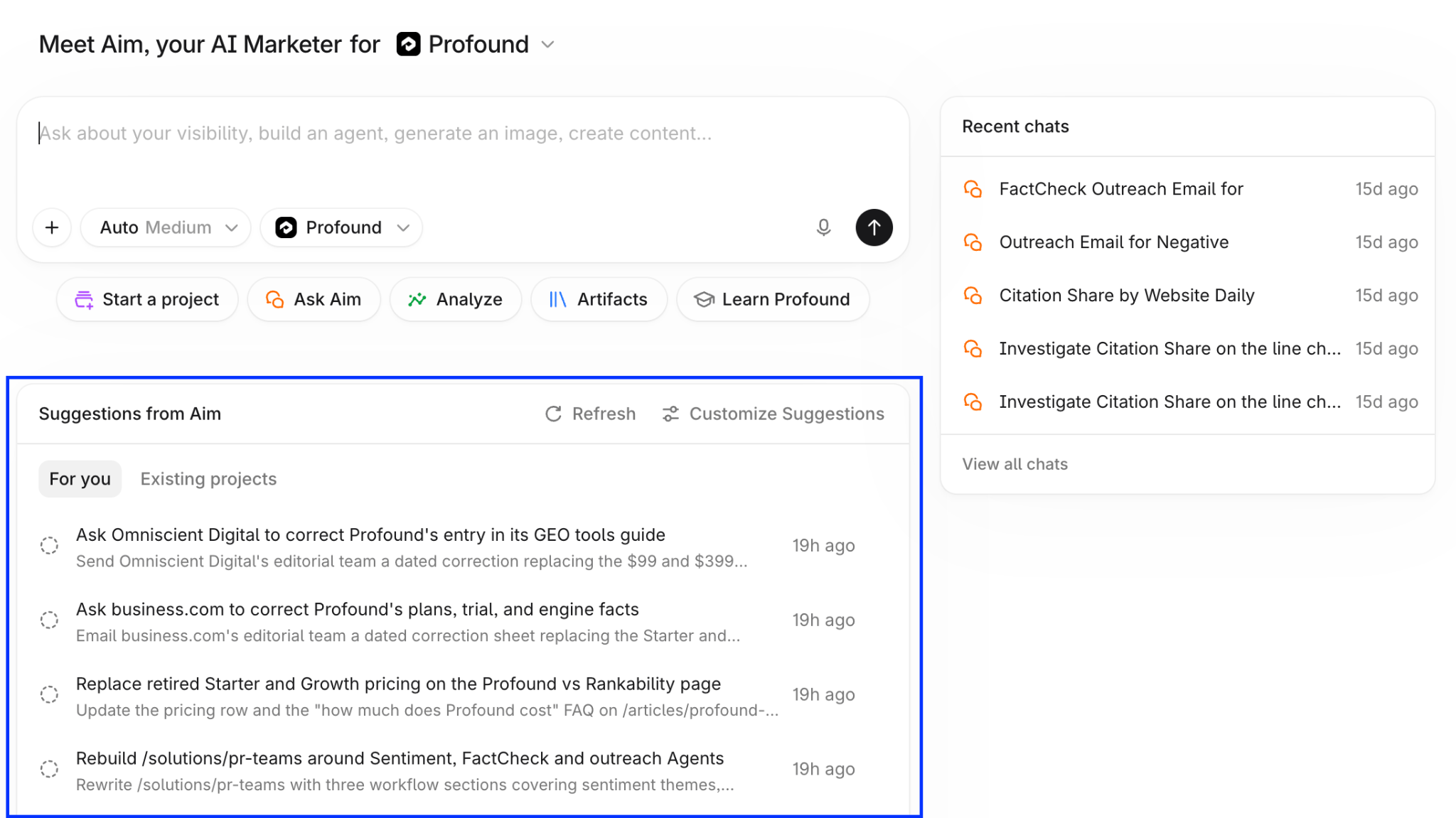 The **For you** tab lists tasks that aren't tied to a Project. The **Existing Projects** tab lists tasks for Projects you have access to, each labeled with its Project.
Select **Refresh** to check for new Suggestions, or select [**Customize Suggestions**](/projects/suggestions-from-aim#customize-suggestions) to tell Aim about your priorities.
### Projects page
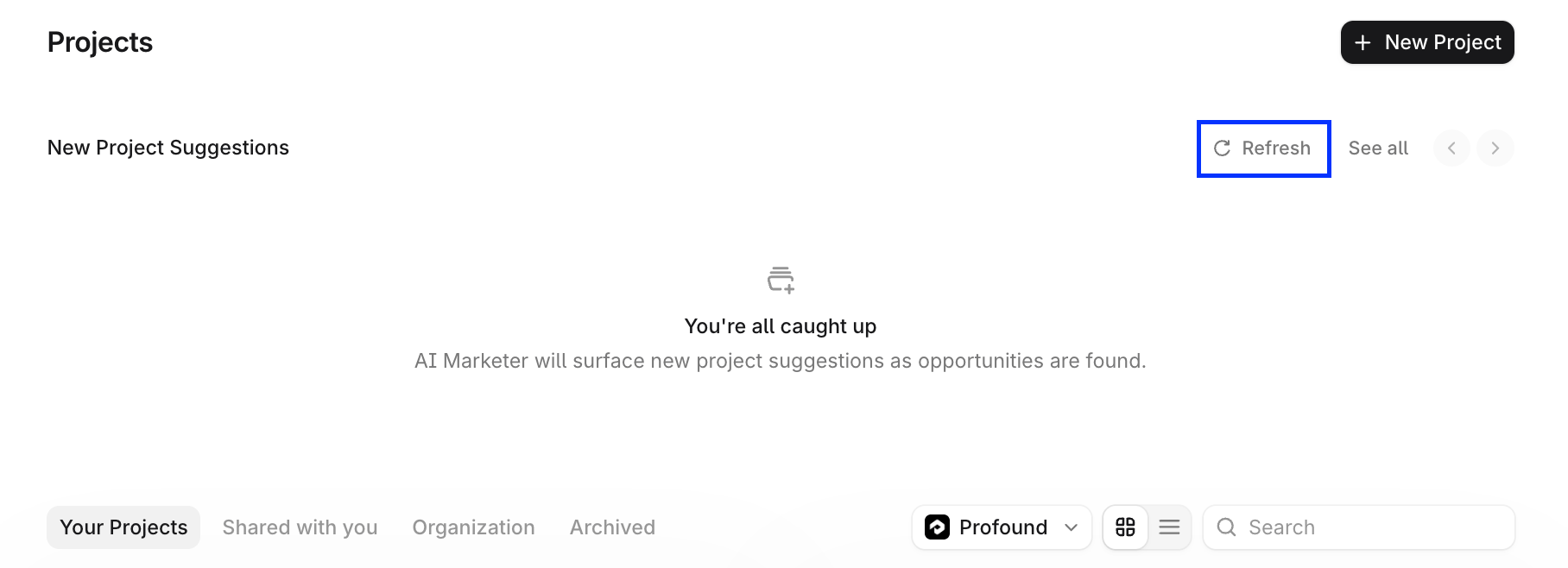
Select Projects in the left sidebar to see the **New Project Suggestions** section. Each card is an initiative Aim recommends for your organization, with a description and an initial set of tasks.
### Inside a Project
The **Suggestions for you** panel in a Project's right sidebar lists tasks for that Project, based on its context and chats. Learn more in [Getting started with Projects](/projects/getting-started).
## View all Suggestions on the Suggestions page
Wherever you find Suggestions, select **See all suggestions** to open a Suggestions page.
### Filter and search
The **For you** tab lists tasks that aren't tied to a Project. The **Existing Projects** tab lists tasks for Projects you have access to, each labeled with its Project.
Select **Refresh** to check for new Suggestions, or select [**Customize Suggestions**](/projects/suggestions-from-aim#customize-suggestions) to tell Aim about your priorities.
### Projects page
Select Projects in the left sidebar to see the **New Project Suggestions** section. Each card is an initiative Aim recommends for your organization, with a description and an initial set of tasks.
### Inside a Project
The **Suggestions for you** panel in a Project's right sidebar lists tasks for that Project, based on its context and chats. Learn more in [Getting started with Projects](/projects/getting-started).
## View all Suggestions on the Suggestions page
Wherever you find Suggestions, select **See all suggestions** to open a Suggestions page.
### Filter and search
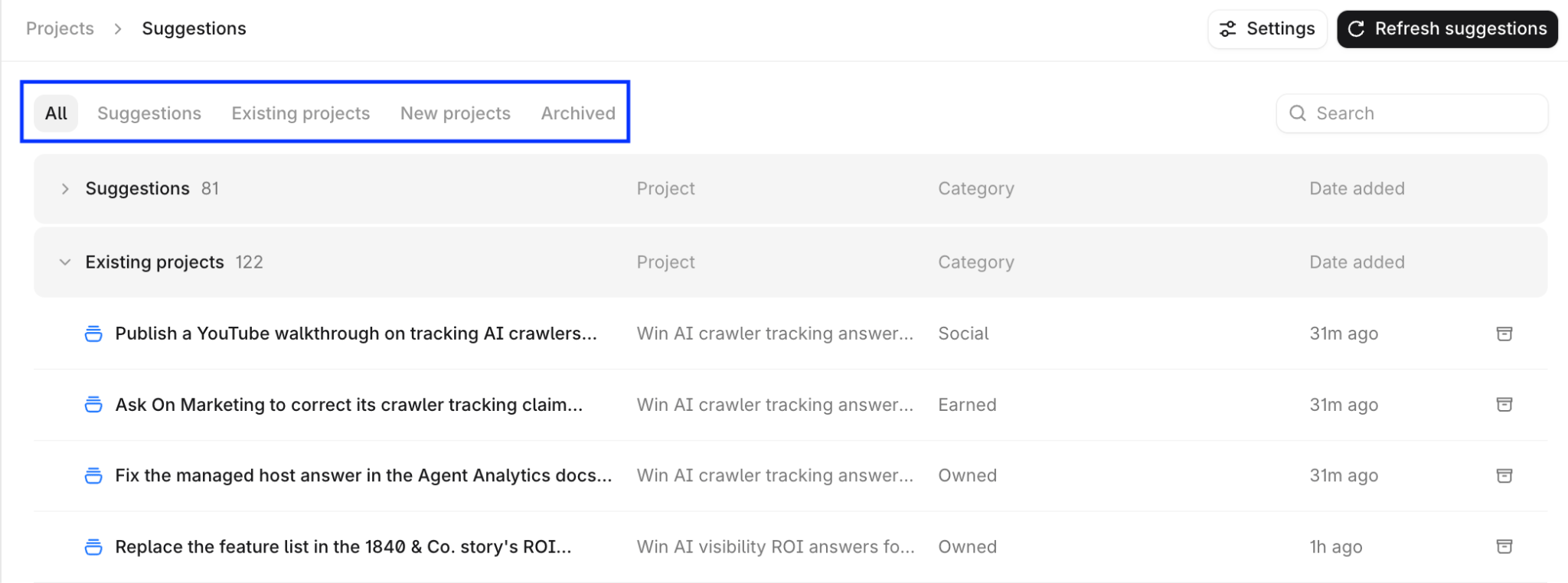 Use the tabs to narrow the list:
* **All**: every open Suggestion.
* **Suggestions**: stand-alone tasks that aren't tied to a Project.
* **Existing Projects**: tasks for Projects you have access to.
* **New Projects**: suggested new Projects.
* **Archived**: Suggestions you or your teammates archived.
Use Search to find a Suggestion by title. Each row shows the Project the Suggestion belongs to, its category, and the date Aim added it. Select a row to open the Suggestion, or select the archive icon at the end of the row to archive it without opening it.
Use the tabs to narrow the list:
* **All**: every open Suggestion.
* **Suggestions**: stand-alone tasks that aren't tied to a Project.
* **Existing Projects**: tasks for Projects you have access to.
* **New Projects**: suggested new Projects.
* **Archived**: Suggestions you or your teammates archived.
Use Search to find a Suggestion by title. Each row shows the Project the Suggestion belongs to, its category, and the date Aim added it. Select a row to open the Suggestion, or select the archive icon at the end of the row to archive it without opening it.
 ### Refresh
Aim adds Suggestions automatically as it finds them. To check for new ones:
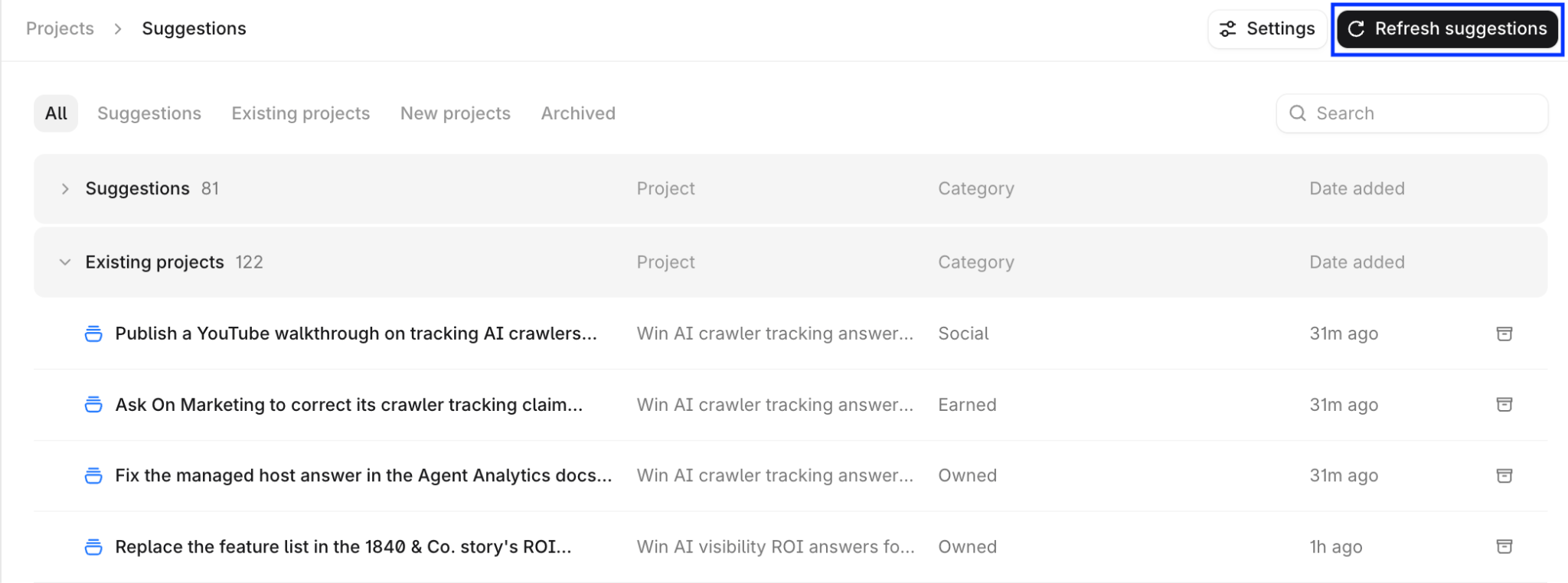
* Select **Refresh suggestions** at the top of the Suggestions page.
### Refresh
Aim adds Suggestions automatically as it finds them. To check for new ones:
* Select **Refresh suggestions** at the top of the Suggestions page.
 * Select **Refresh** in **Suggestions from Aim** on the home page.
 * Select Refresh in **New Project Suggestions** on the **Projects** page.
 Refreshing runs a new analysis and adds new Suggestions to the list.
## Customize Suggestions
Tell Aim about your role and priorities so its Suggestions match how you work.
To open the **Customize your AI Marketer** drawer, select **Settings** at the top of the Suggestions page, or select **Customize Suggestions** in **Suggestions from Aim** on the home page.
Refreshing runs a new analysis and adds new Suggestions to the list.
## Customize Suggestions
Tell Aim about your role and priorities so its Suggestions match how you work.
To open the **Customize your AI Marketer** drawer, select **Settings** at the top of the Suggestions page, or select **Customize Suggestions** in **Suggestions from Aim** on the home page.
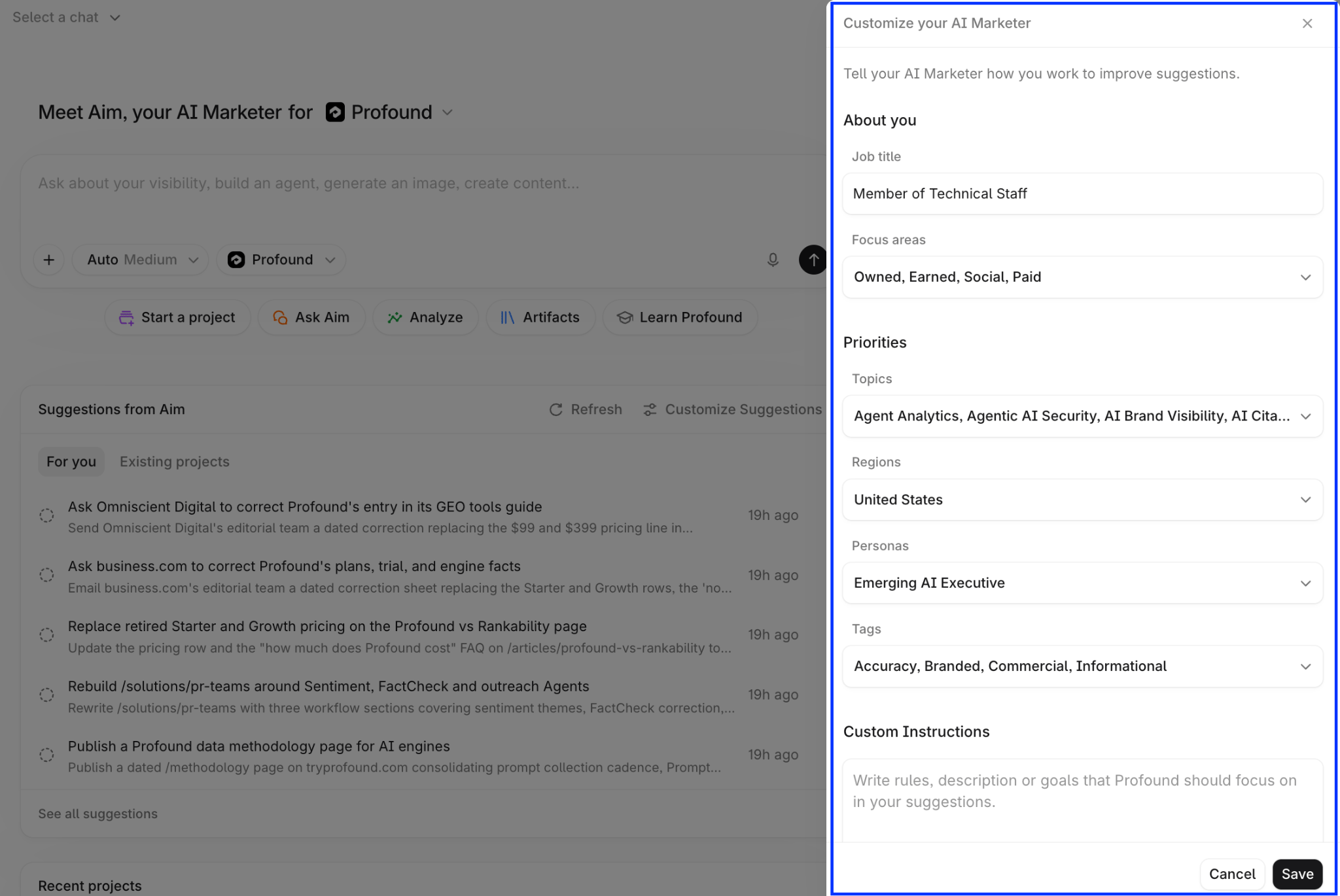 1. Under **About you**, enter your **Job title** and choose your **Focus areas**: Owned (your site and content), Earned (third-party coverage), Social, Paid, or any combination. To see Suggestions across every area, leave them all selected.
2. Under **Priorities**, select the **Topics**, **Regions**, **Personas**, and **Tags** from your Profound configuration that matter most to you. Aim weights its Suggestions toward them.
3. Under **Custom Instructions**, write rules or goals in plain language, for example, "Prioritize pages that are losing citation share" or "Don't suggest Reddit or YouTube work."
4. Select **Save**, then refresh Suggestions to see the changes.
These settings apply only to you and to the brand you've selected. Your teammates set their own.
1. Under **About you**, enter your **Job title** and choose your **Focus areas**: Owned (your site and content), Earned (third-party coverage), Social, Paid, or any combination. To see Suggestions across every area, leave them all selected.
2. Under **Priorities**, select the **Topics**, **Regions**, **Personas**, and **Tags** from your Profound configuration that matter most to you. Aim weights its Suggestions toward them.
3. Under **Custom Instructions**, write rules or goals in plain language, for example, "Prioritize pages that are losing citation share" or "Don't suggest Reddit or YouTube work."
4. Select **Save**, then refresh Suggestions to see the changes.
These settings apply only to you and to the brand you've selected. Your teammates set their own.