> ## Documentation Index
> Fetch the complete documentation index at: https://docs.tryprofound.com/llms.txt
> Use this file to discover all available pages before exploring further.
# Usage
> Import data into Tableau using Web Data Connector 3.0
## System Requirements
**Minimum required version**
* Tableau Desktop 2023.3 or higher
### Compatible Operating Systems
* Windows 10 or higher
* macOS 12 (Monterey) or higher
## Download
The connector is available on our [releases page](/rest-api/integrations/tableau/releases). Download the latest version of `profound-connector.taco` from there.
## Installation
### Windows Installation
1. **Locate the Tableau connectors directory**
Open Windows Explorer and navigate to:
```
C:\Users\[YourUsername]\Documents\My Tableau Repository\Connectors
```
If the `Connectors` folder doesn't exist, create it manually
2. **Copy the .taco file**
* Copy the downloaded `profound-connector.taco` file
* Paste it into the Connectors folder
* **Important**: Do not unzip the .taco file
3. **Restart Tableau Desktop**
* Completely close Tableau Desktop if it's open
* Reopen the application
4. **Verify the installation**
* The connector will appear as "AEO Connector by Profound" in the connectors list
### macOS Installation
1. **Locate the Tableau connectors directory**
* Open Finder
* Press `Cmd + Shift + G`
* Enter the following path:
```
~/Documents/My Tableau Repository/Connectors
```
If the `Connectors` folder doesn't exist, create it
2. **Copy the .taco file**
* Drag the `profound-connector.taco` file to the Connectors folder
* **Important**: The file must keep the .taco extension
3. **Restart Tableau Desktop**
* Completely close Tableau Desktop if it's open
* Reopen the application
4. **Verify the installation**
* The connector will appear as "AEO Connector by Profound" in the connectors list
## First Connection
Launch Tableau Desktop 2023.3 or higher
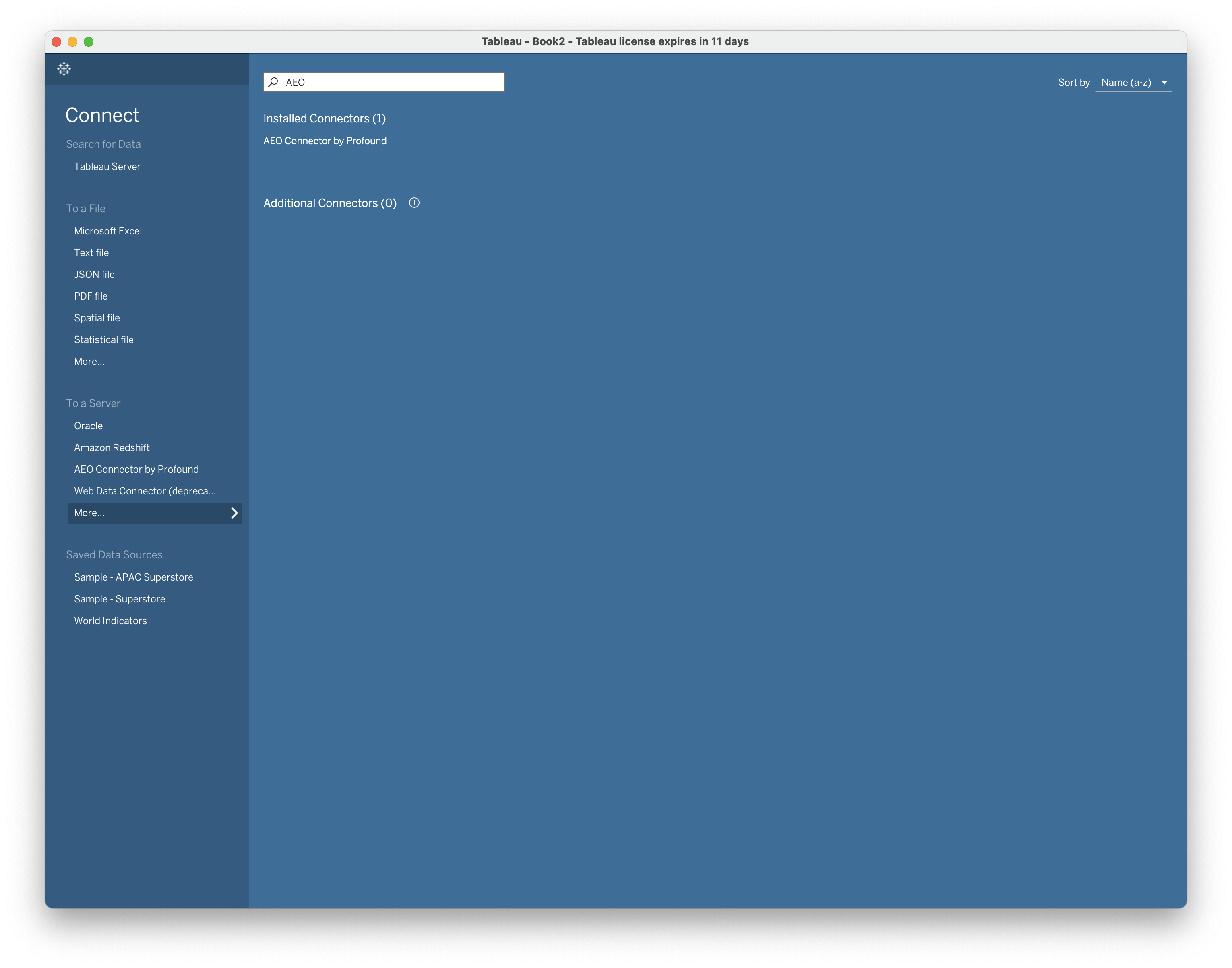
1. On the start page, click **"More..."** in the left panel under "To a Server"
2. Look for **"AEO Connector by Profound"** in the list
3. Click to select it
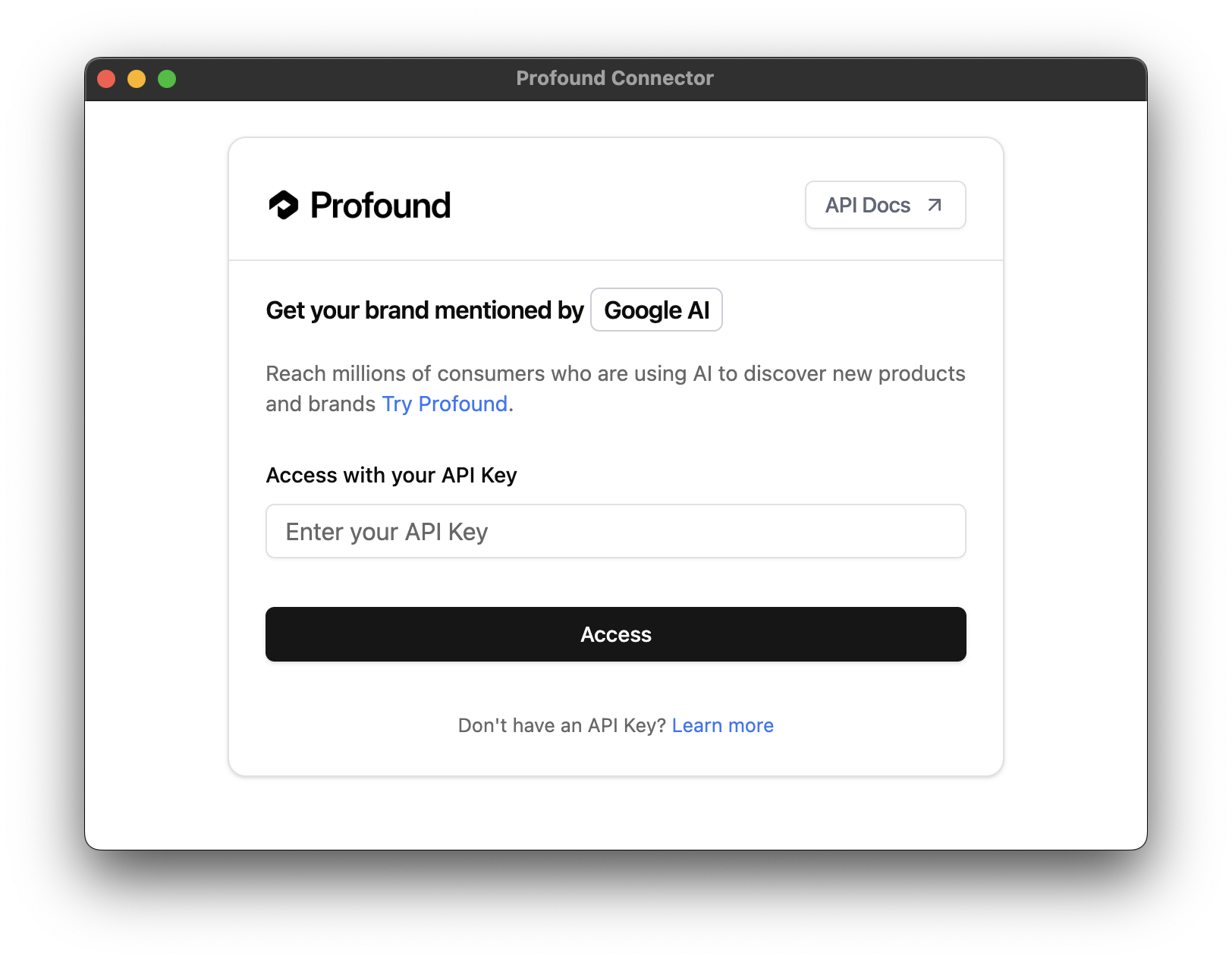
 The connector UI will open with an API Key field:
* Enter your **API Key** generated from the platform
* Click **"Access"** to proceed
The connector UI will open with an API Key field:
* Enter your **API Key** generated from the platform
* Click **"Access"** to proceed
 Once authenticated, you can choose between:
* **Raw Answer**: Access raw data with custom filtering options
* **Report Types**: Select from available pre-configured aggregated reports
Select your preferred data source and apply any filters as needed
Once authenticated, you can choose between:
* **Raw Answer**: Access raw data with custom filtering options
* **Report Types**: Select from available pre-configured aggregated reports
Select your preferred data source and apply any filters as needed
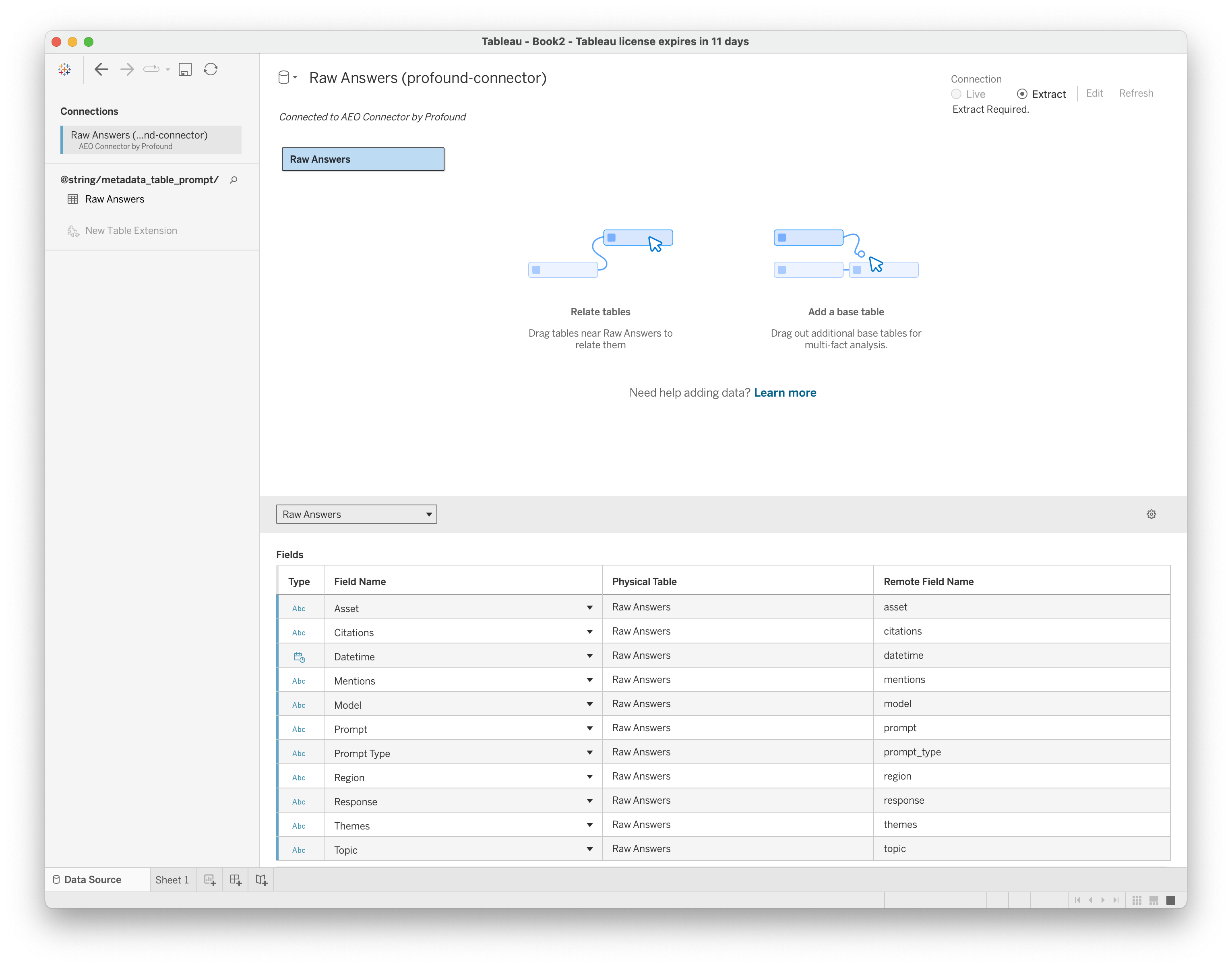
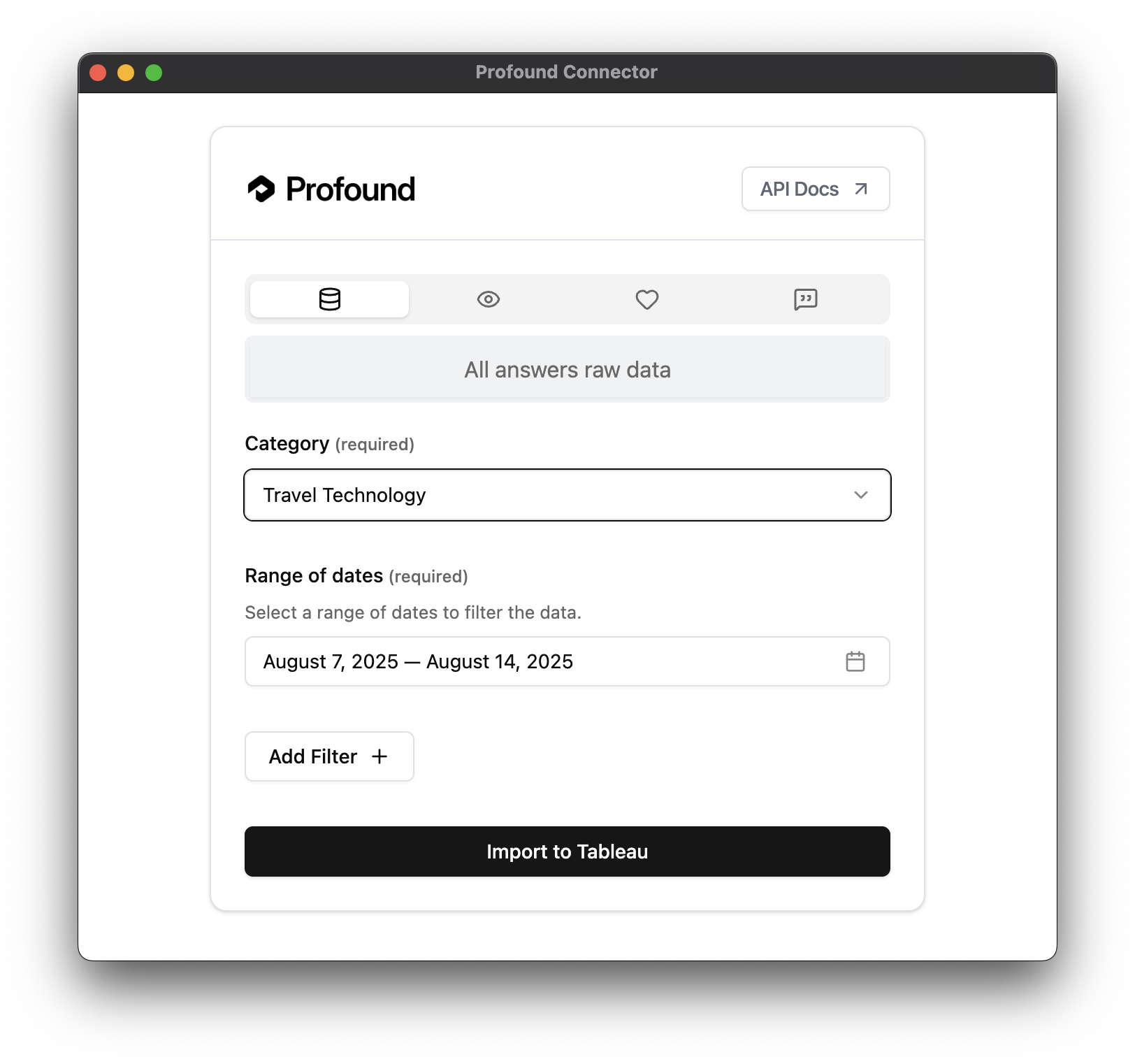 Click **"Import to Tableau"** to load the selected data into Tableau
 ## Troubleshooting
### The connector doesn't appear in Tableau
* Go to **Help → About Tableau**
* Confirm you have version 2023.3 or higher
**Windows:**
* Confirm the file is in `C:\Users\[YourUsername]\Documents\My Tableau Repository\Connectors`
**macOS:**
* Confirm the file is in `~/Documents/My Tableau Repository/Connectors`
Make sure to close all Tableau Desktop windows before reopening
### Connection Errors
* Verify you've copied the complete API Key without spaces
* Check that your API Key is active
* Generate a new API Key if necessary
* Verify the selected endpoint contains data for your filters
* Check date ranges aren’t too restrictive
* Confirm API key has access to the requested data
## Updating the Connector
When a new version is available:
1. Download the new version of the .taco file from the releases page
2. Delete the old file from the Connectors folder
3. Copy the new .taco file
4. Restart Tableau Desktop
## Frequently Asked Questions
[Here you can refer to the API Key generation documentation](/rest-api/authentication)
The version is included in the .taco filename you downloaded.
## Troubleshooting
### The connector doesn't appear in Tableau
* Go to **Help → About Tableau**
* Confirm you have version 2023.3 or higher
**Windows:**
* Confirm the file is in `C:\Users\[YourUsername]\Documents\My Tableau Repository\Connectors`
**macOS:**
* Confirm the file is in `~/Documents/My Tableau Repository/Connectors`
Make sure to close all Tableau Desktop windows before reopening
### Connection Errors
* Verify you've copied the complete API Key without spaces
* Check that your API Key is active
* Generate a new API Key if necessary
* Verify the selected endpoint contains data for your filters
* Check date ranges aren’t too restrictive
* Confirm API key has access to the requested data
## Updating the Connector
When a new version is available:
1. Download the new version of the .taco file from the releases page
2. Delete the old file from the Connectors folder
3. Copy the new .taco file
4. Restart Tableau Desktop
## Frequently Asked Questions
[Here you can refer to the API Key generation documentation](/rest-api/authentication)
The version is included in the .taco filename you downloaded.