> ## Documentation Index
> Fetch the complete documentation index at: https://docs.tryprofound.com/llms.txt
> Use this file to discover all available pages before exploring further.
# WDC 2.0
> Import data into Tableau using Web Data Connector 2.0
[https://tableau.tryprofound.com/](https://tableau.tryprofound.com/)
## Requirements
Valid API key with permissions to access desired endpoints
Stable connection to access the export tool
## How to Use
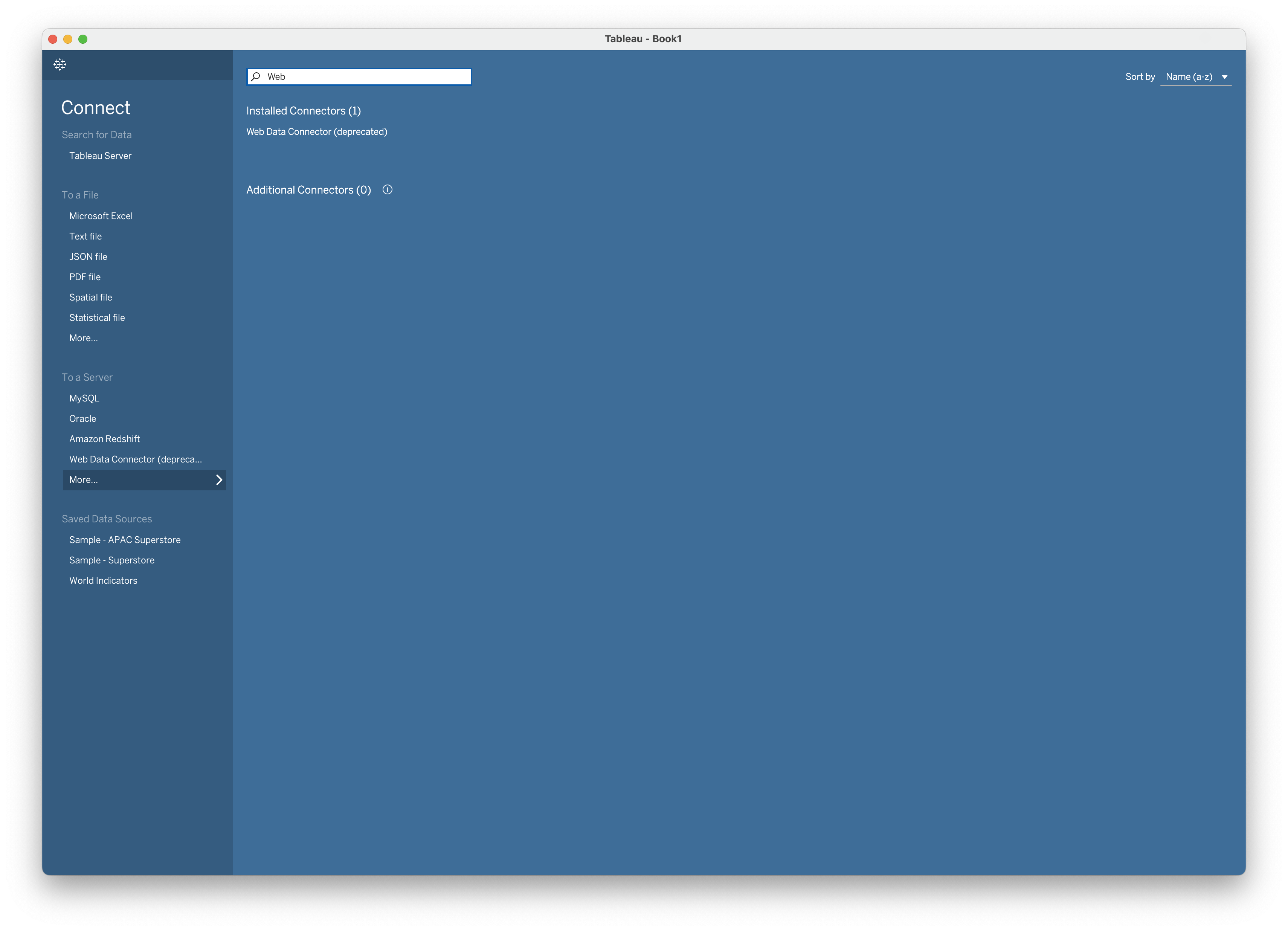
Launch Tableau Desktop (version 10.4 or higher required)
Select **More** on the left side of the screen and search for **Web Data Connector**:
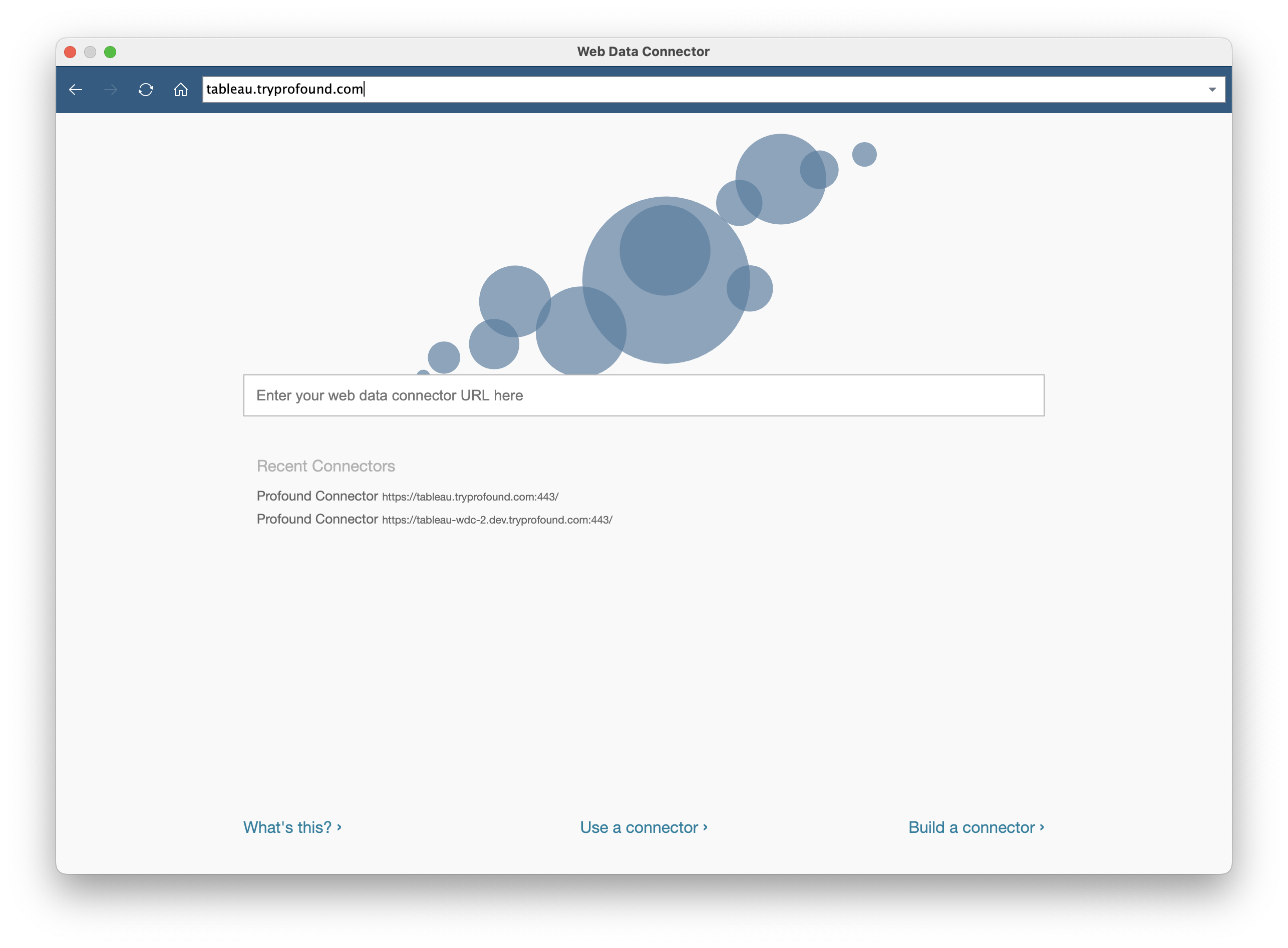
 Enter the tool URL: `https://tableau.tryprofound.com/`
 Looking for your API key? [Click here](/rest-api/authentication#getting-your-api-key)
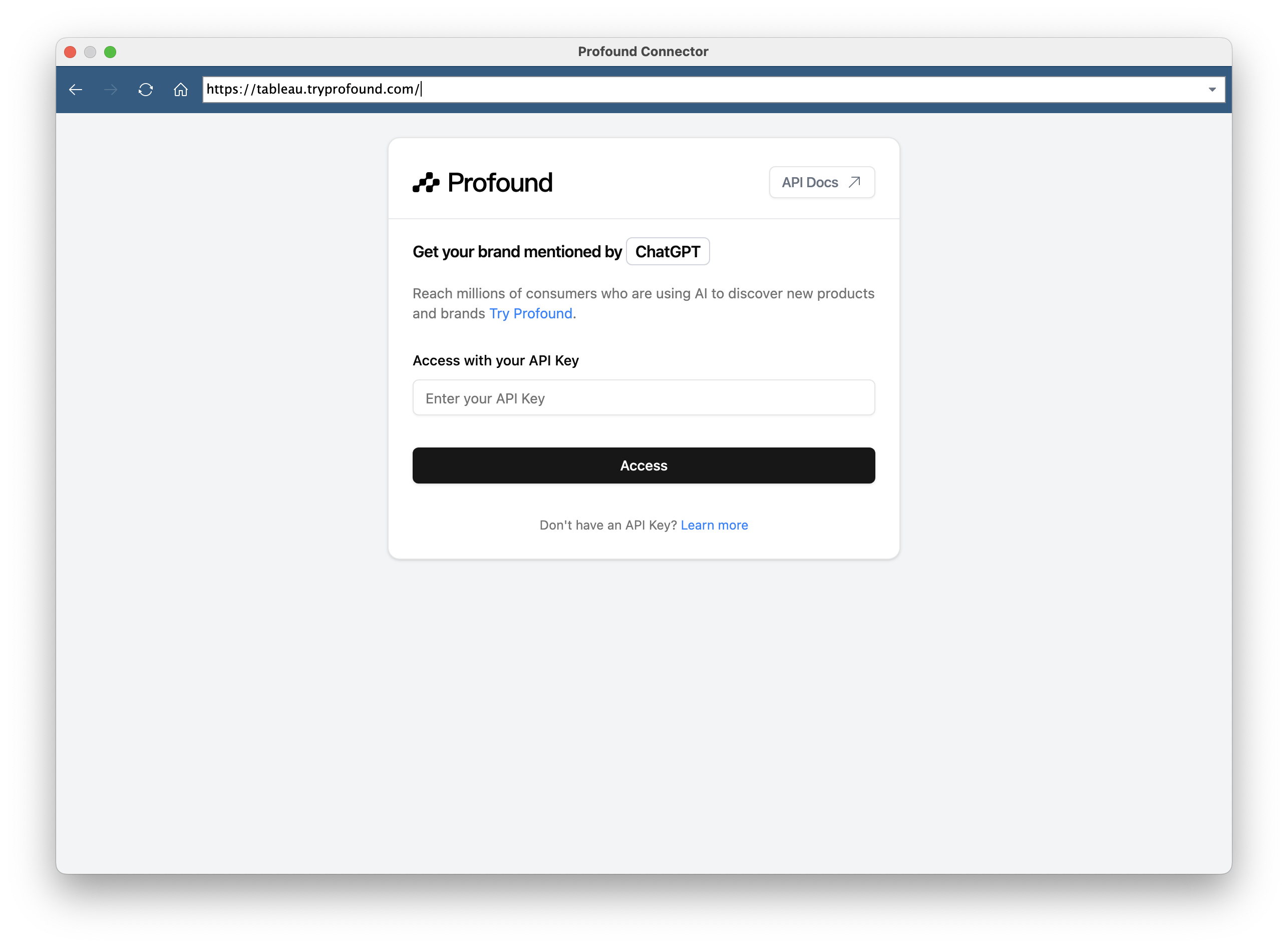
Enter your API key when prompted. Select **Access** when ready:
Looking for your API key? [Click here](/rest-api/authentication#getting-your-api-key)
Enter your API key when prompted. Select **Access** when ready:
 Select the desired data and configure any additional filters:
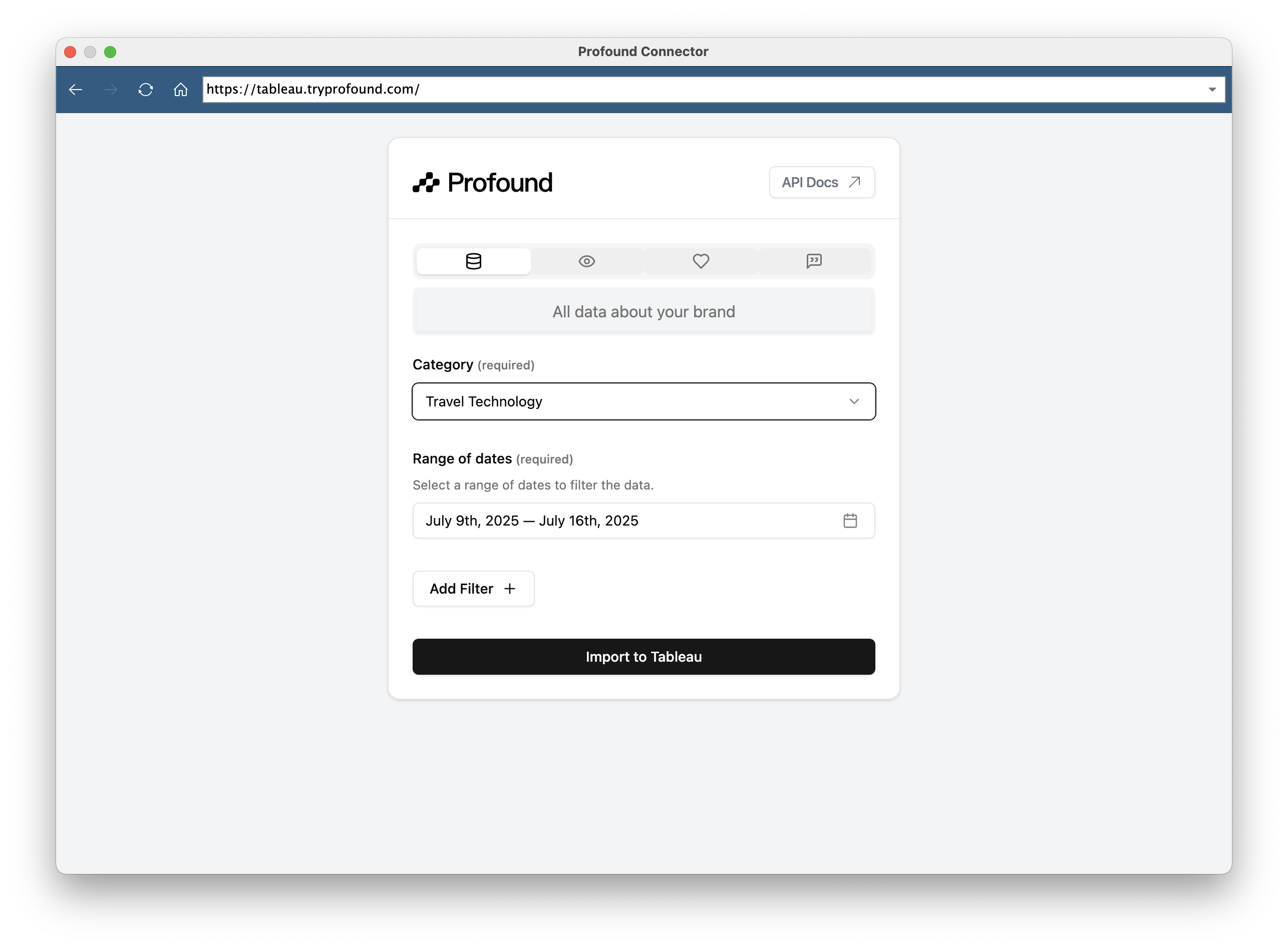 Click **Import to Tableau** to import data directly into your Tableau workspace
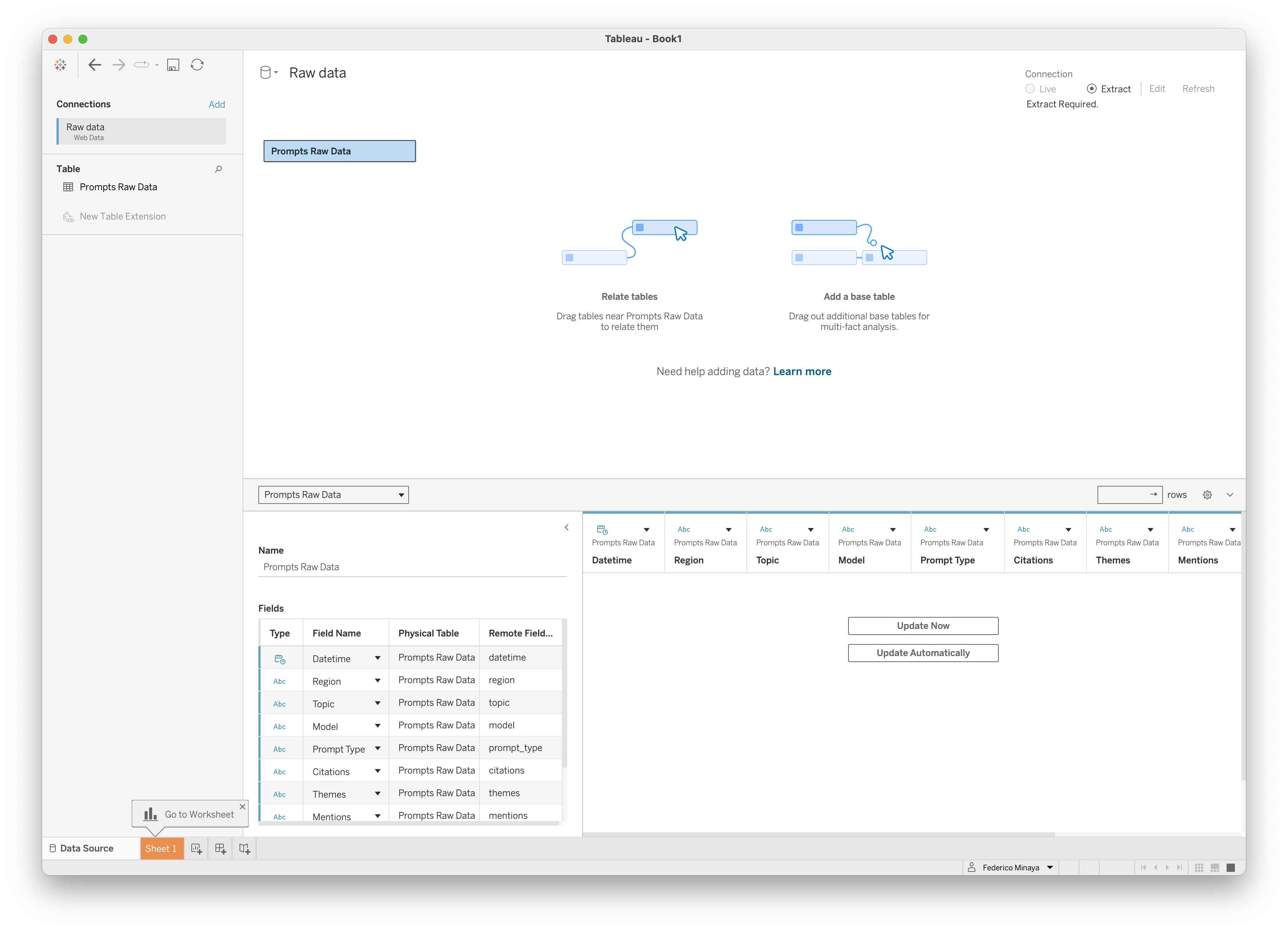 It may take a few minutes to populate the data into Tableau.
 ## Available Data Sources
The tool supports both processed reports and raw data endpoints
* **Report Endpoints**: Pre-processed analytics and summary data
* **Raw Data**: Unprocessed data directly from database
## Troubleshooting
Ensure your API key has the correct permissions for the selected endpoint
**Solutions:**
* Verify API key is correct and active
**Solutions:**
* Verify the selected endpoint contains data for your filters
* Check date ranges aren't too restrictive
* Confirm API key has access to the requested data
**Solutions:**
* Try reducing the data range
* Use more specific filters to limit data volume
* Contact support if large exports are needed regularly
Tableau integration uses WDC 2.0, which works with most Tableau Desktop versions
**Solutions:**
* Ensure Tableau Desktop 10.4 or higher
* Check firewall settings allow WDC connections
* Verify the tool URL is correctly entered in Tableau
## Technical Notes
Tableau integration uses Web Data Connector 2.0, which is a legacy but stable technology supported by Tableau
* **Data Types**: Automatic detection and formatting for dates, numbers, and text
* **File Size**: Large exports may take additional time to process
* **Refresh**: Tableau connections can be refreshed to get updated data
## Need Help?
If you encounter issues or need to request API access, contact our [support team](mailto:support@tryprofound.com) for assistance.
## Available Data Sources
The tool supports both processed reports and raw data endpoints
* **Report Endpoints**: Pre-processed analytics and summary data
* **Raw Data**: Unprocessed data directly from database
## Troubleshooting
Ensure your API key has the correct permissions for the selected endpoint
**Solutions:**
* Verify API key is correct and active
**Solutions:**
* Verify the selected endpoint contains data for your filters
* Check date ranges aren't too restrictive
* Confirm API key has access to the requested data
**Solutions:**
* Try reducing the data range
* Use more specific filters to limit data volume
* Contact support if large exports are needed regularly
Tableau integration uses WDC 2.0, which works with most Tableau Desktop versions
**Solutions:**
* Ensure Tableau Desktop 10.4 or higher
* Check firewall settings allow WDC connections
* Verify the tool URL is correctly entered in Tableau
## Technical Notes
Tableau integration uses Web Data Connector 2.0, which is a legacy but stable technology supported by Tableau
* **Data Types**: Automatic detection and formatting for dates, numbers, and text
* **File Size**: Large exports may take additional time to process
* **Refresh**: Tableau connections can be refreshed to get updated data
## Need Help?
If you encounter issues or need to request API access, contact our [support team](mailto:support@tryprofound.com) for assistance.