> ## Documentation Index
> Fetch the complete documentation index at: https://docs.tryprofound.com/llms.txt
> Use this file to discover all available pages before exploring further.
# Cloudflare Integration (Logpush)
> This documentation explains how to set up and deploy a Cloudflare Worker that captures HTTP request data and forwards it to Profound Agent Analytics platform using Cloudflare Logpush.
## Overview
The integration uses a Cloudflare Logpush that runs as middleware to collect request metadata and send it to our Agent Analytics API. Cloudflare Logpush is a Cloudflare Enterprise feature that allows you to forward Cloudflare logs to a non-Cloudflare destination like Profound. For more information related to Cloudflare Logpush, [visit the documentation site](https://developers.cloudflare.com/logs/about/).
## Prerequisites
* A Cloudflare account with Enterprise plan
* Access to your domain's Cloudflare configuration
* A Profound Log Ingestion Token for Agent Analytics
Using Cloudflare Free/Pro plan? Check out our integration guide using Cloudflare Workers.
 ## Configuration
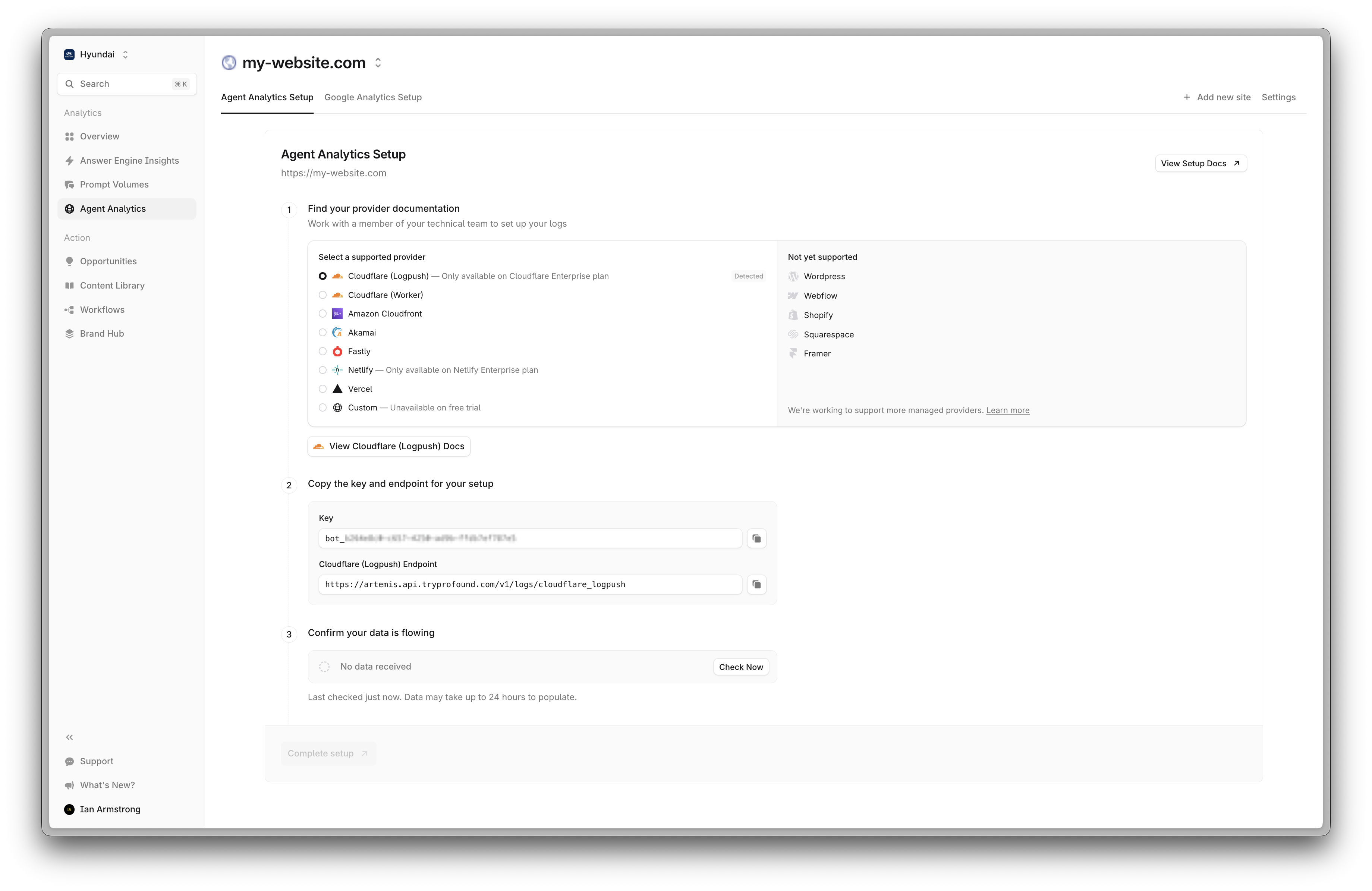
Select your domain on Cloudflare Dashboard, go to **Analytics & Logs -> Logpush**
## Configuration
Select your domain on Cloudflare Dashboard, go to **Analytics & Logs -> Logpush**
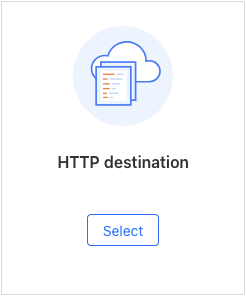
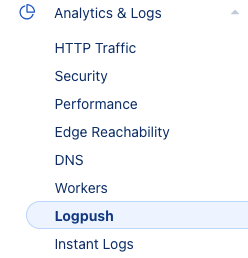 Create a new Logpush job, select HTTP destination
 Use the following API URL format to include your Profound Log Ingestion Token and continue
```http theme={null}
https://artemis.api.tryprofound.com/v1/logs/cloudflare_logpush?header_X-API-Key=bot_PROFOUND_LOG_INGESTION_TOKEN
```
Select `Filtered logs` under **If logs match...**
And filter by the `ClientRequestHost` field to match your domain
Ensure you use your domain in the filter. Do not use `www.tryprofound.com`, this is only an example.
Use the following API URL format to include your Profound Log Ingestion Token and continue
```http theme={null}
https://artemis.api.tryprofound.com/v1/logs/cloudflare_logpush?header_X-API-Key=bot_PROFOUND_LOG_INGESTION_TOKEN
```
Select `Filtered logs` under **If logs match...**
And filter by the `ClientRequestHost` field to match your domain
Ensure you use your domain in the filter. Do not use `www.tryprofound.com`, this is only an example.
 Select HTTP requests dataset, and choose the following fields to send:
* Request
* `ClientIP` - IP Address of the client.
* `ClientRequestHost` - Host requested by the client.
* `ClientRequestMethod` - HTTP method of client request.
* `ClientRequestReferer` - HTTP request referrer.
* `ClientRequestURI` - URI requested by the client.
* `ClientRequestUserAgent` - User agent reported by the client
* Performance
* `EdgeStartTimestamp` - Timestamp at which the edge received request from the client.
* `EdgeEndTimestamp` - Timestamp at which the edge finished sending response to the client.
* Response
* `EdgeResponseBytes` - Number of bytes returned by the edge to the client.
* `EdgeResponseStatus` - HTTP status code returned by Cloudflare to the client.
That's it! You have now successfully configured Profound Agent Analytics for your website. Data should begin to populate on your dashboard within an hour.
## Troubleshooting
* If logs aren't appearing, verify your Log Ingestion Token and URL
* Check Workers > Analytics for any execution errors
* Ensure your route pattern matches your domain configuration
* Verify the Worker is receiving requests by checking the Cloudflare dashboard metrics
## Additional Resources
* [Cloudflare Logpush Documentation](https://developers.cloudflare.com/logs/about/)
* [Cloudflare Enable HTTP destination Documentation](https://developers.cloudflare.com/logs/get-started/enable-destinations/http/)
* Contact [support@tryprofound.com](mailto:support@tryprofound.com) for API-related questions
## Security Considerations
* Store Log Ingestion Tokens as secrets in production environments
* Regularly rotate Log Ingestion Tokens
* Monitor Worker usage and logs for unusual patterns
Select HTTP requests dataset, and choose the following fields to send:
* Request
* `ClientIP` - IP Address of the client.
* `ClientRequestHost` - Host requested by the client.
* `ClientRequestMethod` - HTTP method of client request.
* `ClientRequestReferer` - HTTP request referrer.
* `ClientRequestURI` - URI requested by the client.
* `ClientRequestUserAgent` - User agent reported by the client
* Performance
* `EdgeStartTimestamp` - Timestamp at which the edge received request from the client.
* `EdgeEndTimestamp` - Timestamp at which the edge finished sending response to the client.
* Response
* `EdgeResponseBytes` - Number of bytes returned by the edge to the client.
* `EdgeResponseStatus` - HTTP status code returned by Cloudflare to the client.
That's it! You have now successfully configured Profound Agent Analytics for your website. Data should begin to populate on your dashboard within an hour.
## Troubleshooting
* If logs aren't appearing, verify your Log Ingestion Token and URL
* Check Workers > Analytics for any execution errors
* Ensure your route pattern matches your domain configuration
* Verify the Worker is receiving requests by checking the Cloudflare dashboard metrics
## Additional Resources
* [Cloudflare Logpush Documentation](https://developers.cloudflare.com/logs/about/)
* [Cloudflare Enable HTTP destination Documentation](https://developers.cloudflare.com/logs/get-started/enable-destinations/http/)
* Contact [support@tryprofound.com](mailto:support@tryprofound.com) for API-related questions
## Security Considerations
* Store Log Ingestion Tokens as secrets in production environments
* Regularly rotate Log Ingestion Tokens
* Monitor Worker usage and logs for unusual patterns