> ## Documentation Index
> Fetch the complete documentation index at: https://docs.tryprofound.com/llms.txt
> Use this file to discover all available pages before exploring further.
# Cloudflare Integration (Worker)
> This documentation explains how to set up and deploy a Cloudflare Worker that captures HTTP request data and forwards it to Profound Agent Analytics platform using Cloudflare Worker.
## Overview
The integration uses a Cloudflare Worker that runs as middleware to collect request metadata and send it to our Agent Analytics API. The Worker captures important request information like IP addresses, user agents, and referrers without affecting the actual request handling.
## Prerequisites
* A Cloudflare account with access to Workers
* Node.js installed on your development machine
* Access to your domain's Cloudflare configuration
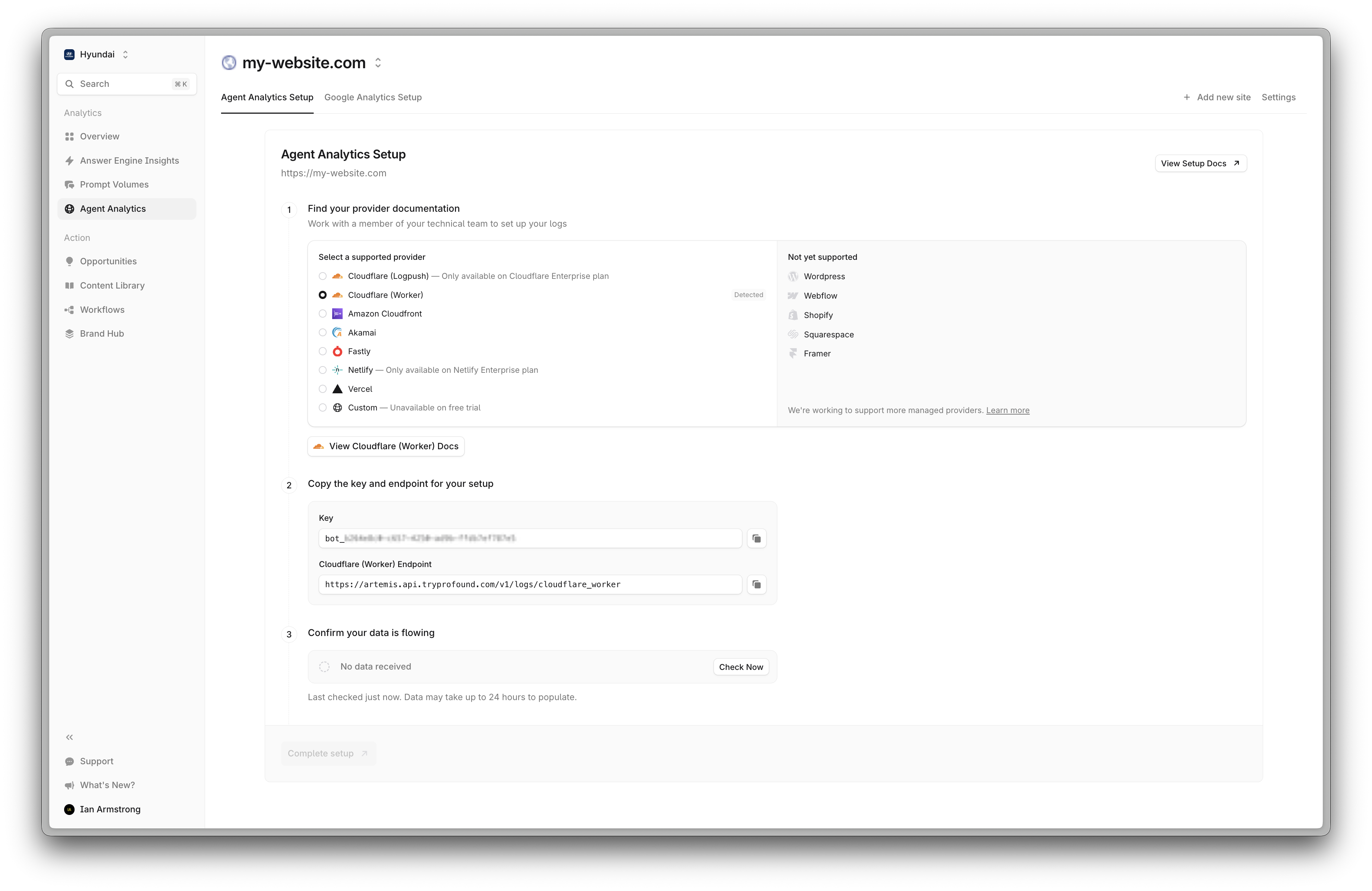
* A Profound Log Ingestion Token for Agent Analytics
Using Cloudflare Enterprise plan? Check out our integration guide using Cloudflare Logpush.
 ## Implementation Guide
Create a new Worker project and install dependencies:
### Create a new Worker project
First, use the Cloudflare Worker CLI to create a new Worker project:
In this example, we're using version `2.37.4` of the Cloudflare Worker CLI. You may use the latest version, but there might be some minor process differences.
```bash theme={null}
npm create cloudflare@2.37.4 -- log-collector
```
After npm launches, you'll be prompted to select a starting point. Select "Hello World" as your starting category.
## Implementation Guide
Create a new Worker project and install dependencies:
### Create a new Worker project
First, use the Cloudflare Worker CLI to create a new Worker project:
In this example, we're using version `2.37.4` of the Cloudflare Worker CLI. You may use the latest version, but there might be some minor process differences.
```bash theme={null}
npm create cloudflare@2.37.4 -- log-collector
```
After npm launches, you'll be prompted to select a starting point. Select "Hello World" as your starting category.
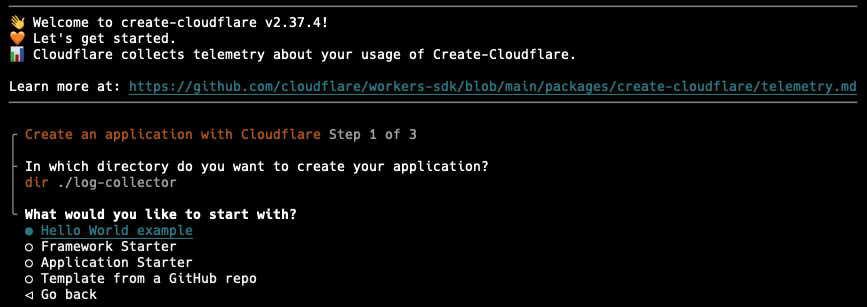 Select the "Hello World" worker template.
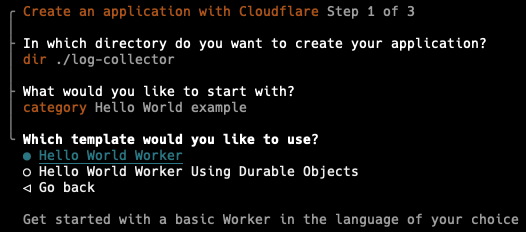 Select the "TypeScript" language.
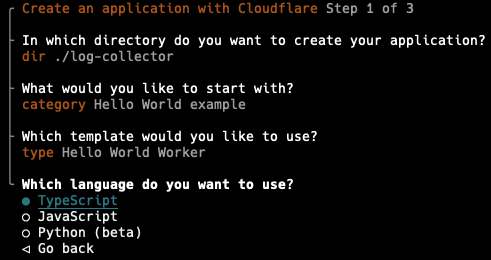 Now the CLI will create a new project with the name `log-collector` and install the necessary dependencies.
Select Git for version control.
Now the CLI will create a new project with the name `log-collector` and install the necessary dependencies.
Select Git for version control.
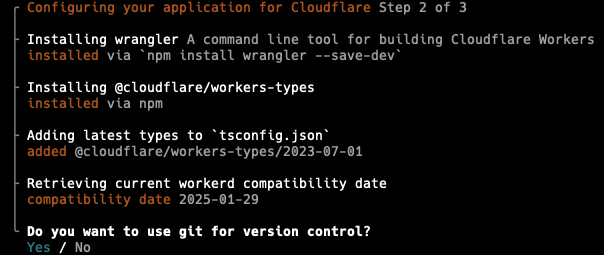 Deploy the application now. The application will be deployed with a cloudflare development domain and will not affect your production environment.
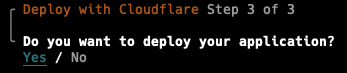 Cloudflare CLI will prompt you to login and select the account you want to deploy the application to. Please choose the account your domain is associated with.
Cloudflare should automatically open a browser window with "Hello World" displayed. You can navigate to the project directory once the application is deployed.
```bash theme={null}
cd log-collector
```
Edit your `wrangler.json` file to configure the `PROFOUND_API_URL` environment variable and the route binding:
Replace pattern `example.com/*` with your actual domain. Use your target site URL (usually marketing site). For example, if your marketing site is `https://www.example.com`, you should use `www.example.com/*` as the pattern.
The `zone_name` should be your canonical domain without the [www](http://www).
If you are not sure about the correct configuration, please contact [Profound support](mailto:support@tryprofound.com).
```json wrangler.json theme={null}
{
"$schema": "node_modules/wrangler/config-schema.json",
"name": "log-collector",
"main": "src/index.ts",
"compatibility_date": "2025-01-29",
"observability": {
"enabled": true
},
"route": {
"pattern": "example.com/*",
"zone_name": "example.com"
},
"vars": { "PROFOUND_API_URL": "https://artemis.api.tryprofound.com/v1/logs/cloudflare_worker" }
}
```
Then copy the TypeScript code into `src/index.ts`:
```typescript src/index.ts theme={null}
/**
* Cloudflare Worker for Log Collection
*
* This worker captures HTTP request/response data and forwards it to Profound's log collection API.
* It runs as a middleware, meaning it doesn't interfere with the actual request handling.
*/
export interface Env {
PROFOUND_API_URL: string;
PROFOUND_LOG_INGESTION_TOKEN: string;
}
export default {
async fetch(request: Request, env: Env, ctx: ExecutionContext): Promise {
// Get the original response
const response = await fetch(request);
// Clone the response so we can read it multiple times
const responseClone = response.clone();
ctx.waitUntil(handleRequest(request, responseClone, env));
return response;
}
} satisfies ExportedHandler;
async function handleRequest(request: Request, response: Response, env: Env) {
const requestUrl = new URL(request.url);
// Calculate header size
const headerSize = Array.from(response.headers.entries())
.reduce((total, [key, value]) => {
// +2 for ': ' and +2 for '\r\n'
return total + key.length + value.length + 4;
}, 0);
// Get response body size
const responseBody = await response.blob();
const bodySize = responseBody.size;
// Total bytes sent includes headers and body
const totalBytesSent = headerSize + bodySize;
const logData = {
timestamp: Date.now(),
host: requestUrl.hostname,
method: request.method,
pathname: requestUrl.pathname,
query_params: Object.fromEntries(requestUrl.searchParams),
ip: request.headers.get('cf-connecting-ip'),
userAgent: request.headers.get('user-agent'),
referer: request.headers.get('referer'),
bytes: totalBytesSent,
status: response.status
}
await fetch(env.PROFOUND_API_URL, {
method: 'POST',
headers: {
'Content-Type': 'application/json',
'X-API-Key': env.PROFOUND_LOG_INGESTION_TOKEN
},
body: JSON.stringify([logData])
}).catch(error => console.error('Failed to send logs:', error))
}
```
### Login to Cloudflare
Use the Wrangler CLI to deploy the Worker:
```bash theme={null}
# Login to Cloudflare
npx wrangler login
```
### Configure the Profound Log Ingestion Token
Secrets is a feature of Cloudflare Workers that allows you to store sensitive information like Log Ingestion Tokens in a secure environment.
```bash theme={null}
# Configure the Log Ingestion Token secret
npx wrangler secret put PROFOUND_LOG_INGESTION_TOKEN
```
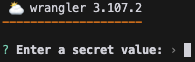
You will be prompted to enter the Log Ingestion Token. Copy and paste the token and press enter.
Cloudflare CLI will prompt you to login and select the account you want to deploy the application to. Please choose the account your domain is associated with.
Cloudflare should automatically open a browser window with "Hello World" displayed. You can navigate to the project directory once the application is deployed.
```bash theme={null}
cd log-collector
```
Edit your `wrangler.json` file to configure the `PROFOUND_API_URL` environment variable and the route binding:
Replace pattern `example.com/*` with your actual domain. Use your target site URL (usually marketing site). For example, if your marketing site is `https://www.example.com`, you should use `www.example.com/*` as the pattern.
The `zone_name` should be your canonical domain without the [www](http://www).
If you are not sure about the correct configuration, please contact [Profound support](mailto:support@tryprofound.com).
```json wrangler.json theme={null}
{
"$schema": "node_modules/wrangler/config-schema.json",
"name": "log-collector",
"main": "src/index.ts",
"compatibility_date": "2025-01-29",
"observability": {
"enabled": true
},
"route": {
"pattern": "example.com/*",
"zone_name": "example.com"
},
"vars": { "PROFOUND_API_URL": "https://artemis.api.tryprofound.com/v1/logs/cloudflare_worker" }
}
```
Then copy the TypeScript code into `src/index.ts`:
```typescript src/index.ts theme={null}
/**
* Cloudflare Worker for Log Collection
*
* This worker captures HTTP request/response data and forwards it to Profound's log collection API.
* It runs as a middleware, meaning it doesn't interfere with the actual request handling.
*/
export interface Env {
PROFOUND_API_URL: string;
PROFOUND_LOG_INGESTION_TOKEN: string;
}
export default {
async fetch(request: Request, env: Env, ctx: ExecutionContext): Promise {
// Get the original response
const response = await fetch(request);
// Clone the response so we can read it multiple times
const responseClone = response.clone();
ctx.waitUntil(handleRequest(request, responseClone, env));
return response;
}
} satisfies ExportedHandler;
async function handleRequest(request: Request, response: Response, env: Env) {
const requestUrl = new URL(request.url);
// Calculate header size
const headerSize = Array.from(response.headers.entries())
.reduce((total, [key, value]) => {
// +2 for ': ' and +2 for '\r\n'
return total + key.length + value.length + 4;
}, 0);
// Get response body size
const responseBody = await response.blob();
const bodySize = responseBody.size;
// Total bytes sent includes headers and body
const totalBytesSent = headerSize + bodySize;
const logData = {
timestamp: Date.now(),
host: requestUrl.hostname,
method: request.method,
pathname: requestUrl.pathname,
query_params: Object.fromEntries(requestUrl.searchParams),
ip: request.headers.get('cf-connecting-ip'),
userAgent: request.headers.get('user-agent'),
referer: request.headers.get('referer'),
bytes: totalBytesSent,
status: response.status
}
await fetch(env.PROFOUND_API_URL, {
method: 'POST',
headers: {
'Content-Type': 'application/json',
'X-API-Key': env.PROFOUND_LOG_INGESTION_TOKEN
},
body: JSON.stringify([logData])
}).catch(error => console.error('Failed to send logs:', error))
}
```
### Login to Cloudflare
Use the Wrangler CLI to deploy the Worker:
```bash theme={null}
# Login to Cloudflare
npx wrangler login
```
### Configure the Profound Log Ingestion Token
Secrets is a feature of Cloudflare Workers that allows you to store sensitive information like Log Ingestion Tokens in a secure environment.
```bash theme={null}
# Configure the Log Ingestion Token secret
npx wrangler secret put PROFOUND_LOG_INGESTION_TOKEN
```
You will be prompted to enter the Log Ingestion Token. Copy and paste the token and press enter.
 ### Deploy the Worker
```bash theme={null}
# Deploy the Worker
npx wrangler deploy
```
Verify your Worker is functioning correctly:
Navigate to Profound Analytics and check if the logs are being collected in the Log panel. Note that AI log filter is on by default. Please disable it using the filter on the top right corner of the Logs panel.
If logs are appearing, you are all set! You should be able to see data populating in the Analytics dashboard.
## Troubleshooting
* If logs aren't appearing, verify your `PROFOUND_API_URL` environment variable and `PROFOUND_LOG_INGESTION_TOKEN` secret are configured correctly
* Check Cloudflare Workers > Analytics for any execution errors
* Ensure your route pattern matches your domain configuration
* Verify the Worker is receiving requests by checking the Cloudflare dashboard metrics
## Additional Resources
* [Cloudflare Workers Documentation](https://developers.cloudflare.com/workers/)
* [Wrangler CLI Documentation](https://developers.cloudflare.com/workers/wrangler/)
* Contact [support@tryprofound.com](mailto:support@tryprofound.com) for API-related questions
## Security Considerations
* Store Log Ingestion Tokens as secrets in production environments
* Regularly rotate Log Ingestion Tokens
* Monitor Worker usage and logs for unusual patterns
### Deploy the Worker
```bash theme={null}
# Deploy the Worker
npx wrangler deploy
```
Verify your Worker is functioning correctly:
Navigate to Profound Analytics and check if the logs are being collected in the Log panel. Note that AI log filter is on by default. Please disable it using the filter on the top right corner of the Logs panel.
If logs are appearing, you are all set! You should be able to see data populating in the Analytics dashboard.
## Troubleshooting
* If logs aren't appearing, verify your `PROFOUND_API_URL` environment variable and `PROFOUND_LOG_INGESTION_TOKEN` secret are configured correctly
* Check Cloudflare Workers > Analytics for any execution errors
* Ensure your route pattern matches your domain configuration
* Verify the Worker is receiving requests by checking the Cloudflare dashboard metrics
## Additional Resources
* [Cloudflare Workers Documentation](https://developers.cloudflare.com/workers/)
* [Wrangler CLI Documentation](https://developers.cloudflare.com/workers/wrangler/)
* Contact [support@tryprofound.com](mailto:support@tryprofound.com) for API-related questions
## Security Considerations
* Store Log Ingestion Tokens as secrets in production environments
* Regularly rotate Log Ingestion Tokens
* Monitor Worker usage and logs for unusual patterns