

This guide covers the Microsoft Teams integration, which lets you use Aim in Microsoft Teams. To use Microsoft Teams in Profound, set up the Microsoft Teams connector separately.
Before you start
You’ll need:- A Profound account with the Admin role in the organization you’re connecting.
- A Microsoft Teams account with permission to add apps to the team you want to use.
- Approval from your IT team: Profound requests Microsoft permissions that a Microsoft administrator must approve.
Setup guide
1
Find the Microsoft Teams integration in Profound
- In Profound, select your organization name in the top-left corner of the platform, then select Settings.
- In the left sidebar, select Integrations under Account.
- Search for Microsoft Teams and select it.
2
Add your account and open Teams
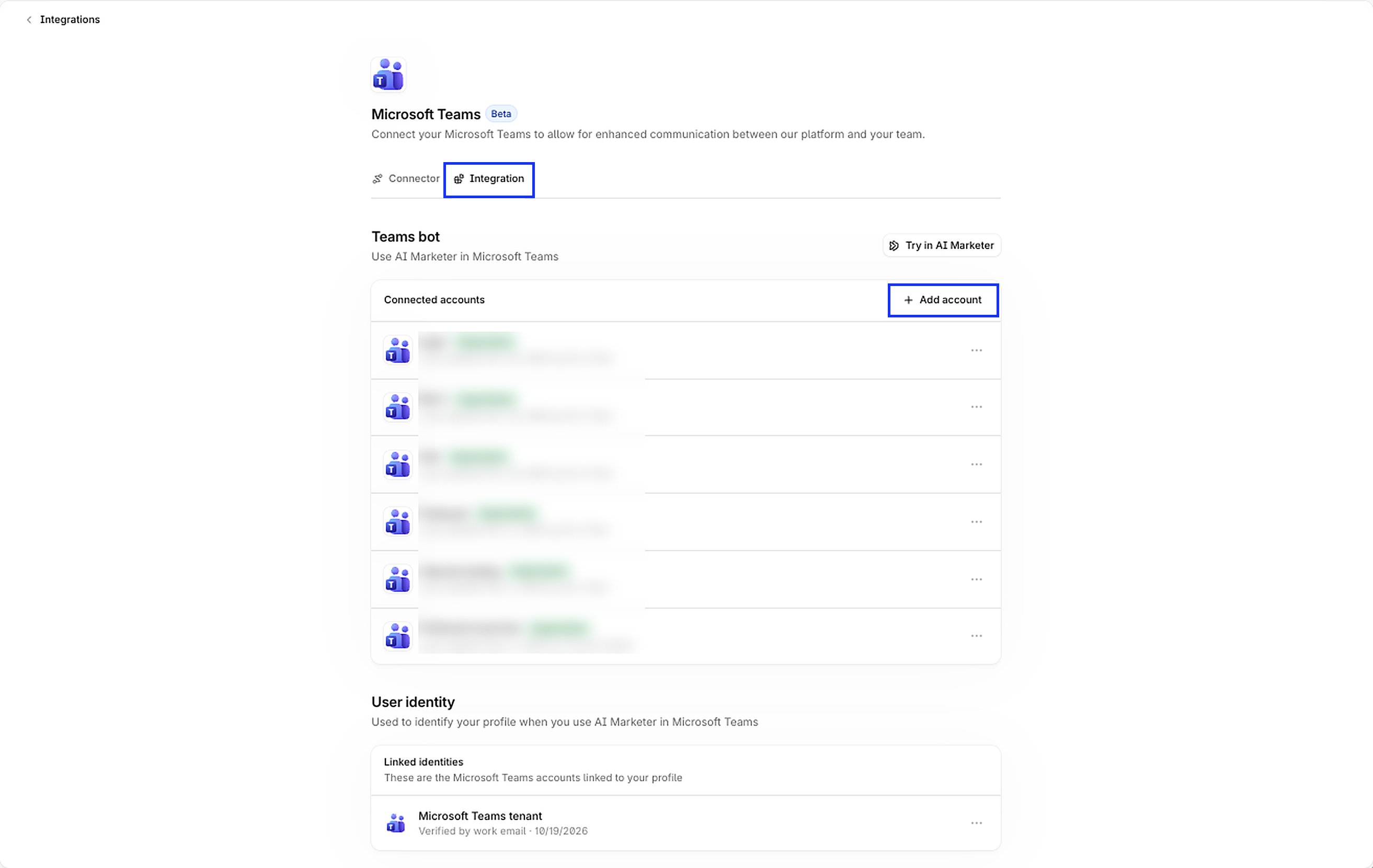
- In the Microsoft Teams integration view, open the Integration tab and select + Add account.
- In the pop-up window, Profound redirects you to Microsoft, where you pick an account and sign in.
-
Once done, follow Microsoft’s prompt to open Teams.
3
Open the Profound app and choose where to use it
-
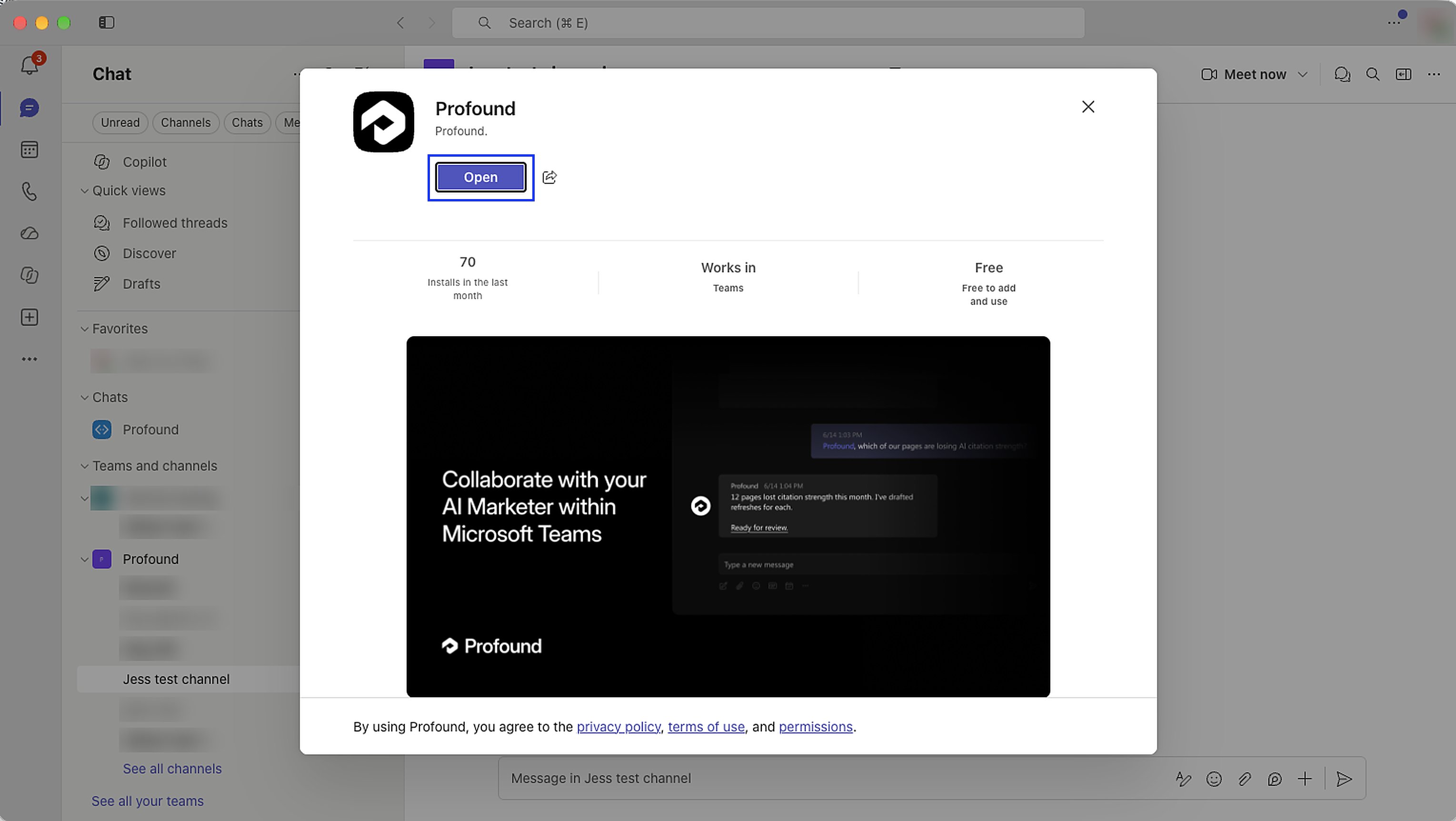
When Teams shows a pop-up asking to open the Profound app, select Open.
-
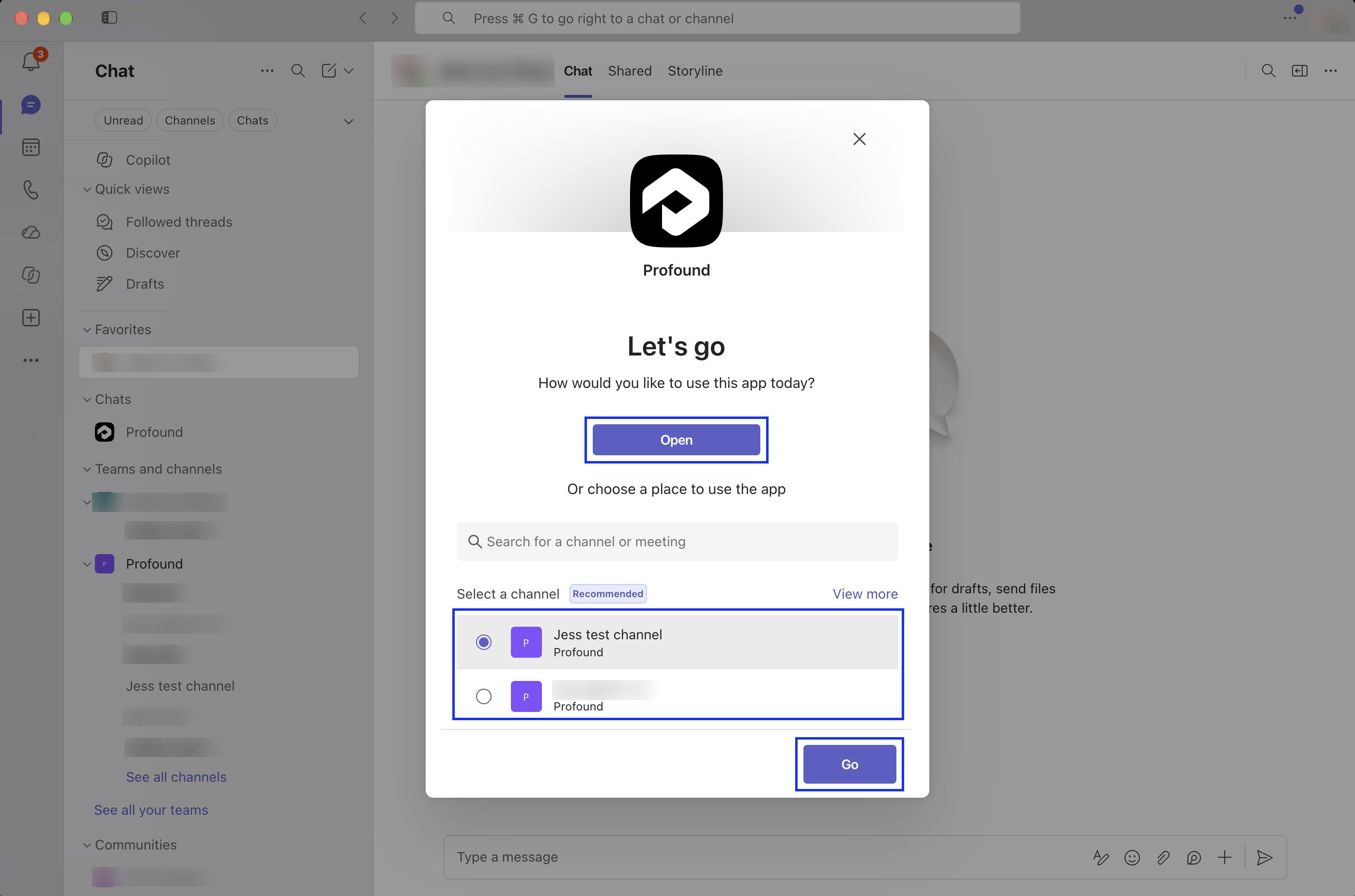
In the next pop-up, choose where you want to use the app:
- Select Open to chat with Aim in a 1:1 private chat.
-
Select a channel, then select Go to add Aim to that channel.
4
Ask Aim a question
Mention @Profound, select the Profound app from the list of suggestions, and ask a question, for example: “@Profound What’s our visibility over the last 7 days?”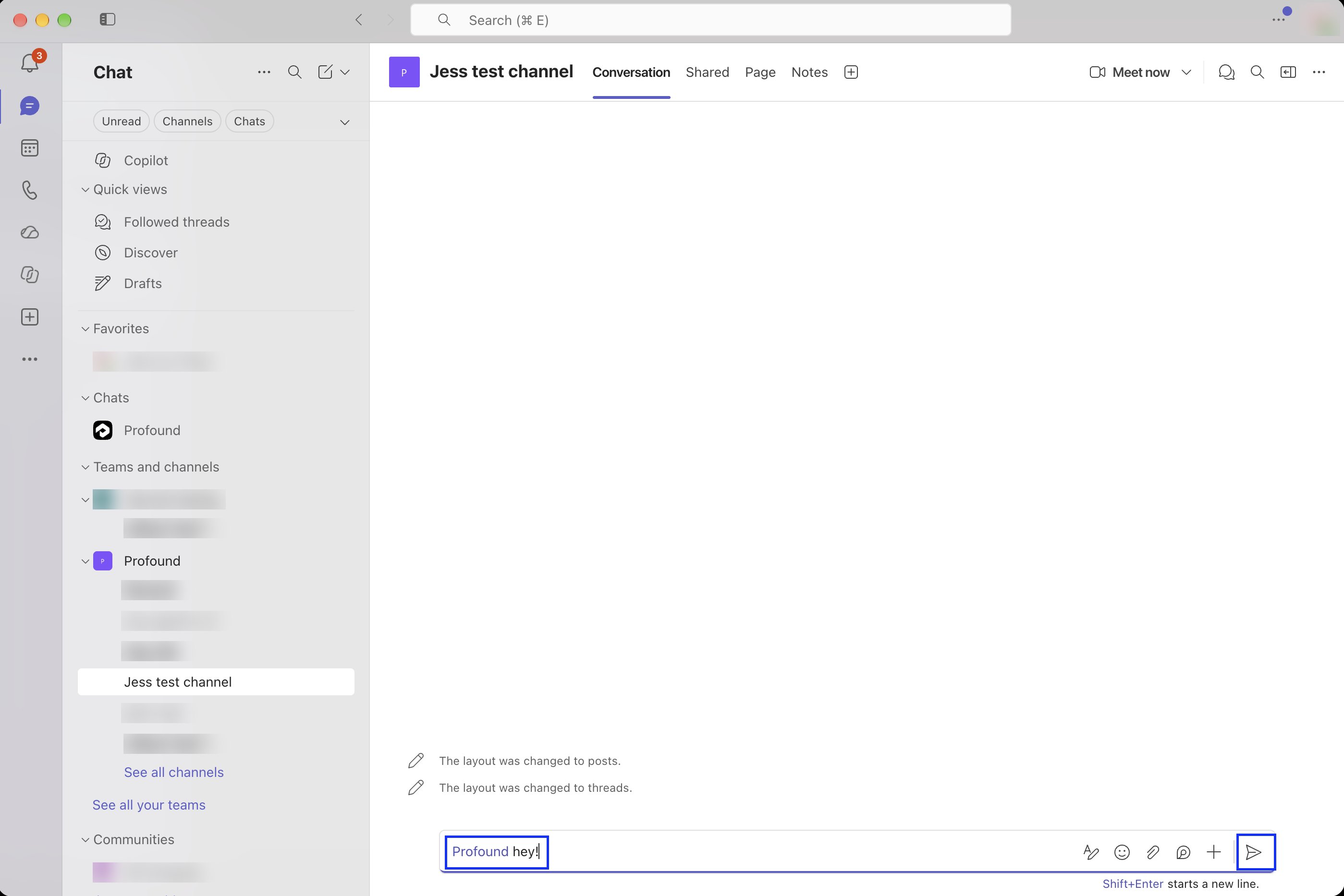
This setup connects one Microsoft Teams team. Repeat it for each team you want to connect.