

The tool names say agent, but they build and run Workflows, the node-based automations from the Workflow Builder. Agents built with AI Marketer (Aim) aren’t available through MCP yet.
How the tools work together
Run a Workflow
1
Find a Workflow
Ask which Workflows exist. The assistant browses the organization’s Workflows with
list_agents, or pre-built templates with list_agent_definition_templates.2
Inspect inputs
Ask what a Workflow needs to run. The assistant reads its
input_schema with get_agent before starting a run.3
Run the Workflow
Ask to run the Workflow. The assistant starts the run with
run_agent, passing inputs that match the Workflow’s input_schema.4
Check the results
Ask whether the run is done. The assistant checks the run state with
get_agent_run.Build a Workflow
1
Open a build session
Ask to build a Workflow. The assistant opens a build session with
start_agent_build_session and includes the returned agent_build_session_id in every later build call, so the whole build attempt is tracked as one session.2
Explore building blocks
The assistant assembles a workflow graph with
list_agent_node_types and get_agent_node_schema, or starts from a template with list_agent_definition_templates.3
Bind connected accounts
When the graph includes a node that runs on a connected account, the assistant fills that node’s
integration_id with an ID from list_integrations.4
Create or update a draft
The assistant previews the plan with
create_agent_definition or update_agent_definition, and saves the draft once you confirm.5
Validate
The assistant catches issues in the Workflow’s structure early with
validate_agent_definition and fixes them with update_agent_definition. This is a fast check before publishing the Workflow.6
Publish
Ask to make the Workflow live. The assistant previews the publish plan with
publish_agent_definition and applies it once you confirm.Use natural language when working with Claude
If you’re using Claude as the client, you can prompt it in natural language to build Workflows in one go, without making it step through various tools manually. Here’s an example prompt and a Workflow structure Claude may produce with it: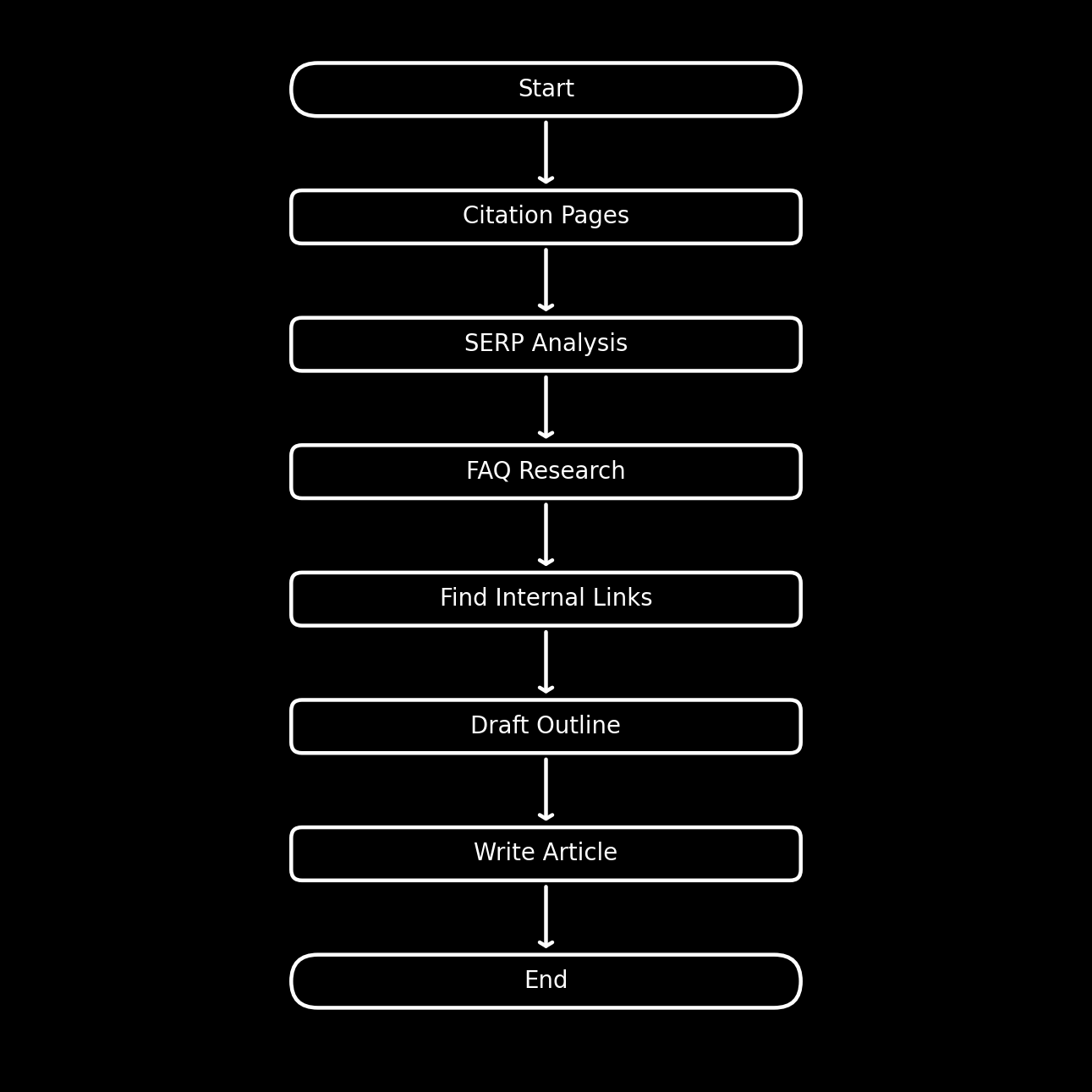
Behavior and safety
Workflow tools can create and update Workflow definitions and start Workflow runs. The create, update, and publish tools default to preview mode: the assistant receives a plan of the change first and applies it once you confirm.Workflow tools
list_agents
list_agents
Lists the Workflows defined in your organization.Example prompts:
- “Which Workflows do we have published?”
- “Show me our draft Workflows.”
get_agent
get_agent
Gets details of a specific Workflow, including its
input_schema. The assistant reads this before calling run_agent to confirm which inputs the Workflow expects.Example prompts:- “What inputs does the article writer Workflow need?”
- “What does the weekly report Workflow produce?”
run_agent
run_agent
Starts a Workflow run. Returns a run ID the assistant can use in
get_agent_run.Example prompts:- “Run the article writer Workflow on the topic ‘AI search trends’.”
- “Kick off the weekly report Workflow.”
Notes:
- Each key in
inputsis a property ID from the Workflow’sinput_schema. The human-readable label for each property lives in that property’stitle.
get_agent_run
get_agent_run
Gets the status and outputs of a previously started Workflow run. The assistant checks this repeatedly until the run ends, whether it succeeds or fails.Example prompts:
- “Is that Workflow run finished yet?”
- “What did the article writer Workflow produce?”
start_agent_build_session
start_agent_build_session
Opens a Workflow build session, the first step before building or revising a Workflow. The assistant calls it before any other build tool, then includes the returned
agent_build_session_id in every later build call.Example prompts:- “Build a Workflow that drafts AEO-optimized articles from our citation data.”
- “Let’s rework the weekly report Workflow.”
list_agent_node_types
list_agent_node_types
Lists the node types available for building a Workflow. Returns each type’s
node_type identifier, display name, and a one-line description. The assistant calls this after opening a build session, when assembling a new Workflow.Example prompts:- “What building blocks can the Workflow use?”
- “Is there a node that runs a web search?”
Notes:
third_partynodes run on an account your organization connects, such as WordPress or Slack.platform_keynodes run on an external research vendor Profound has an agreement with, such as Exa or Perplexity, so there’s nothing for you to connect.nativenodes are Profound’s own: the structural nodes, such asllmandcode, and theprofound_*nodes that read your Profound data.
get_agent_node_schema
get_agent_node_schema
Gets the configuration schema and examples for a specific node type. The assistant uses the returned schema to fill a node’s
config correctly when building or editing a Workflow.Example prompts:- “How is the LLM node configured?”
- “What settings does the code node take?”
list_integrations
list_integrations
Lists the integrations your organization has connected and made available to Workflows. Returns an
integration_id for each connection, which the assistant uses for integration nodes before publishing the Workflow.Example prompts:- “Which integrations can I use in my Workflow?”
- “Is our WordPress connected, so the Workflow can publish to it?”
Notes:
- The tool returns only active connections.
- Each connection returns
integration_id,provider,account,label,status, andlevel, which isorgoruser. - If you have several connections from the same integration provider (for example, two different WordPress sites for a blog and for documentation), the
accountfield tells the connections apart. - Google Docs, Google Slides, and Google Sheets use the organization’s Google Drive connection, so a returned
google_driveconnection covers nodes from all three. Gmail and Google Search Console each have a connection of their own.
list_agent_definition_templates
list_agent_definition_templates
Browses the public catalog of pre-built Workflow templates. Each template includes a plain-language goal, the inputs it needs, what it produces, and a skeleton workflow to use as a starting point. The assistant calls this before building a new Workflow from scratch.Example prompts:
- “What Workflow templates can we start from?”
- “Is there a template for a content refresh workflow?”
get_agent_definition
get_agent_definition
Reads a Workflow’s definition graph in the same format that
create_agent_definition and update_agent_definition accept. The assistant uses this when copying an existing Workflow or inspecting a node type you want to replicate.Example prompts:- “Show me how the article writer Workflow is built.”
- “Copy the weekly report Workflow as a starting point for a new one.”
create_agent_definition
create_agent_definition
Creates a new draft Workflow definition. The preview returns a plain-language plan and workflow diagram without saving anything, and the assistant saves the draft once you confirm.Example prompts:
- “Save that workflow as a draft Workflow.”
- “Create the Workflow we just designed.”
update_agent_definition
update_agent_definition
Updates an existing draft Workflow definition. The assistant uses this tool to fix validation issues after
create_agent_definition or to iterate on a saved draft. Displays the preview first and applies it after you confirm.Example prompts:- “Fix the validation issues and update the draft.”
- “Add a web search step to the draft Workflow.”
validate_agent_definition
validate_agent_definition
Checks whether a saved draft Workflow definition is valid. Returns
valid (boolean), issues (list of actionable errors), and, when the draft is publishable, the input_schema and output_schema the Workflow exposes once live.Example prompts:- “Check whether the draft Workflow is publishable.”
- “Anything wrong with the Workflow before we publish it?”
Notes:
- A draft Workflow can’t be run, so this is the only check available before you publish.
- The check covers the Workflow’s structure only, so a draft that passes it can still be rejected when you publish. Publishing applies the stricter check.
- The check also reports a required field that’s set but unusable, such as an empty
integration_idon a node that runs on a connected account, or a missingdata.category_idon a node that reads Profound data. Publishing allows both, so a Workflow published with either one unresolved fails when it runs. - If the check reveals any issues, the assistant fixes them with
update_agent_definition.
publish_agent_definition
publish_agent_definition
Publishes a Workflow definition so it goes live and is visible across the organization. Displays the preview first and applies it after you confirm.Example prompts:
- “Publish the Workflow so the team can use it.”
- “Make the article writer Workflow live.”
Notes:
- Publishing checks the Workflow’s structure and output wiring before anything changes, so a draft with structural problems is rejected and stays a draft. This check is stricter than the one
validate_agent_definitionruns. - Publishing doesn’t check what the Workflow needs in order to run. A Workflow missing a node’s
integration_idordata.category_idpublishes and then fails when it runs, so resolve both before you publish.