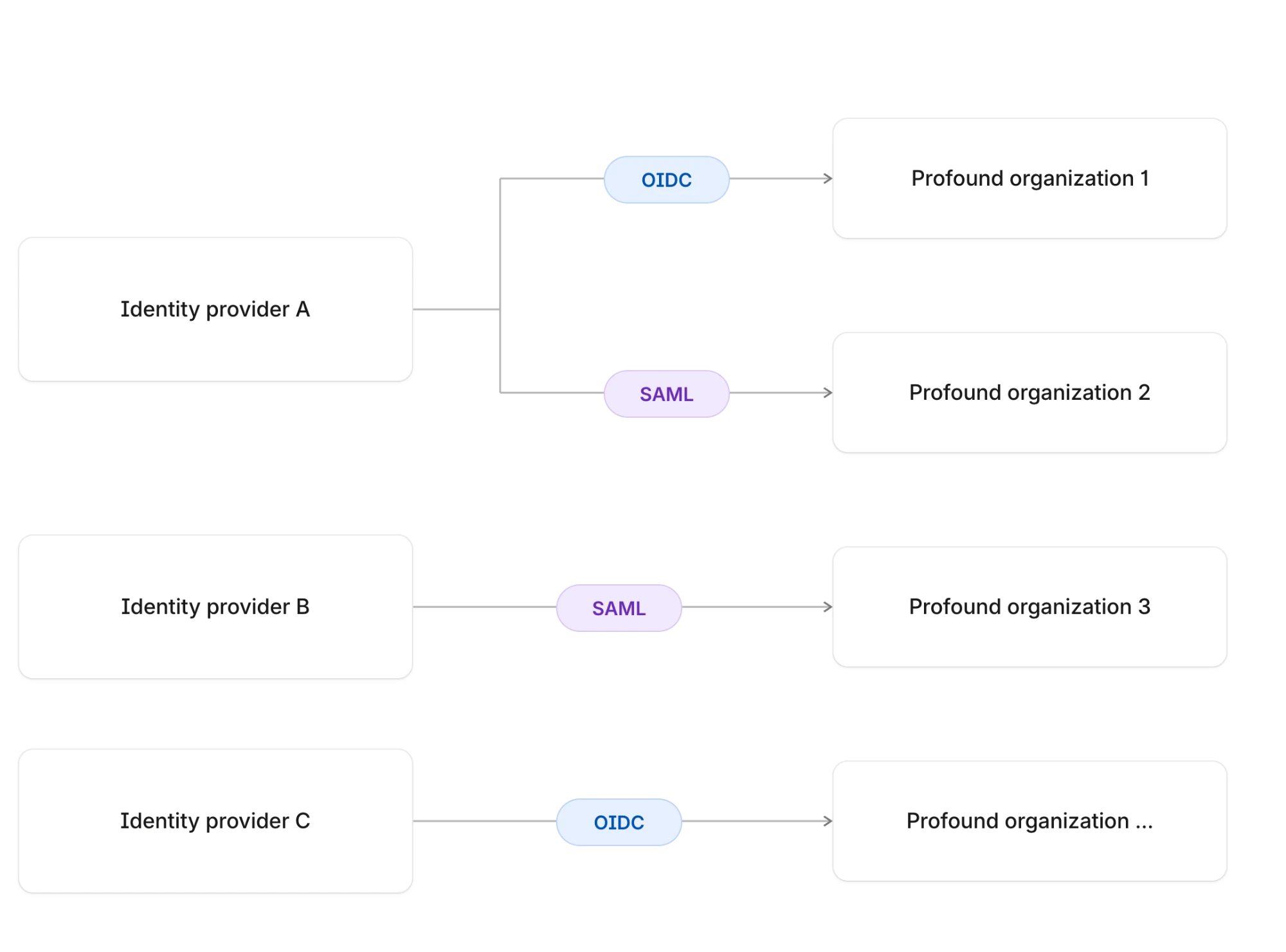
SSO is configured per organization. Each organization needs its own SSO connection, which means its own verified domain and its own Profound application in your IdP. Users who belong to several organizations typically see one Profound tile per organization in their IdP, and sign in to each organization through its own connection.You can use the same domain for the SSO connections of several organizations. Before you set up SSO for a second organization on a domain that’s already verified for another one, contact customer support: Profound needs to adjust settings on its side first. You can also use different protocols for each connection, even with the same identity provider.Diagram showing that each Profound organization has its own SSO connection: identity provider A connects to organization 1 over OIDC and to organization 2 over SAML, while identity providers B and C each connect to a further organizationTo set up each organization’s SSO connection, follow the steps in Configure SSO or, if you’re using a custom authorization server, see Configure SSO with a custom OIDC connection.To add people to the correct organization through the correct SSO connection, invite them from the People page in that organization’s settings.
The SSO configuration portal generates them for your organization. Profound doesn’t publish fixed connection values, and you don’t need to request them from support.To get them, open Settings > Organization > Enterprise Setup and select Configure SSO. After you verify your domain and select your identity provider (IdP), the portal shows the values to copy into your IdP:
  • Security Assertion Markup Language (SAML): the ACS URL, Service Provider Entity ID, and Metadata URL
  • OpenID Connect (OIDC): the Authorized Redirect URI
The values are generated per SSO connection and don’t appear anywhere else in Profound. See Step 4 of Configure SSO.
Domain verification and IdP configuration are separate steps. The DNS TXT record proves that your organization owns the email domain your users sign in with. You connect your IdP in the next step, after the domain is verified.The DNS instructions in the portal name the provider that hosts your domain’s DNS records, such as Cloudflare or AWS Route 53. That provider isn’t your IdP, and seeing it there doesn’t mean your IdP selection is wrong. See Domain verification for SSO.
Verify whichever domain appears after the @ in your users’ email addresses, whether that’s a root domain or a subdomain. If your team signs in with name@example.com, verify example.com. If they sign in with name@mail.example.com, verify mail.example.com. A different domain, such as a separate challenge domain set up only for the verification, can’t stand in for it.Verifying a root domain doesn’t cover its subdomains, and verifying a subdomain doesn’t cover the root domain, so verify each domain your users sign in with. Once verified, your SSO connection covers it like any other verified domain. See Verify multiple domains.
Yes. Domains are verified for your organization, and your organization’s SSO connection covers every verified domain. Verify each domain your users sign in with, and Profound directs users on any of them to your IdP.To add a domain, open Settings > Organization > Enterprise Setup and select Add domain on the Single Sign-On card. The portal opens on the domain verification step. Each domain gets its own TXT record, so add every record to the domain it was issued for. See Verify multiple domains.
It depends on their email domain.
  • Users whose email domain is one of your verified domains go straight to your IdP. Enabling SSO turns off password sign-in for them. To allow password sign-in alongside SSO for these users, for example during a rollout, contact customer support.
  • Users on other domains, such as agency or contractor accounts, keep signing in with an email address and password.
See Sign-in when SSO is enabled. If you use Directory Sync, learn how to keep adding external users alongside your directory.
Users on your verified domains sign in only through your IdP, so they can’t sign in to Profound until your IdP is back. There’s no separate emergency password for admins.If the outage lasts, contact customer support. Profound can turn off SSO enforcement for your organization so your users sign in with email and password, and turn it back on when your IdP recovers. Users who have only ever signed in through SSO have no password yet and set one with Forgot password? on the sign-in page.
Not currently. Roles and category access are managed in Profound. Members provisioned through Directory Sync start with the Member role, and Admins change roles and category access in Profound afterwards.
SSO handles sign-in only. It doesn’t add users to your organization on its own, so a user needs to be a member or have a pending invitation before they can sign in through your IdP.To stop inviting users manually, set up Directory Sync (SCIM). It provisions everyone your IdP assigns to Profound and removes access when your IdP unassigns or deactivates them. SSO and Directory Sync are independent: enable either one or both. With both enabled, new members sign in directly through your IdP and no invitation email is sent.
No. Testing happens in your own Profound organization, and no separate test organization is needed.The setup is safe to trial in production:
  • Your team keeps signing in as usual until you enable SSO in the last step of the setup.
  • The portal’s test sign-in only affects the account you test with, and you can run it as many times as you need.
  • You can exit the portal and come back anytime, and you can select Reset Connection to start over.
Profound supports both. Use whichever protocol your IdP and IT team prefer: the portal’s instructions cover both, and the setup steps are otherwise the same.To switch protocols or IdPs, select Reset Connection in the SSO configuration portal and follow the prompts, then start the IdP step again with the new choice. Do this before you enable SSO, so your team’s sign-in isn’t affected.If your users authenticate through an authorization server you run yourself, such as an Okta custom authorization server, use the custom OIDC option. See Configure SSO with a custom OIDC connection.
Yes, in your IdP. With SSO, your IdP authenticates the user and Profound accepts the result. Profound doesn’t configure, enforce, or verify multi-factor authentication (MFA), managed-device requirements, network or location restrictions, or password rules for SSO users, so set them up in your IdP.MFA isn’t available for password sign-in in Profound. See Controls your identity provider handles.