The Iteration node loops through a list within an Agent, executing the same sequence of steps for each item automatically.By default, an Agent processes a single input and produces a single output. The Iteration node extends this by applying the same process across an entire list, taking multiple inputs and producing multiple outputs within a single Agent run.Use an Iteration node when an Agent must perform a repeated action across multiple values, such as running an LLM prompt for each item in a list of keywords or URLs. Examples include:
Analyzing a list of URLs to identify common themes in their content and structure, then optimizing an owned piece of content accordingly.
Collecting prompt responses across multiple answer engines, regions, or topics and conducting bulk analysis on brand and product mentions to surface trends.
Iterating over a list of Reddit threads to generate a clean report on top narratives and recurring themes.
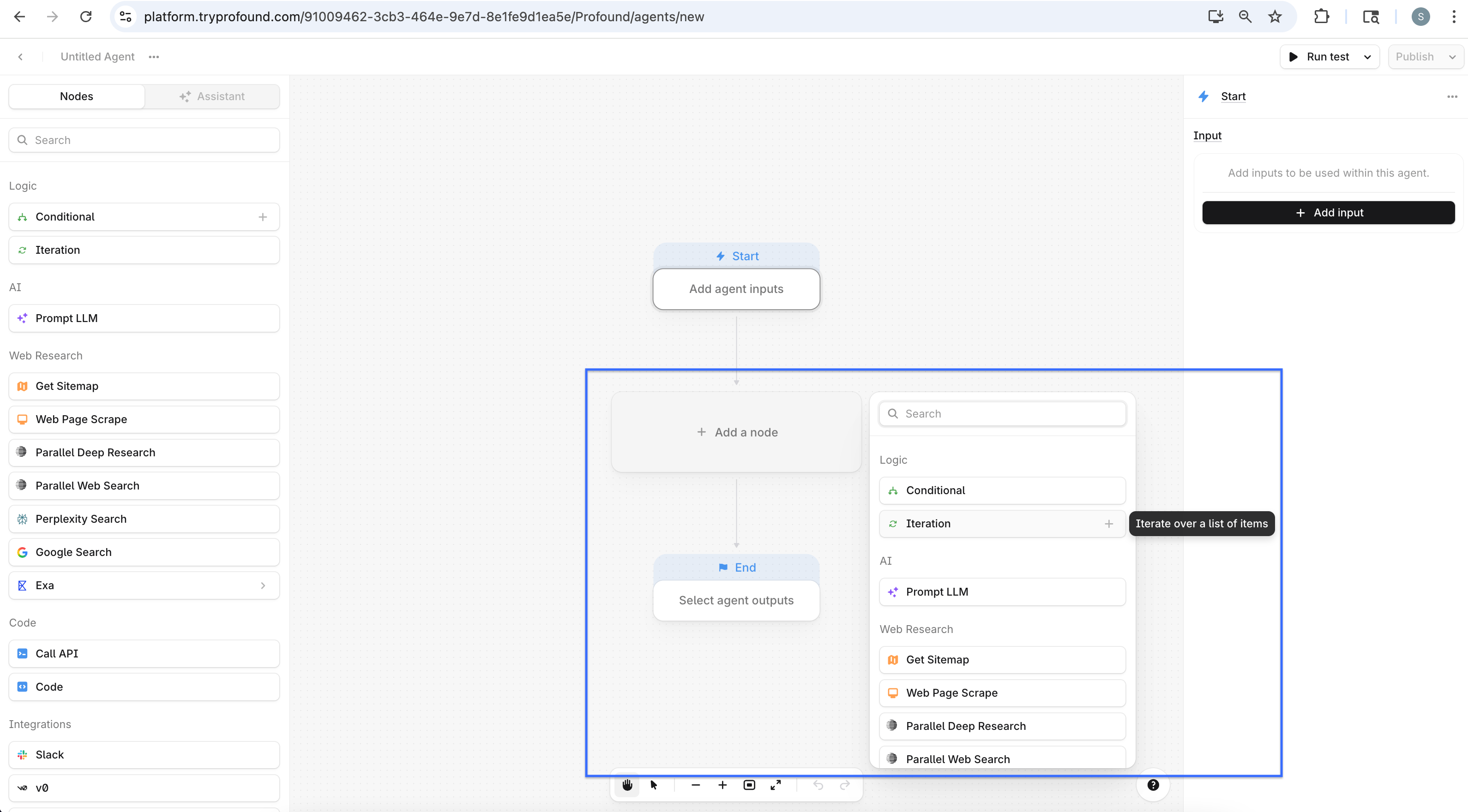
lick the + icon in the Agent Editor and select Iteration. Alternatively, drag Iteration from the node selection menu into the workflow.Iterations require a list of items as the input. The node loops through each item sequentially, passing the current item as a variable to the steps inside the loop.
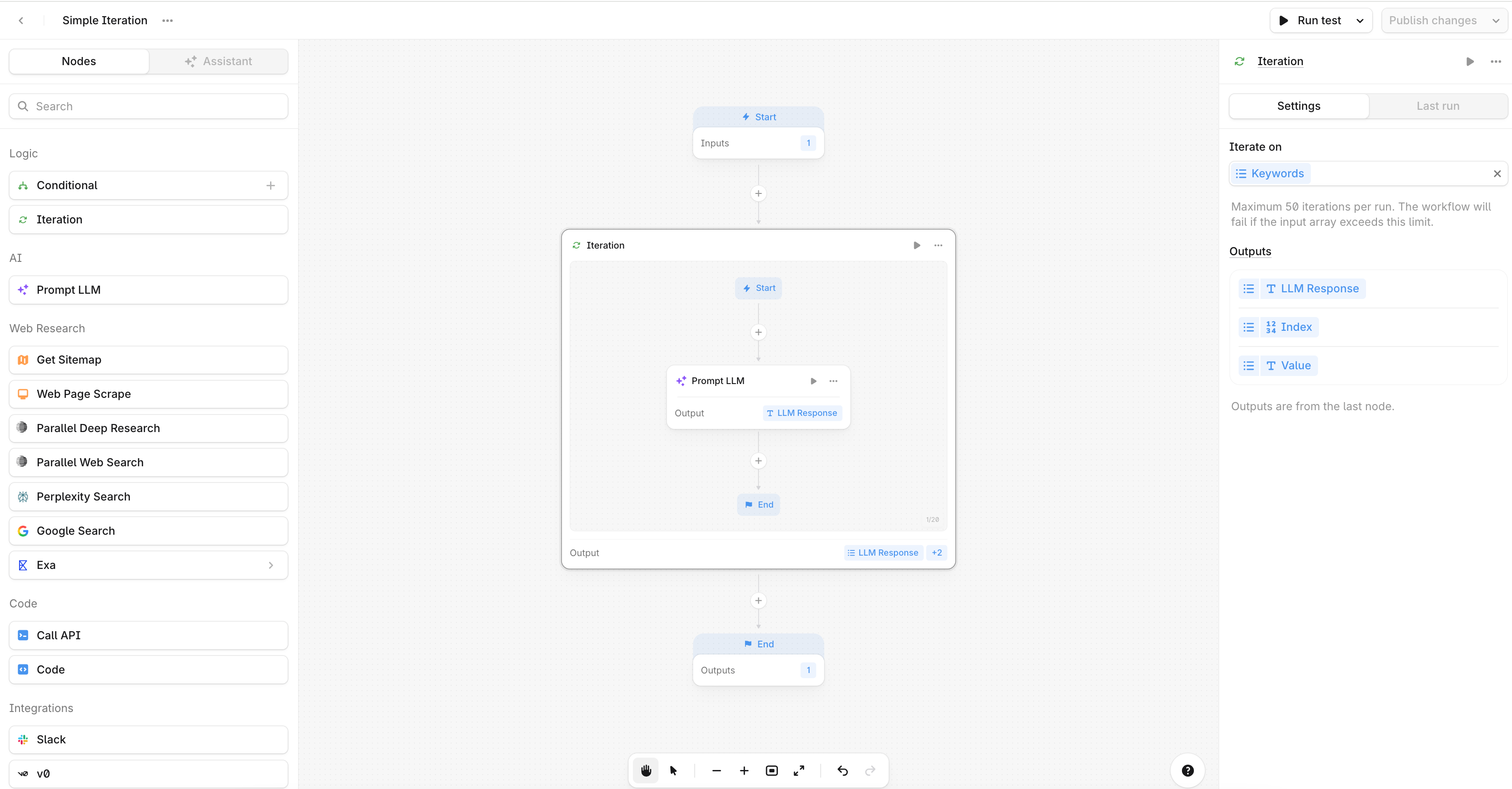
Configuring an Iteration node requires two things: passing in a list, and building the steps that execute on each iteration. The node contains its own self-contained editor, modeled after the broader Agent builder.
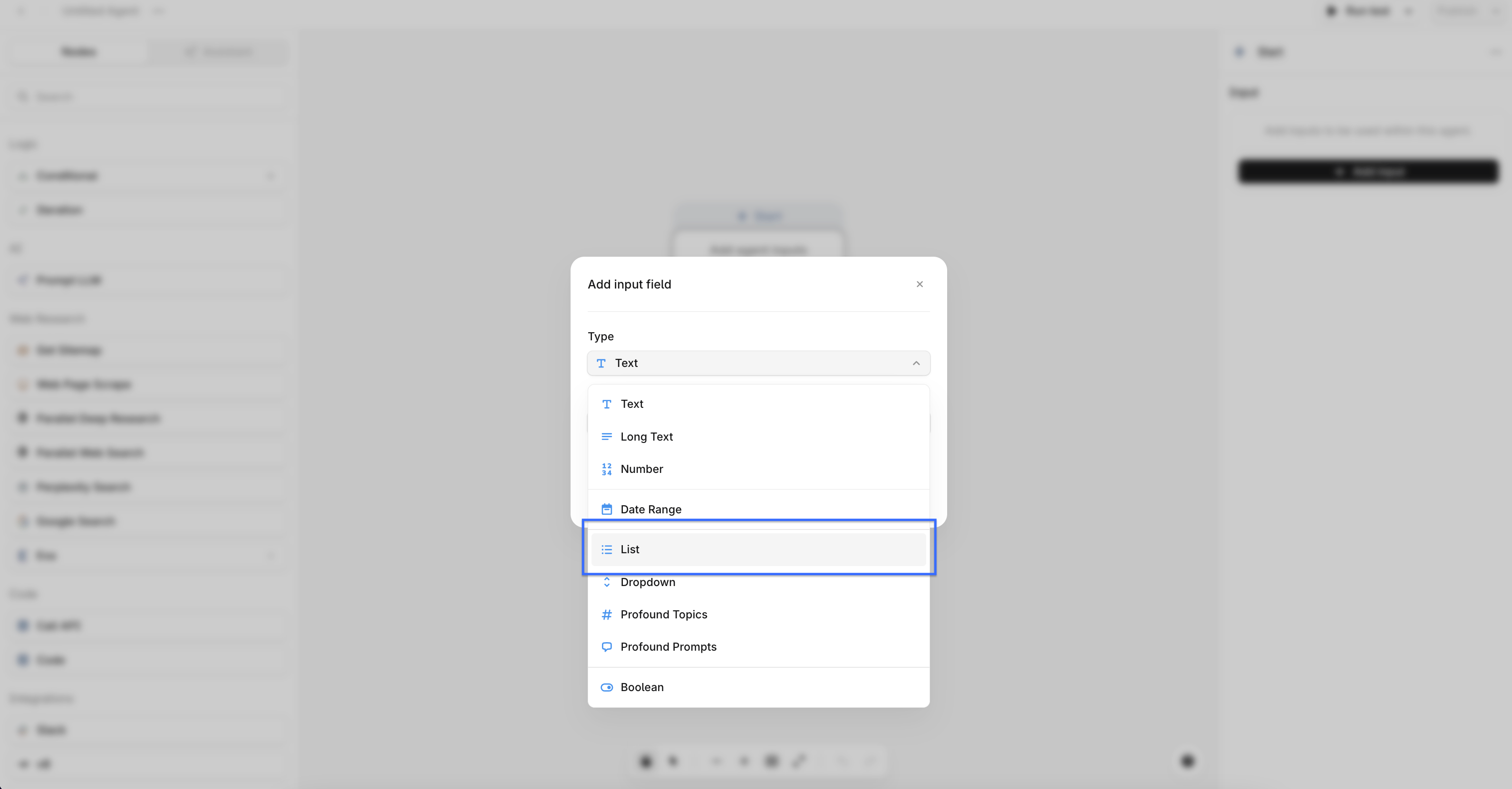
An Iteration node requires a list as your Agent input. To configure a list input, select the input node, add a new input, and choose List from the dropdown.
Click the node to open the node settings menu, then select the list input as the value to iterate on.The output of an Iteration node defaults to the outputs of the last node within it.
Add nodes to the Iteration node the same way you add nodes to the Agent editor. Click the + icon in the Iteration editor and select a node, or drag a node in from the node selection menu.
Each step repeats for every item in the list. Place any node that should run only once outside the Iteration editor.
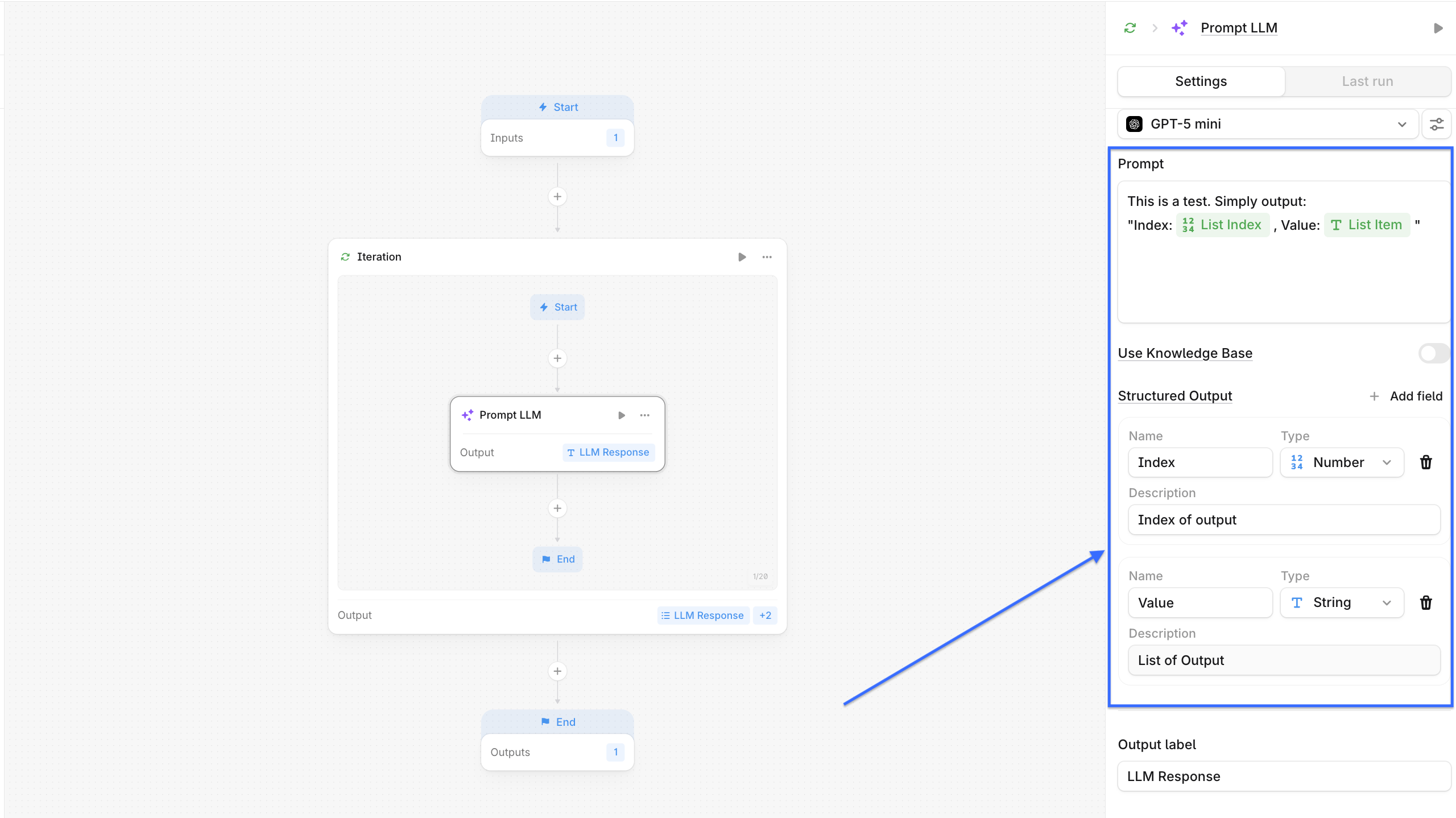
Add output fields to map your final results when using the Prompt LLM node. In your LLM prompt, specify what information should populate each field, for example, “Return each URL in theurlsoutput field.” Then add those same fields as structured output fields in the node settings.