

Before you start
You’ll need:- A ChatGPT account on a plan that supports developer mode. Learn more in the OpenAI developer mode documentation
- A Profound account
Setup guide
1
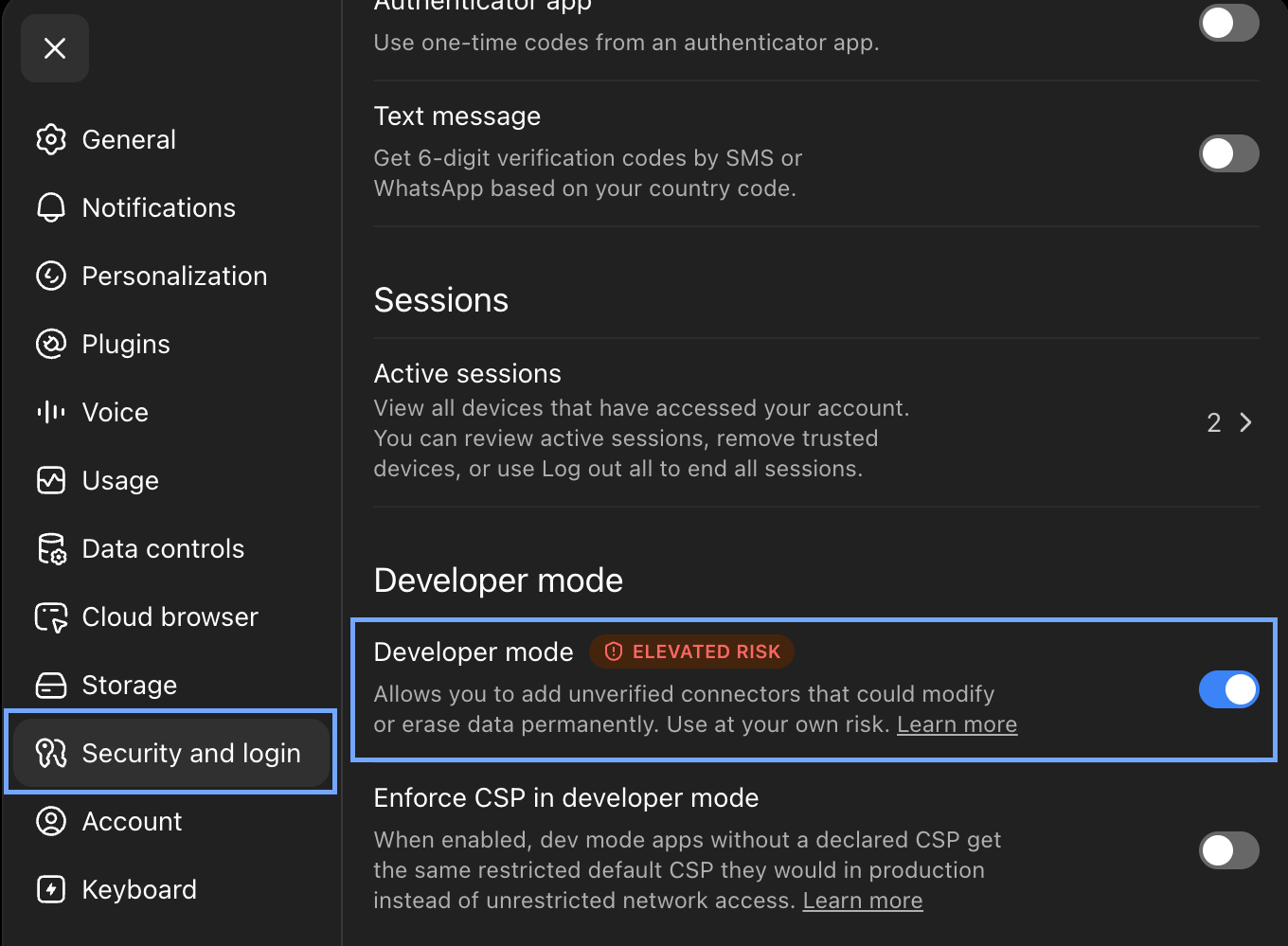
Turn on developer mode
In ChatGPT, open your account menu in the lower-left corner of the screen, and select Settings.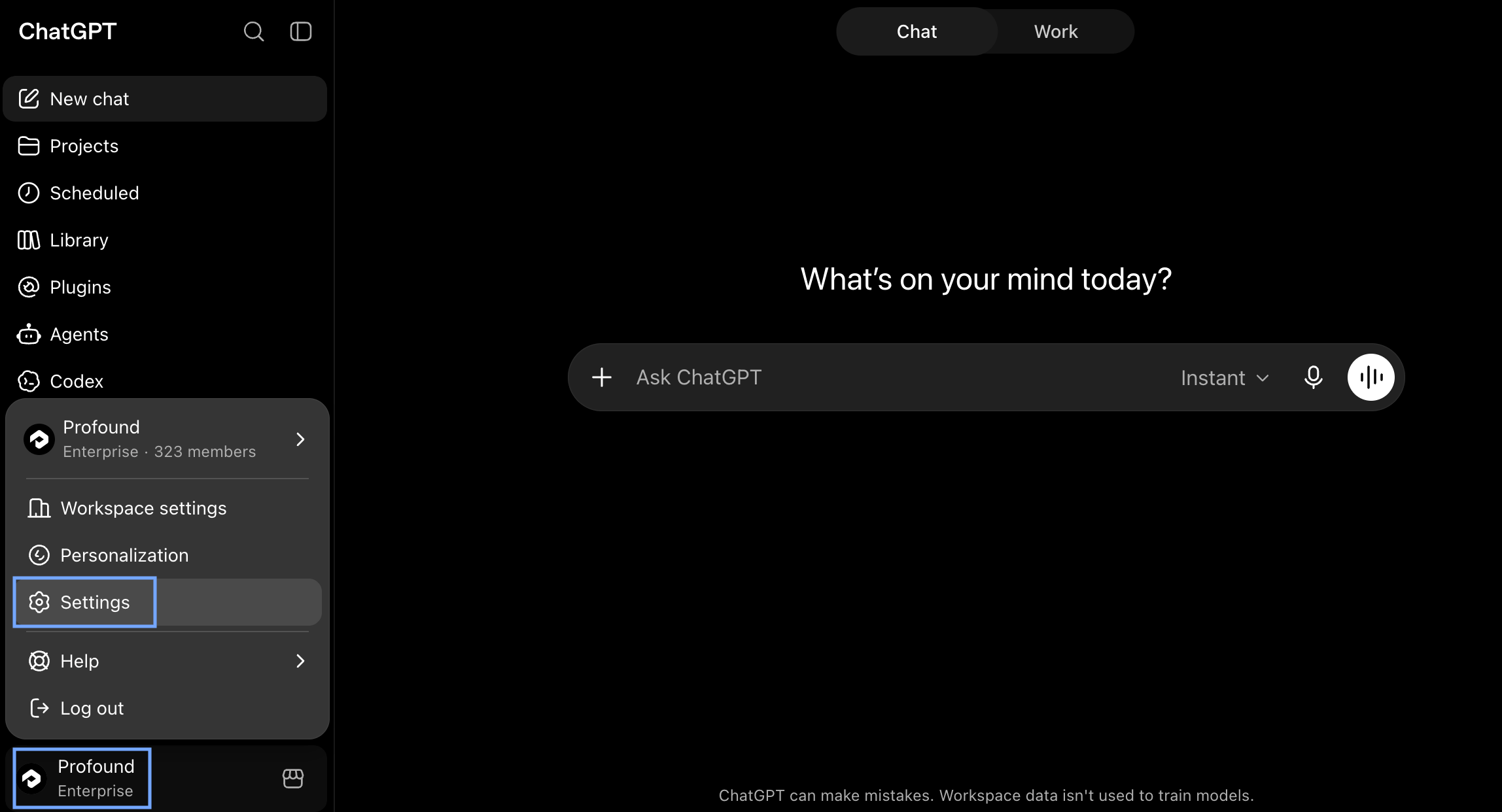
2
Create the Profound plugin
Go to the ChatGPT Plugins page and select +.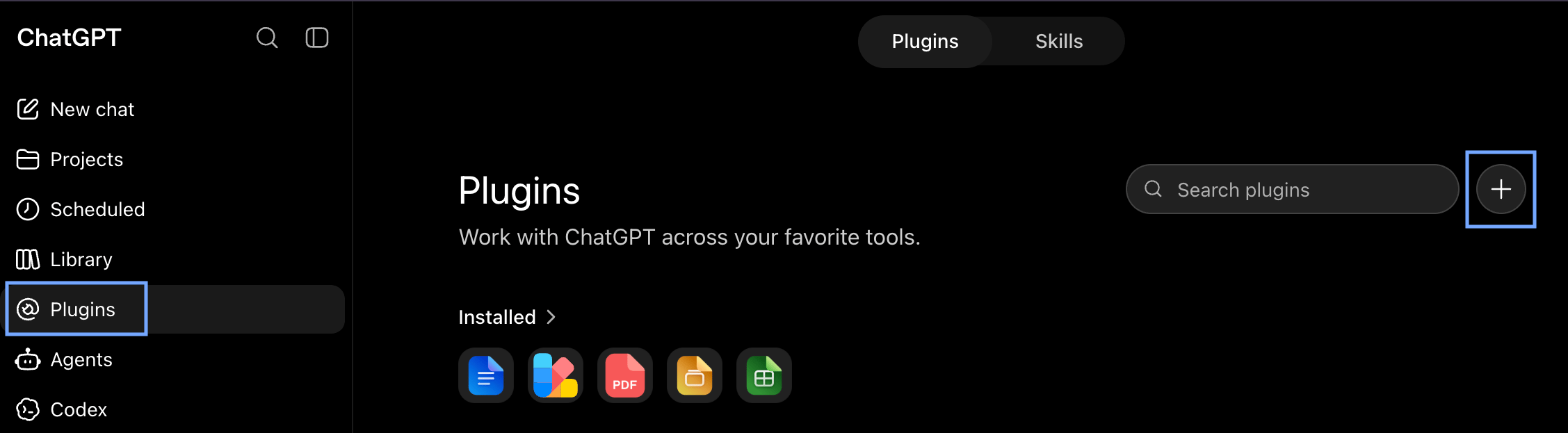
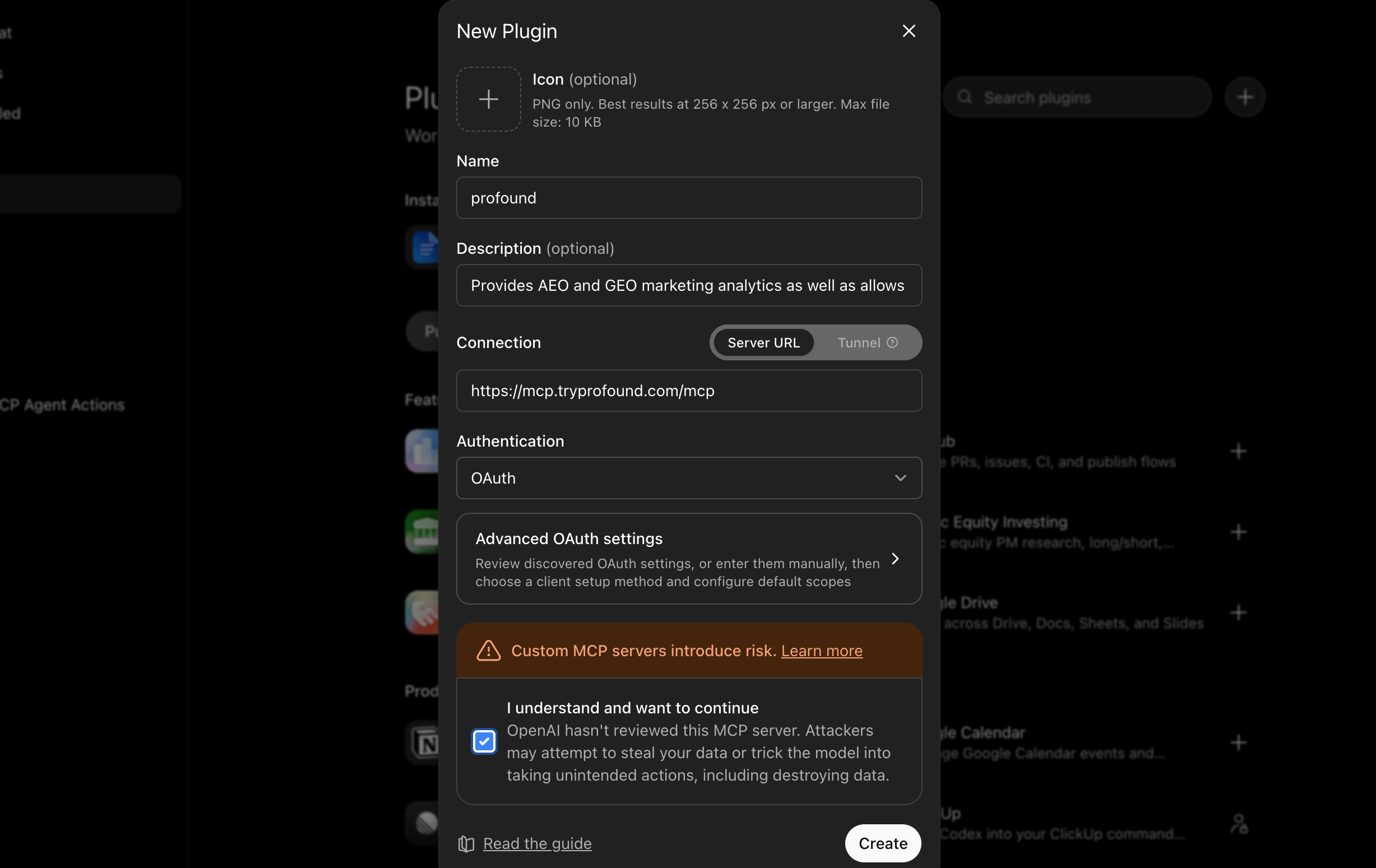
- Name: profound
- Description: Provides AEO and GEO marketing analytics and allows agents to operate the Profound platform.
-
MCP server URL:
https://mcp.tryprofound.com/mcp -
Authentication: OAuth
3
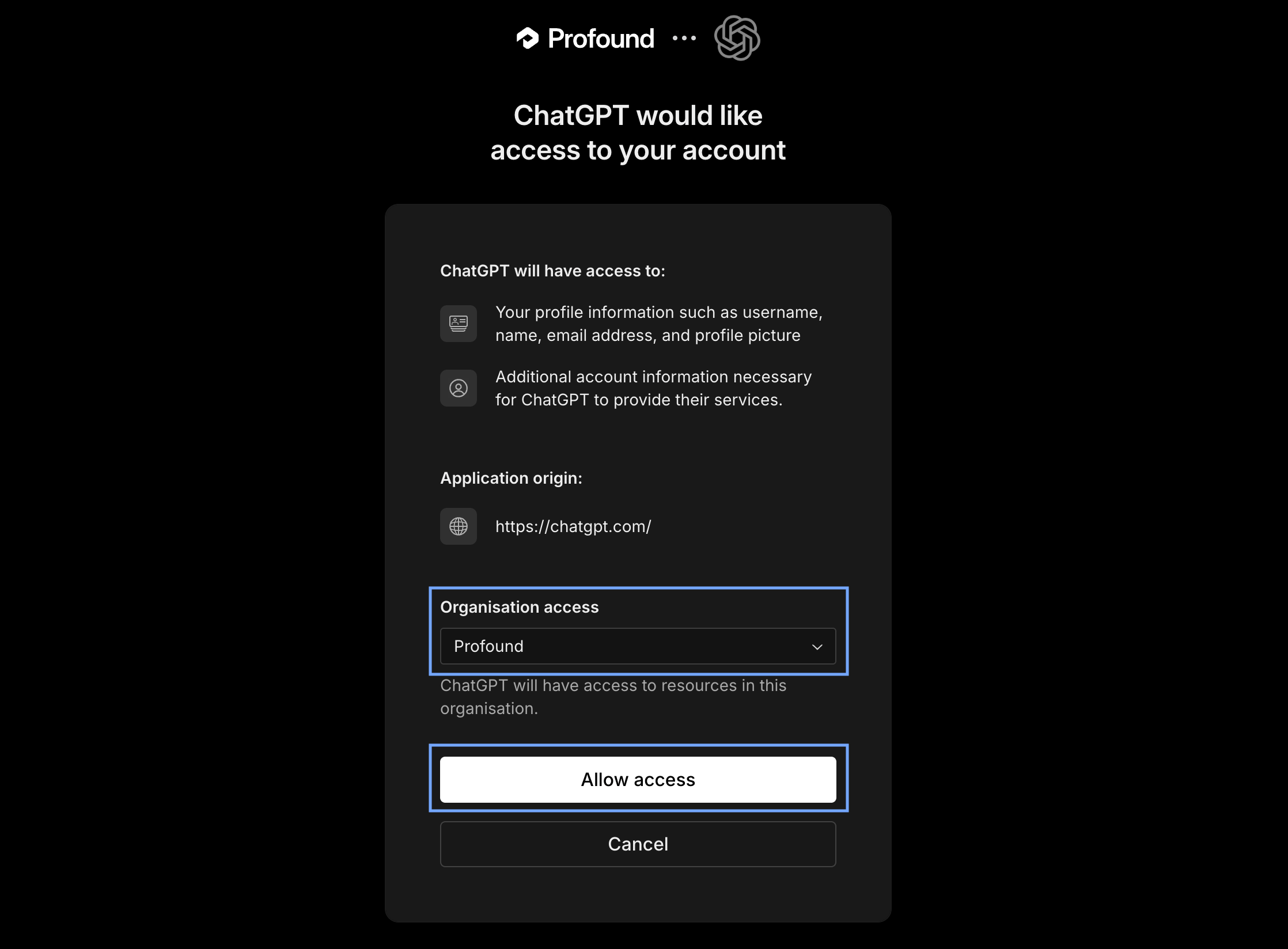
Authenticate with Profound
Profound uses OAuth 2.0. Complete the flow with your Profound account.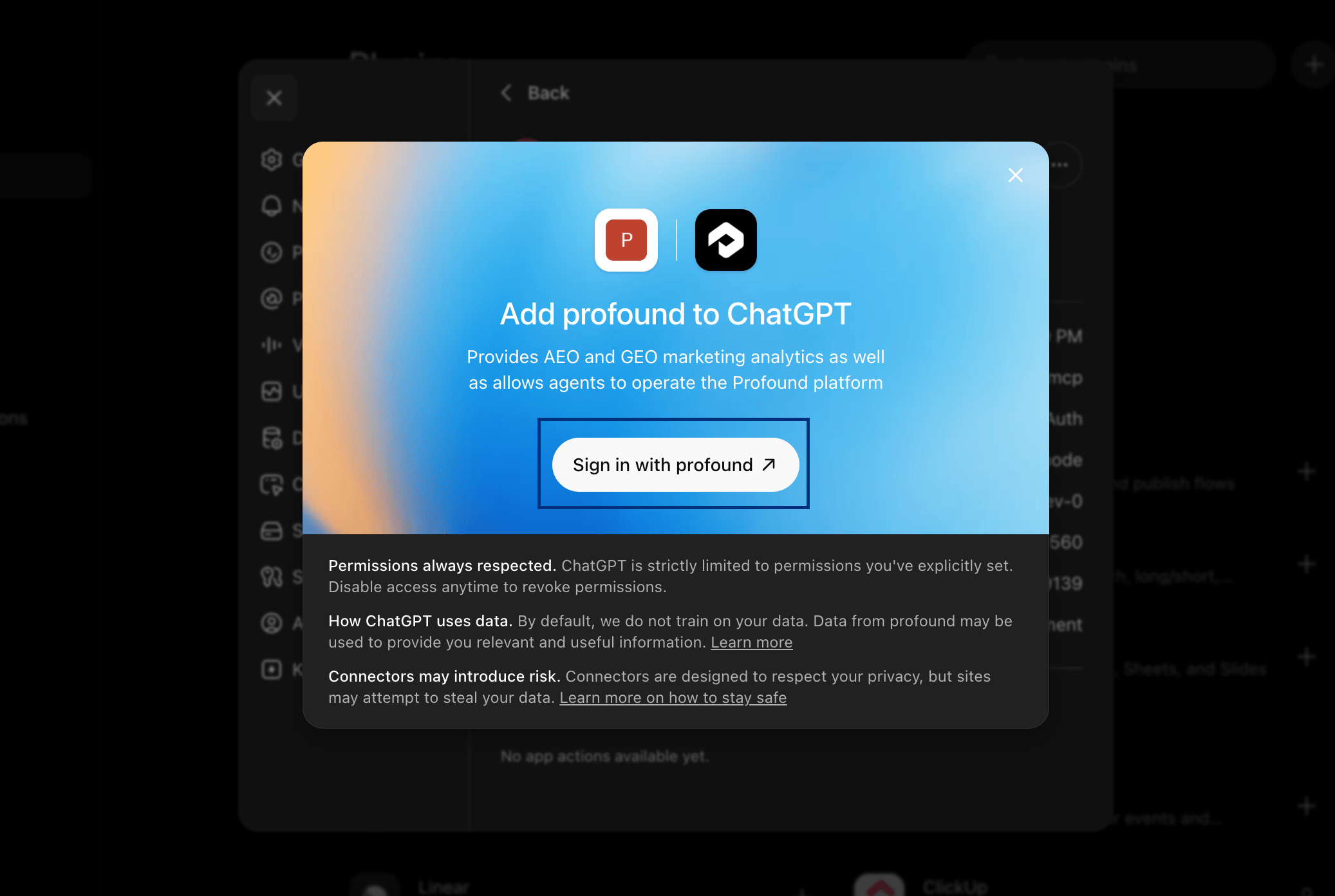
4
Install the plugin
After you configure the Profound plugin, it appears among the available plugins in Plugins > Personal in ChatGPT.Select the plugin, then select Install on the plugin page.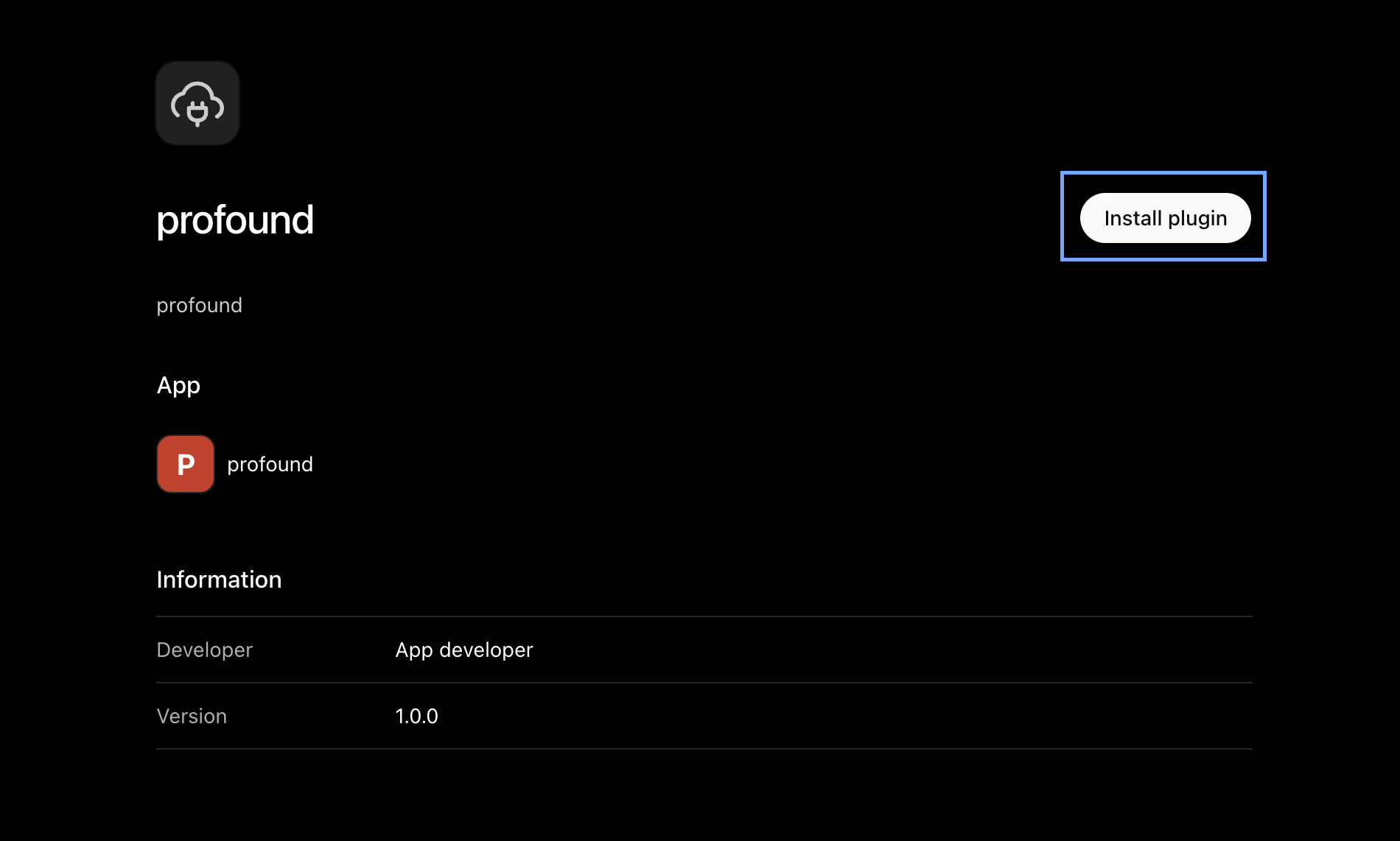
5
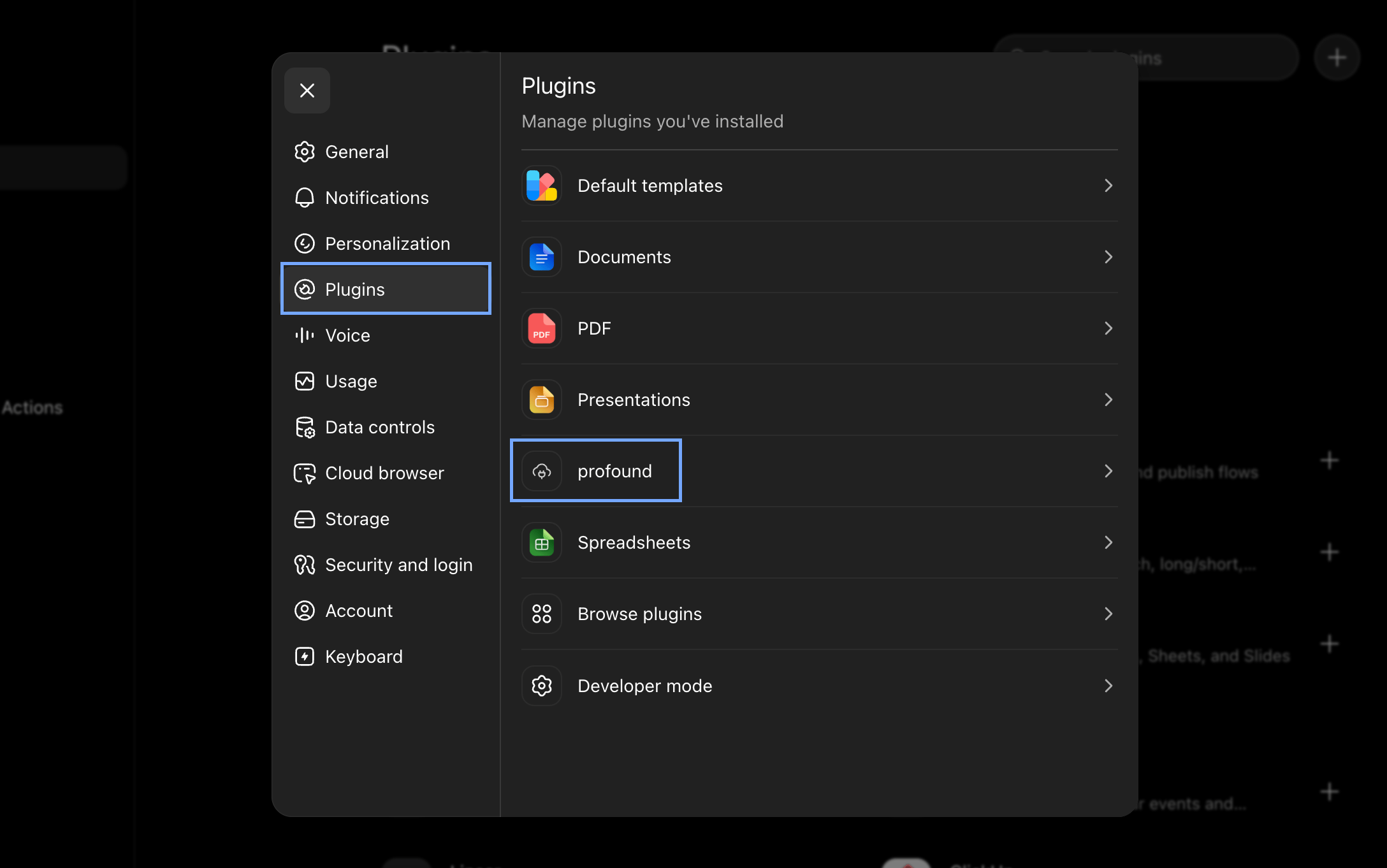
Verify the connection
- Open Settings > Plugins.
- Confirm that profound appears in your list of installed plugins.
Troubleshooting
If the plugin fails to create or ChatGPT can’t reach Profound:- Remove the plugin and add it again as instructed in Step 2.
- If authentication fails, sign out of Profound in your browser, sign back in, and retry.