

Before you start
You’ll need:- Access to WRITER AI Studio
- A Profound account
Setup guide
1
Open Connectors & Tools
In WRITER AI Studio, go to Connectors & Tools > Connectors in the left sidebar and select + Custom connector.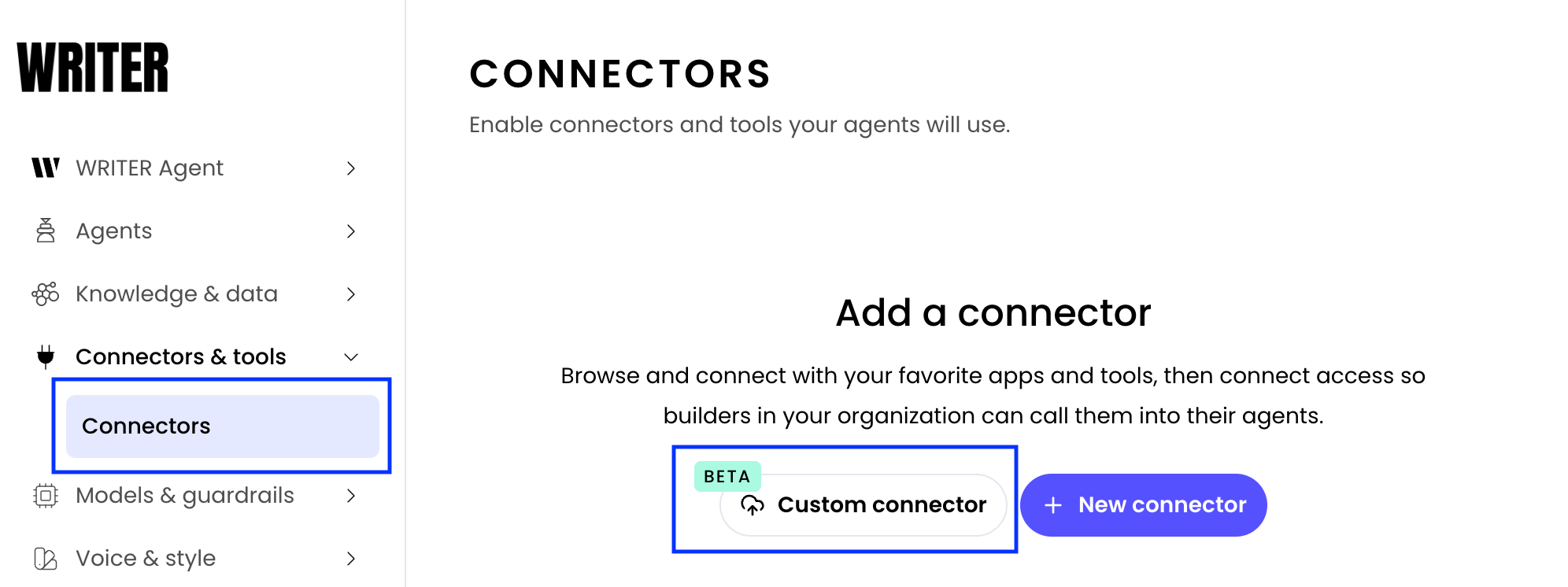
2
Choose the connector type
When prompted to choose a connector type, select Connect to an MCP server and enter the Profound server URL: 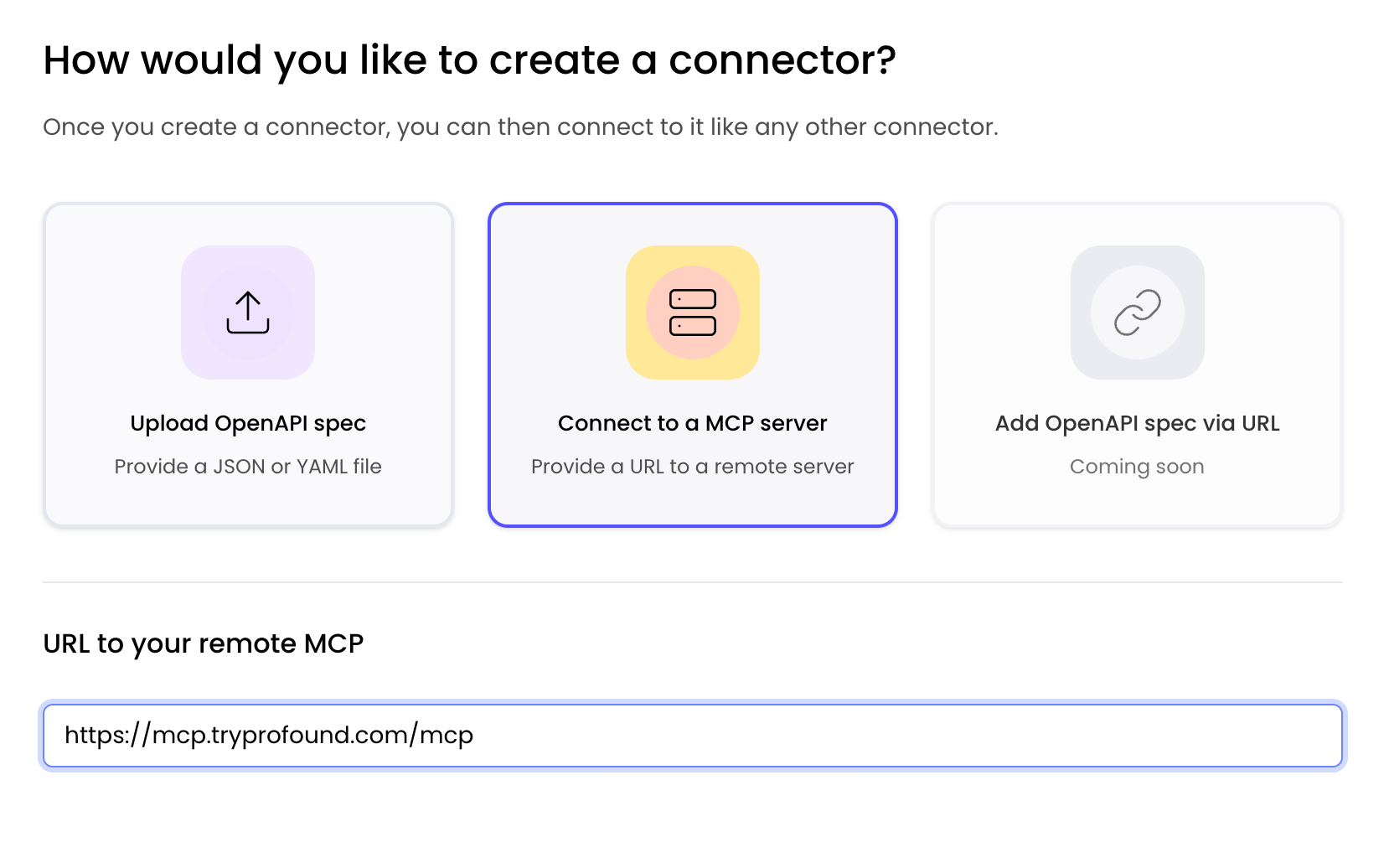
https://mcp.tryprofound.com/mcp.3
Enter the Profound connector details
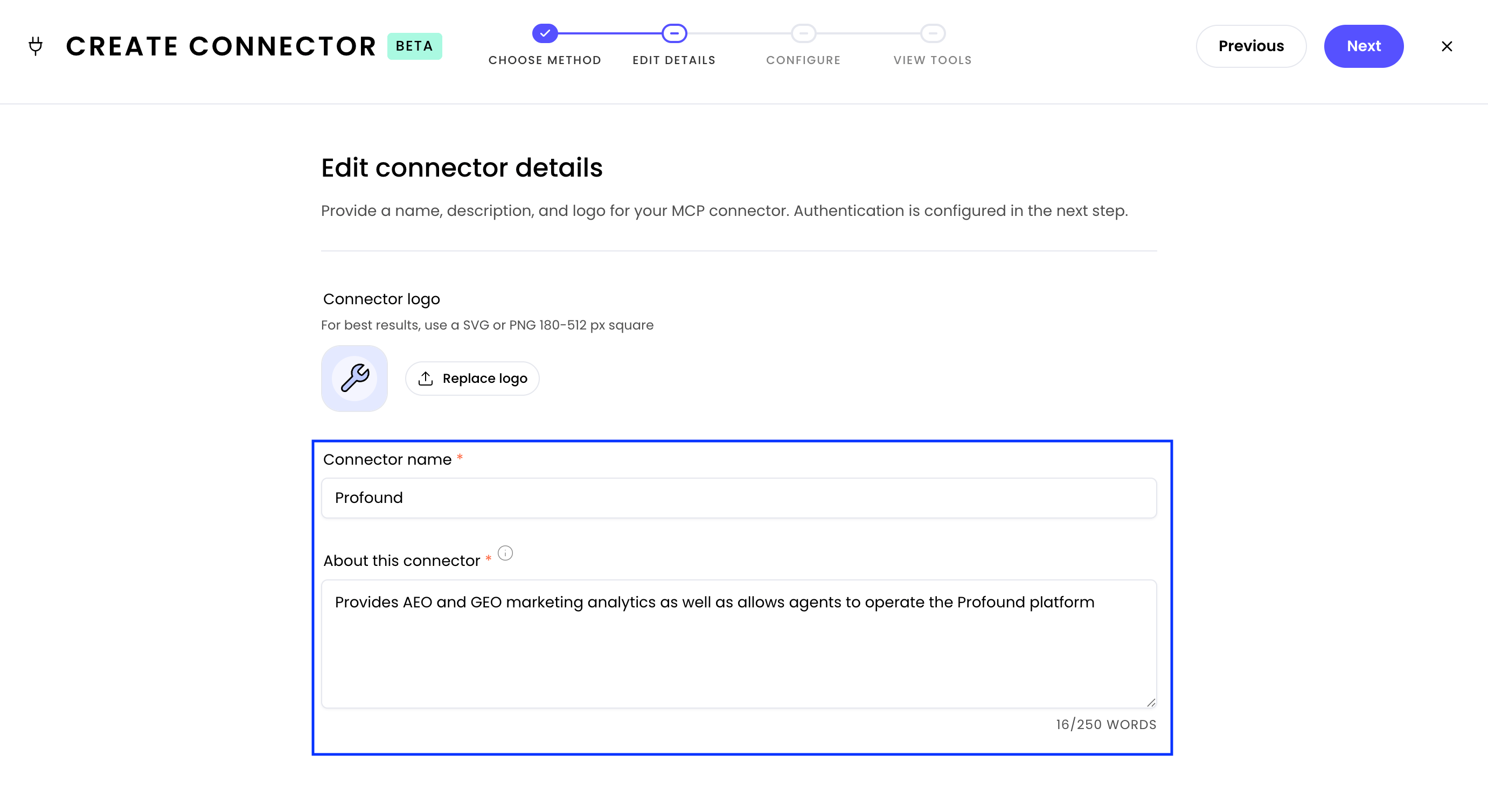
In the Edit connector details screen, fill in the fields as follows:
- Connector name: Profound
- About this connector: Provides AEO and GEO marketing analytics as well as allows agents to operate the Profound platform
4
Configure the authentication
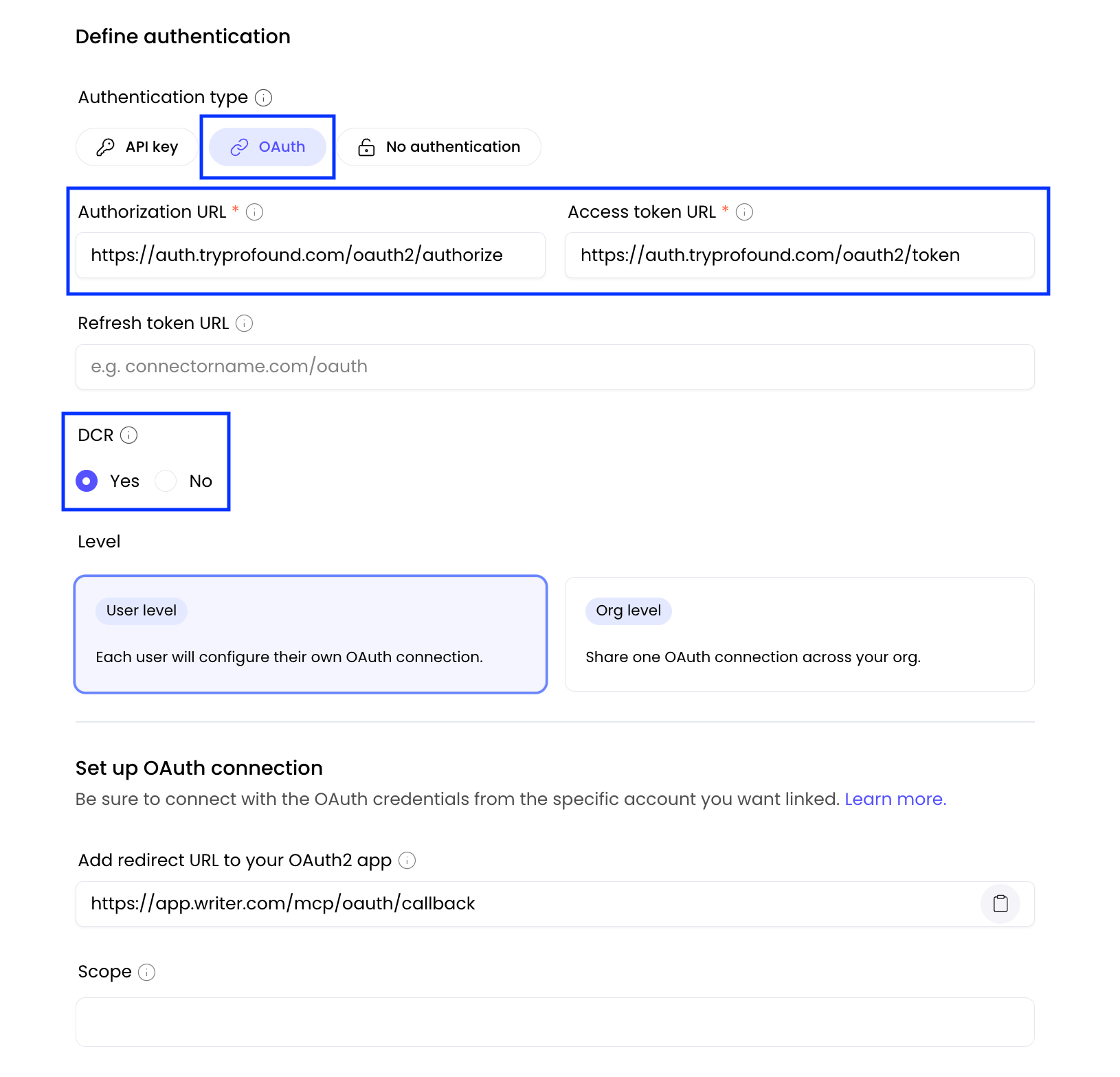
On the Connect to Profound screen, scroll to Define Authentication and fill in the fields:
- Authentication type: OAuth
-
Authorization URL:
https://auth.tryprofound.com/oauth2/authorize -
Access token URL:
https://auth.tryprofound.com/oauth2/token -
DCR: Yes
5
Verify the connection
To confirm everything is working: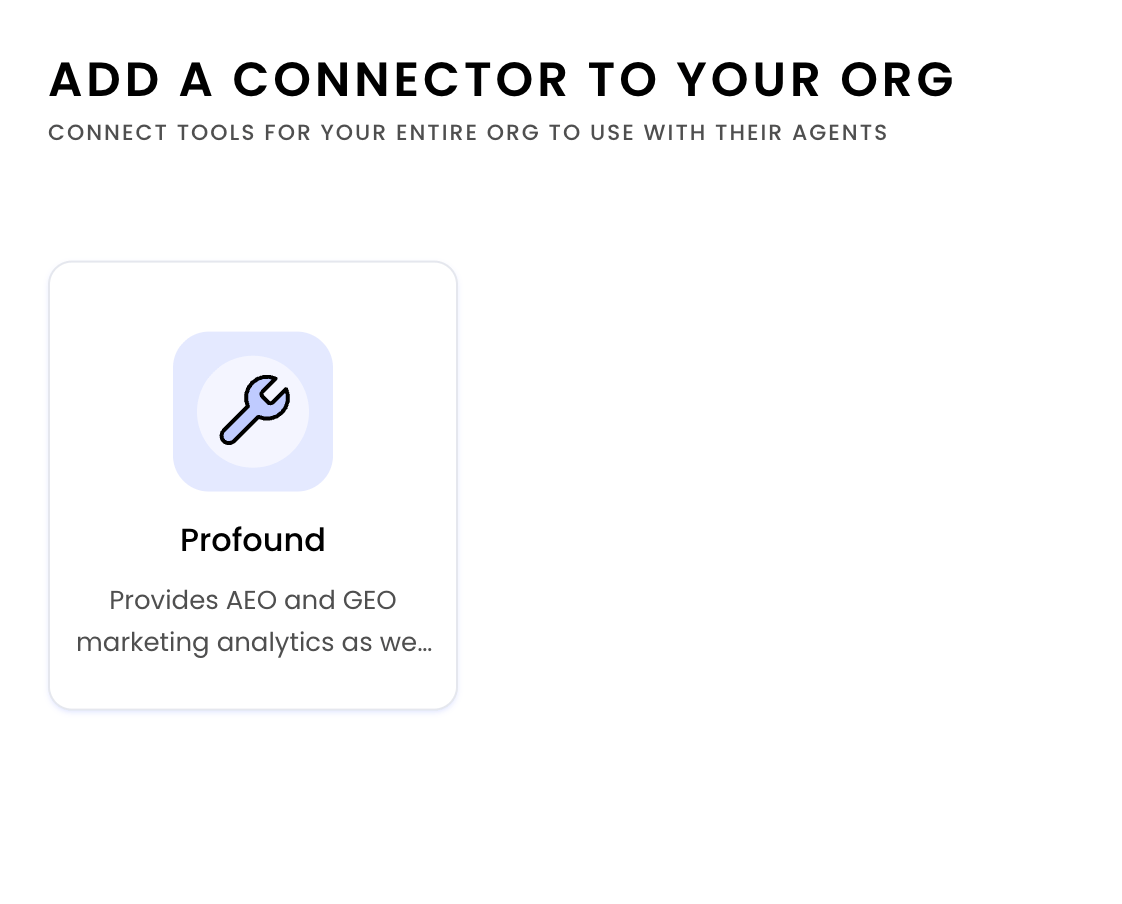
- Go to Connectors & Tools > Connectors in the left sidebar in the AI Studio UI.
- Select + New connector.
- Look for the Profound connector in the list.
Troubleshooting
Rate limit exceeded
If you see arate limit reached error, it’s coming from WRITER. Wait a few minutes and try creating a connector again.