

Before you start
Make sure you have:- Gemini CLI installed
- A Profound account
Setup guide
1
Authenticate with Gemini CLI
-
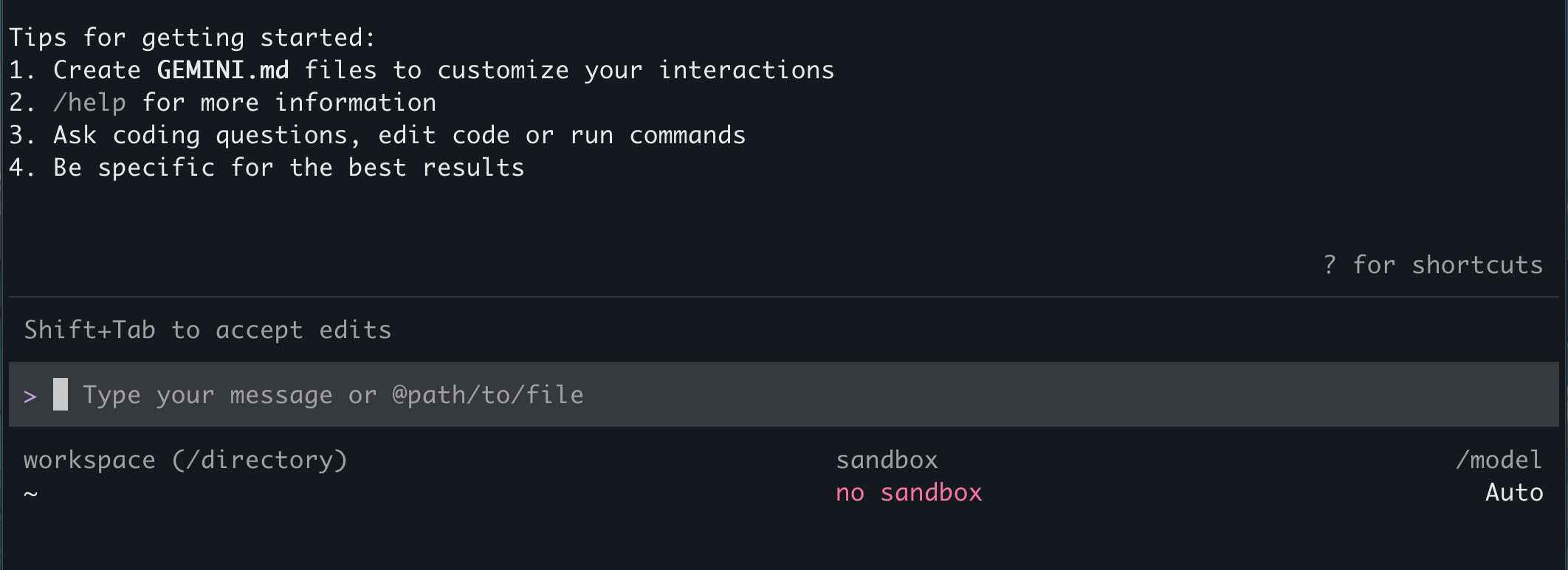
Run Gemini CLI in your terminal:
- When asked How would you like to authenticate for this project?, select Sign in with Google. Gemini will launch a browser session.
- In the browser, select your Google account and sign in.
2
Add the Profound MCP server
-
MCP servers are configured in the
~/.gemini/settings.jsonconfiguration file. To add the Profound server, create themcpServersblock with the Profound server details insettings.json:You can do this in your preferred code editor, or directly from Gemini CLI by entering the prompt: -
Review the changes and apply them if the
mcpServersblock looks correct.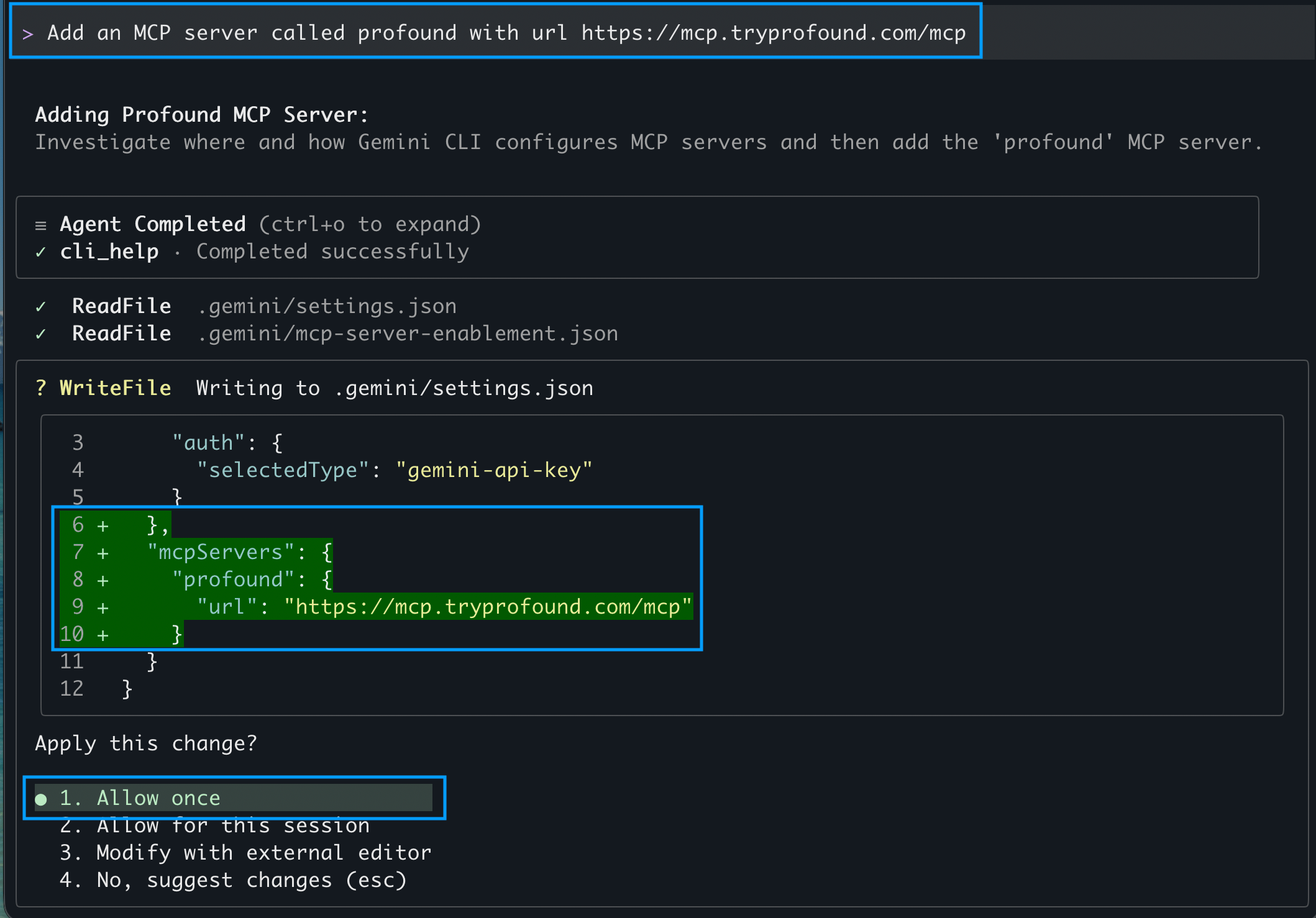
- For the changes to take effect, quit and reopen your Gemini CLI.
-
To verify the server was added, run the command to list the MCP servers inside the CLI.
It should show
profoundamong the configured MCP servers.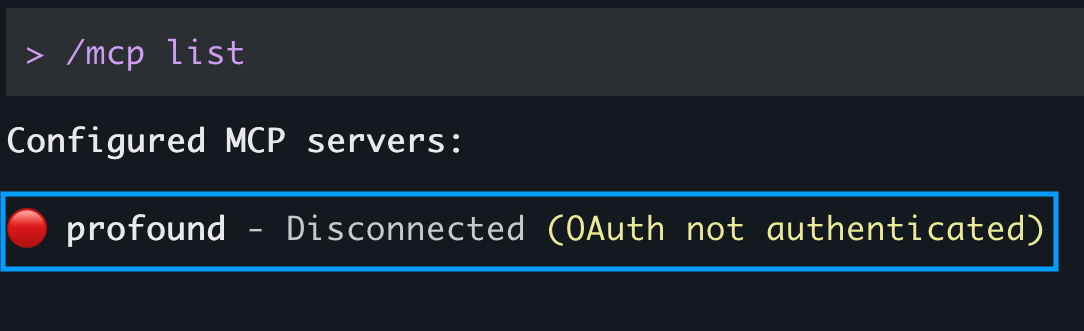
3
Sign in to Profound
Profound authenticates with OAuth. Gemini CLI discovers the OAuth endpoints automatically, so no API keys, client ID, or secret are needed.
-
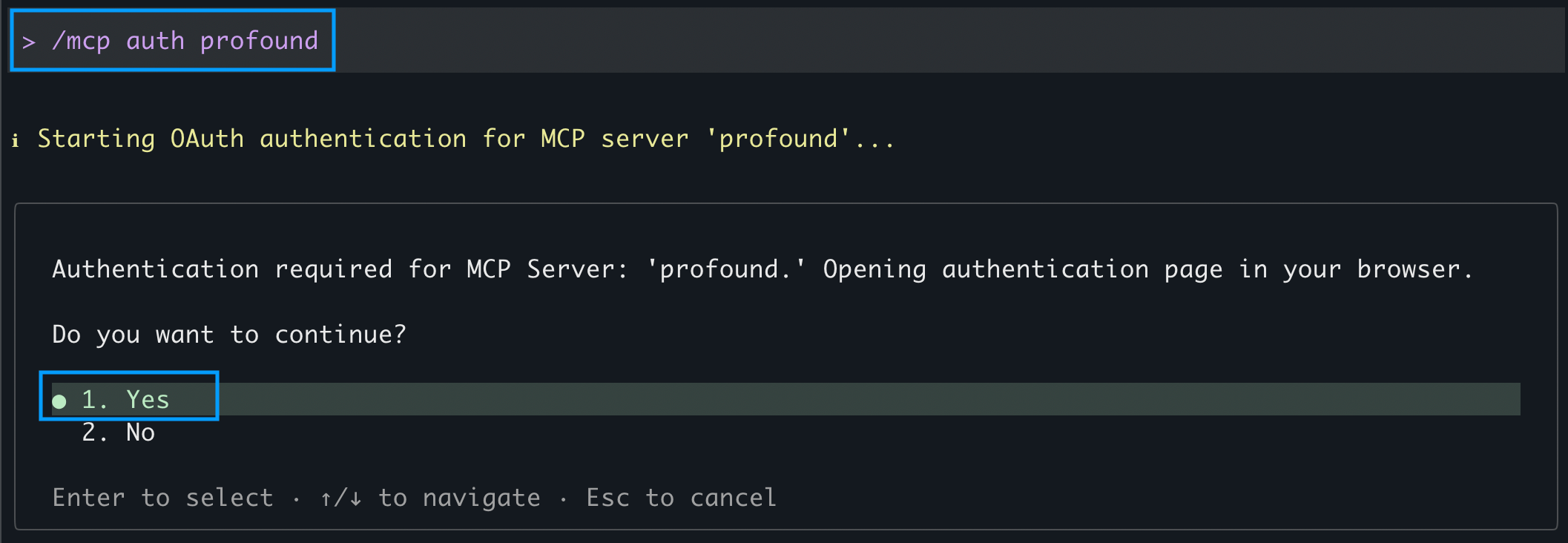
Inside the CLI, run the command to authenticate with Profound:
-
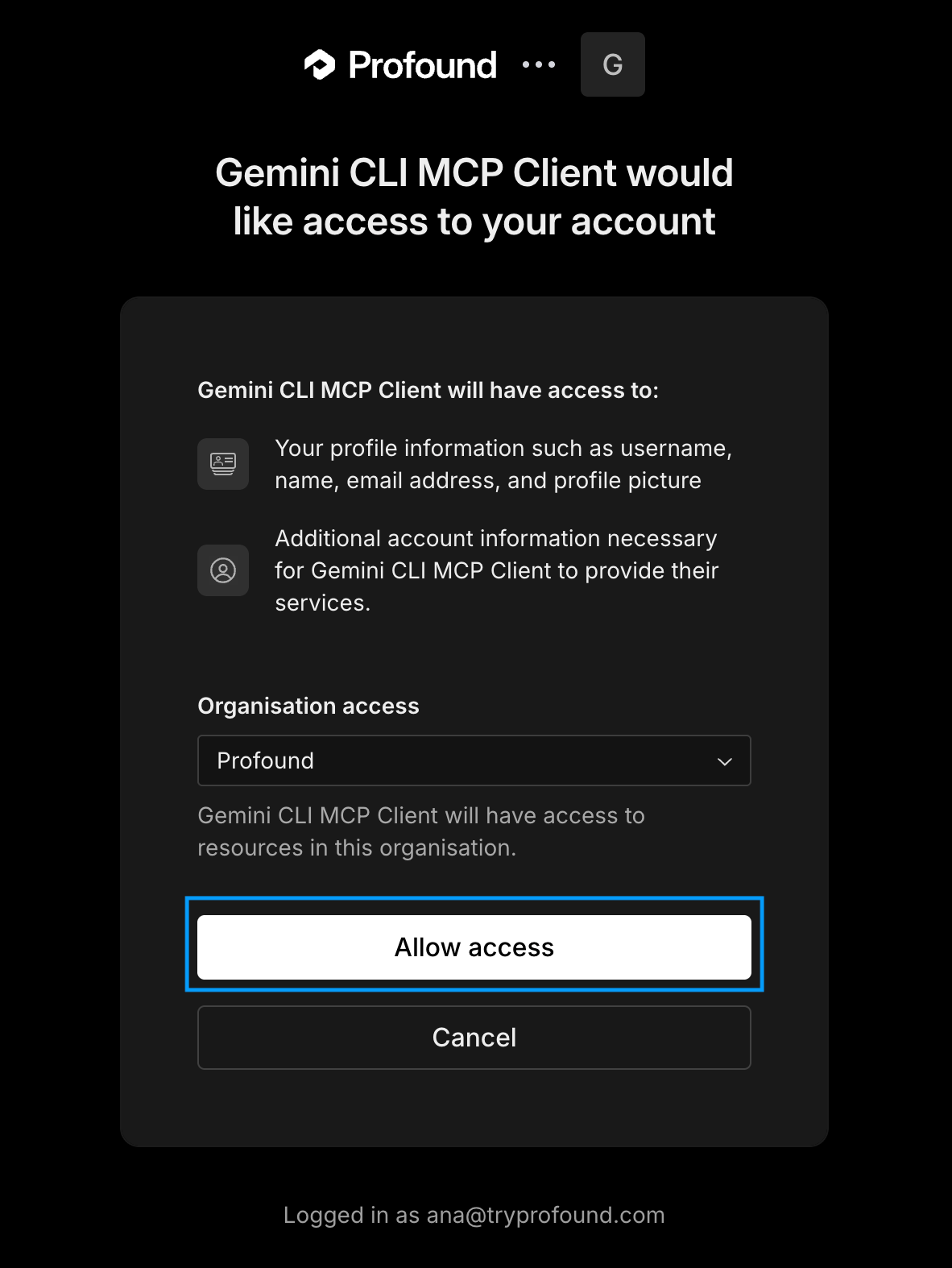
Select Yes when asked to authenticate in the browser. This will open the browser to the Profound sign-in page.
-
If you’re not logged in, follow the prompts to log in to your Profound account. Then approve access.
4
Verify the connection
Still inside Gemini CLI, run the MCP list command again.If the Profound server shows as Ready with a green circle and has available tools listed, it’s connected and ready to go.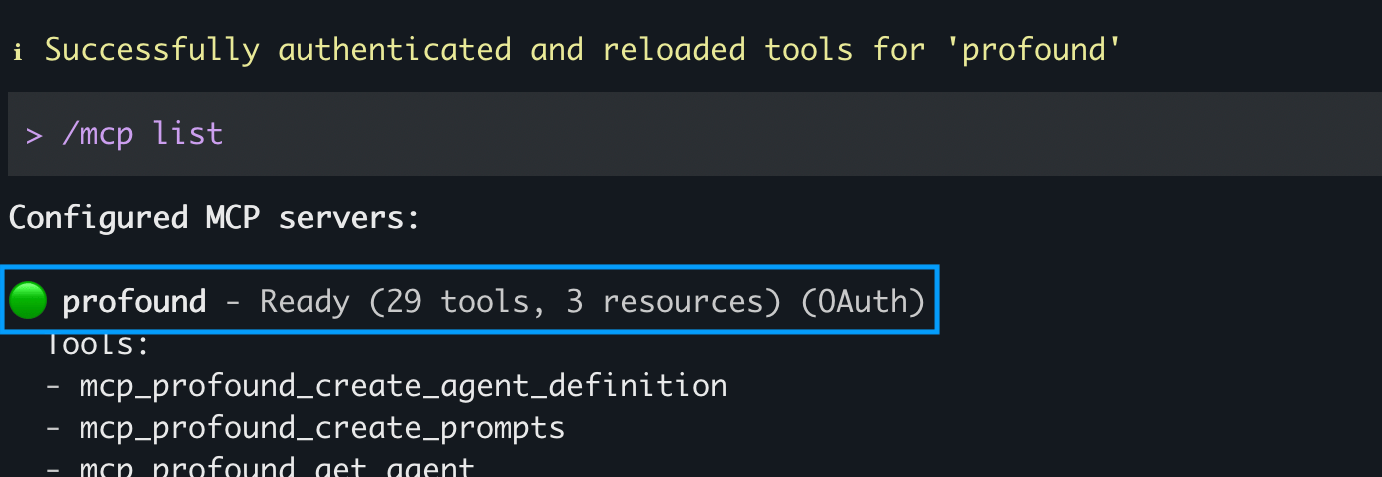
Troubleshooting
The browser doesn’t open during sign-in
Make sure you have a local browser installed. OAuth won’t work in headless or remote sessions without browser access. Run the setup where you can open a browser, then retry signing in or authenticating with Profound.Profound server shows as disconnected
Re-run/mcp auth profound to refresh the token. If it still fails, sign out of Profound in your browser, sign back in, and retry.