

When to use this node
Use Call API for tasks such as:- Pulling data from third-party tools, CRMs, CMS systems, or analytics platforms
- Triggering external automations or Agents
- Fetching structured data for use in downstream LLM steps
- Enriching Agent execution with custom business logic hosted elsewhere
- Integrating Profound Agents with internal APIs or microservices
Node configuration
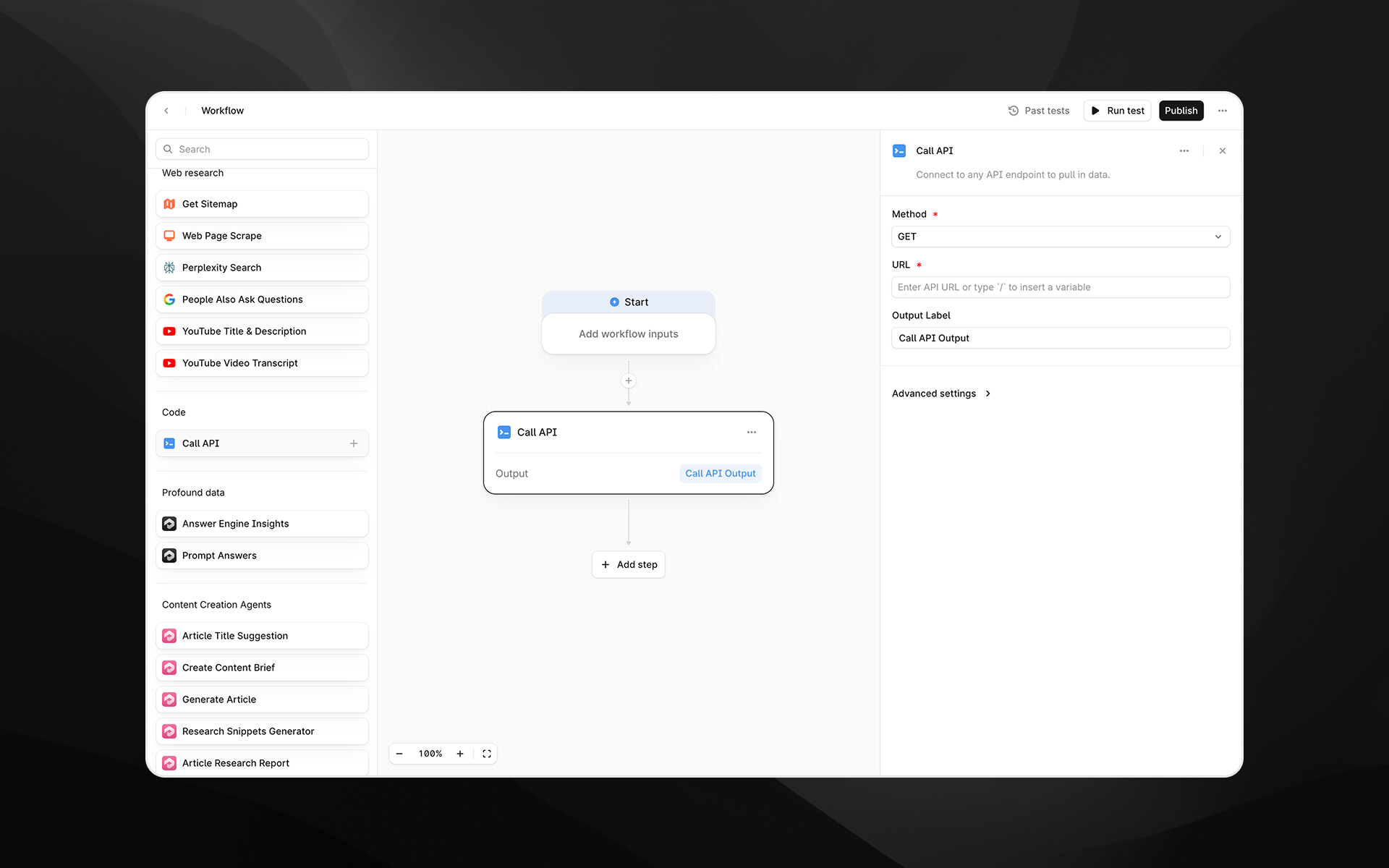
Selecting the Call API node opens its configuration panel on the right side of the Agent builder.Method (required)
Choose the HTTP method for the request:- GET – Retrieve data from an API endpoint
- POST – Send data to an endpoint; allows including a request body
URL (required)
Enter the full API endpoint URL. You can:- Paste a static URL
- Dynamically insert variables using
/, referencing inputs or earlier Agent steps
https://api.example.com/users/{{user_id}}https://internal.mycompany.com/search?q={{topic}}
Additional configuration for POST requests
If the method is POST, additional fields appear.Request Body
Enter the JSON payload to send in the request. This is required for POST requests. Example payload:/.
Content Type (required for POST)
Choose the content type for the request body:- None
- Application/Json
application/json.
Output Label
Provide a descriptive label for the API response. This becomes the variable name that downstream nodes reference. Examples:api_responseuser_recordexternal_data
Advanced settings
Select Advanced settings to configure authentication for the request.Authentication is required for APIs that are not publicly accessible.
Authentication Type (required)
Choose the authentication mechanism:- None – no authentication
- Basic – username and password
- Bearer – bearer token
- API Key – custom API key header
Basic Authentication
Fields:- Username
- Password
Bearer Authentication
Fields:- Bearer Token
API Key Authentication
Fields:- Header Name
- API Key Value
- Header Name:
X-API-Key - API Key Value:
<your_key_here>
Output
The Call API node returns the full response body from the API as text. This output can be passed into:- LLM steps for parsing, extraction, or summarization
- Logic and transformation nodes
- Downstream API calls
- Any step requiring structured or semi-structured external data
Example usage
1. Fetch user profile data
- Add a Call API node with:
- Method: GET
- URL:
https://api.example.com/users/{{user_id}} - Output Label:
user_profile
- Pass {{user_profile}} into an LLM step for analysis or transformation.
2. Submit Agent data to an external service
- Add a Call API node with:
- Method: POST
- URL:
https://hooks.example.com/events - Content Type: Application/Json
- Output Label:
event_response
3. Use authenticated APIs
- Under Advanced settings, choose the appropriate authentication type.
- Provide credentials (e.g., Bearer Token or API Key).
- Use GET or POST as needed to retrieve secure data.
Best practices
- Always verify the API’s expected method, headers, payload structure, and authentication requirements before configuring the node.
- Use variables to dynamically build URLs or request bodies for more flexible Agents.
- When sending JSON, ensure proper formatting: malformed JSON will cause the request to fail.
- Keep output labels descriptive, especially when chaining multiple API calls.
Troubleshooting
The API returns an error
Check:- URL correctness
- Required query parameters
- Authentication credentials
- JSON body structure (for POST)
The response is empty or unexpected
APIs may return HTML error pages or wrapper objects. Use a Prompt LLM step to interpret or extract relevant portions.Variables aren’t resolving
Insert variables by typing/ and selecting from the variable picker.