

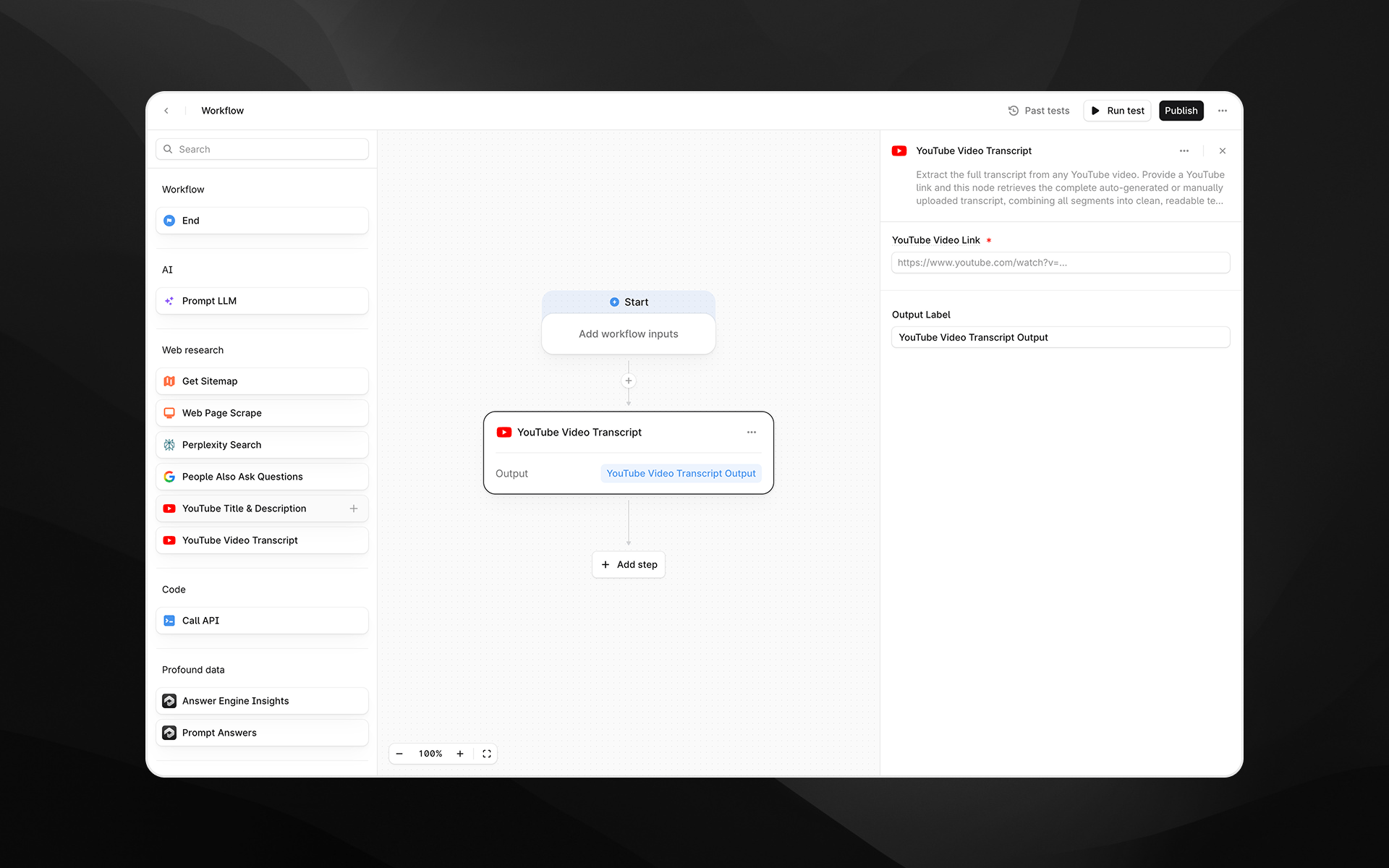
When to use this node
Use YouTube Video Transcript for tasks such as:- Analyzing spoken content from competitor or industry videos
- Creating summaries, highlights, or structured notes using an LLM
- Extracting keywords, entities, or insights from long-form video content
- Feeding transcript text into research, comparison, or content generation Agents
Node configuration
Selecting the YouTube Video Transcript node opens its configuration panel on the right side of the Agent Builder.YouTube Video Link (required)
Enter the URL of the YouTube video whose transcript you want to retrieve. You can:- Paste a direct YouTube watch URL
- Insert a dynamic variable from a previous Agent step by typing
/
https://www.youtube.com/watch?v=VIDEO_ID
Output Label
Assign a descriptive label to the transcript output. This becomes the variable name used in downstream nodes. Examples:video_transcriptyt_transcripttranscript_text
Output
This node returns a single text output containing the full transcript of the video. Profound automatically:- Retrieves all transcript segments
- Orders them correctly
- Merges them into a continuous, readable text block
- Prompt LLM analysis
- Summaries and content transformation
- Topic extraction or semantic clustering
- QA extraction or answer engine testing Agents
Example usage
1. Summarize a long YouTube video
- Add a YouTube Video Transcript step with the link to the video.
- Pass the transcript to a Prompt LLM step:
2. Extract insights for competitive analysis
- Use YouTube Video Transcript to capture the full content of a competitor’s product demo.
- Pass the output into a Prompt LLM step to identify messaging themes, product claims, or feature positioning.
3. Generate social content from video text
- Retrieve the transcript.
- Use a Prompt LLM step to generate snippets or social posts:
Best practices
- Ensure the video is public or unlisted; transcripts cannot be retrieved from private or restricted videos.
- Auto-generated transcripts may include inaccuracies; consider post-processing with an LLM to improve clarity.
- Use clear output labels, especially when extracting multiple transcripts in a single Agent.
Troubleshooting
No transcript is returned
This may occur if the video has no transcript available or is private. Try another video link or verify settings on the source video.Transcript content looks fragmented
Profound merges segments automatically, but heavily timestamped or irregular transcripts may benefit from cleanup via a Prompt LLM step.Variable insertion is not working
Use/ inside the URL field to insert available Agent variables.