Available on: the Enterprise planFind it in: Answer Engine Insights > Prompts > Modify promptsRequired role: Admin, Editor or custom
If you don’t see the Modify prompts option, you may not have permission to work with prompts. Learn more in Roles and Permissions.
Create prompts
There are three ways to add prompts to Profound: upload, generate, or add the prompts manually.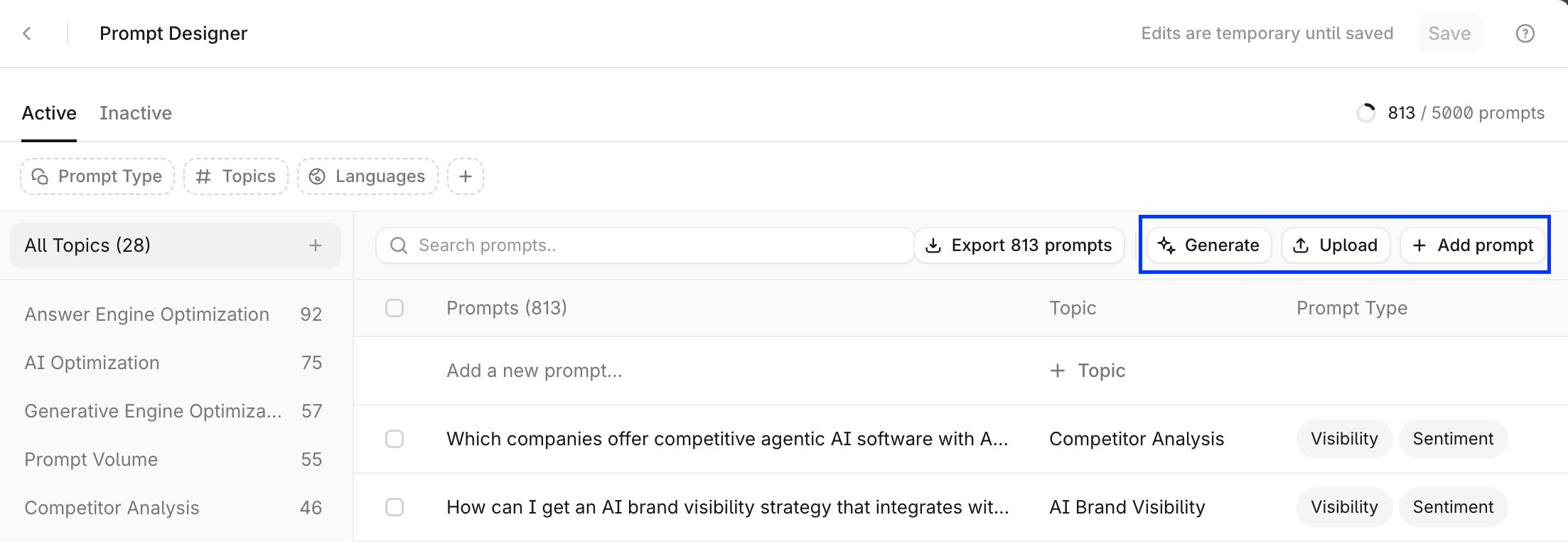
Upload
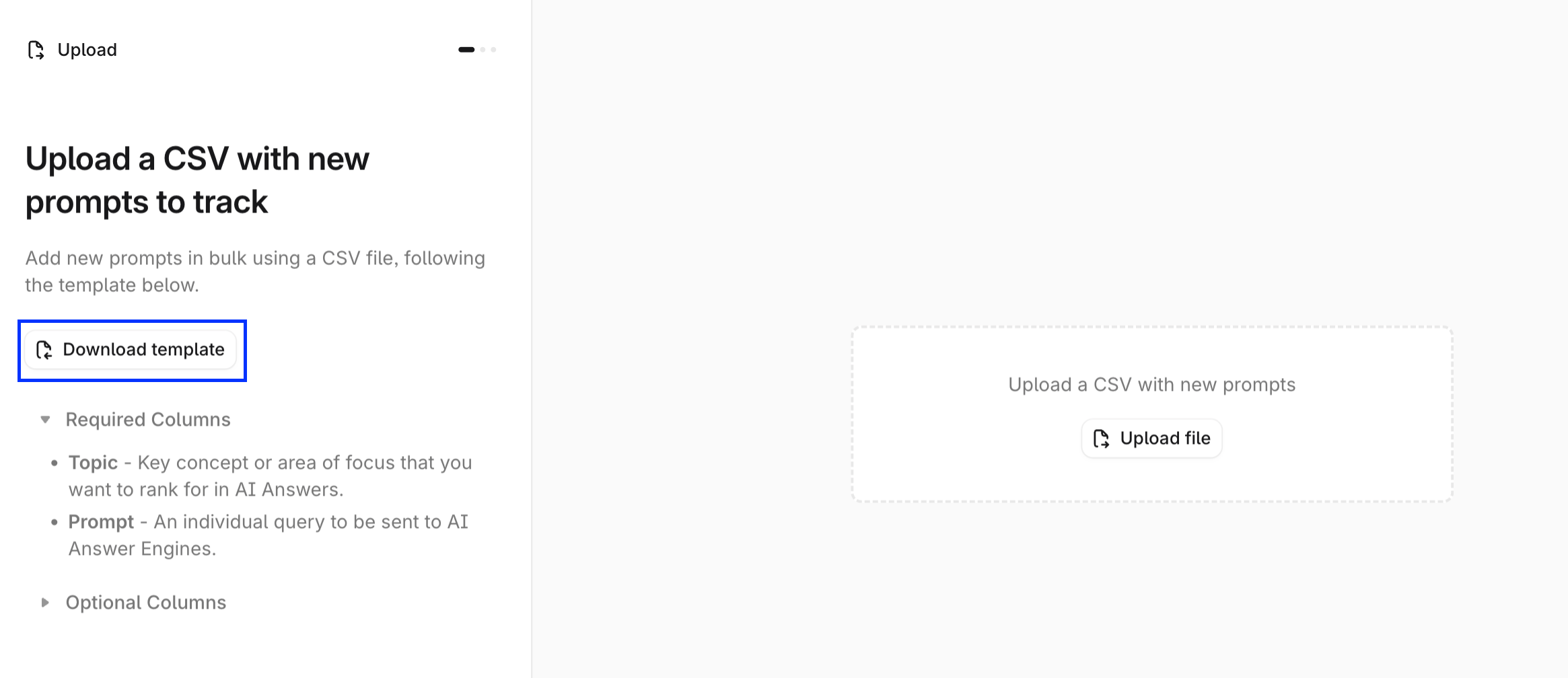
Select Upload > Add new prompts on the top right of the prompts table to upload a CSV file containing your prompts. Format the CSV with these columns:
Download the template prompts file with all necessary columns from the CSV upload window.
- Each field (Topic, Prompt, and so on) appears in its own column
- If all data appears in one column, use “Split text to columns” with comma as the delimiter
- Alternatively, re-save the file ensuring it uses proper comma delimiters between fields
Generate prompts
Use Prompt Generator to create prompts from existing topics: select Generate on the top-right of the prompts table. In the generator, specify the topics that you want to create prompts for and configure regions, languages, and platforms you want the prompts to be run in. Specify any additional instructions for the prompt generator in the Additional Instructions section.Add prompts manually
Select + Add Prompt on the top-right of the prompts table, or type in the prompt text and configure the prompt attributes directly in the first row of the prompts table (“Add a new prompt…”).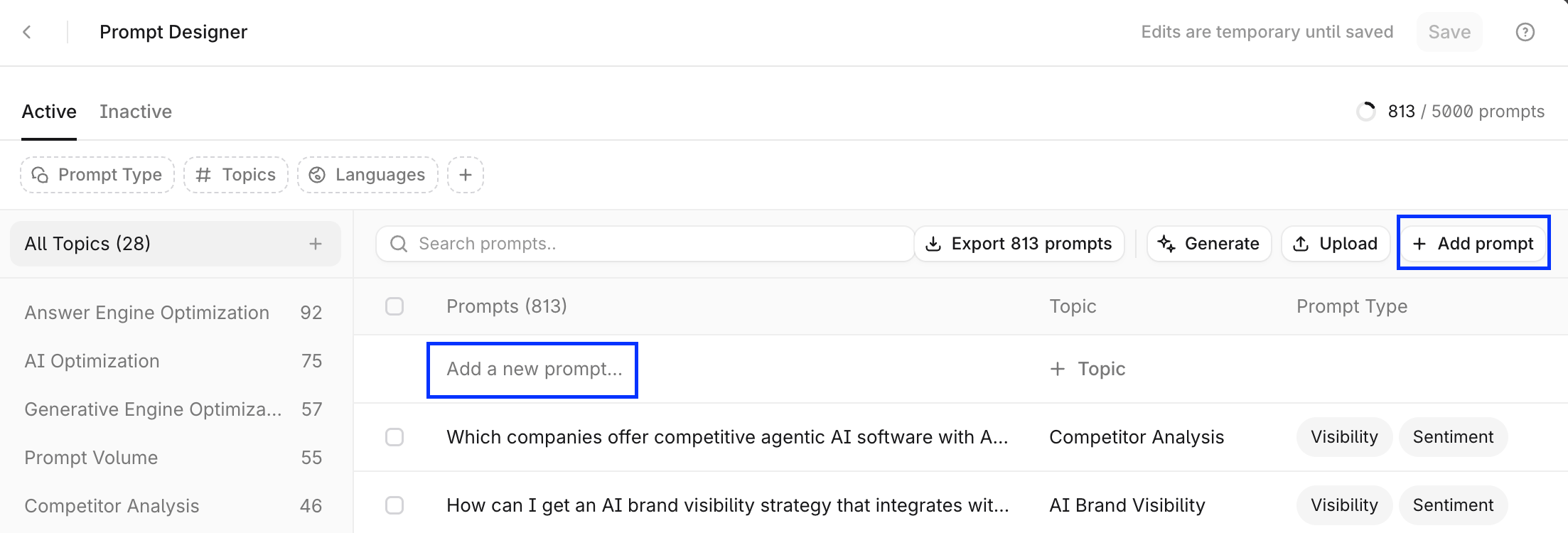
Modify or delete prompts
To modify existing prompts, select the cell containing the data you want to update in the prompts table. To edit or delete prompts in bulk, select the prompts, and then select the action you want to perform from the options at the bottom of the table.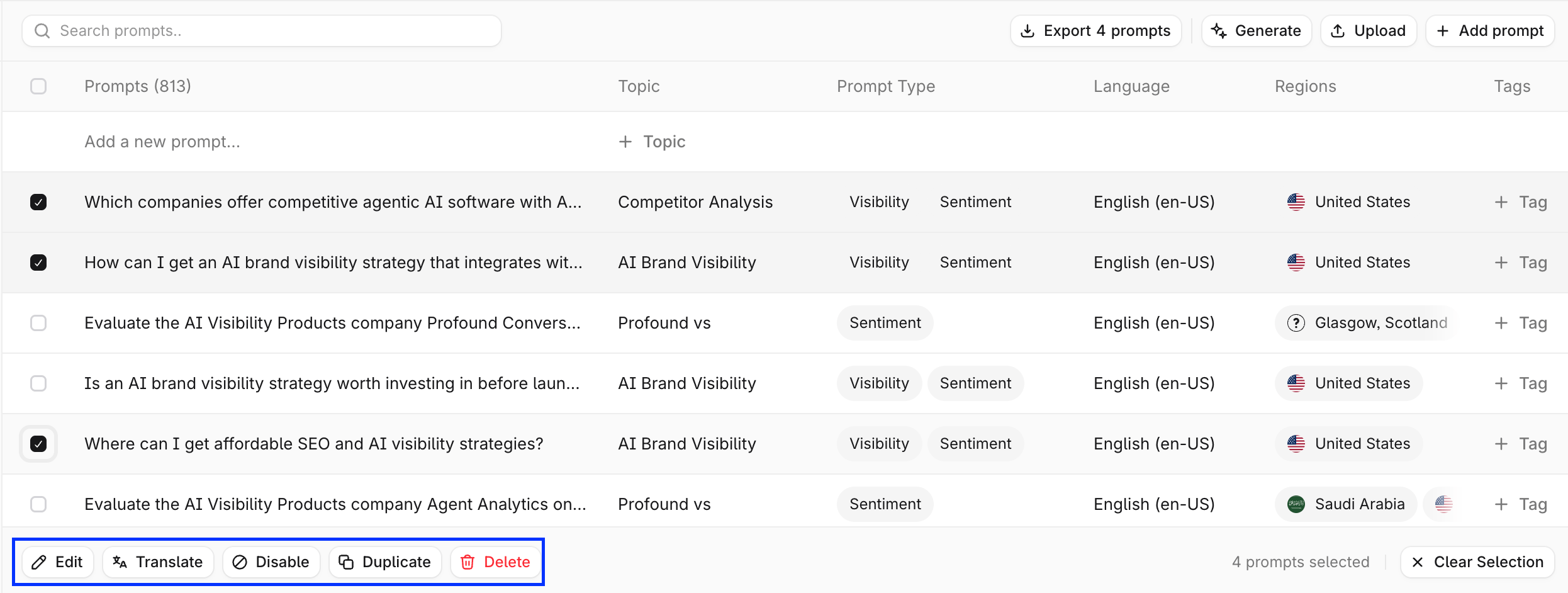
Tag prompts
Tags create an additional layer of organization for prompts inside Profound. Learn more in creating topics and prompts guide. To add tags to prompts, in the Prompt Designer table, select the Tags cell for a prompt, then select the tags you want to add or remove, or type a name for a new tag to add it to the tag list. When editing the prompts in bulk with the CSV file, include aTags column into the file to add and remove the tags for all prompts in the file.
Use Personas with prompts
Personas let you test how an answer engine responds when the same prompt is run with additional audience context, such as a job role or decision-maker profile. To assign Personas to a prompt, select the Personas cell for that prompt in the Prompt Designer table and select the Personas to apply. To create or edit Personas, select Manage Personas at the bottom of the same menu. Learn more in Personas in Answer Engine Insights.Adding Personas to prompts affects your prompt limits. If you assign one Persona to all prompts, you are effectively creating an additional run for each of those prompts.
How prompt changes affect reporting
Prompt reporting is based on the prompts that are currently in your configuration. If you add, remove, or substantially rewrite prompts, the totals you see in Profound can change as well:- Adding prompts increases the number of tracked questions and can raise aggregate counts after the next processing cycle.
- Removing prompts excludes those questions from current totals, which can make counts drop compared with an older export or snapshot.
- Rewriting prompts can change what Profound matches and measures, so results may no longer be directly comparable with earlier versions.
- Changing tags does not change the underlying prompt data by itself, but it can change which subset of prompts you are viewing if you filter by tag.
- Adding Personas increases the number of prompt executions because Profound runs the base prompt and the Persona-context version separately. Personas help you compare how responses differ for a given audience, but topics and tags still act as organization and filtering tools rather than prompt context.
Topics
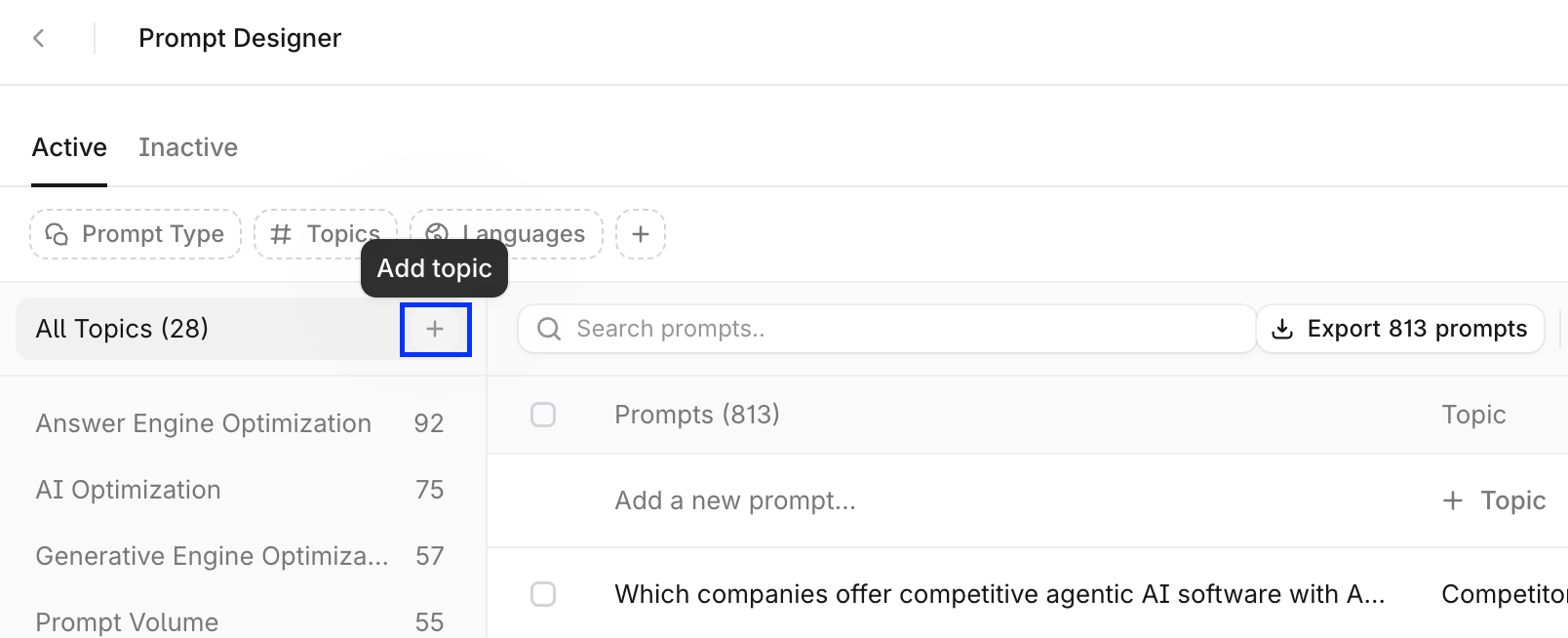
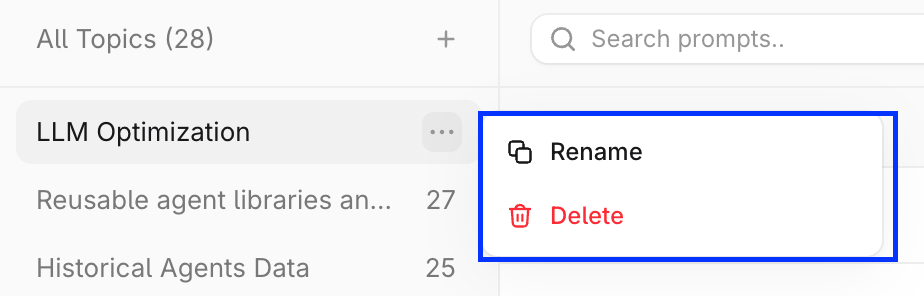
Topics are groups of prompts organized around a common theme. For example, a collection of different prompts all inquiring about data accuracy can be organized within a “Data Accuracy” topic. Learn more about topics in How to create topics and prompts to track in Profound. To manually add a new topic, select the + option next to All Topics in the Prompt Designer.