

Available on: the Enterprise planFind it in: Analytics > Answer Engine InsightsRequired role: all roles can view, Admin and Editor can create and manage. Prompt update annotations require the View Activity Logs permission.
View annotations
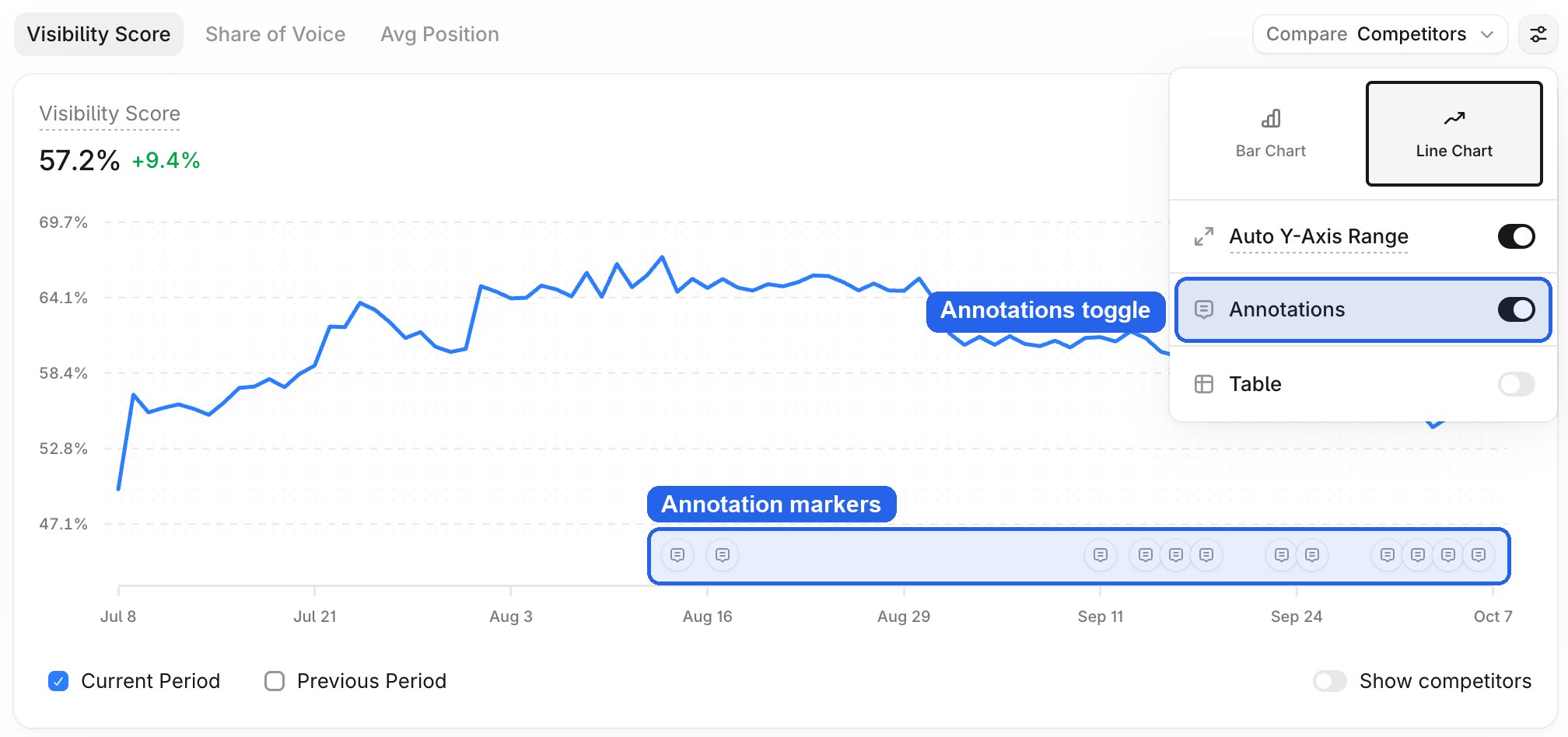
Annotations appear on all time-series line charts in Answer Engine Insights. AI Marketer (Aim) can also show annotations on the line charts it generates.- Find the annotation markers along the bottom of a line chart.
- Select a marker to see every annotation for that date, newest first. When dates are close together, their markers merge into one.
Types of annotations
User annotations
Created by people in your organization. Shows anything your team wants to record.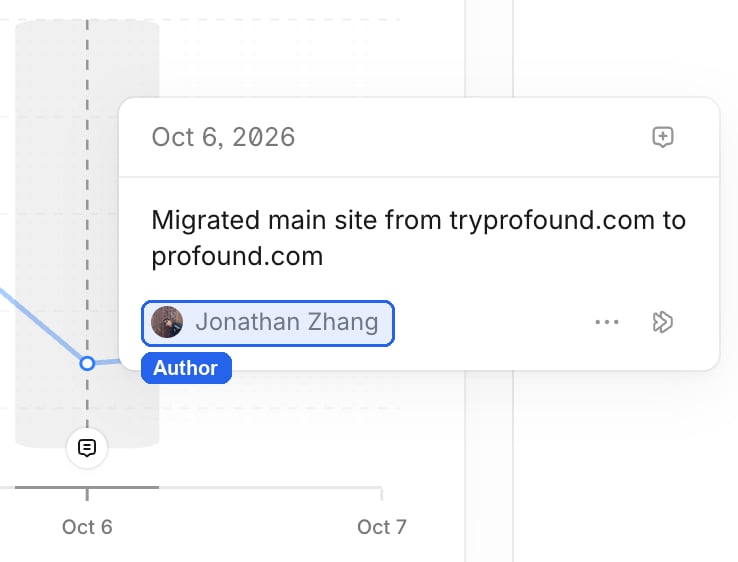
Platform updates
Created automatically by Profound for a model change on an AI platform that it tracks, such as a new ChatGPT model. Platform updates are hidden when that platform isn’t selected in your model filter.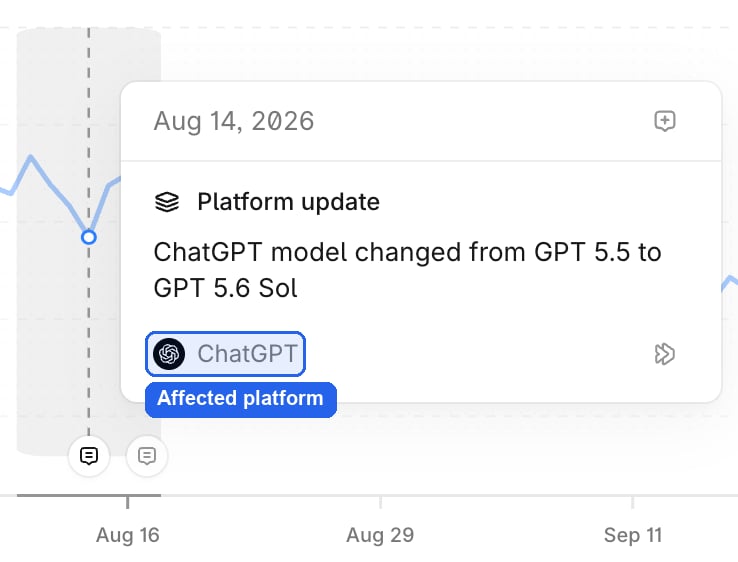
Prompt updates
Created automatically by Profound for a daily summary of prompt changes in a category, for example “12 prompts added, 3 disabled.” Prompt updates list the people who made the changes. Select View activity logs to see each change in Activity Logs.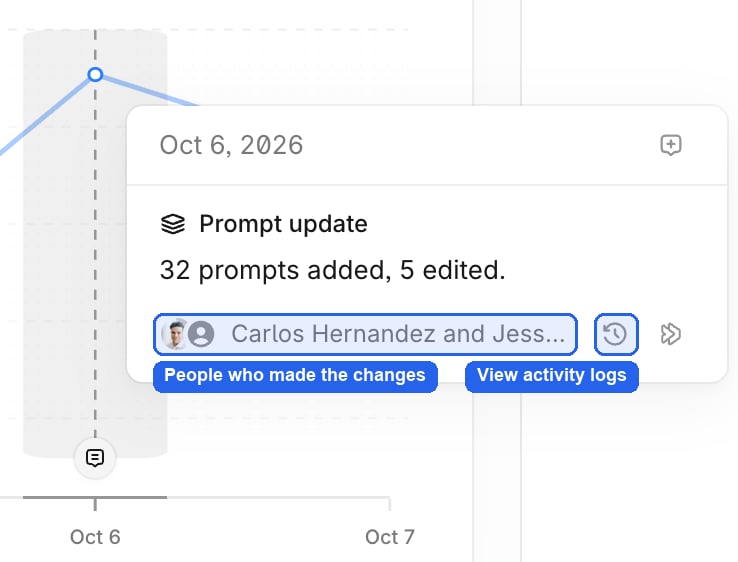
Add an annotation
Add an annotation in any of the following ways:-
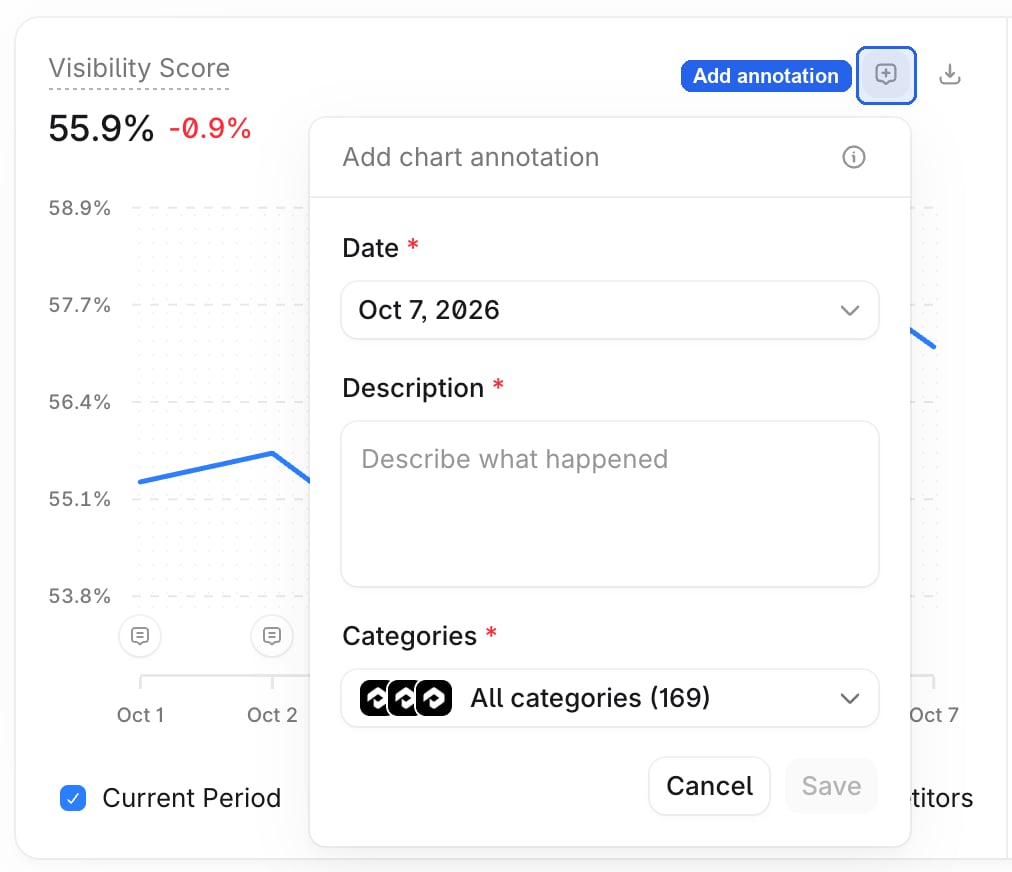
Select Add annotation at the top right of a chart. The date defaults to the end of your selected date range.
-
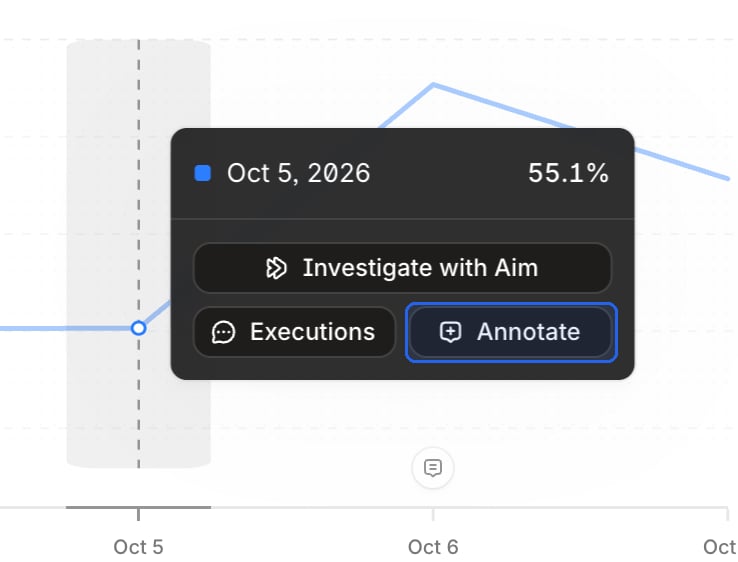
Select a single date on a chart to pin it, then select Annotate in the tooltip.
-
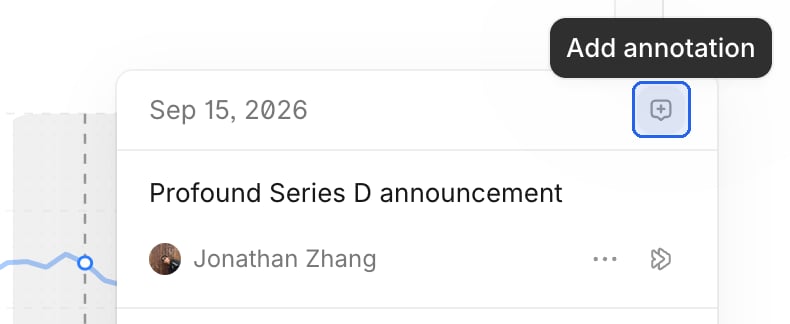
In an open annotation list, select Add annotation next to a date.
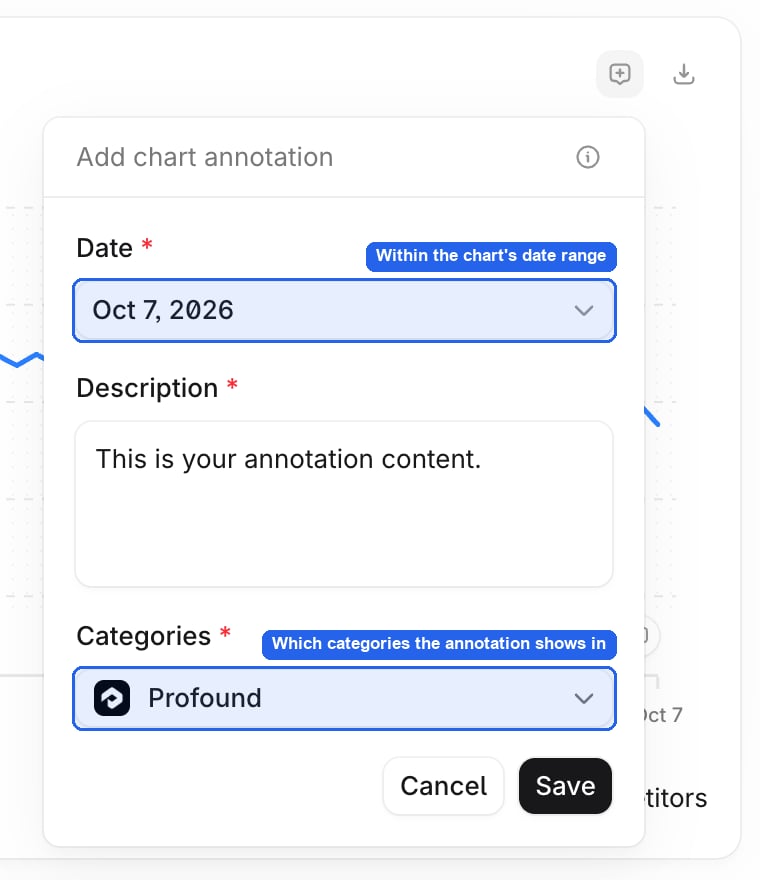
- Date: any date within the chart’s selected date range. To annotate a date outside the range, widen the date range first with the top-level filters.
- Description: what happened.
- Categories: where the annotation shows. By default it’s All categories, which applies to your whole organization, including categories you add later. To narrow it, select specific categories. The category you’re viewing is always included.
Edit or delete an annotation
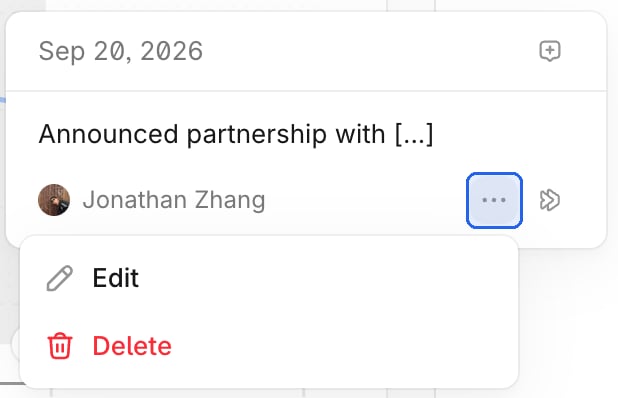
You can edit or delete only the annotations you added.- Open the annotation list and select … next to your annotation.
- Select Edit to change the annotation, or select Delete. Deleting an annotation is permanent.
Investigate an annotation with Aim
If you have access to Aim, select Investigate with Aim next to any annotation. Aim opens with the annotation and the chart you were viewing, and starts looking into how the event relates to that metric.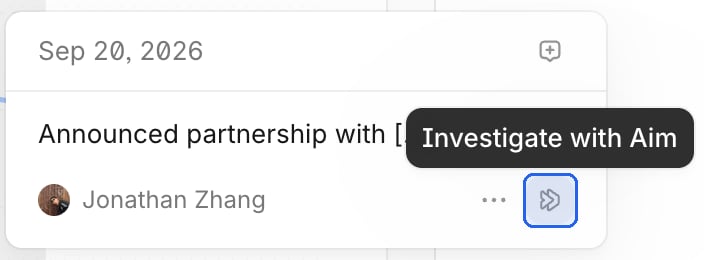
Permissions
Prompt updates come from Activity Logs, which are available on the Enterprise plan, and need the View Activity Logs permission. Admins on the Enterprise plan can change these defaults with a custom role using the View chart annotations and Create, edit, and delete custom chart annotations permissions.
Annotations belong to your organization, and category-scoped annotations only show when viewing that category.