

Overview
Settings in Answer Engine Insights (AEI) is your control center for defining how Profound processes, classifies, and analyzes AI engine responses to generate insights. Think of it as a translation layer: it maps the raw text AI engines produce to the clean objects you see across your dashboards. Open settings from the top-right corner of AEI view, next to Export answers.AEI settings are specific to visualizations and data generation. To open organization and account settings, select your organization name at the top left of the platform, then select Settings.
Prompts
To open the Prompt Designer, go to Answer Engine Insights > Prompts > Modify prompts. From there, select the prompts you want to tag or modify. Learn more in Create, manage and tag prompts.Configure Competitors
If this section is blank in your AEI settings, that’s expected. Configure Competitors isn’t a setup tool, it’s a filter for edge cases.
When to blacklist
Use Blacklist to remove a brand from your results entirely. Apply it when a brand appears in your analysis but isn’t a relevant competitor, or is a competitor you aren’t permitted to mention. Common examples:- Large platform companies (Google, Amazon, Apple) appearing in a niche competitive set
- Brands from adjacent industries that aren’t true competitors
- Affiliate companies you don’t want in your competitive benchmarking
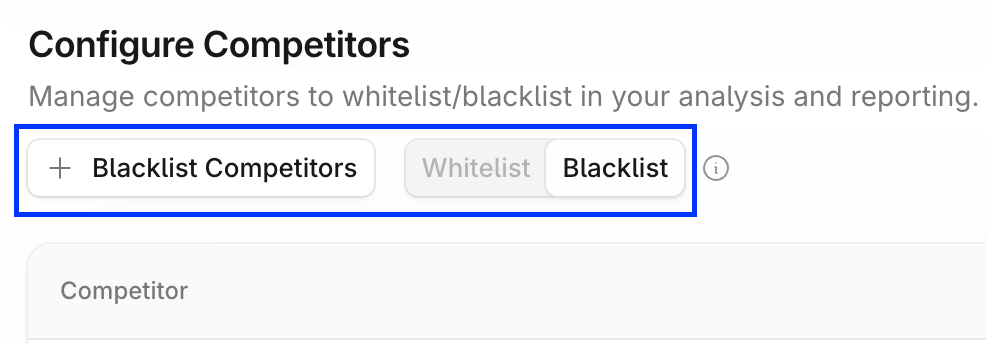
When to whitelist
In Whitelist mode, Profound only shows results from AI responses where one of the brands on your list appears. Profound excludes any response that mentions none of your listed brands from calculations entirely. That creates a narrow, less realistic view of your competitive landscape. If relevant competitors aren’t showing up in your results, refine your prompts instead so they reflect your broader industry and both direct and indirect competitors.Citation Categories
Citation Categories classify the sources AI engines cite when generating responses. Knowing where your citations come from, and controlling how they’re grouped, is one of the most useful ways to work with citation data in Profound.Default categories
Profound assigns every cited domain to one of the default categories. Learn more in Interpret Answer Engine Insights.Custom categories
Custom categories track any grouping that matters to your strategy: partner sites, PR placements, online travel agency sites, comparison engines, or anything else. Custom categories are useful when you want to:- Define indirect competitors: bulk-paste the 10–20 competitors outside your primary competitive set into a custom category so they’re pulled out of Other
- Run content experiments: categorize a set of URLs or a single subpath you’ve optimized, then measure the before and after citation share for that content
- Apply earned media tiers: separate top-tier placements from general earned media for more granular analysis
Create or edit a category
You define the Owned, Competition, and custom categories during initial setup with your account team. Profound assigns the rest automatically. Override or delete those assignments at any time with the + Add Citation Category option.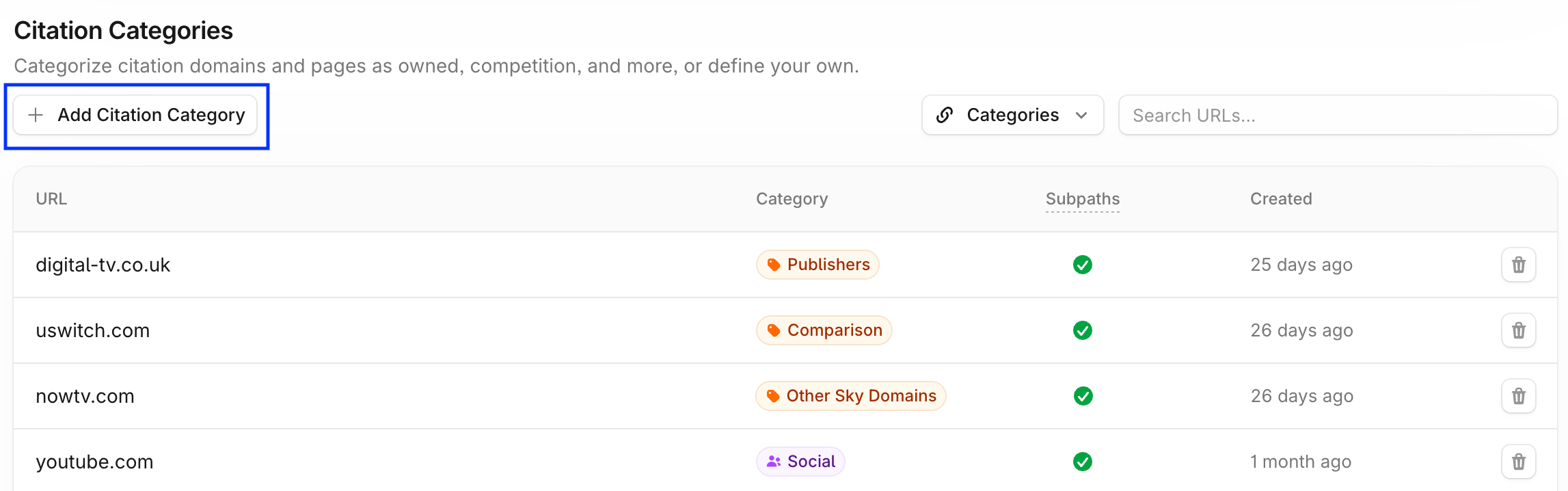
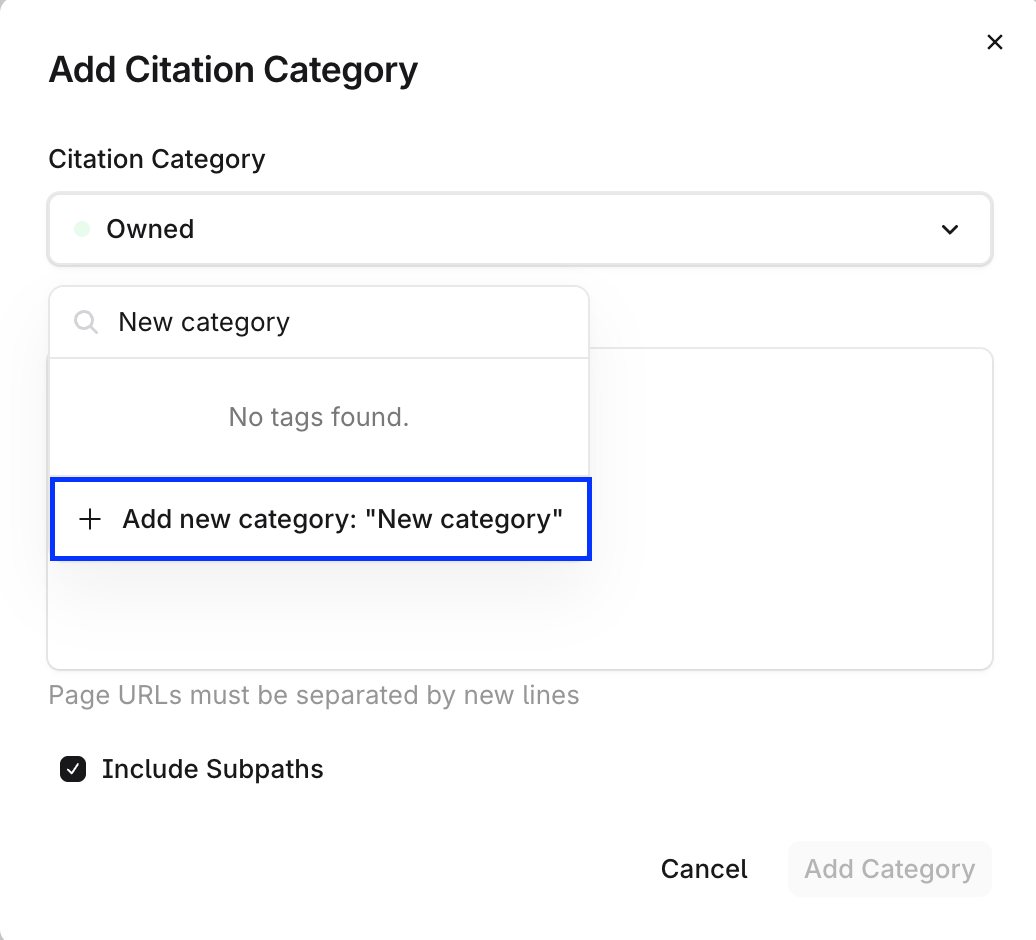
tryprofound.com also covers tryprofound.com/blog and tryprofound.com/resources. Or disable it and paste a specific path, such as yoursite.com/blog, to categorize that section on its own.
Name Matching
Name Matching connects the different names that answer engine responses use for your brand and your competitors’ brands. For example, Profound may appear as “Try Profound,” “Profound Metrics,” or “Profound Search.” Name Matching groups all variations under the same asset. Without it, each variation counts as a separate entity, which makes your visibility look lower than it is.How it works
Profound combines string matching, fuzzy matching, and an LLM review step to group similar phrases under a single asset. Profound surfaces candidates automatically, and you decide which mappings to accept. Name Matching has three views:- Mapped — Every asset with its currently mapped mentions, plus a total mention count. Child assets nest under their parent.
- Unmapped — Brand mentions Profound detected but hasn’t matched to an asset yet, with the date first seen and a mention count.
- Suggestions — Automatic suggestions for mapping mentions to assets, based on text similarity.
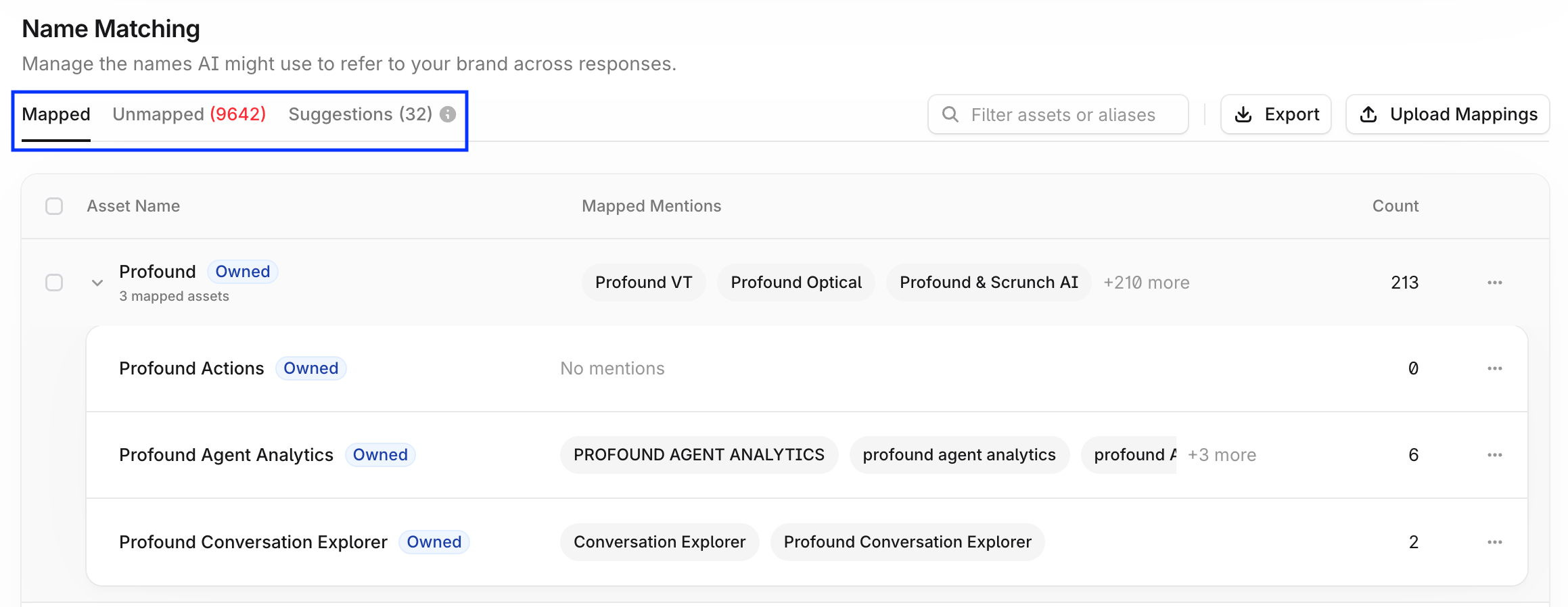
Manage existing mappings
To manage or add mapped mentions, select Edit Mentions in the asset’s action menu.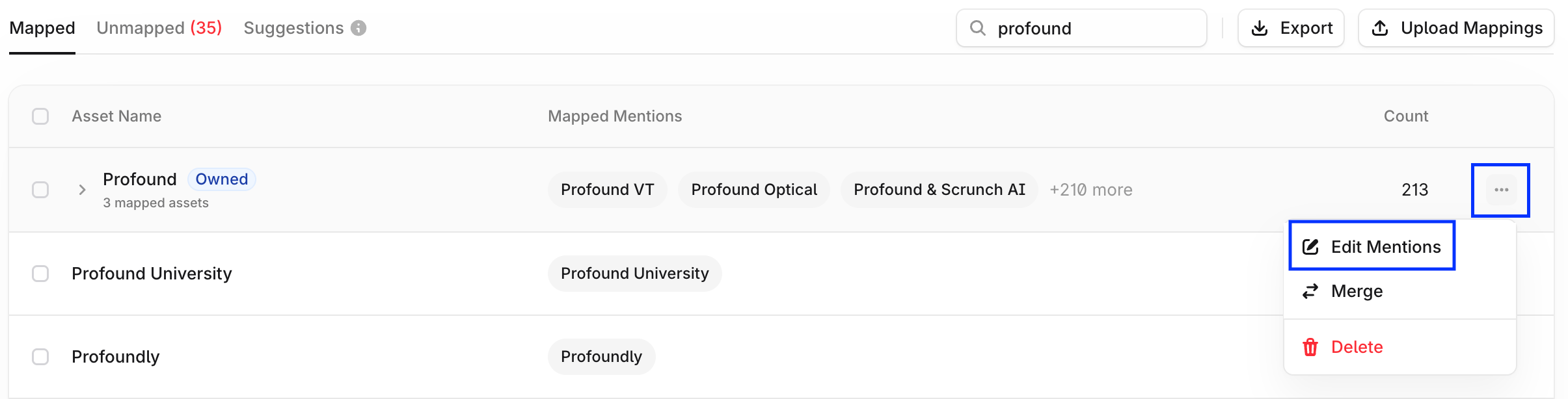
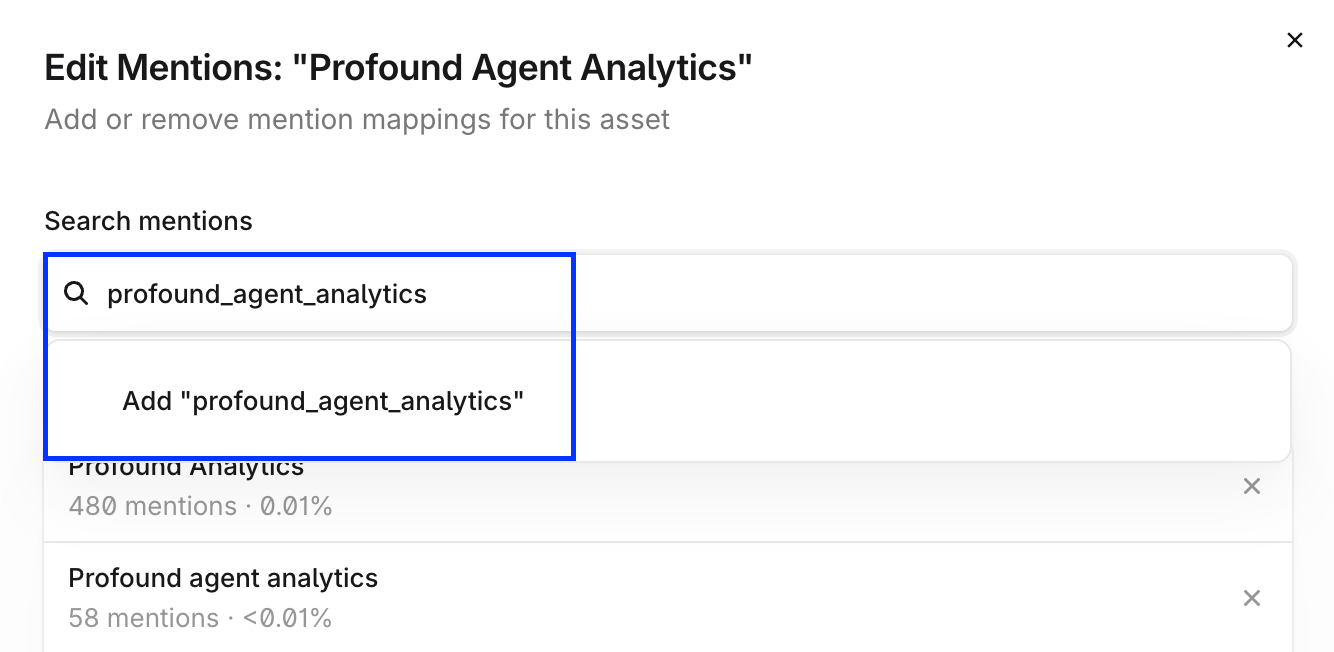
Group sub-brands under a parent brand
Sub-brands and product lines appear as child assets nested under their parent in the Mapped view. To change a relationship, open the row’s action menu:- Merge combines two assets of the same type. You can’t merge owned and competitor assets.
- Unlink from parent promotes a child asset back to the top level.
Create new mappings
To map assets surfaced in the Unmapped tab, select the mentions, then select + Map Mentions. To create mappings from the Suggestions tab, select the mentions, then select + Add Mapping to accept the suggestion and keep any current mappings. Select Remap to accept the suggestion and remove all existing mappings. Use the Export and Upload Mappings controls to export your mappings as a CSV file or upload mappings in bulk.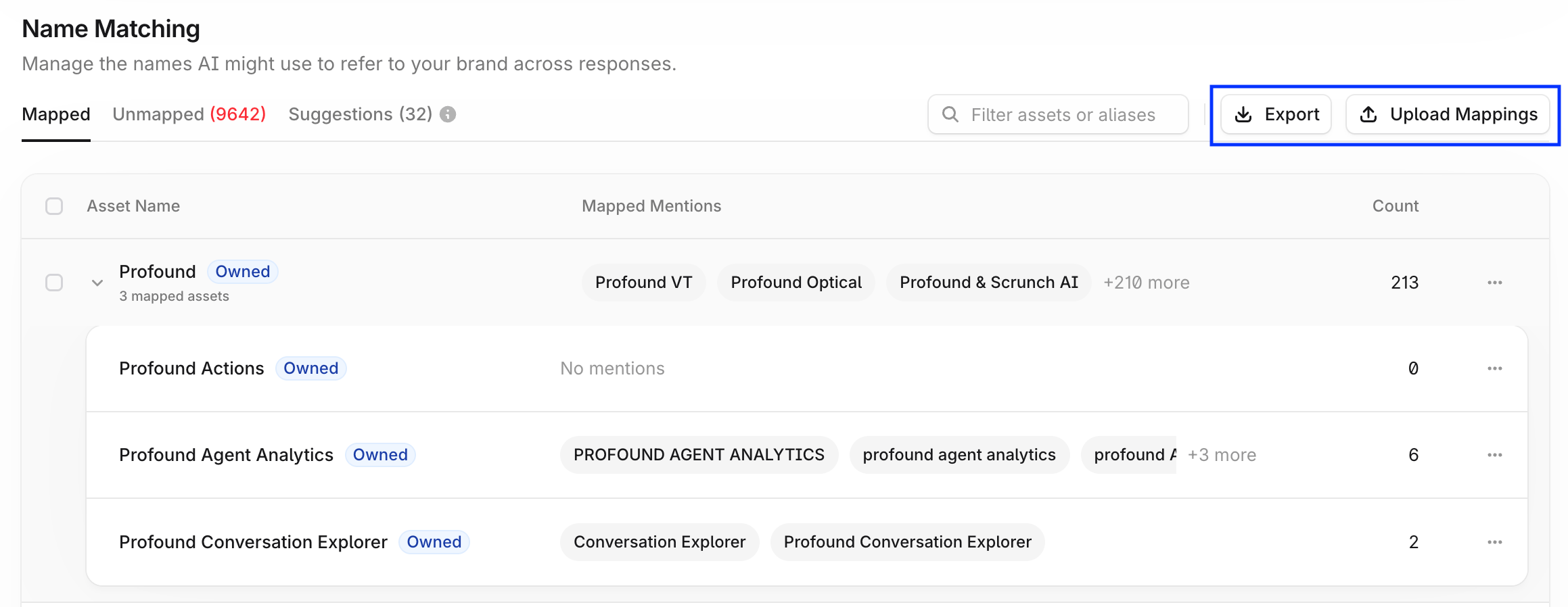
Entity Parser Configuration
Your Profound team configures the Entity Parser during onboarding, so most customers don’t need to change these settings.
What it does
Entity Parser configuration has two settings:- Entities to Parse — The entity type to focus on during parsing. Options include Companies, Products, People, Product Features, and Publication Sources.
- Additional Instructions — Free-text guidance for the extraction model, up to 500 characters. Use it for context-specific parsing rules.
When it’s needed
Entity Parser configuration becomes relevant when:- Your brand name is also a common word or phrase, such as “Popsicle,” “Comply,” or “Good Hands.”
- You need to extract product names or people, such as CEOs or celebrities, alongside company names.
- Default extraction consistently over- or under-counts mentions in a way Name Matching alone doesn’t fix.