

Overview
This integration uses a topic, subscription, and log sink to capture Google Cloud CDN logs and forward them to Profound Agent Analytics platform.Prerequisites
- A GCP account with Google Cloud CDN enabled
- Access and edit permissions to the GCP project
- API endpoint details for the Profound Agent Analytics platform
Configuration
1
Step 1
Sign into the GCP Console and navigate to
Topics, you can search for ‘topics’ in the search bar.2
Step 2
Create a new topic by clicking the 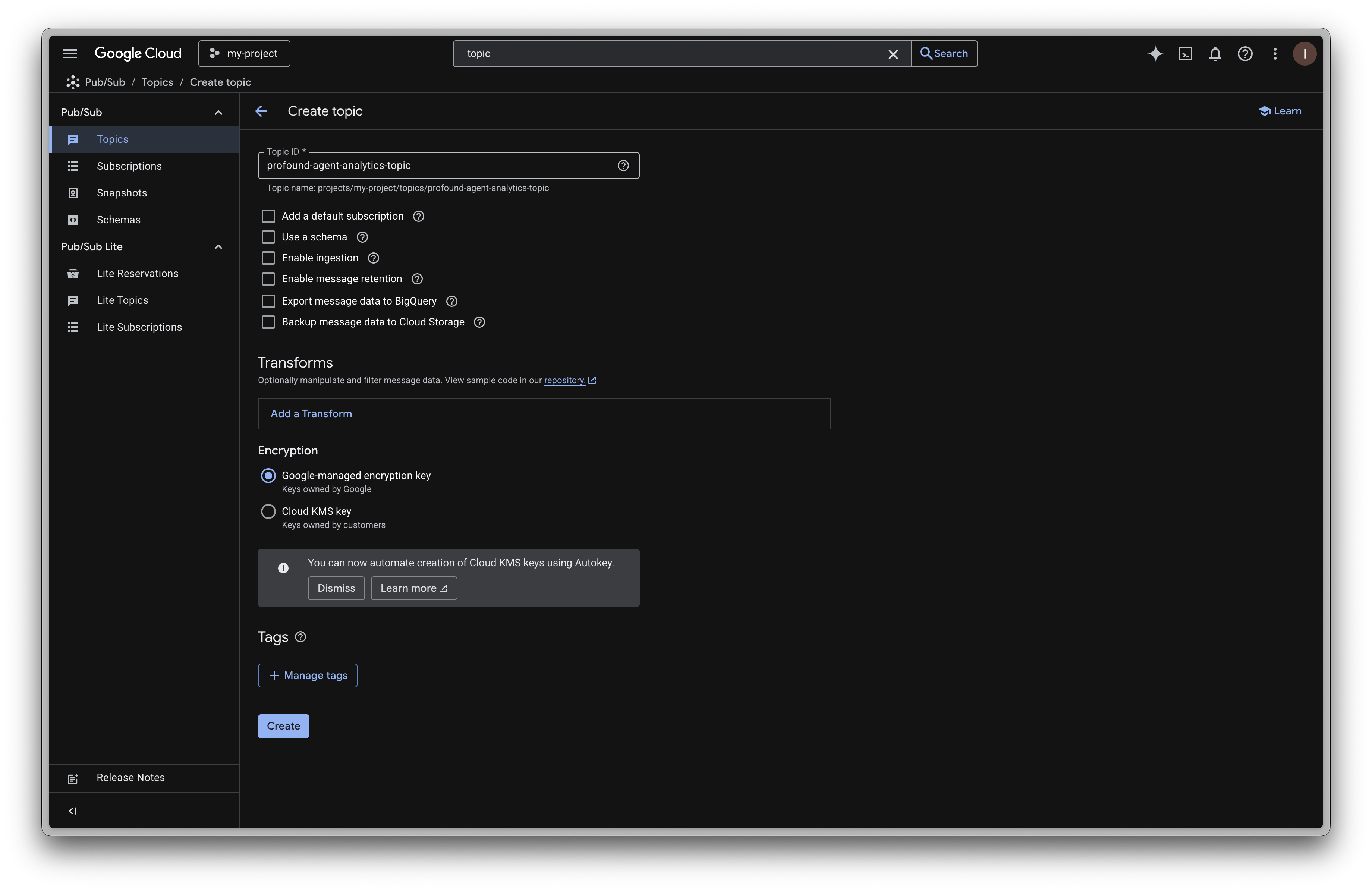
Create Topic button near the top.Create3
Step 3
Navigate to the 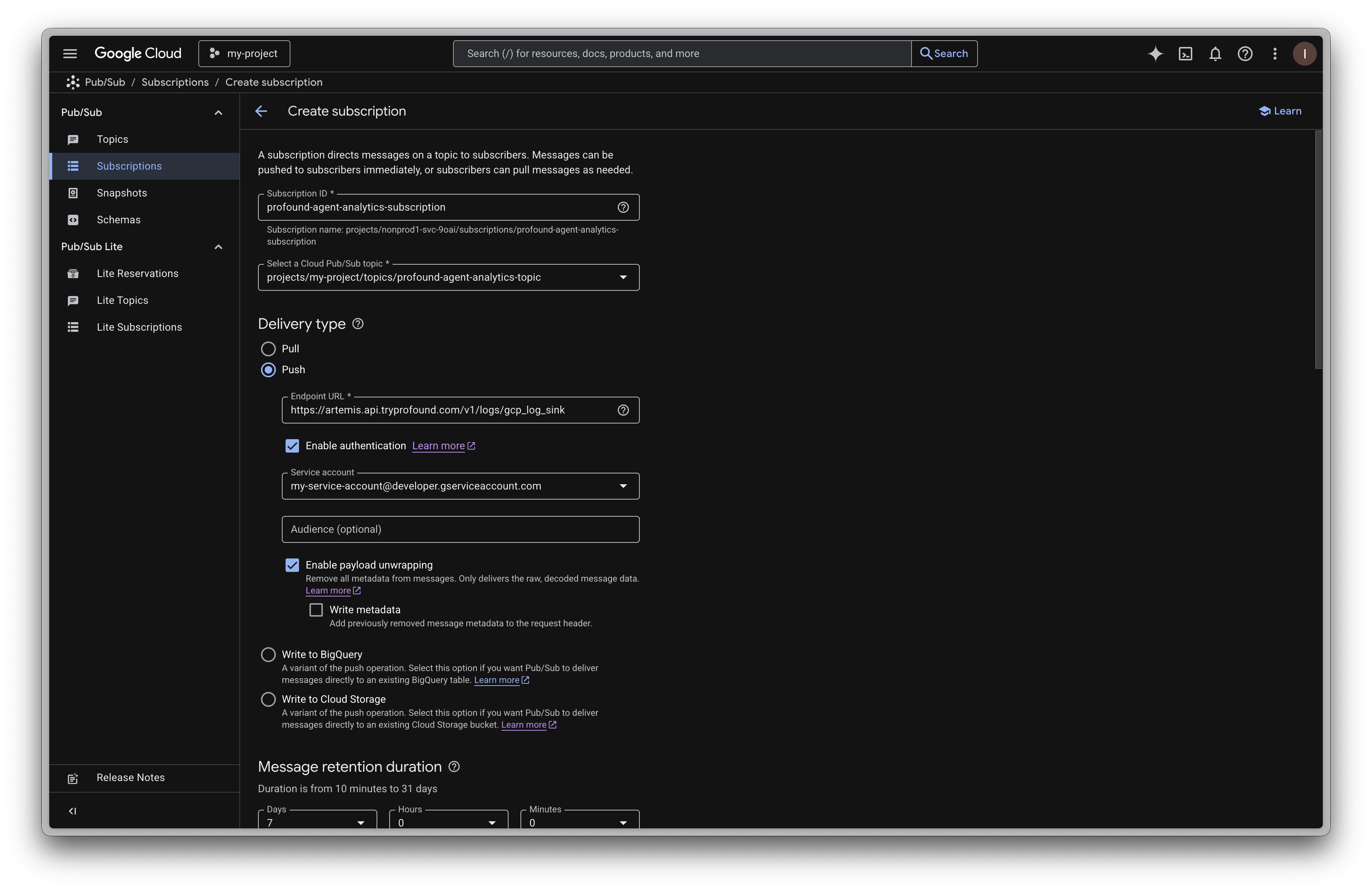
Subscriptions tab on the left sidebar. Click the Create Subscription button near the top.- Give your subscription a name.
- Select the topic you created in step 2.
- Use delivery type
Push- Enter
https://artemis.api.tryprofound.com/v1/logs/gcp_log_sinkas the endpoint - Enable authentication
- Paste the service account this subscription will use into the
Service accountfield - Leave
Audienceblank - Enable payload unwrapping
- Enter
4
Step 4
Add retention policy configurations at your discretion.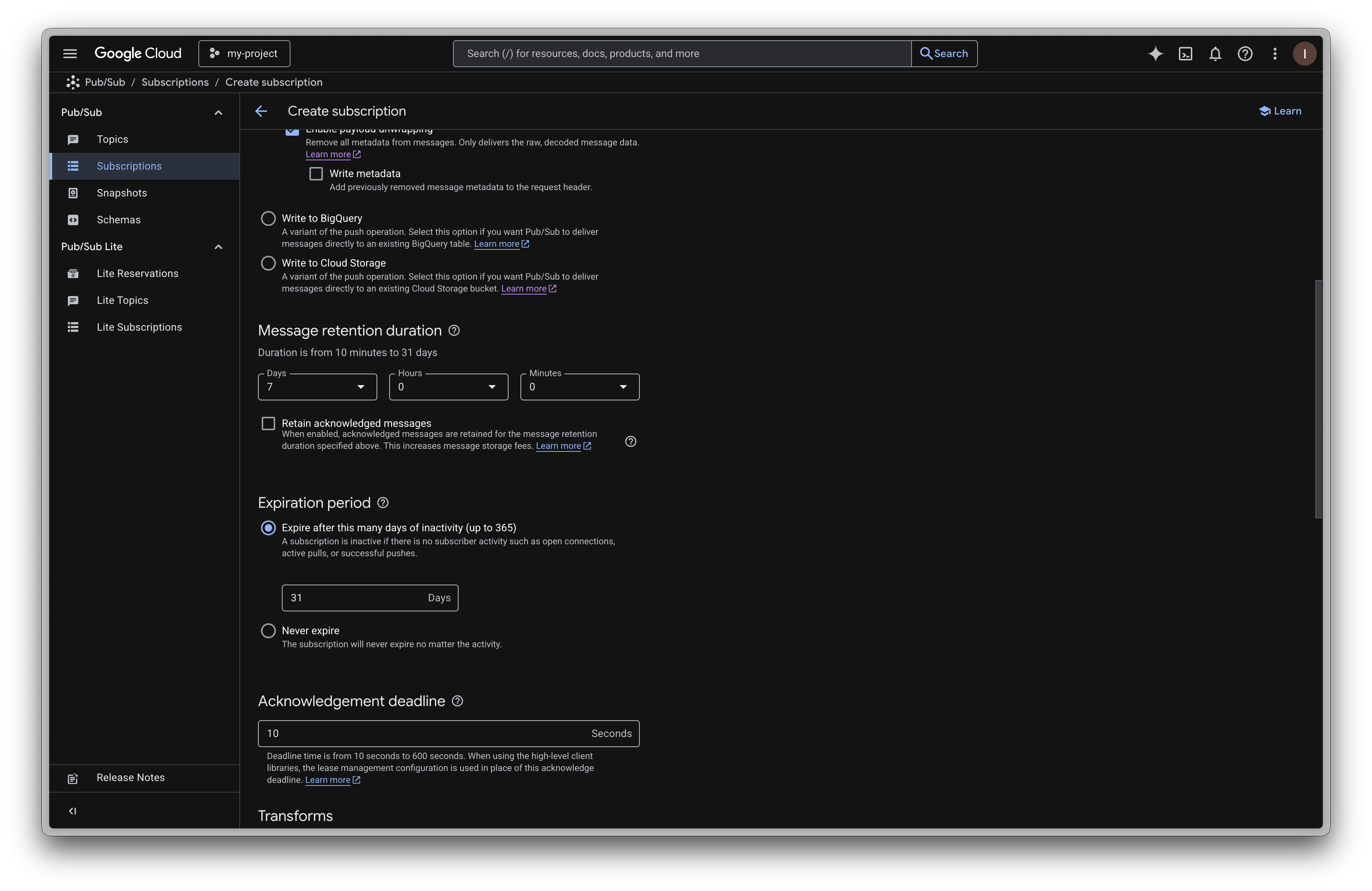
5
Step 5
Click 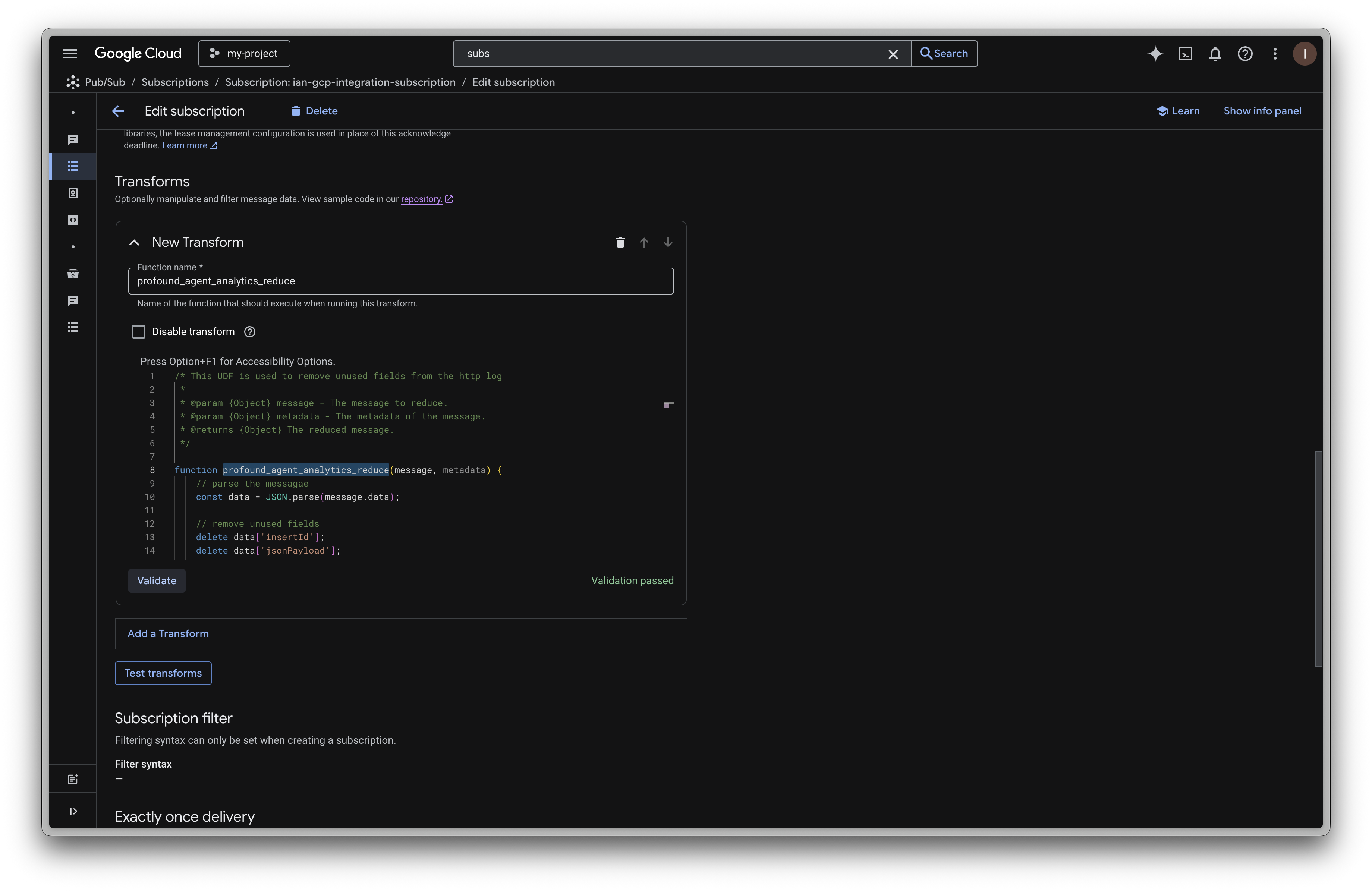
Add a Transform button. Enter profound_agent_analytics_reduce as the function name.Paste the following code into the function body:This function is used to drop extraneous fields before sending to Profound. This reduces log export volume, improves performance, and enhances data security.
Validate to ensure the function is valid.6
Step 6
Add additional configurations at your discretion.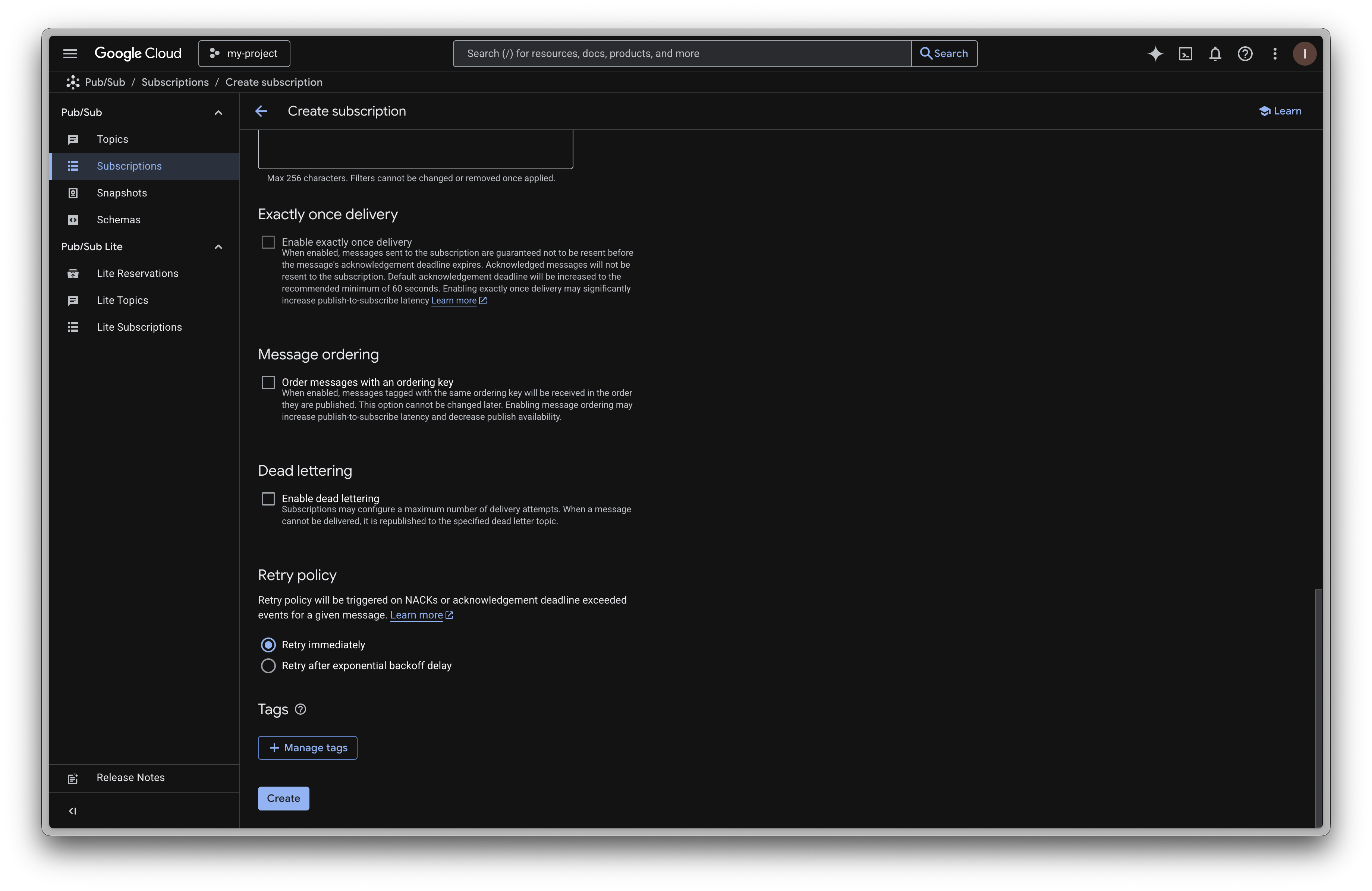
Create to create the subscription.7
Step 7
Navigate to the
Log Router tab by searching ‘log router’ in the search bar. Click the Create sink button near the top.Give your sink a name and optional description.8
Step 8
In the 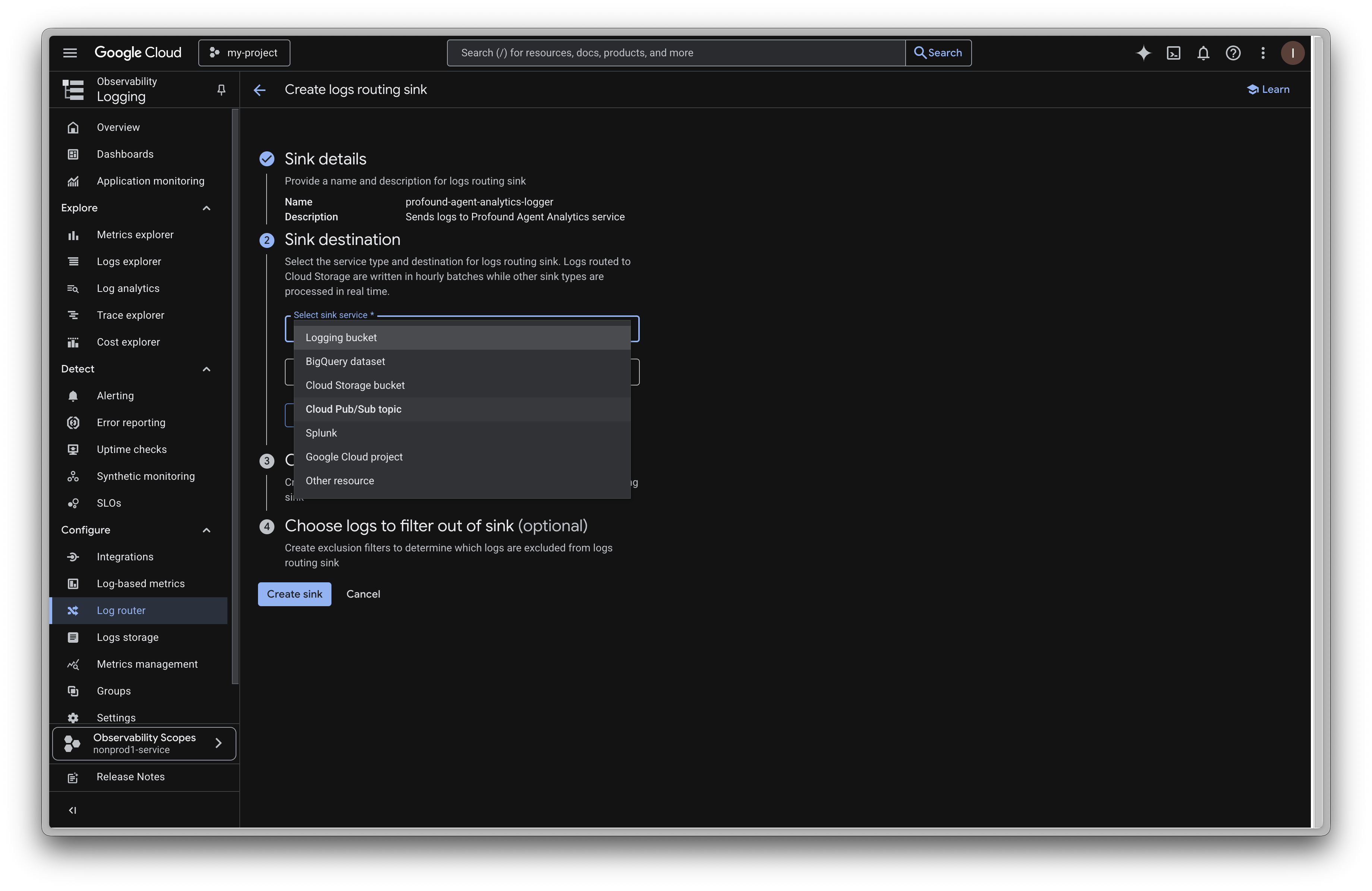
Sink destination section, select Cloud Pub/Sub topic as the sink service. In the sink destination field, select the topic you created in step 2.9
Step 9
Add the following filters to your sink in the 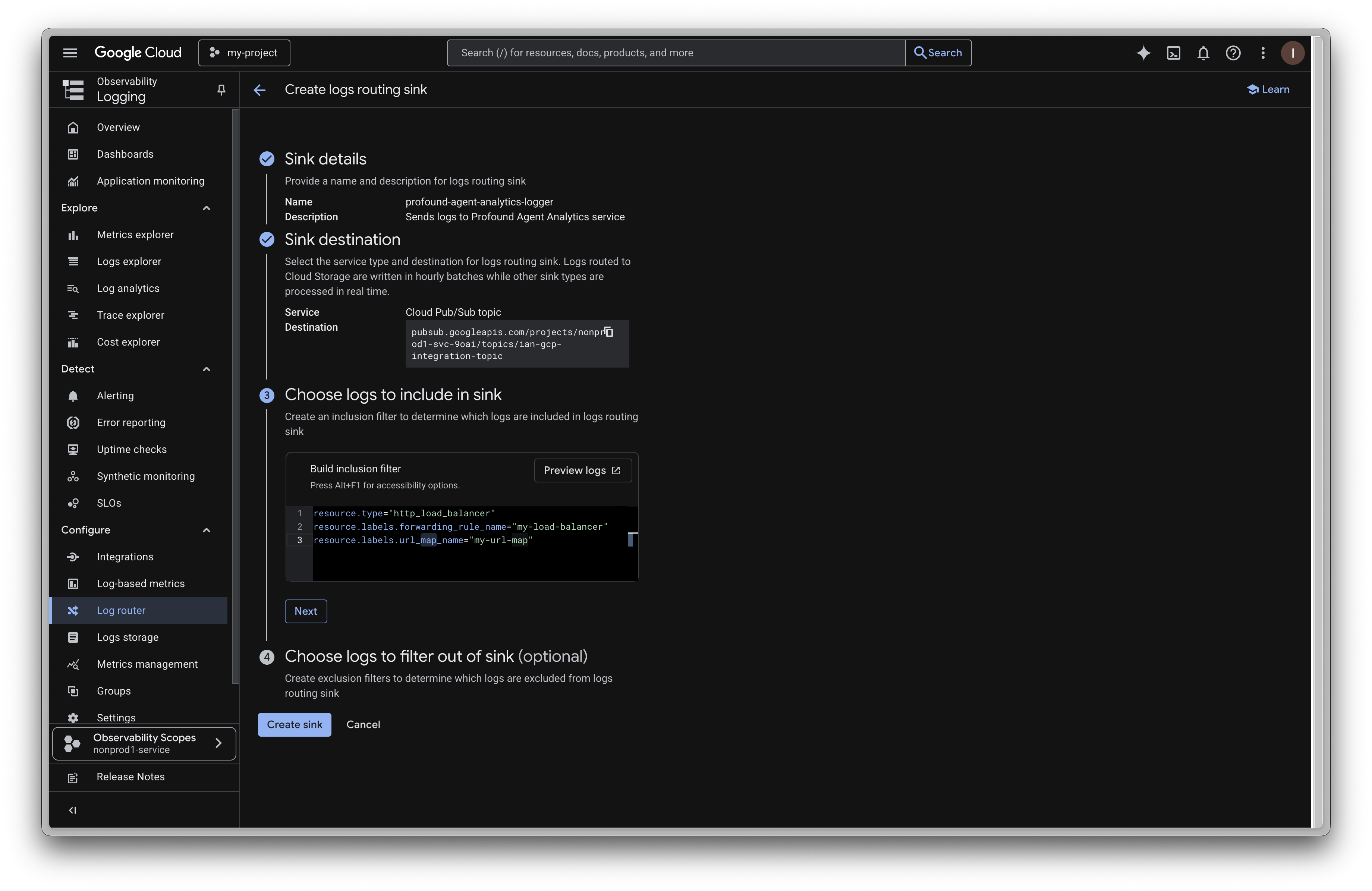
Choose logs to include in sink section.Create sink at the bottom.If you have multiple load balancers and url maps, you can modify the filters to include multiple resources like:
10
Step 10
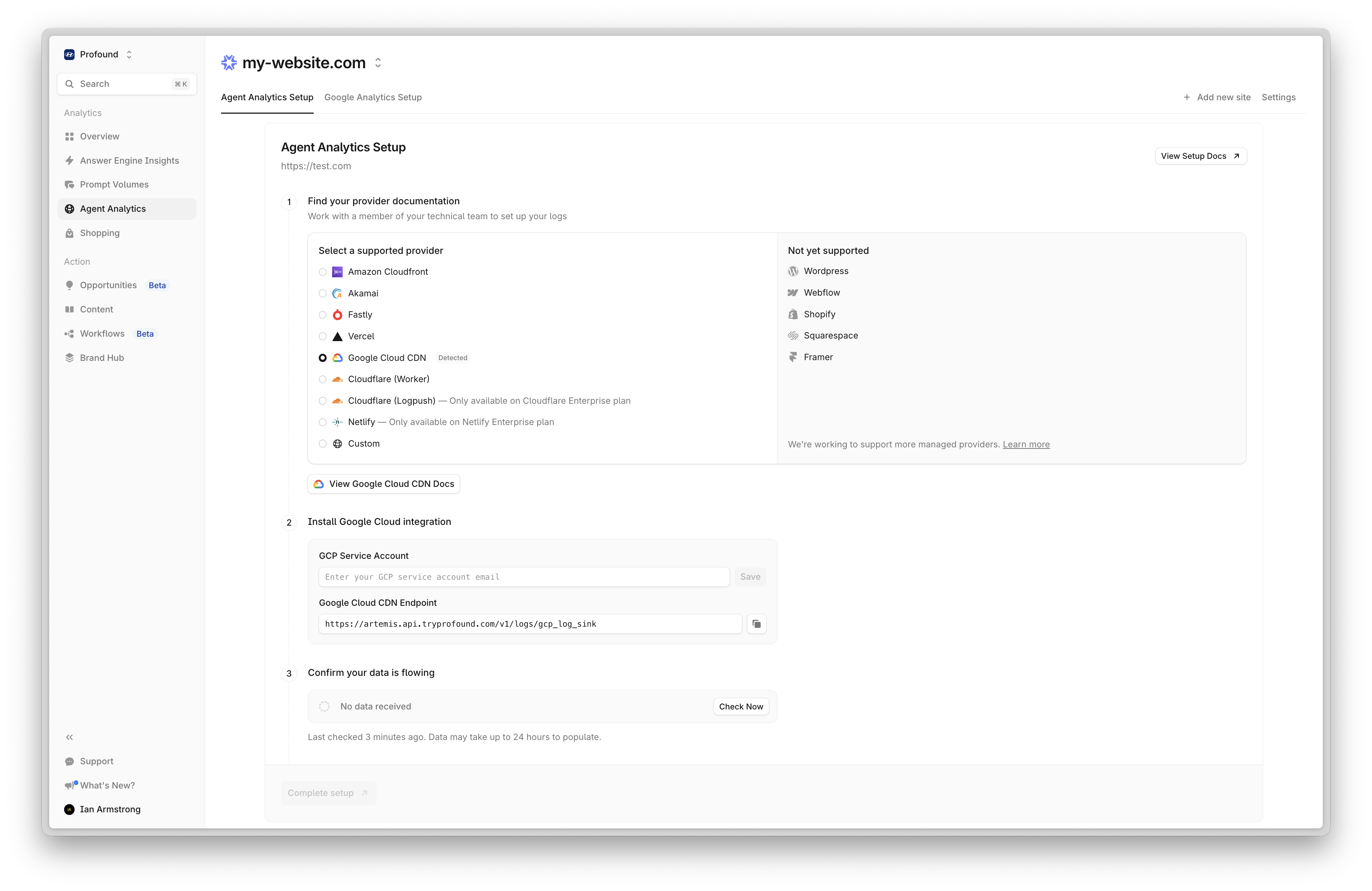
Navigate back to Profound. On the Agent Analytics onboarding page, paste the same service account email you used in step 3 into the
GCP Service Account field. Ensure you click Save after pasting the email.Continue to complete the onboarding process.That’s it! Google Cloud CDN will now send real-time logs to Profound. Data should begin appearing in your dashboard within a few minutes.
Troubleshooting
- Ensure you have shared the same service account email with Profound that you used to create the subscription.
-
Check the
Logstab in Profound to verify the logs are being received. - Verify the service account has the necessary permissions to access the topic as pub/sub.
- Verify the topic is created and active.
- Verify the subscription is created and active.
Additional Resources
- Third Party Log Routing Documentation
- Service Account Management Documentation
- Contact support@tryprofound.com for API-related questions