Relevant Prompts tab
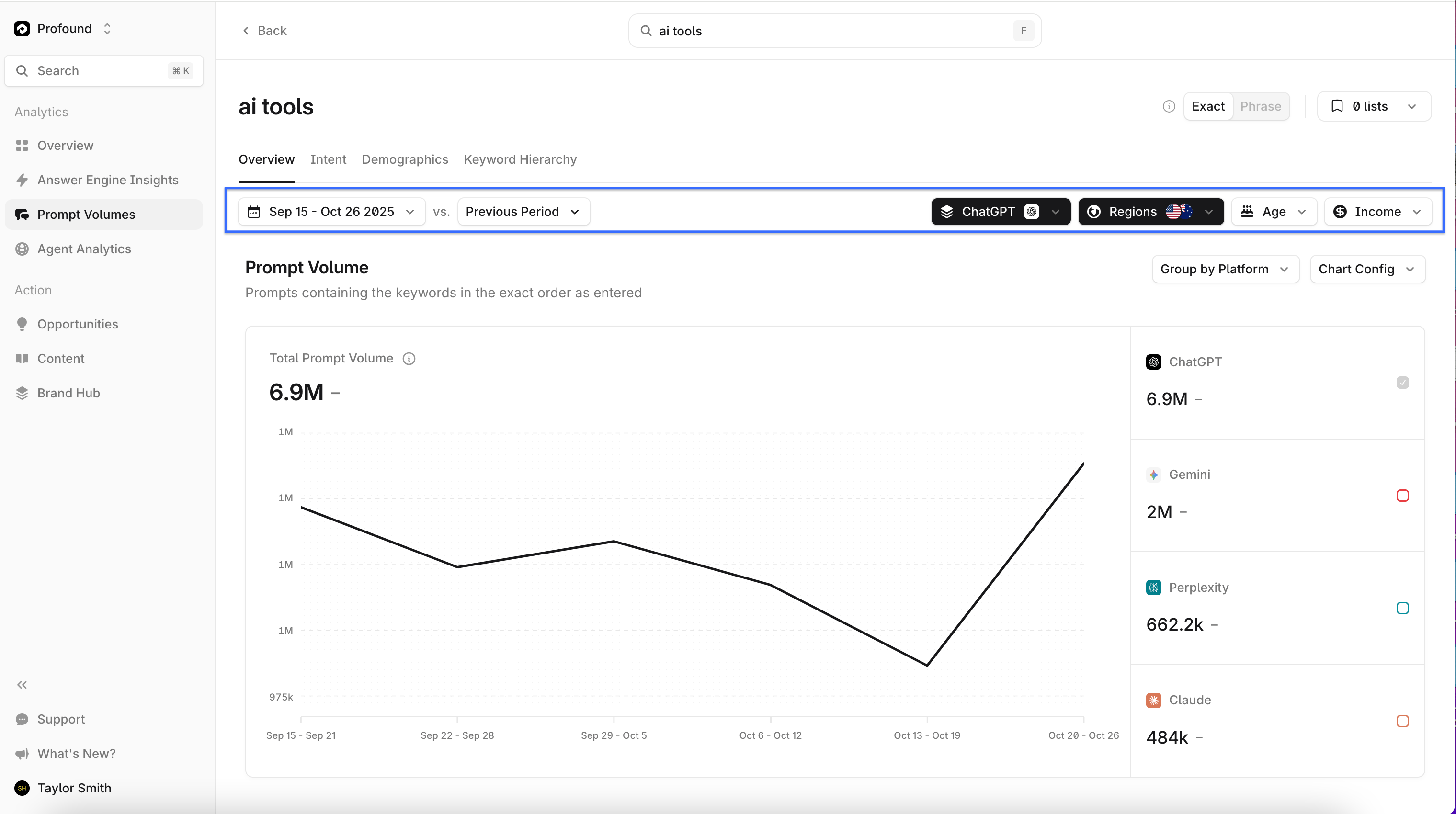
Three main charts and tables provide an overview of your keyword query results. Use these to understand the volume of prompts that contain your queried keywords.Prompt Volumes
The Prompt Volumes chart shows how many keyword matches were found in the prompt dataset. Adjust the visualization using the Chart Config controls above the chart. Display results as either a line or bar chart, and group results by platform, age, or income.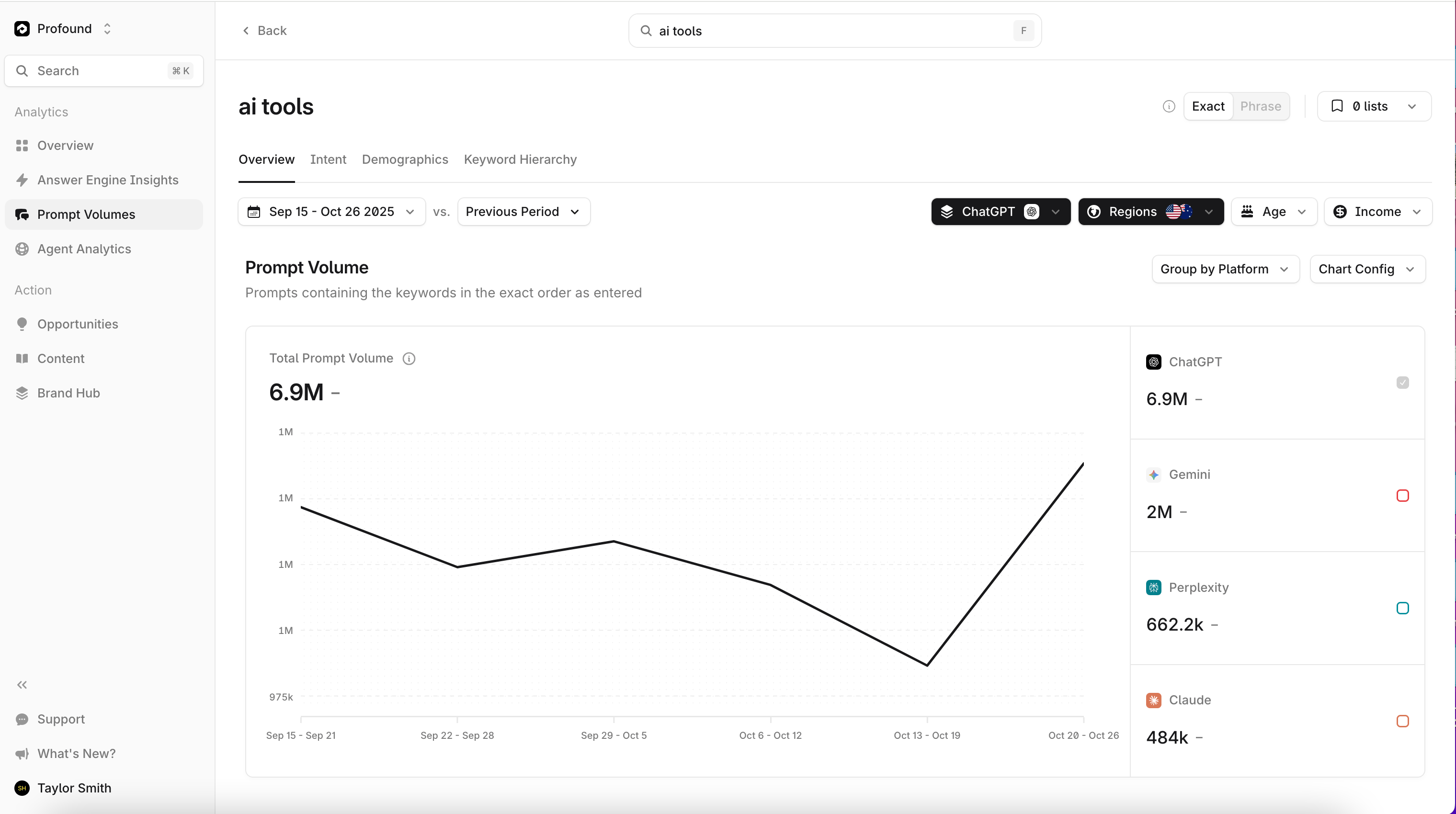
Relevant Prompts
The Relevant Prompts table lists the prompts included in your results. This provides a more granular view of the specific questions passed to answer engines that contain your keyword.Similar Keywords
The Similar Keywords table displays keywords that commonly appear in similar prompting patterns. Select any keyword in this list to run a new query for that term.Intent
The Intent tab displays a chart showing the share of conversations by intent, based on a representative sample of user conversation data over the last 90 days. Profound classifies intent as informational, commercial, conversational, or generative (requests to create content).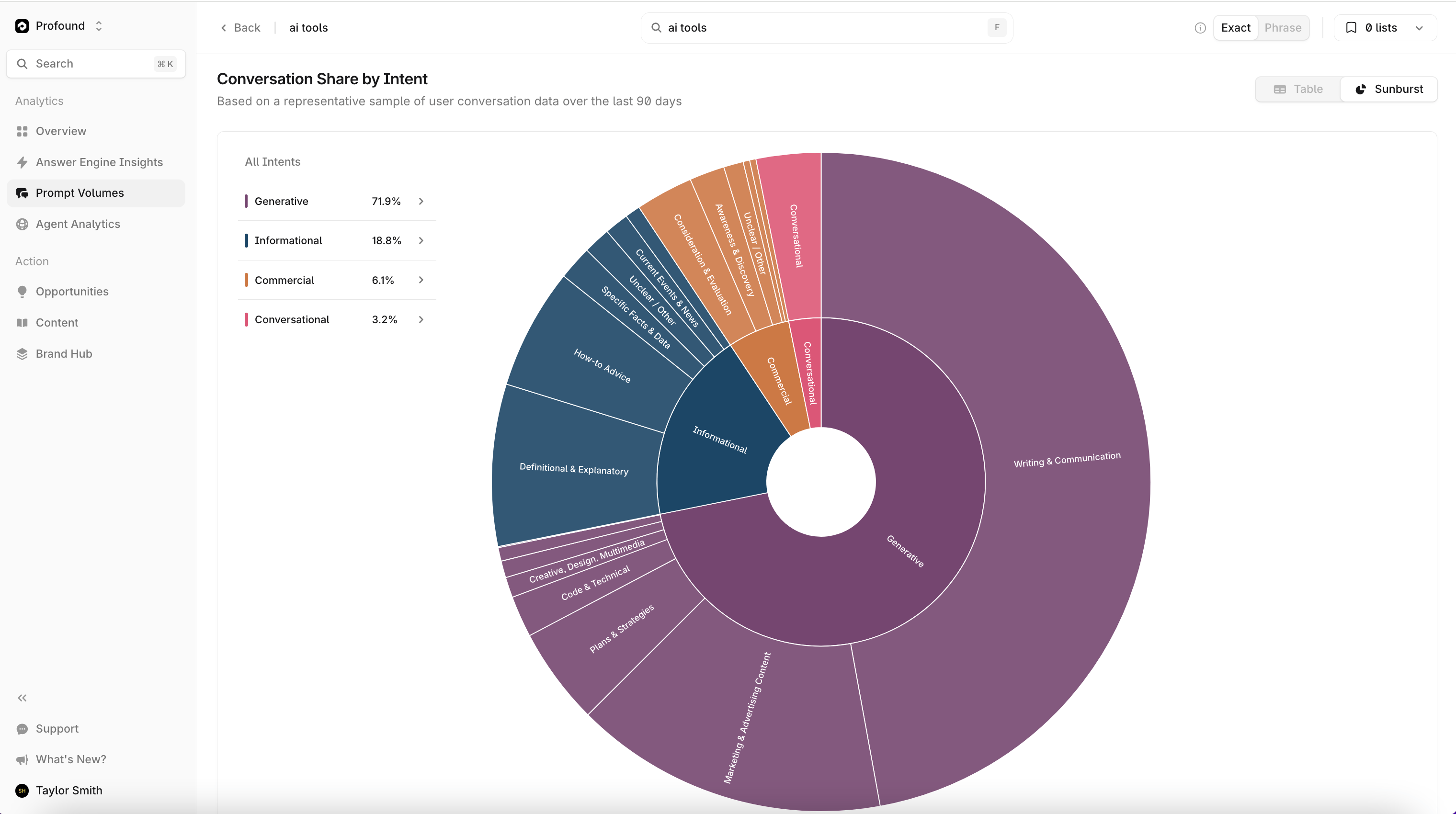
Demographics
The Demographics tab displays keyword query results broken down by region, age, and annual income.Region
The Region chart is a heat map showing the volume of prompts containing the queried keyword across geographic regions. A table to the right lists the exact prompt counts for each region.Age
The Age chart groups prompt results by age ranges. View this data as either a bar chart or a table using the toggle above the chart.Annual income
The Annual Income chart groups prompt results by income ranges. View this data as either a bar chart or a table using the toggle above the chart.Keyword Hierarchy
The Keyword Hierarchy tab contains an interactive hierarchy chart. The queried keyword heads the chart. Subsequent levels show expanded keywords and their corresponding prevalence in the results.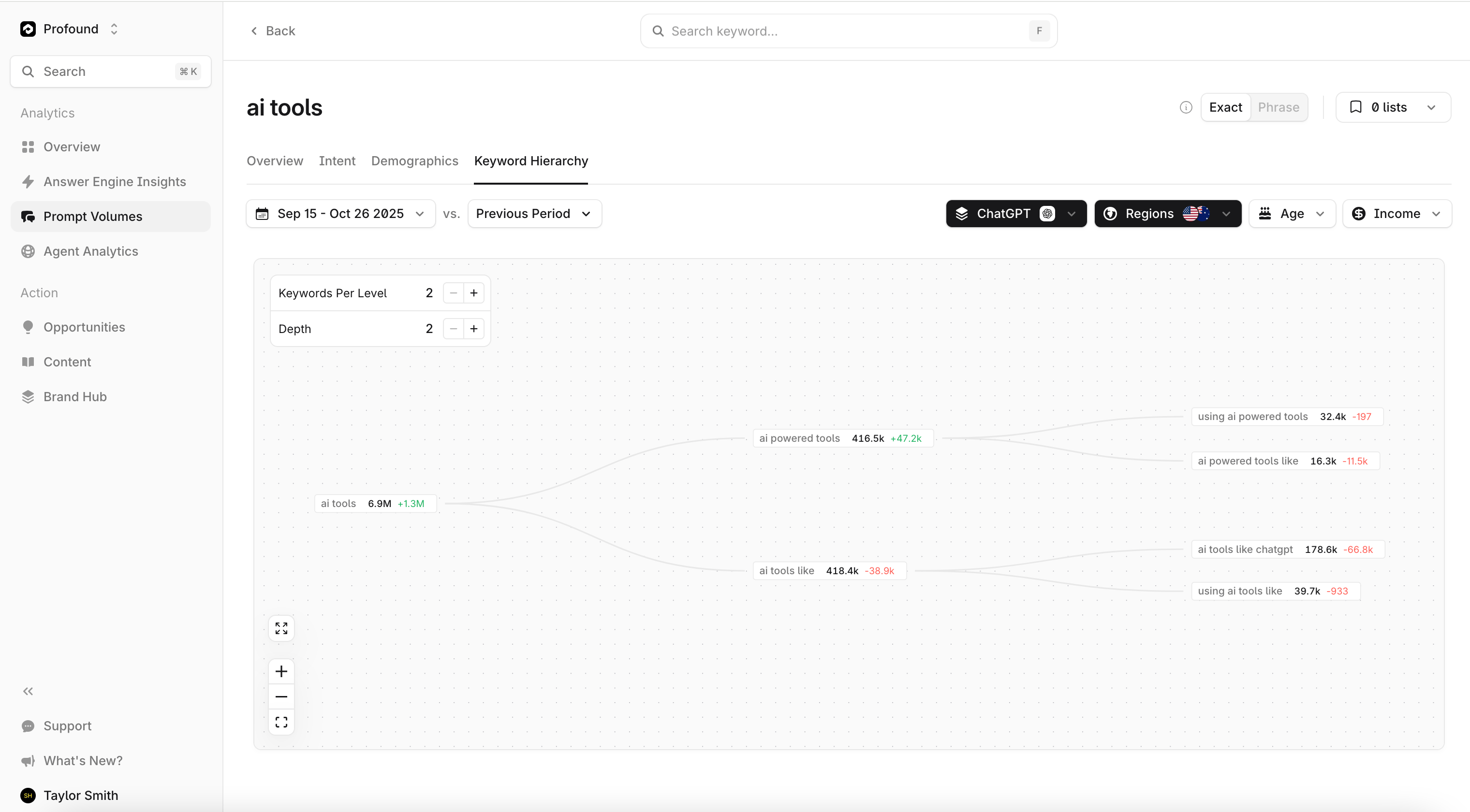
Filters
Filters are available across Prompt Volumes. They let you adjust the analytical time frame, narrow the data view, and apply groupings. Filters appear as dropdown menus beneath the top navigation bar.