

Step 1: Open the FactCheck tab
Go to Answer Engine Insights > FactCheck. The first time you open the tab, an onboarding screen guides you through setup: assigning the FactCheck analysis type to your prompts and connecting a Knowledge Base.Step 2: Choose your prompts
-
From the onboarding screen, open the Prompt Designer.
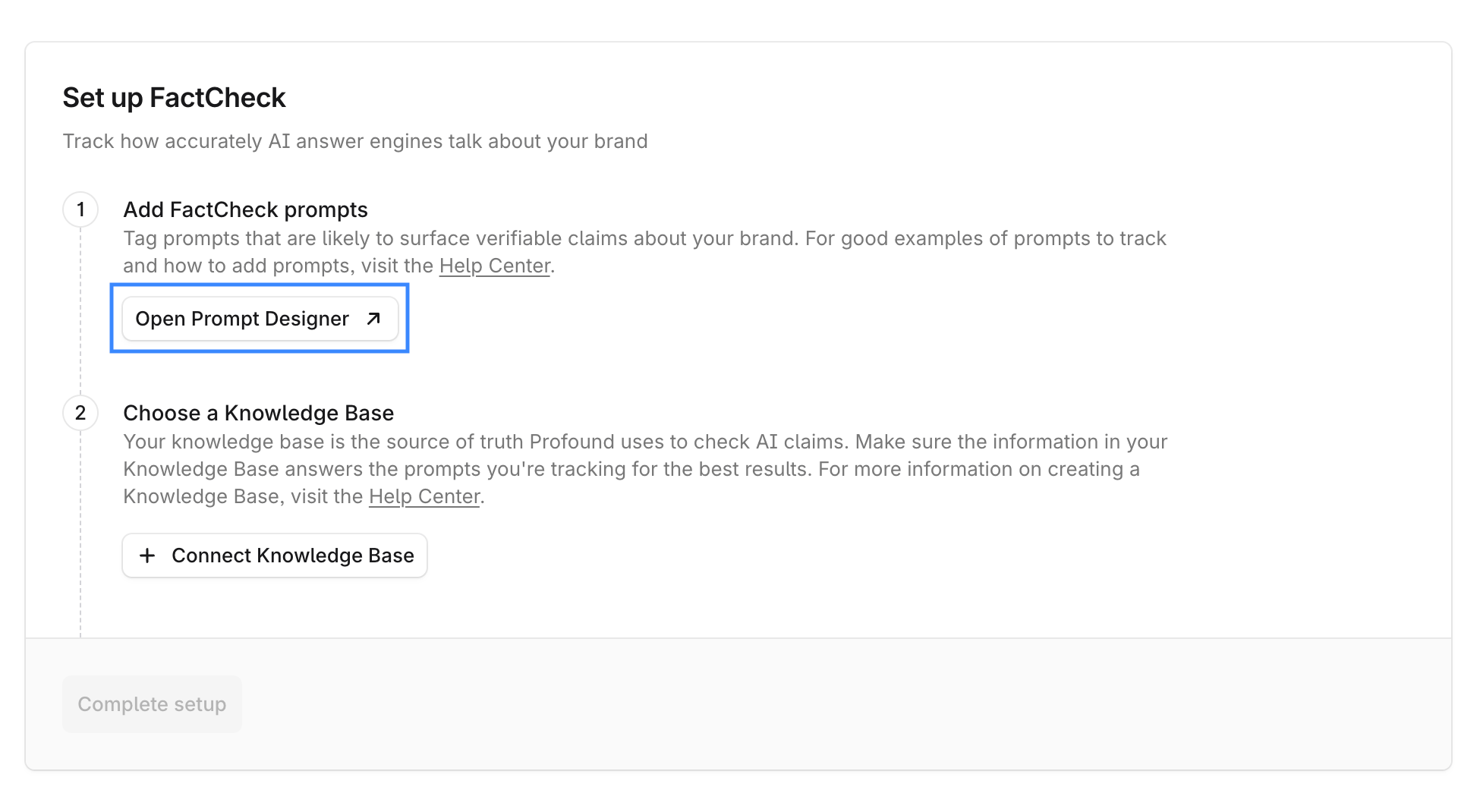
- Select 100 to 200 fact-based prompts that are likely to surface verifiable claims about your brand. Good candidates include prompts about product specifications, pricing, policies, safety claims, features, and service terms. Avoid opinion-based or subjective prompts.
- After you select the prompts, go to Edit > Analysis Types and set their analysis type to FactCheck.
- If you’re already tracking prompts for Visibility or Sentiment, you can add FactCheck to those or create new prompts specifically for FactCheck.
Step 3: Connect a Knowledge Base
On the onboarding screen, select the + Connect Knowledge Base and select the Knowledge Base you want FactCheck to use as its source of truth.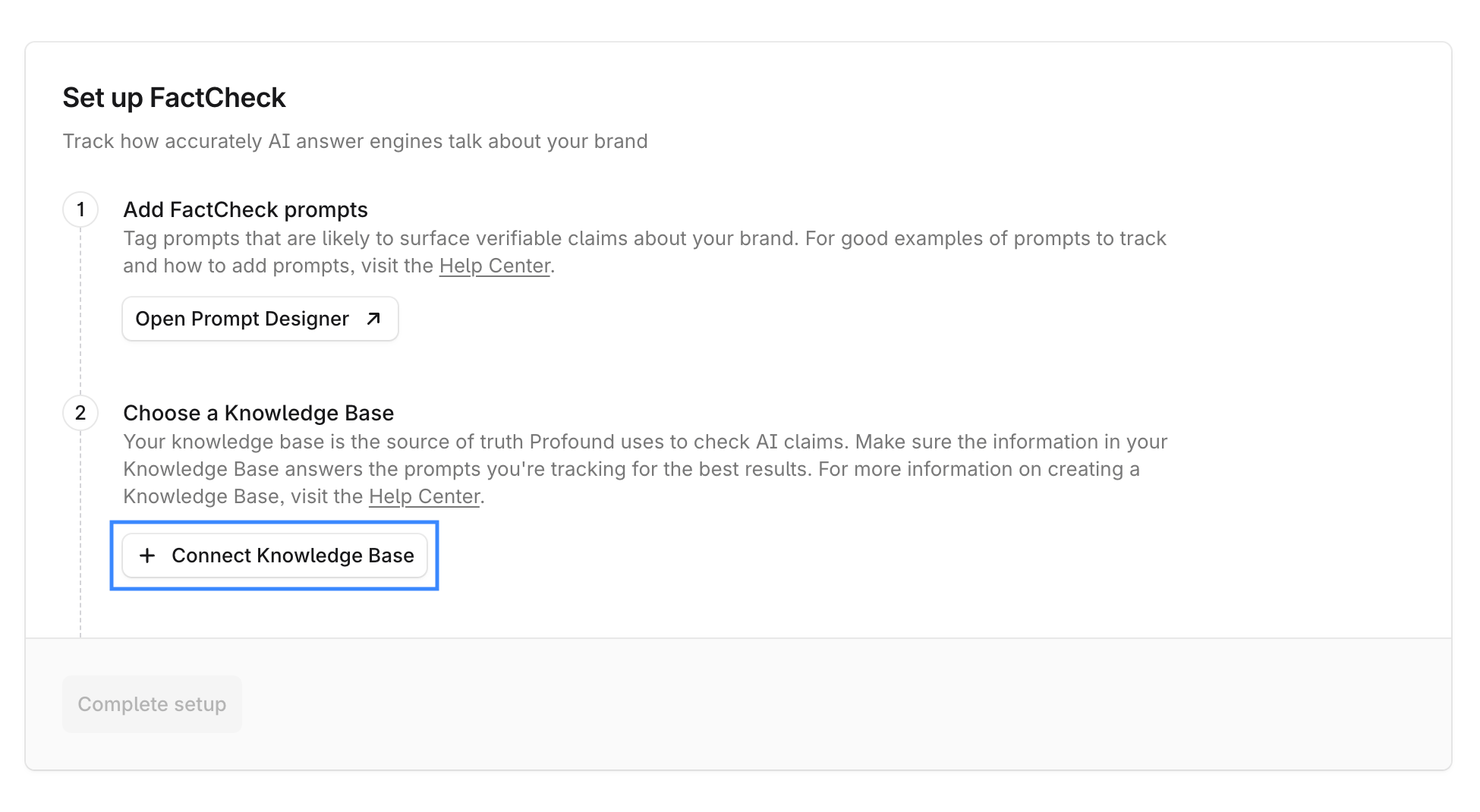
You can connect only one Knowledge Base to FactCheck. Learn more about Knowledge Base best practices and setup limitations in How to get the best results working with FactCheck.
Step 4: Complete setup
Once your prompts carry the FactCheck analysis type and a Knowledge Base is connected, select Complete setup.Step 5: Explore the results
FactCheck results typically take 7 days to appear. Once available, go to Answer Engine Insights > FactCheck to review them:- Browse Inaccurate Claims by theme and expand themes to view the claims and the ground truths they were evaluated against.
- Review the Accuracy Breakdown per citation, platform or prompt. Select citations or prompts to open a detailed analysis view.